Using Autocrat
to create a
Certificate
Slide presentation by
Nives Torresi
What is Autocrat?
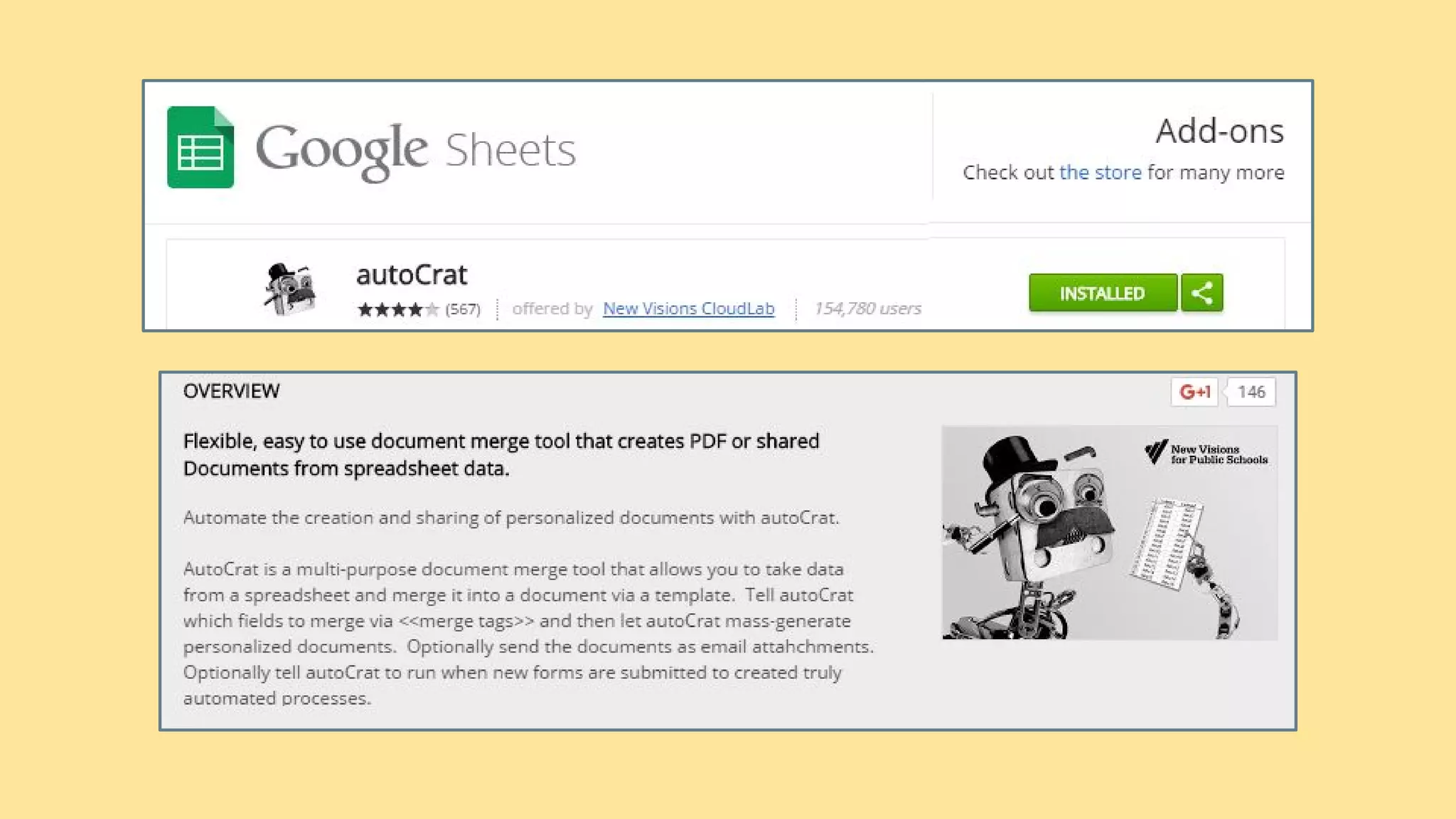
Link to app in Google Chrome Store AUTOCRAT add-on
AUTOCRAT is basically a MAIL MERGE system designed for use with
Google Docs and Sheets.
If you have ever used Microsoft Word MAIL MERGE then this does the same
thing.
Note: Let’s see the next slide to understand the principle of a mail merge process
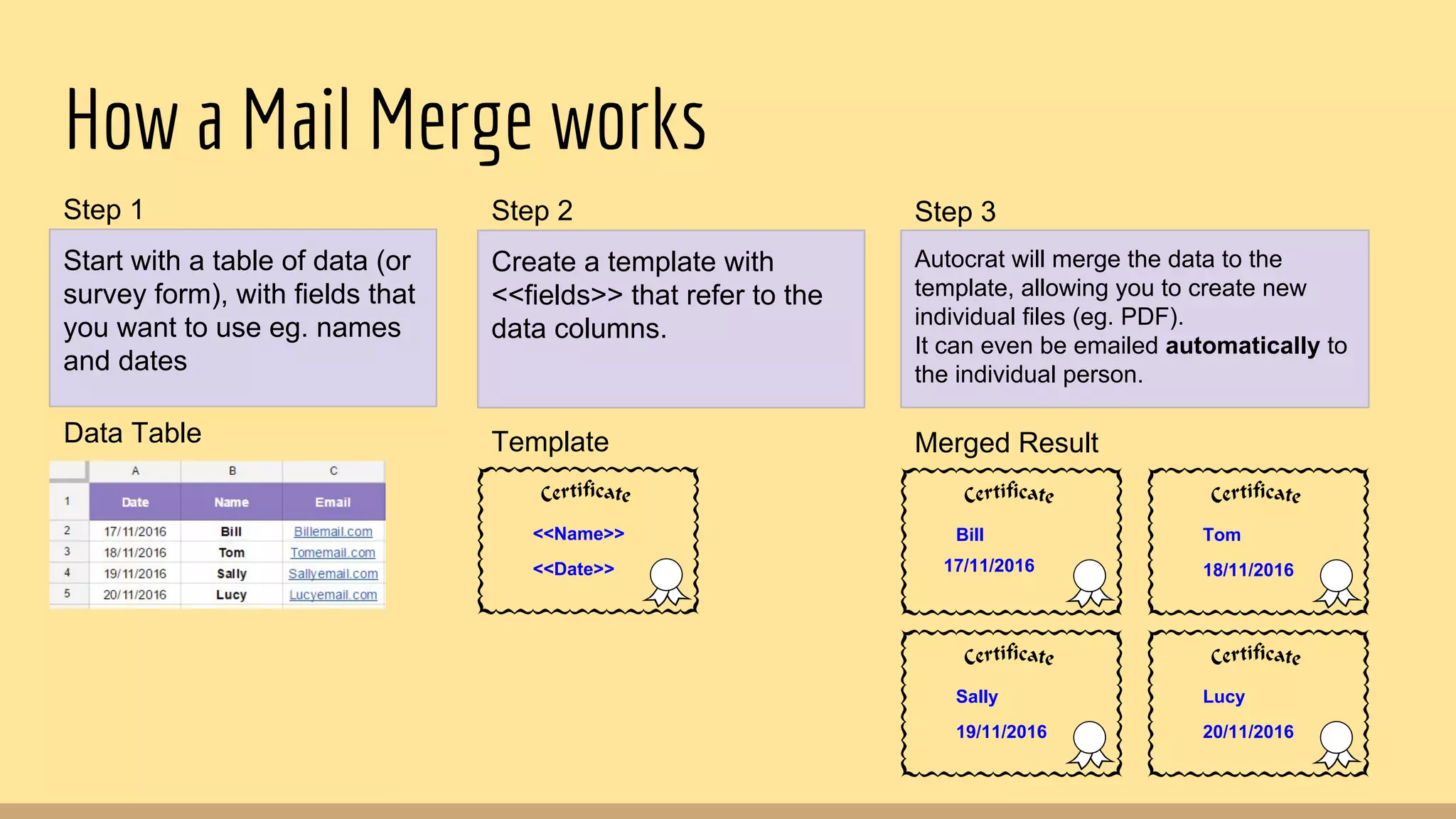
How a Mail Merge works
Data Table
Start with a table of data (or
survey form), with fields that
you want to use eg. names
and dates
Step 1
<<Name>>
<<Date>>
Template
Create a template with
<<fields>> that refer to the
data columns.
Step 2
Bill
Merged Result
Tom
18/11/2016
Sally
19/11/2016
Lucy
20/11/2016
Autocrat will merge the data to the
template, allowing you to create new
individual files (eg. PDF).
It can even be emailed automatically to
the individual person.
Step 3
17/11/2016
Autocrat with Google forms
Using the Autocrat with a Google forms is a great way to get feedback from a
survey and ‘automatically’ send out a ‘Thank you’ note with the respondent's
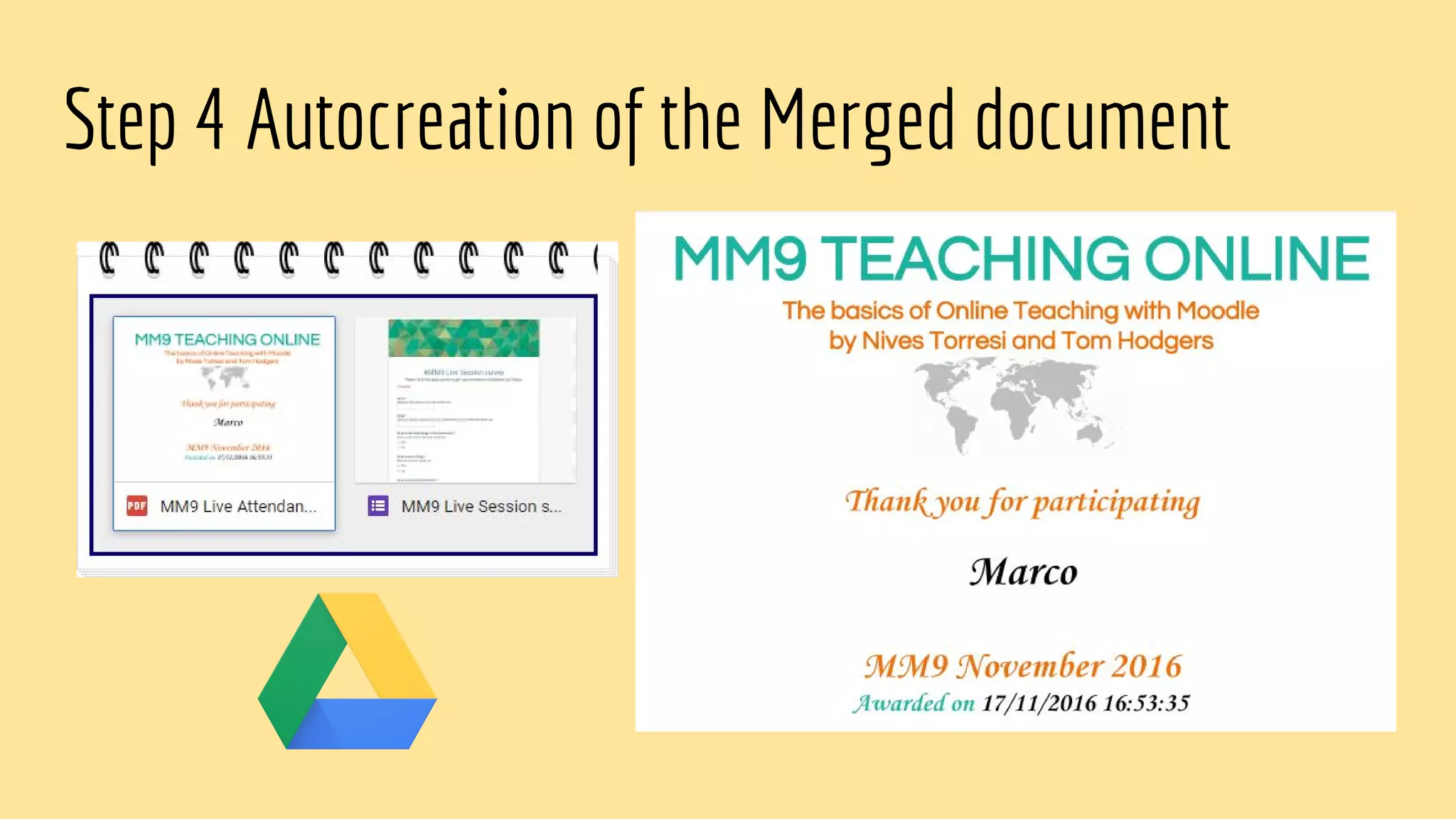
actual name. Or similarly create an automated Certificate of Completion.
Step1 : Create the “Thank you note” on Google Docs and
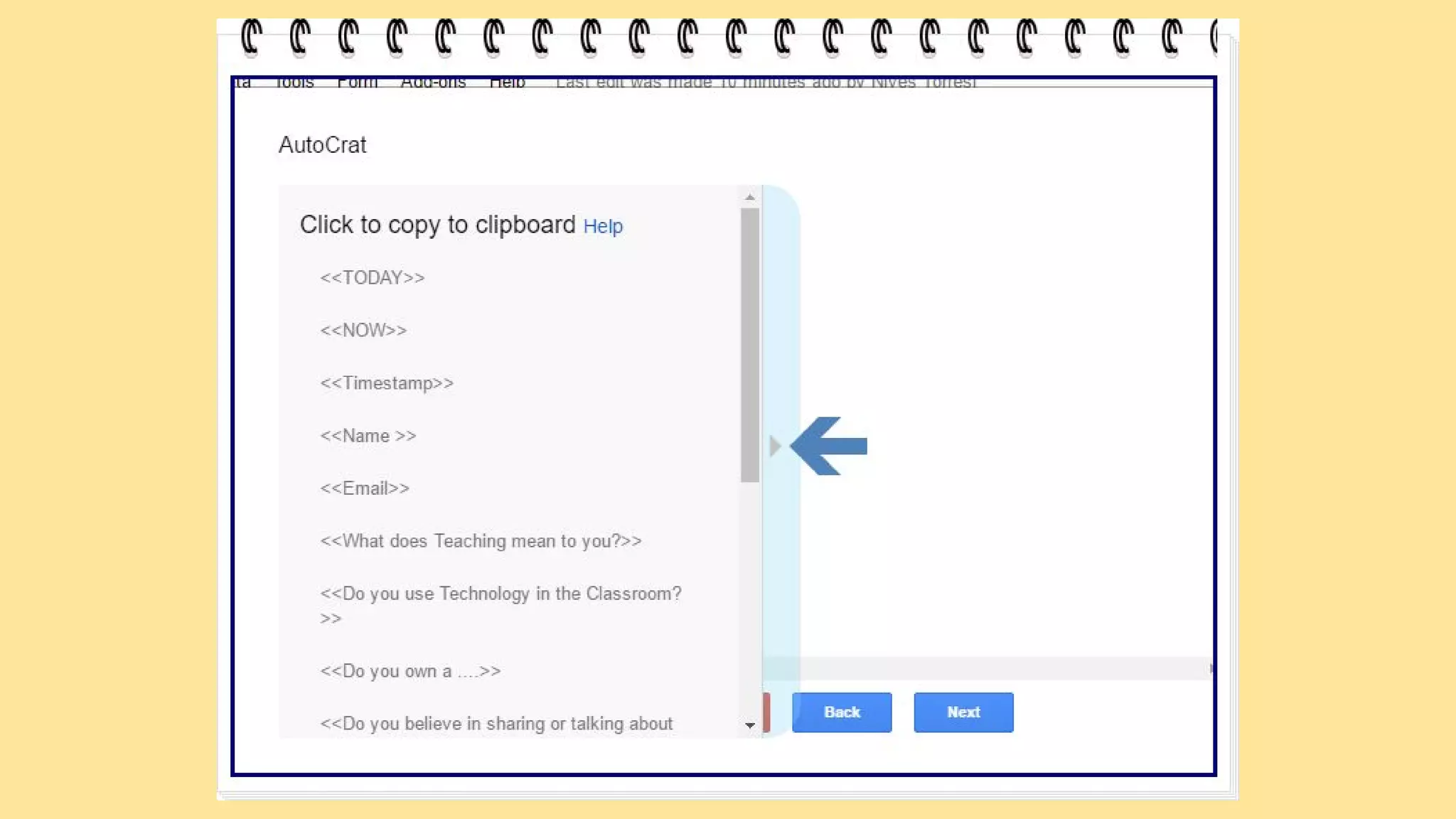
add the data <<fields>> to the Google Doc “Thank you note”
Step 2: Create the Google form
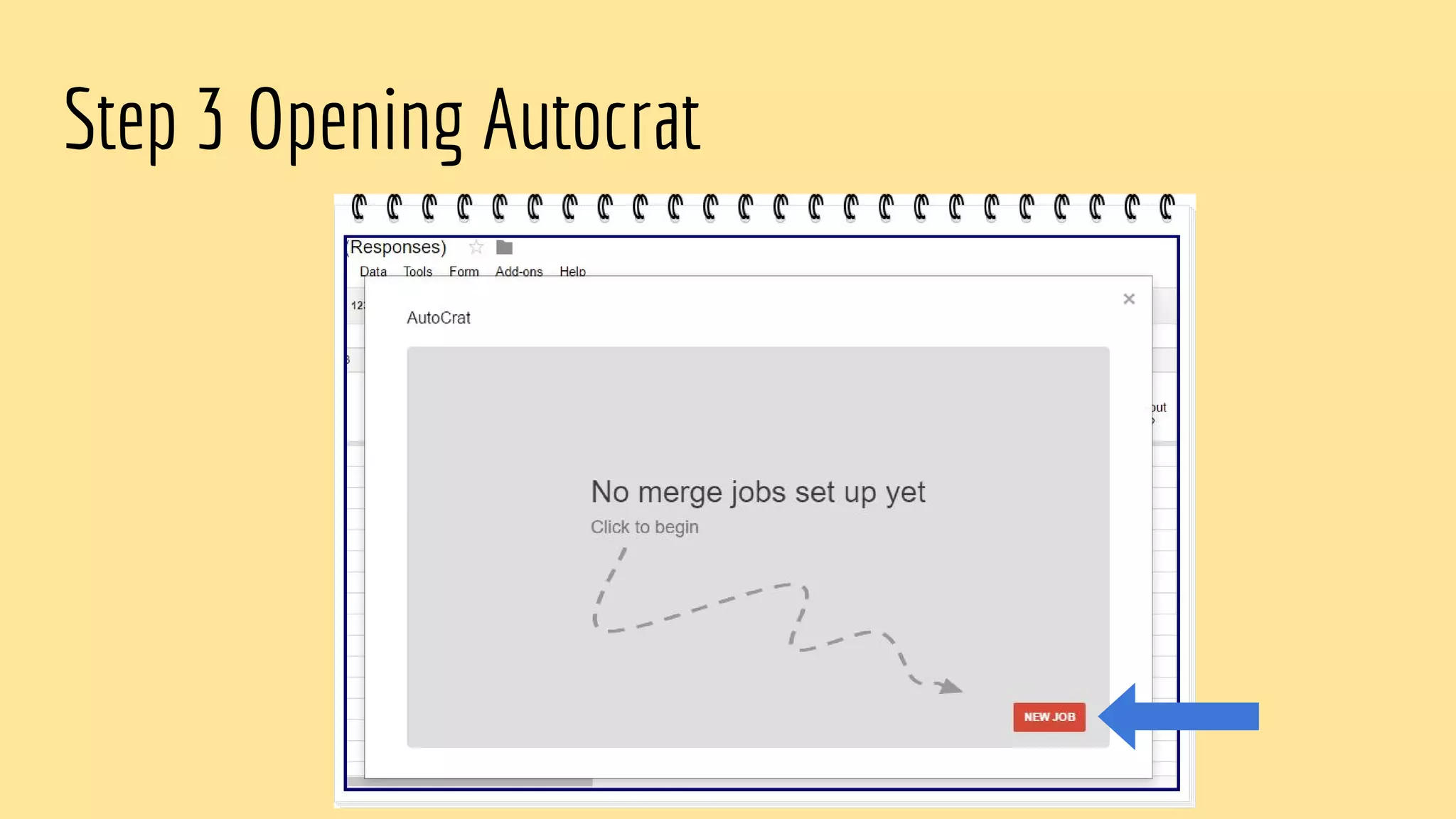
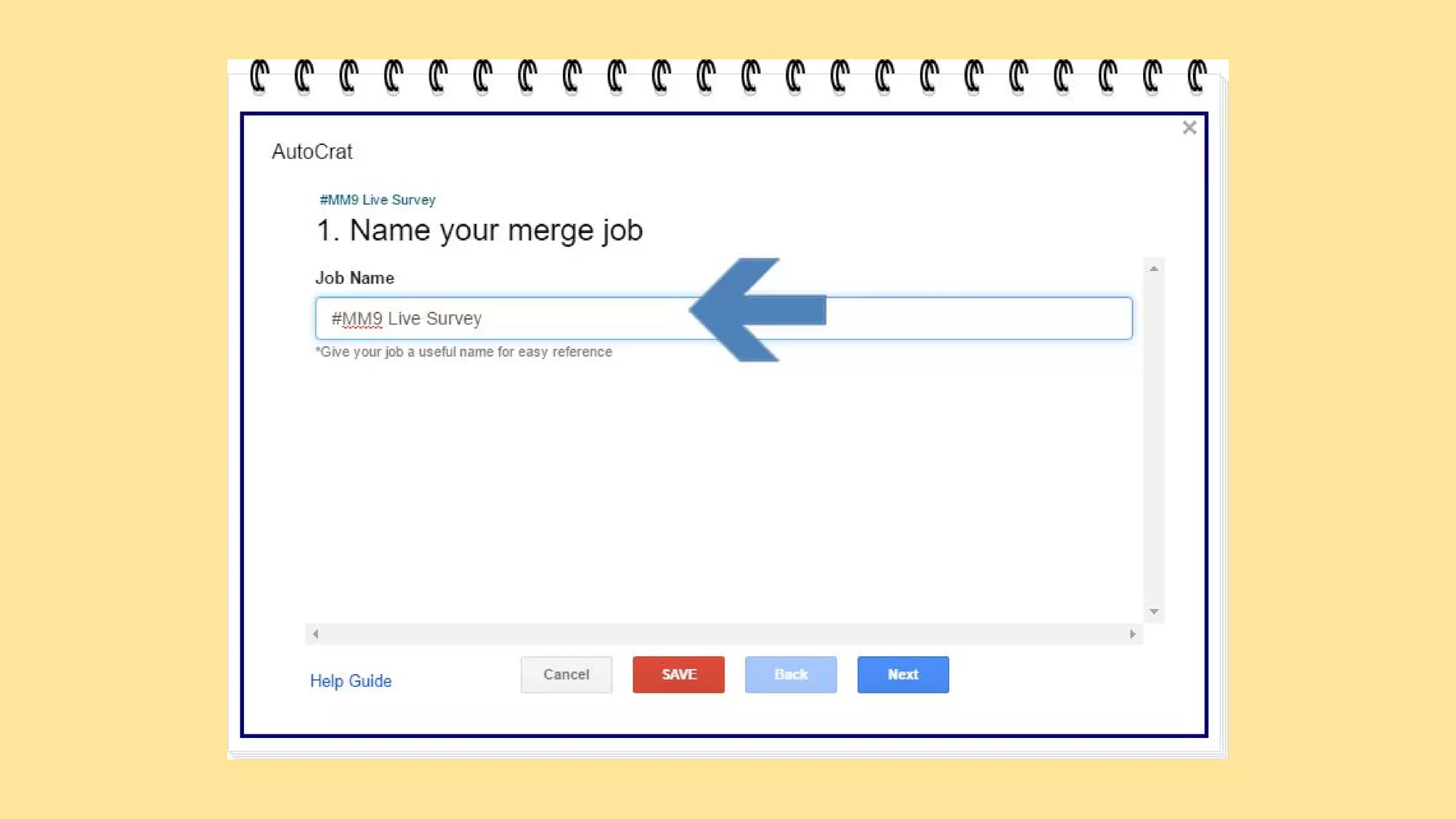
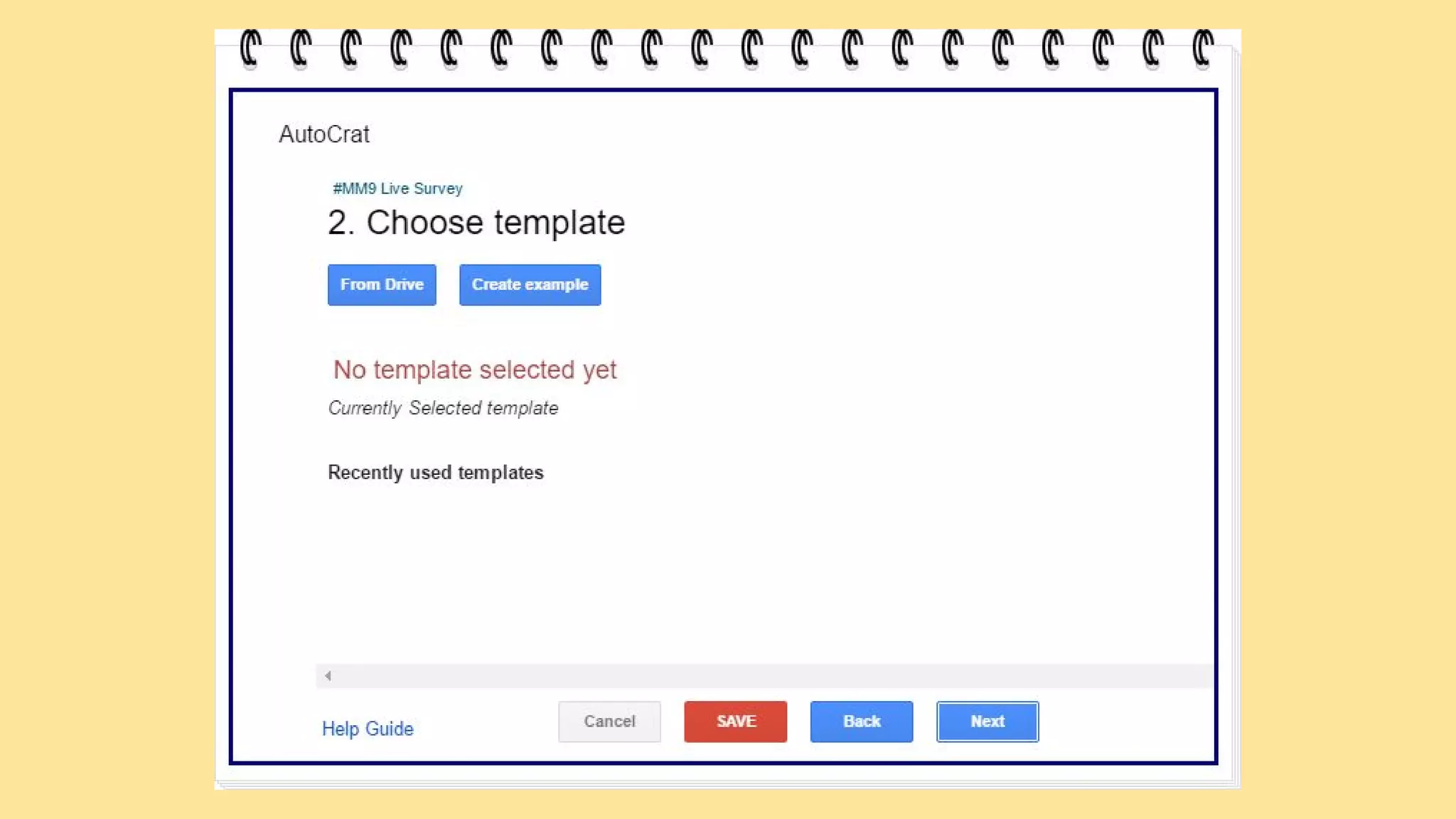
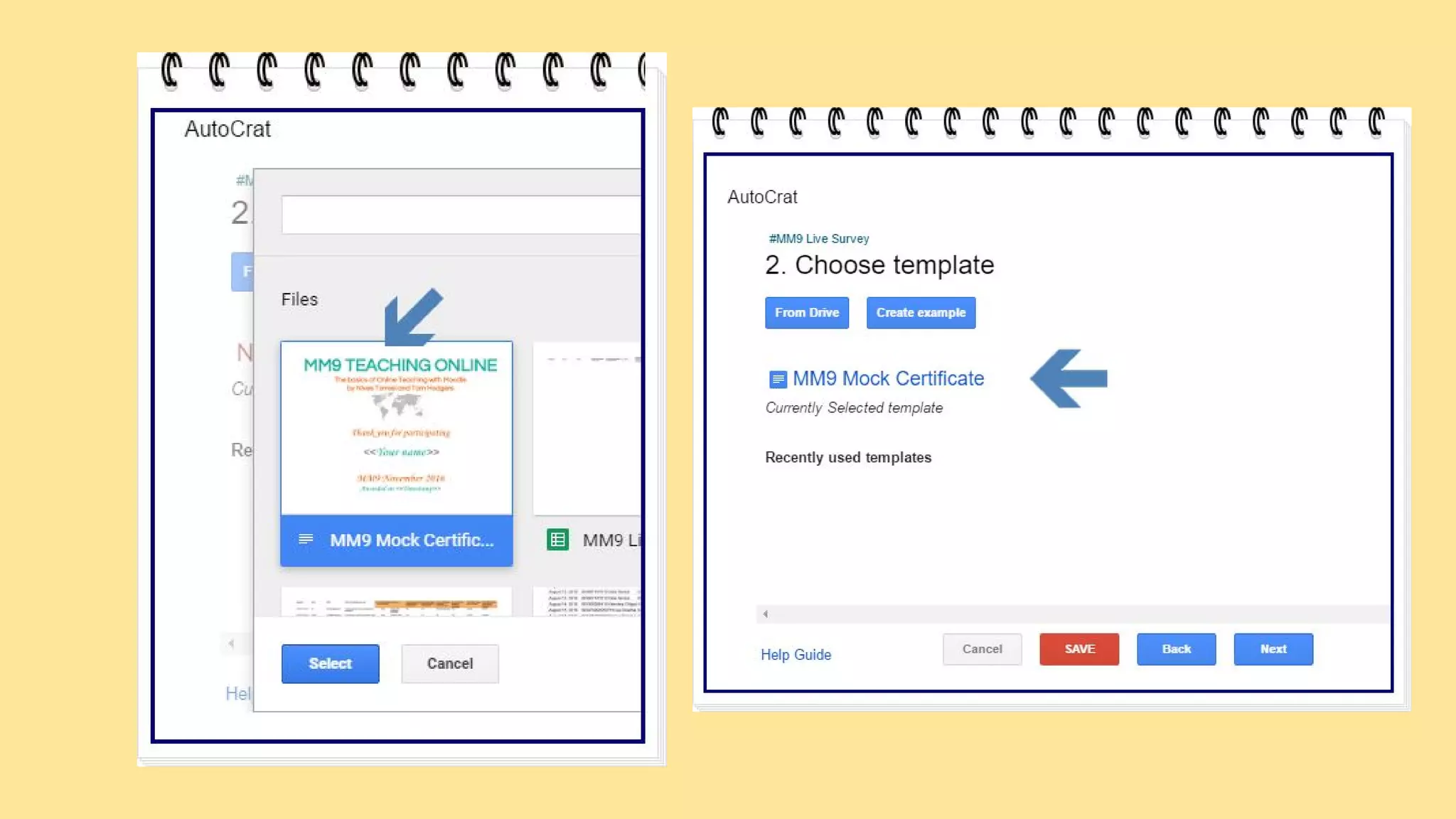
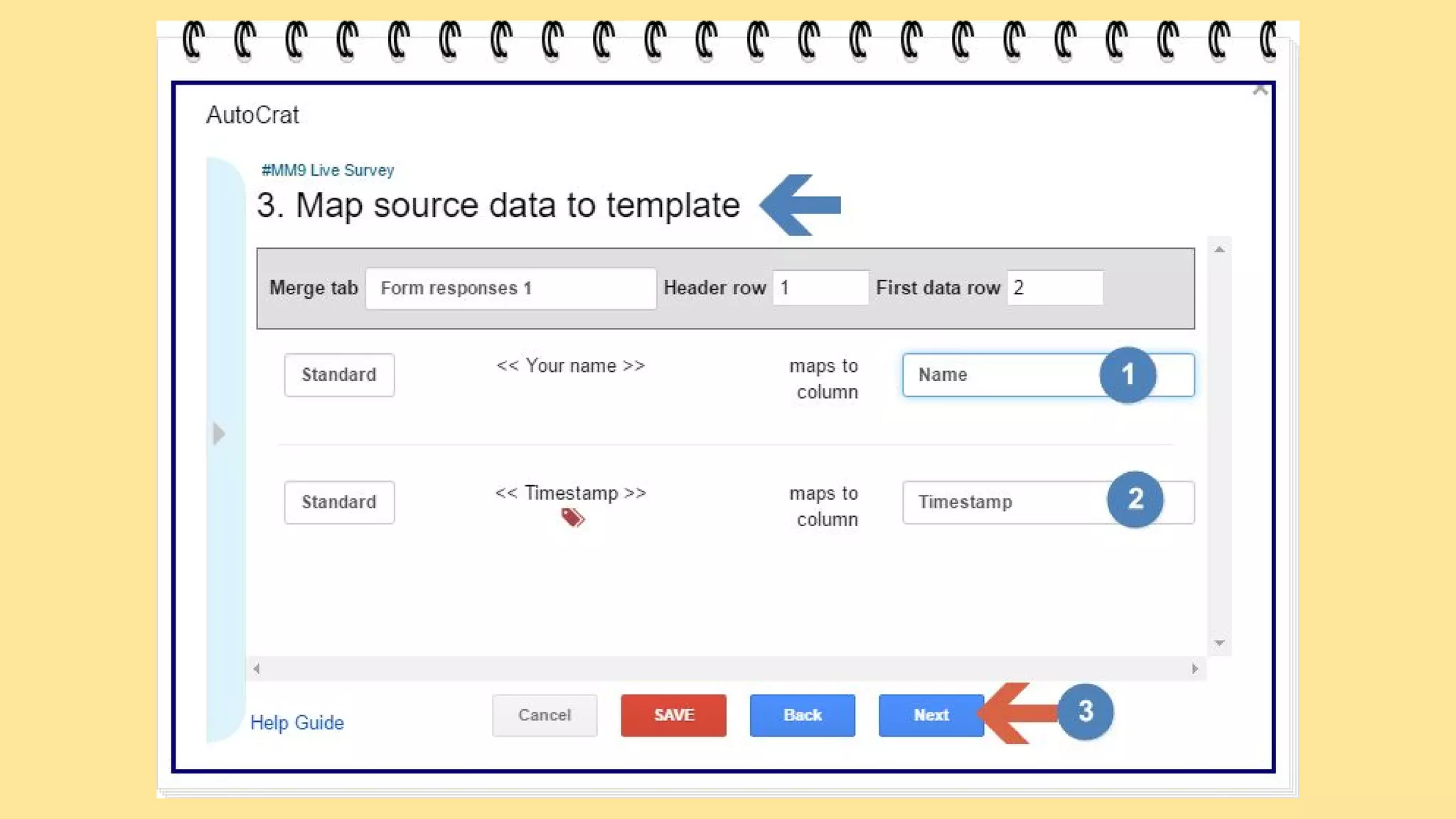
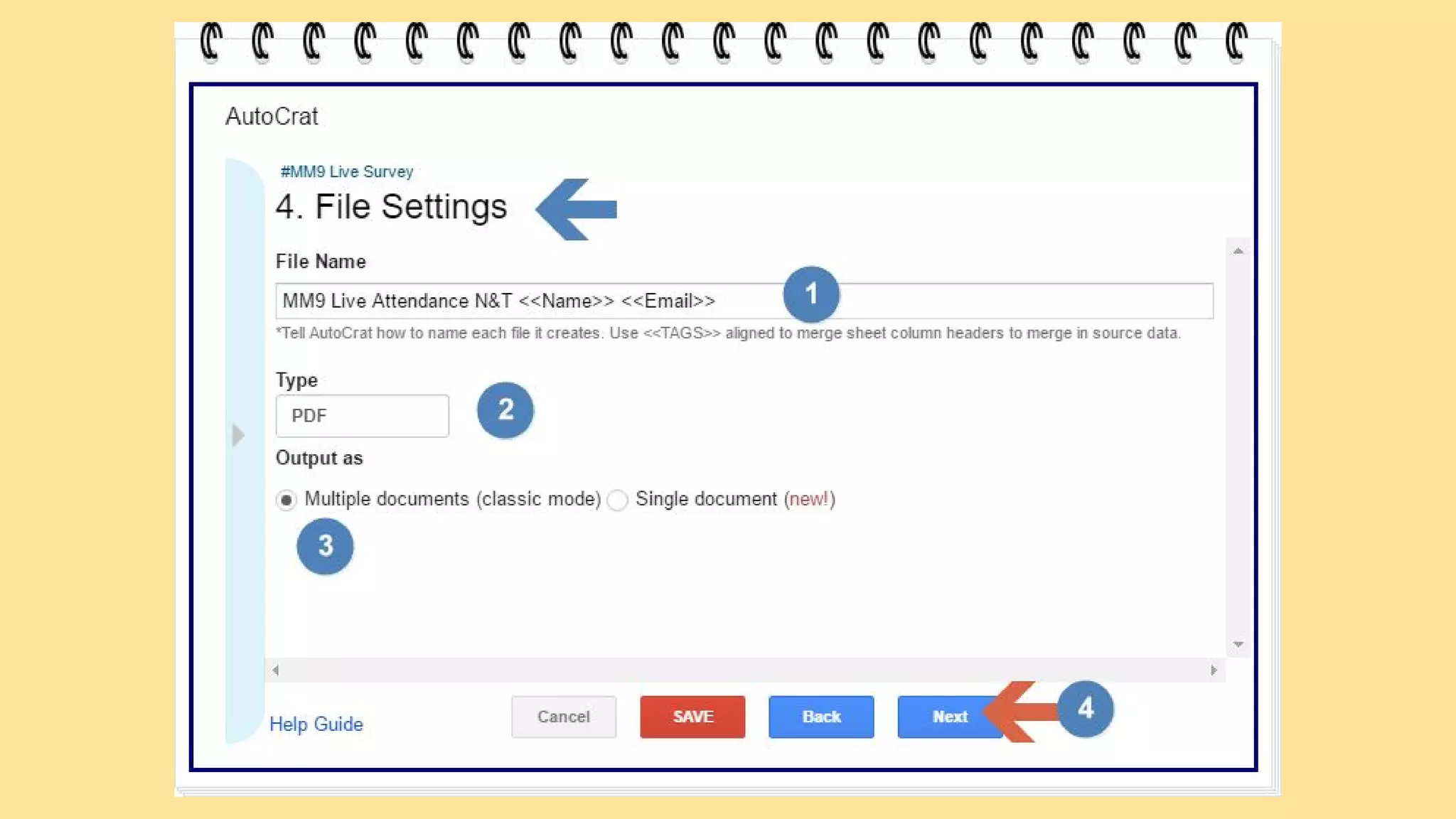
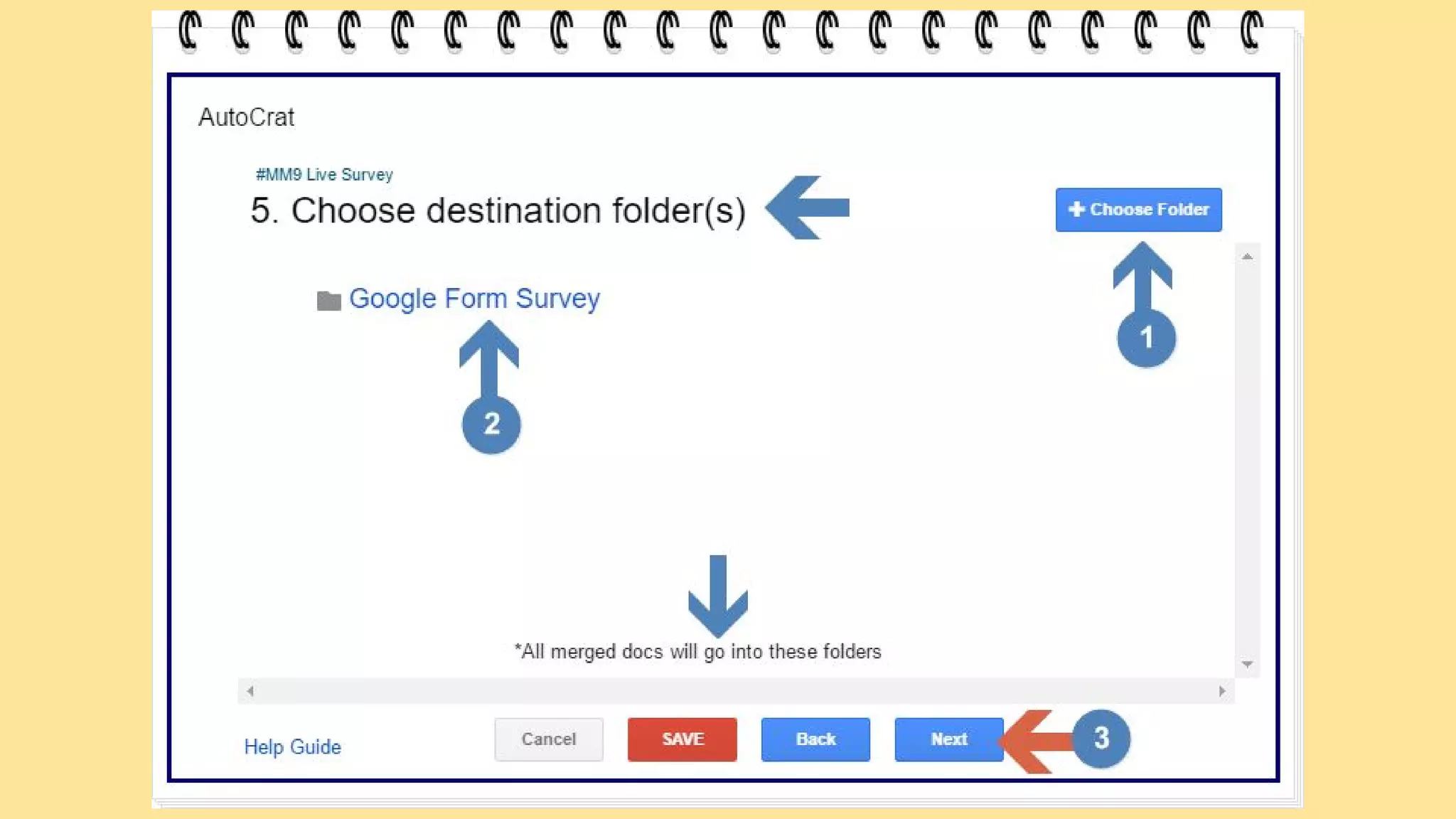
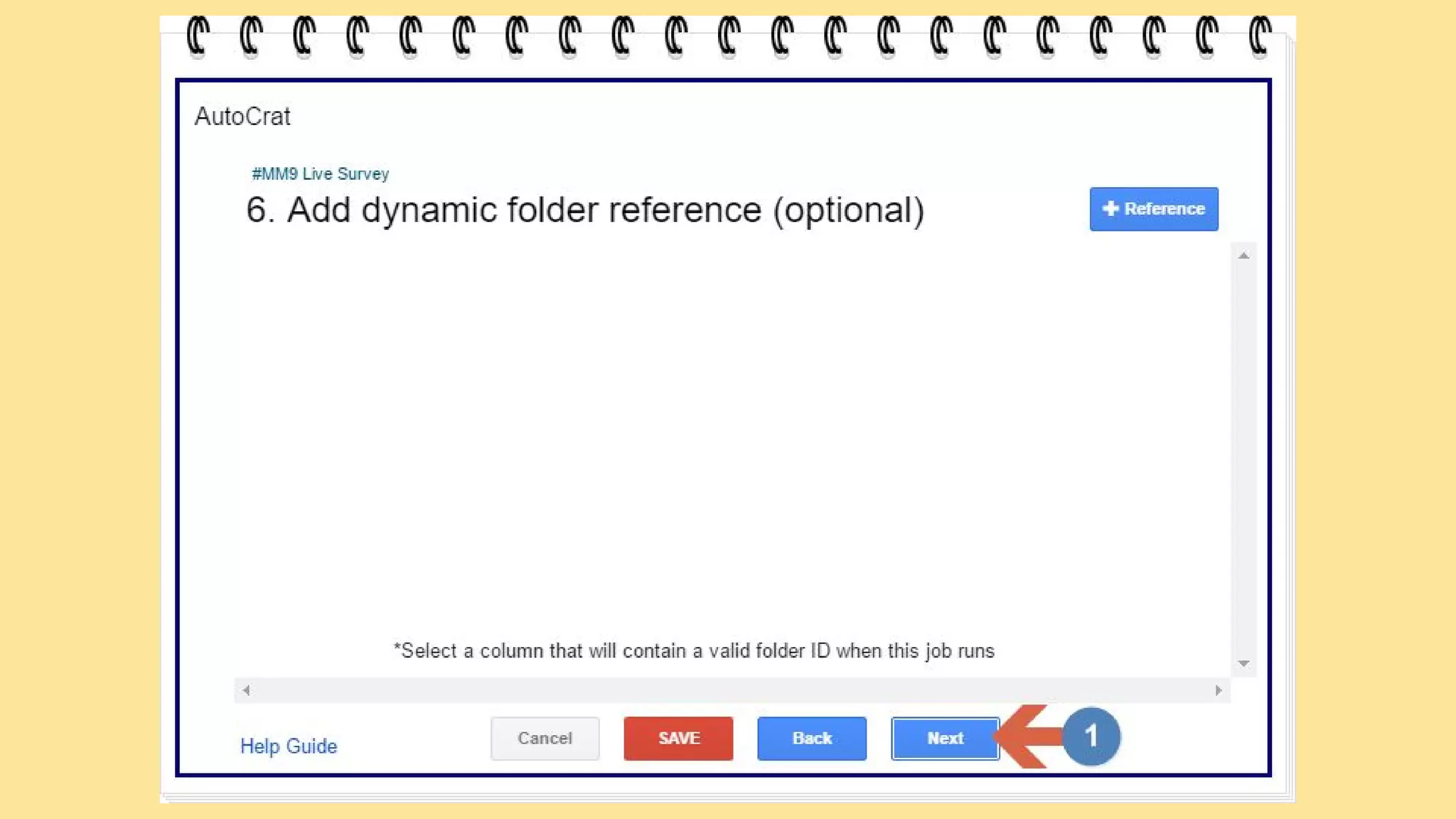
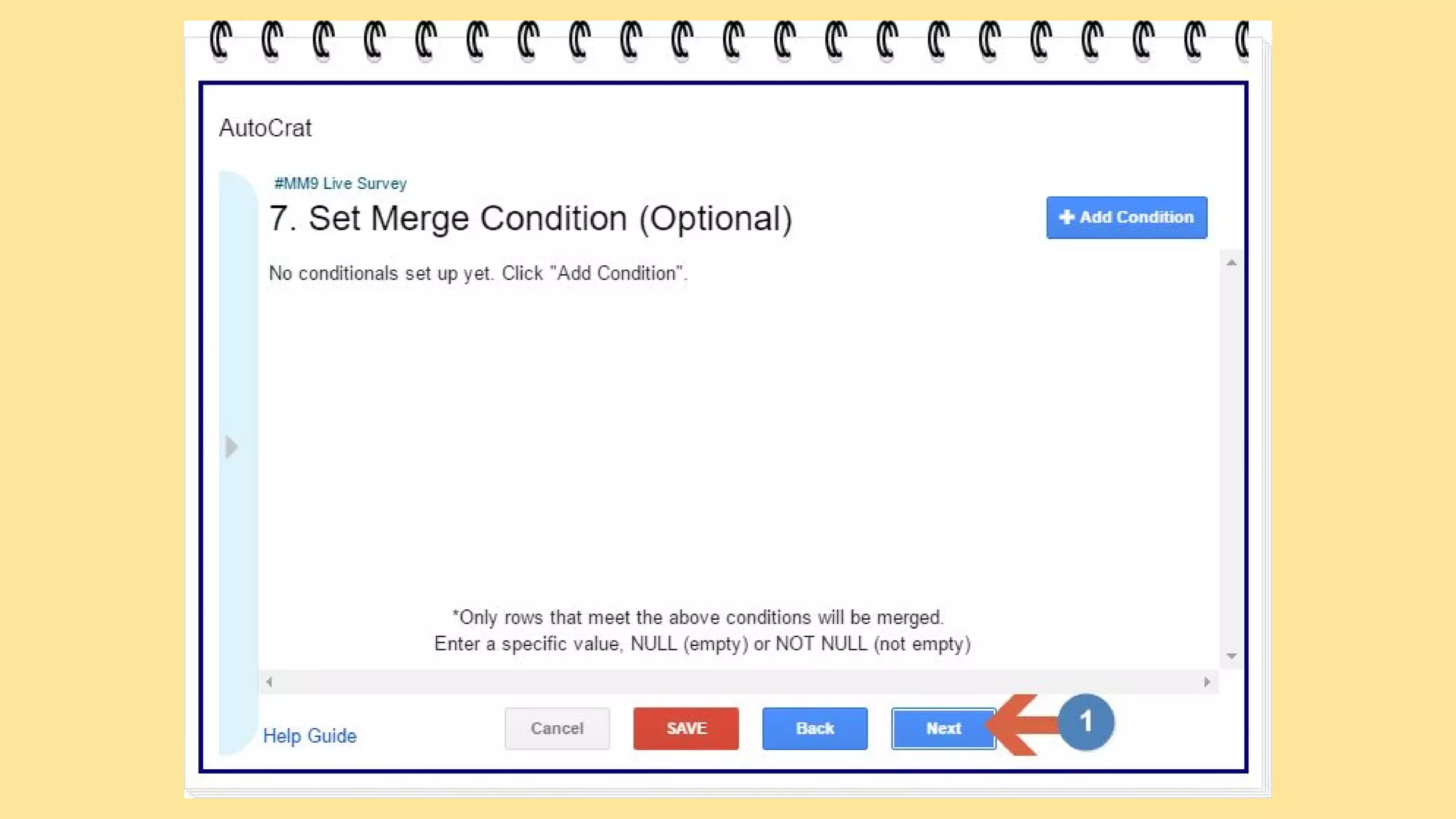
Step 3: Open Autocrat and create a ‘new job’
Step 4: Sit back and let Google do the work!
Let’s take a look at a step by step process
using a Google Form and AutoCrat in
Google Sheets
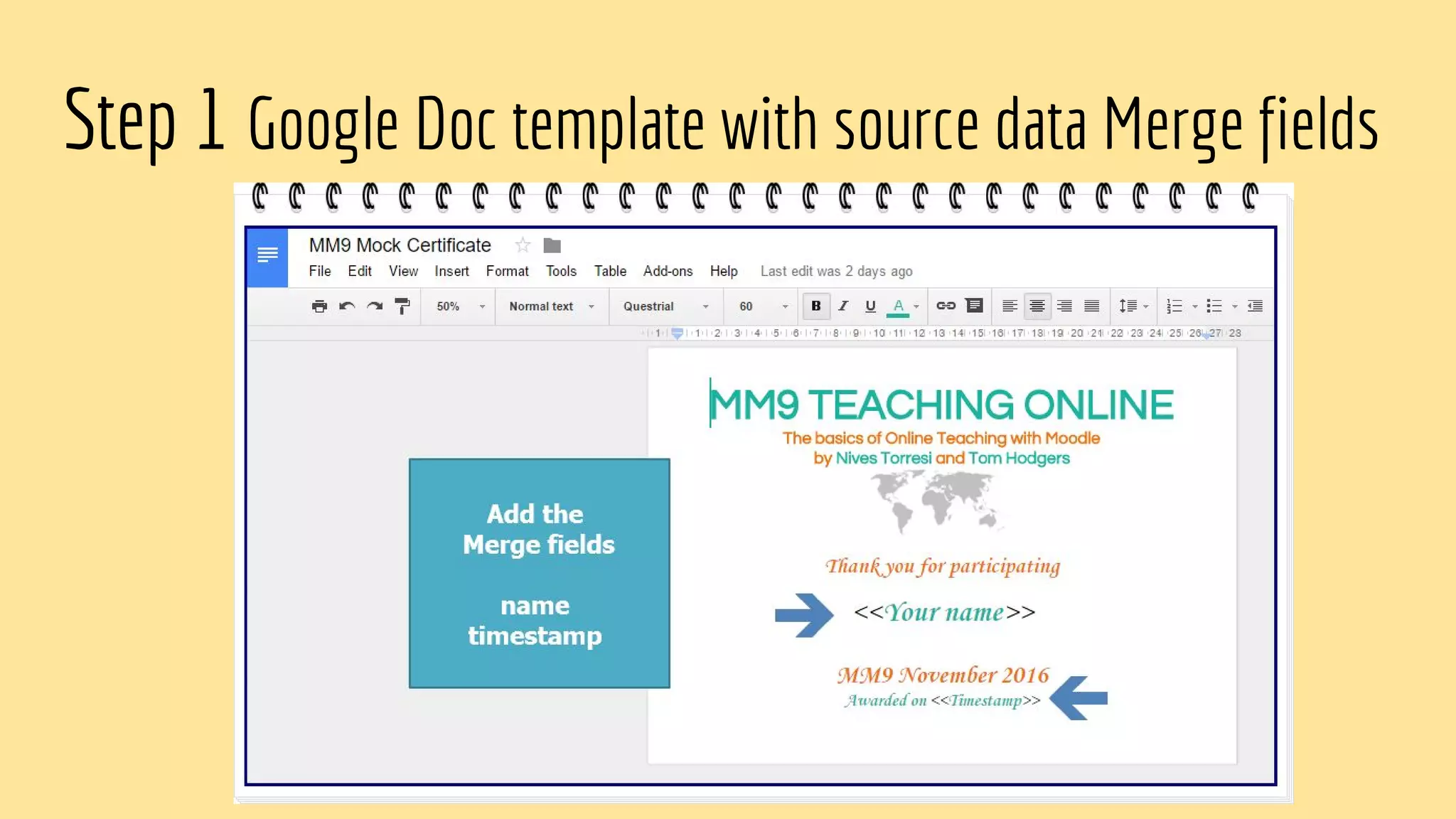
Step 1 Google Doc template with source data Merge fields
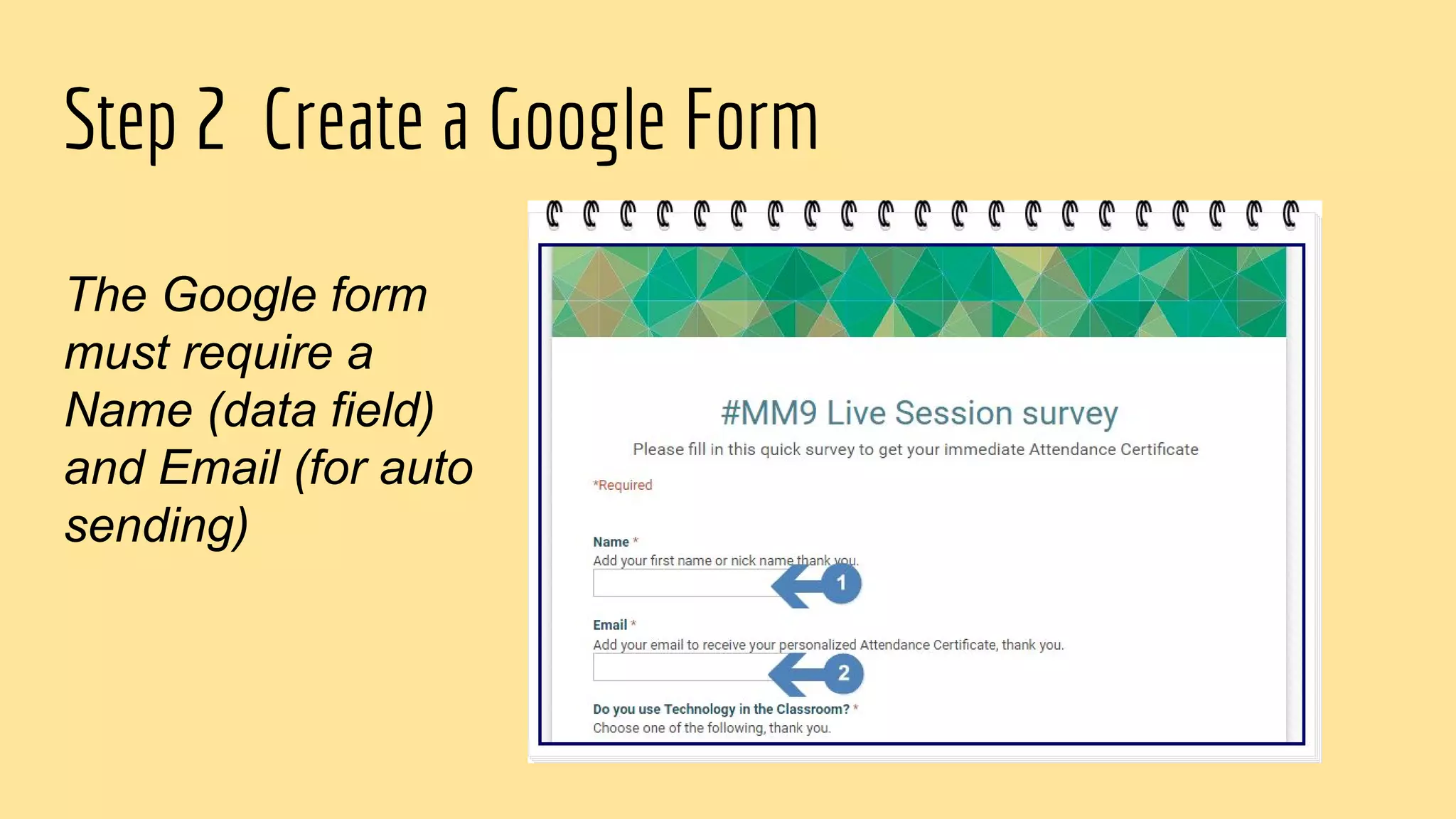
Step 2 Create a Google Form
The Google form
must require a
Name (data field)
and Email (for auto
sending)
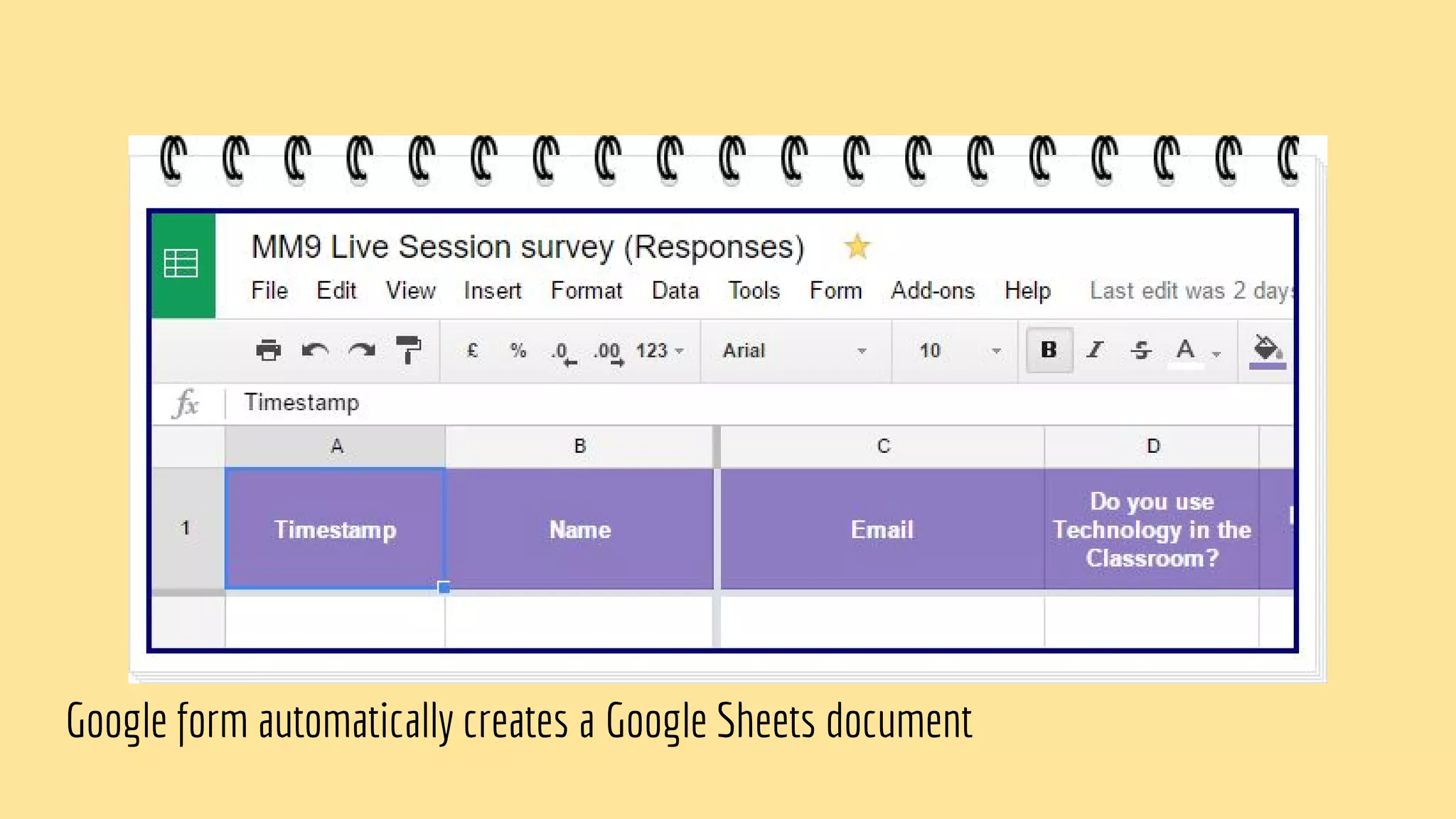
Google form automatically creates a Google Sheets document
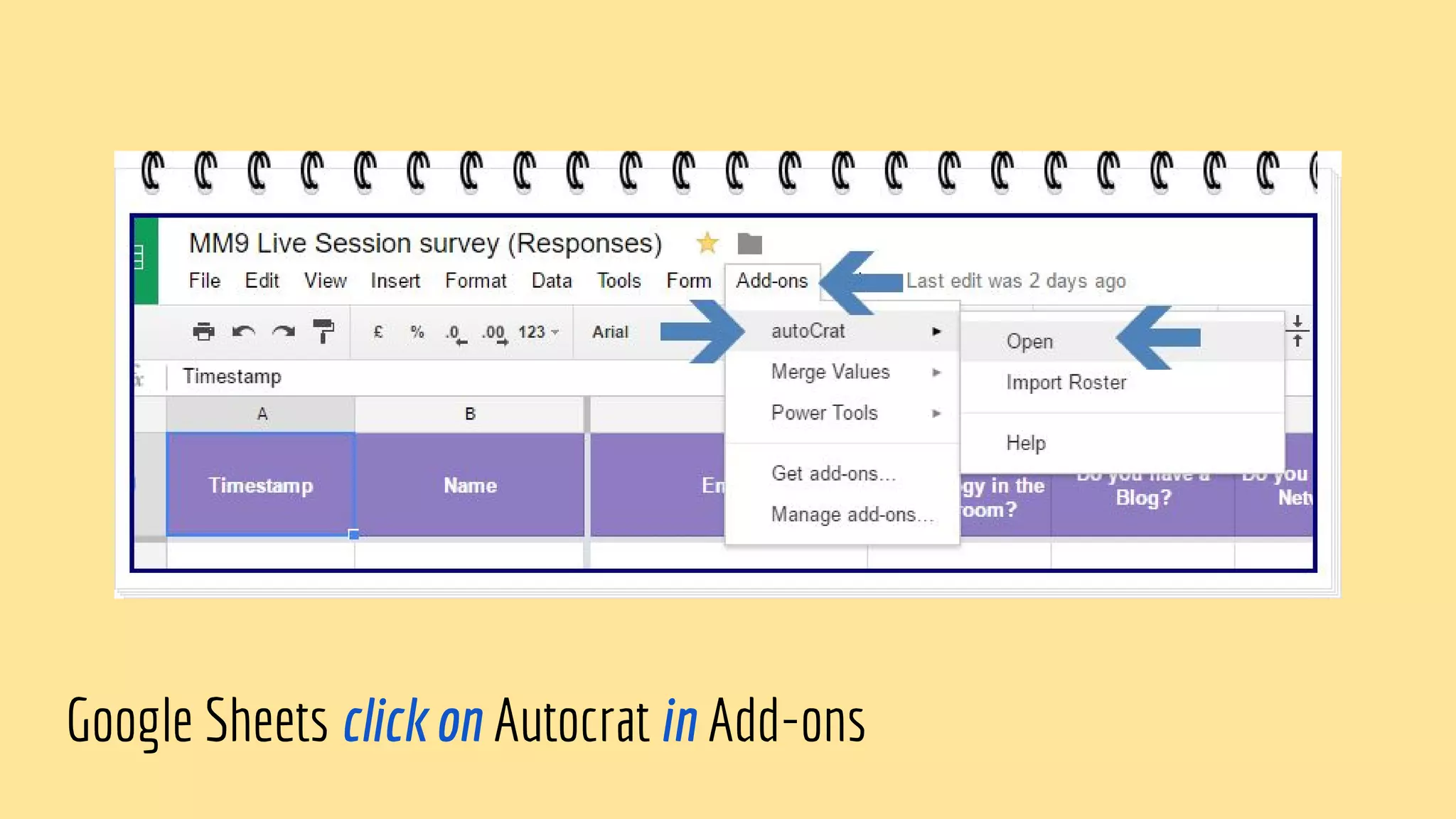
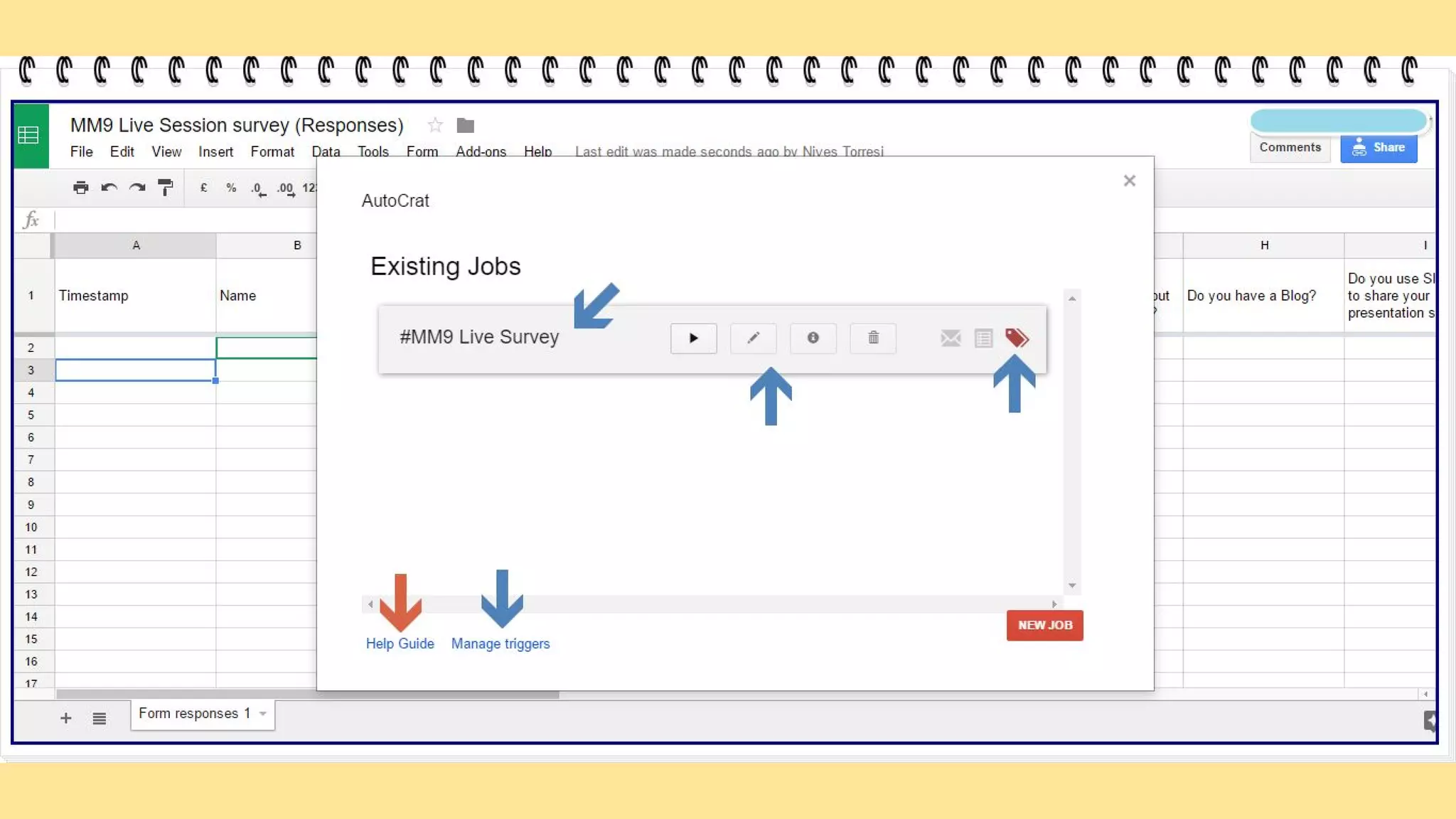
Google Sheets click on Autocrat in Add-ons
Step 3 Opening Autocrat
!
Send form & wait for replies...
Step 4 Autocreation of the Merged document
Thank you
A ‘how to’ tutorial prepared by
Nives Torresi
Pegasus One Language Centre
Comments and Questions welcome,
please subscribe to my
YouTube channel & Blog
visit
Teacher Training on Moodle at
Moodle4Teachers

Autocrat to create Certificates

  • 1.
    Using Autocrat to createa Certificate Slide presentation by Nives Torresi
  • 3.
    What is Autocrat? Linkto app in Google Chrome Store AUTOCRAT add-on AUTOCRAT is basically a MAIL MERGE system designed for use with Google Docs and Sheets. If you have ever used Microsoft Word MAIL MERGE then this does the same thing. Note: Let’s see the next slide to understand the principle of a mail merge process
  • 4.
    How a MailMerge works Data Table Start with a table of data (or survey form), with fields that you want to use eg. names and dates Step 1 <<Name>> <<Date>> Template Create a template with <<fields>> that refer to the data columns. Step 2 Bill Merged Result Tom 18/11/2016 Sally 19/11/2016 Lucy 20/11/2016 Autocrat will merge the data to the template, allowing you to create new individual files (eg. PDF). It can even be emailed automatically to the individual person. Step 3 17/11/2016
  • 5.
    Autocrat with Googleforms Using the Autocrat with a Google forms is a great way to get feedback from a survey and ‘automatically’ send out a ‘Thank you’ note with the respondent's actual name. Or similarly create an automated Certificate of Completion. Step1 : Create the “Thank you note” on Google Docs and add the data <<fields>> to the Google Doc “Thank you note” Step 2: Create the Google form Step 3: Open Autocrat and create a ‘new job’ Step 4: Sit back and let Google do the work!
  • 6.
    Let’s take alook at a step by step process using a Google Form and AutoCrat in Google Sheets
  • 7.
    Step 1 GoogleDoc template with source data Merge fields
  • 8.
    Step 2 Createa Google Form The Google form must require a Name (data field) and Email (for auto sending)
  • 9.
    Google form automaticallycreates a Google Sheets document
  • 10.
    Google Sheets clickon Autocrat in Add-ons
  • 11.
  • 27.
  • 29.
    Send form &wait for replies...
  • 30.
    Step 4 Autocreationof the Merged document
  • 31.
    Thank you A ‘howto’ tutorial prepared by Nives Torresi Pegasus One Language Centre Comments and Questions welcome, please subscribe to my YouTube channel & Blog visit Teacher Training on Moodle at Moodle4Teachers