Purchase :Odoo 18 New
Features
Enterprise
Enterprise
Introduction
As we know in every new version, Odoo 18 has also launched some
extra features in it. Today we are going to discuss some new
features introduced in the Odoo 18 Purchase module.
Let’s discuss each of them.
Enterprise
Debug mode
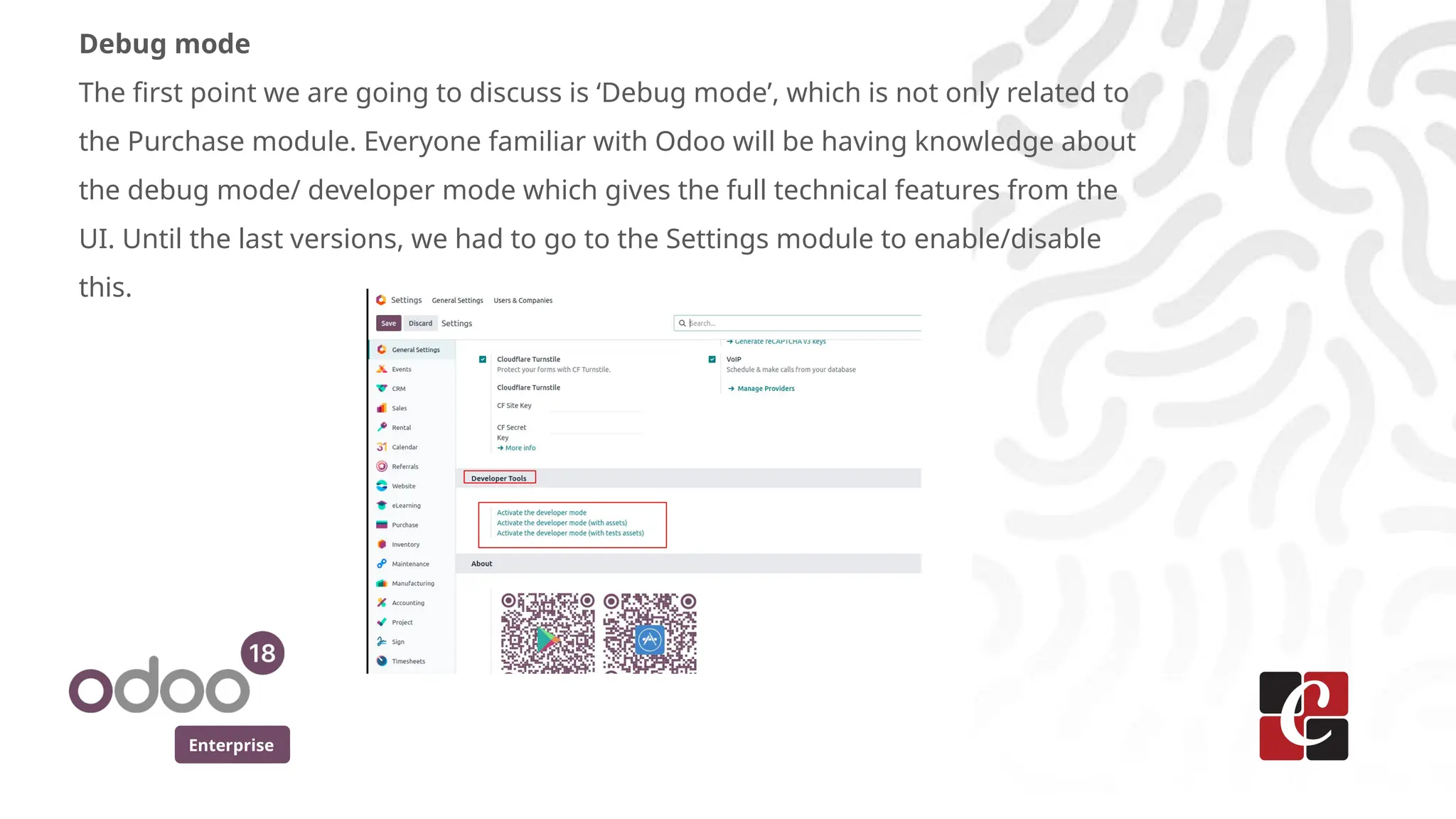
The first point we are going to discuss is ‘Debug mode’, which is not only related to
the Purchase module. Everyone familiar with Odoo will be having knowledge about
the debug mode/ developer mode which gives the full technical features from the
UI. Until the last versions, we had to go to the Settings module to enable/disable
this.
Enterprise
It was really time consuming before. But now in Odoo 18 has brought
the debug mode as a time saver that we can directly search from the
UI itself. Like we search for other modules by typing their name from
the main menu of Odoo, we can search for ‘debug’ also like this.
Enterprise
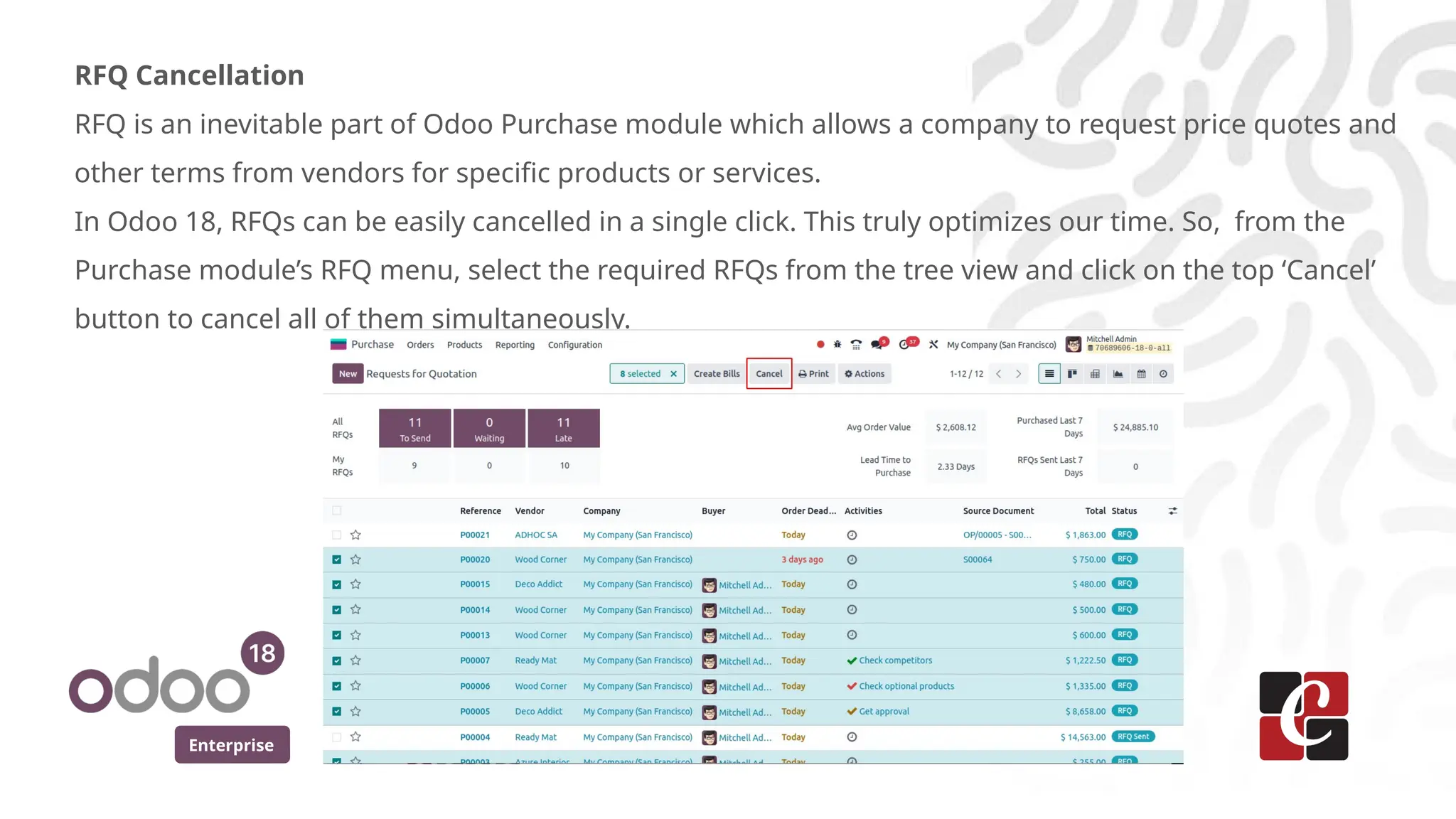
RFQ Cancellation
RFQ is an inevitable part of Odoo Purchase module which allows a company to request price quotes and
other terms from vendors for specific products or services.
In Odoo 18, RFQs can be easily cancelled in a single click. This truly optimizes our time. So, from the
Purchase module’s RFQ menu, select the required RFQs from the tree view and click on the top ‘Cancel’
button to cancel all of them simultaneously.
Enterprise
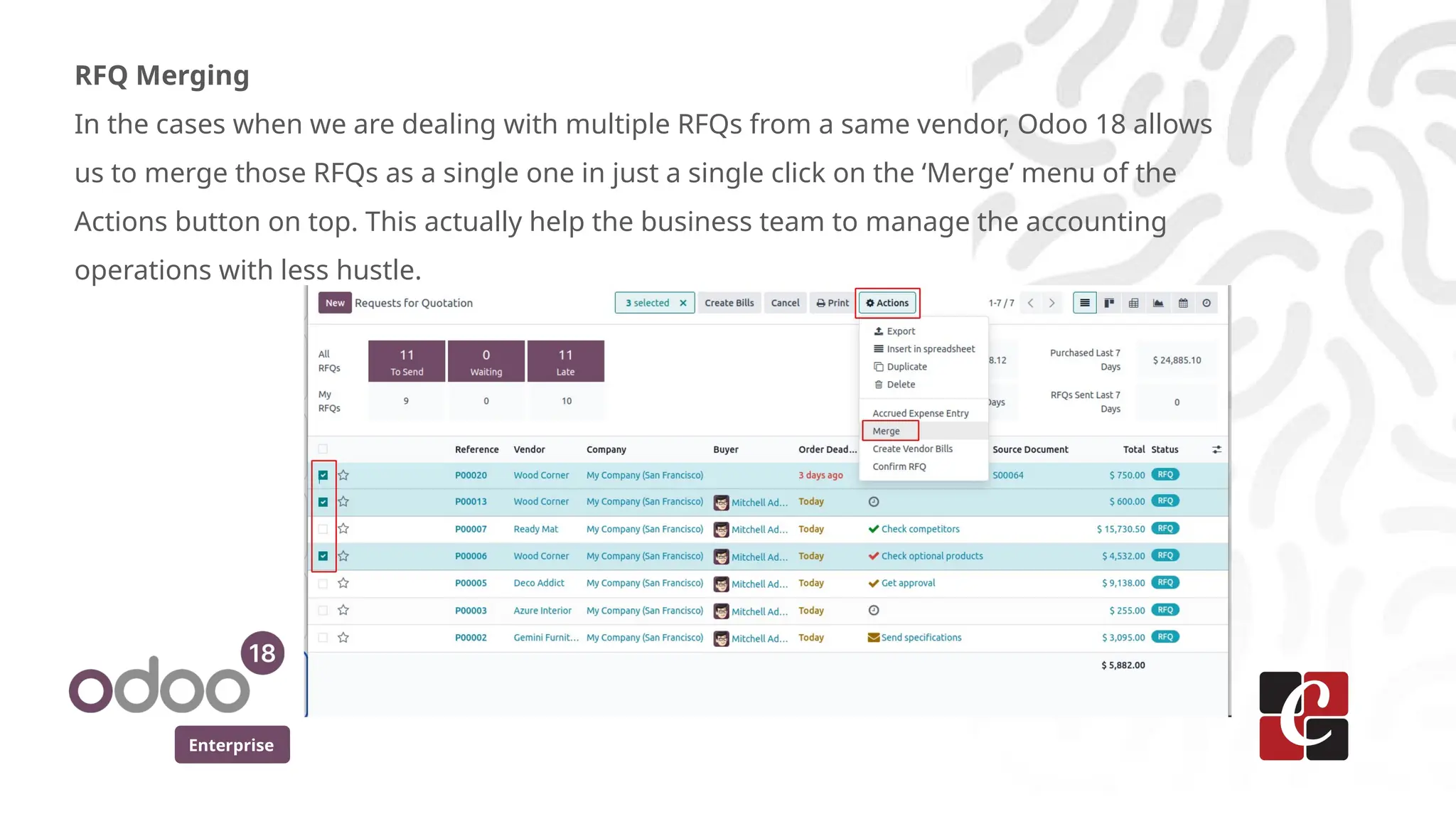
RFQ Merging
In the cases when we are dealing with multiple RFQs from a same vendor, Odoo 18 allows
us to merge those RFQs as a single one in just a single click on the ‘Merge’ menu of the
Actions button on top. This actually help the business team to manage the accounting
operations with less hustle.
Enterprise
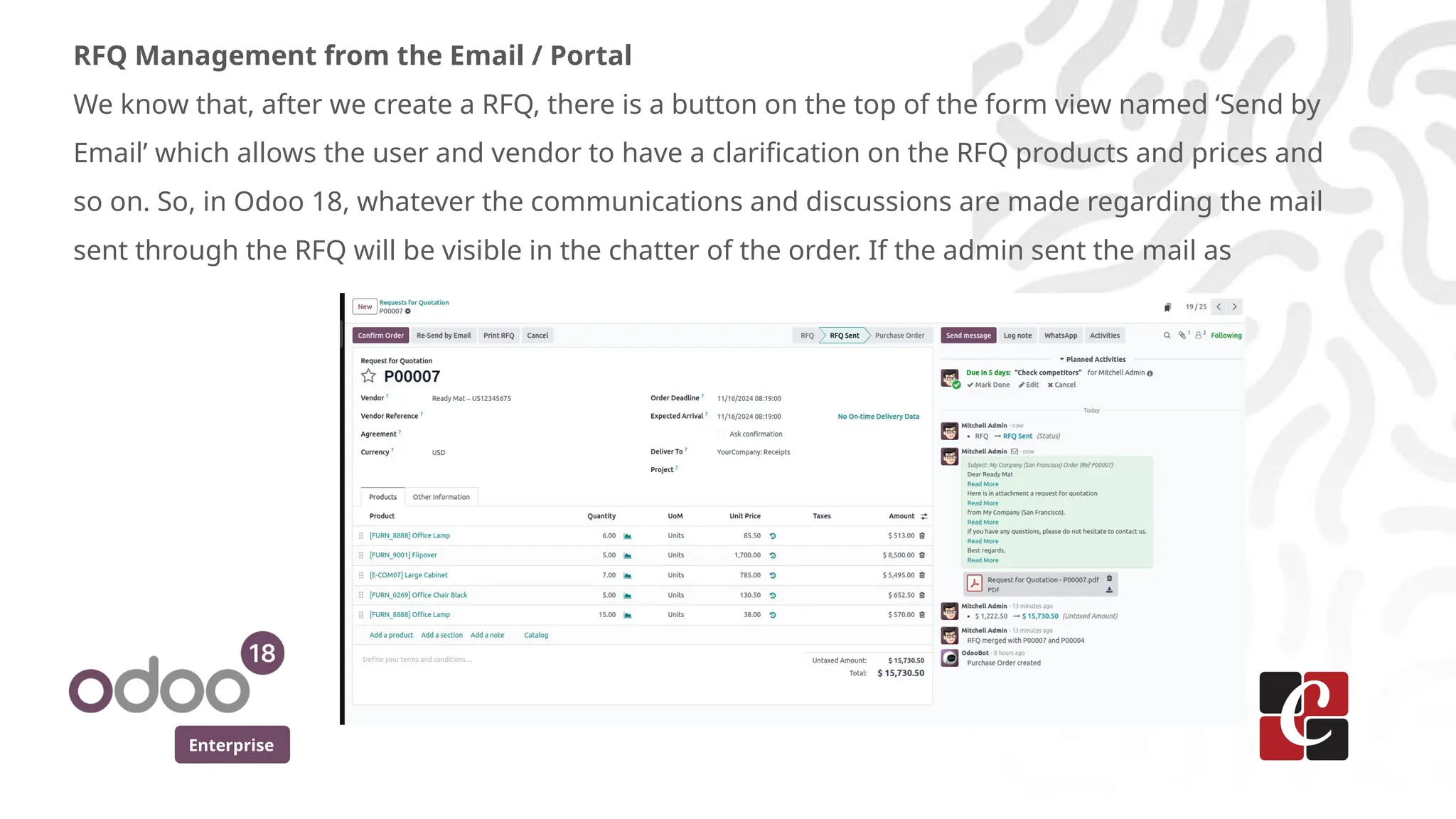
RFQ Management from the Email / Portal
We know that, after we create a RFQ, there is a button on the top of the form view named ‘Send by
Email’ which allows the user and vendor to have a clarification on the RFQ products and prices and
so on. So, in Odoo 18, whatever the communications and discussions are made regarding the mail
sent through the RFQ will be visible in the chatter of the order. If the admin sent the mail as
Enterprise
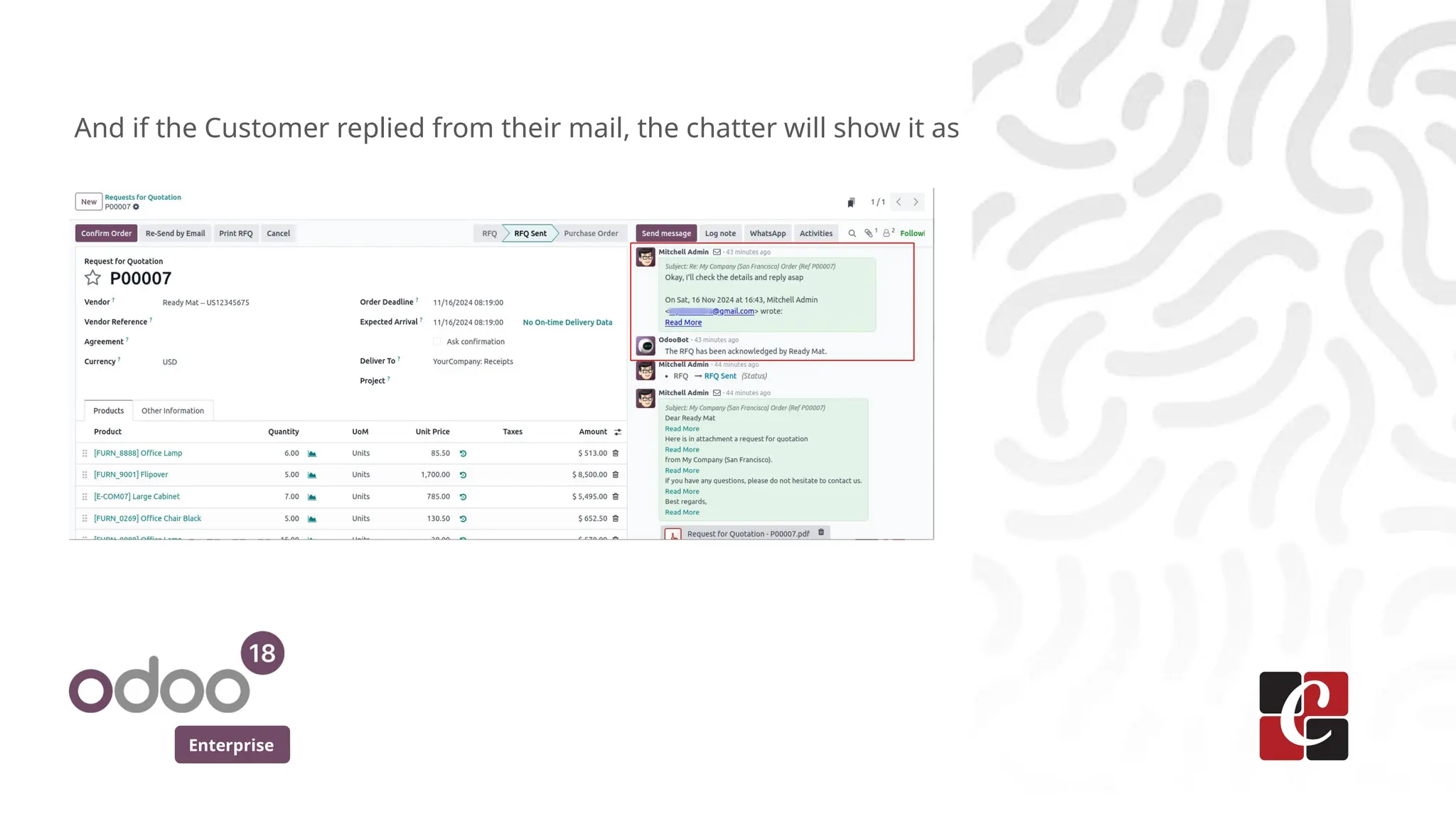
And if the Customer replied from their mail, the chatter will show it as
Enterprise
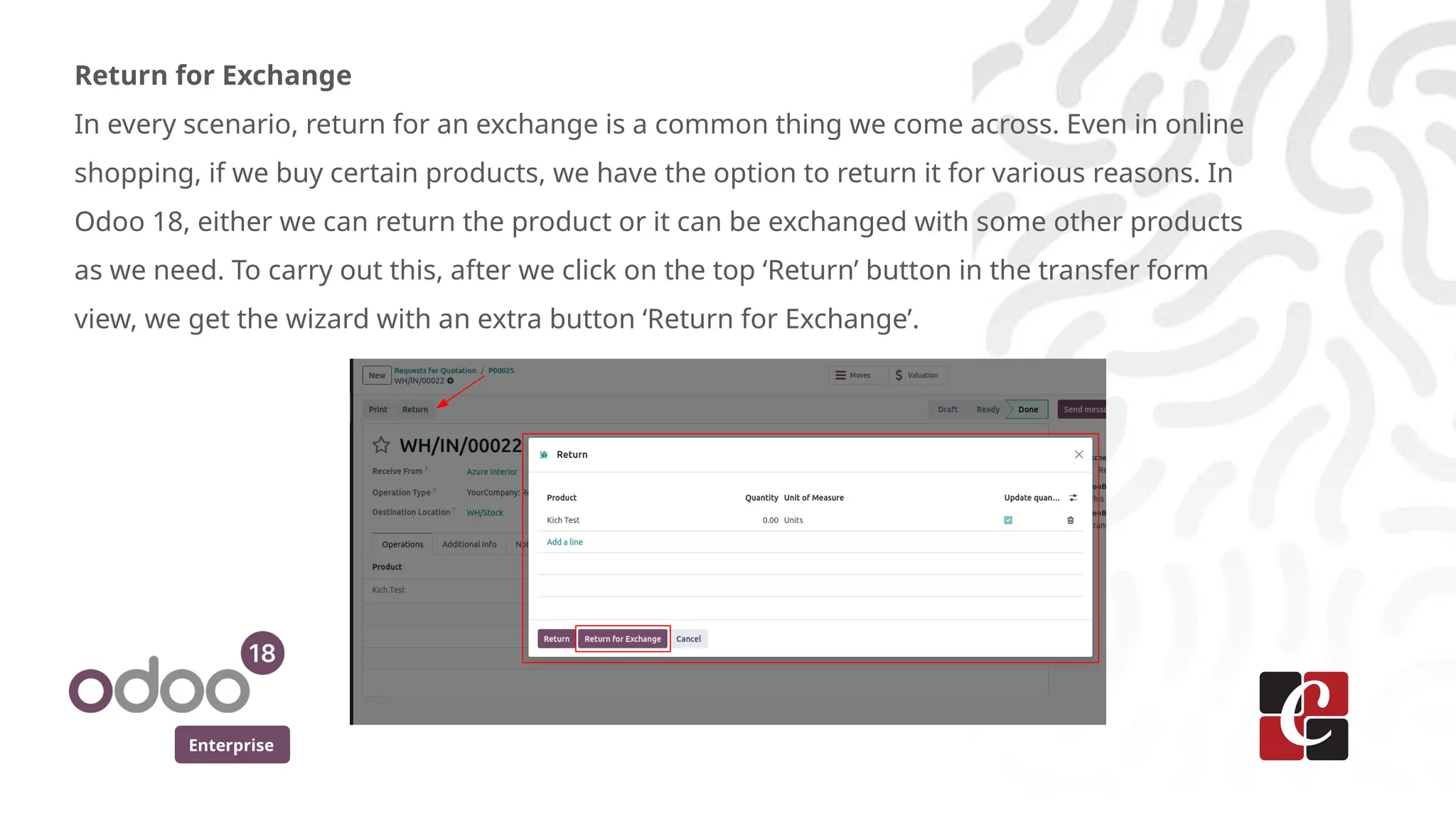
Return for Exchange
In every scenario, return for an exchange is a common thing we come across. Even in online
shopping, if we buy certain products, we have the option to return it for various reasons. In
Odoo 18, either we can return the product or it can be exchanged with some other products
as we need. To carry out this, after we click on the top ‘Return’ button in the transfer form
view, we get the wizard with an extra button ‘Return for Exchange’.
Enterprise
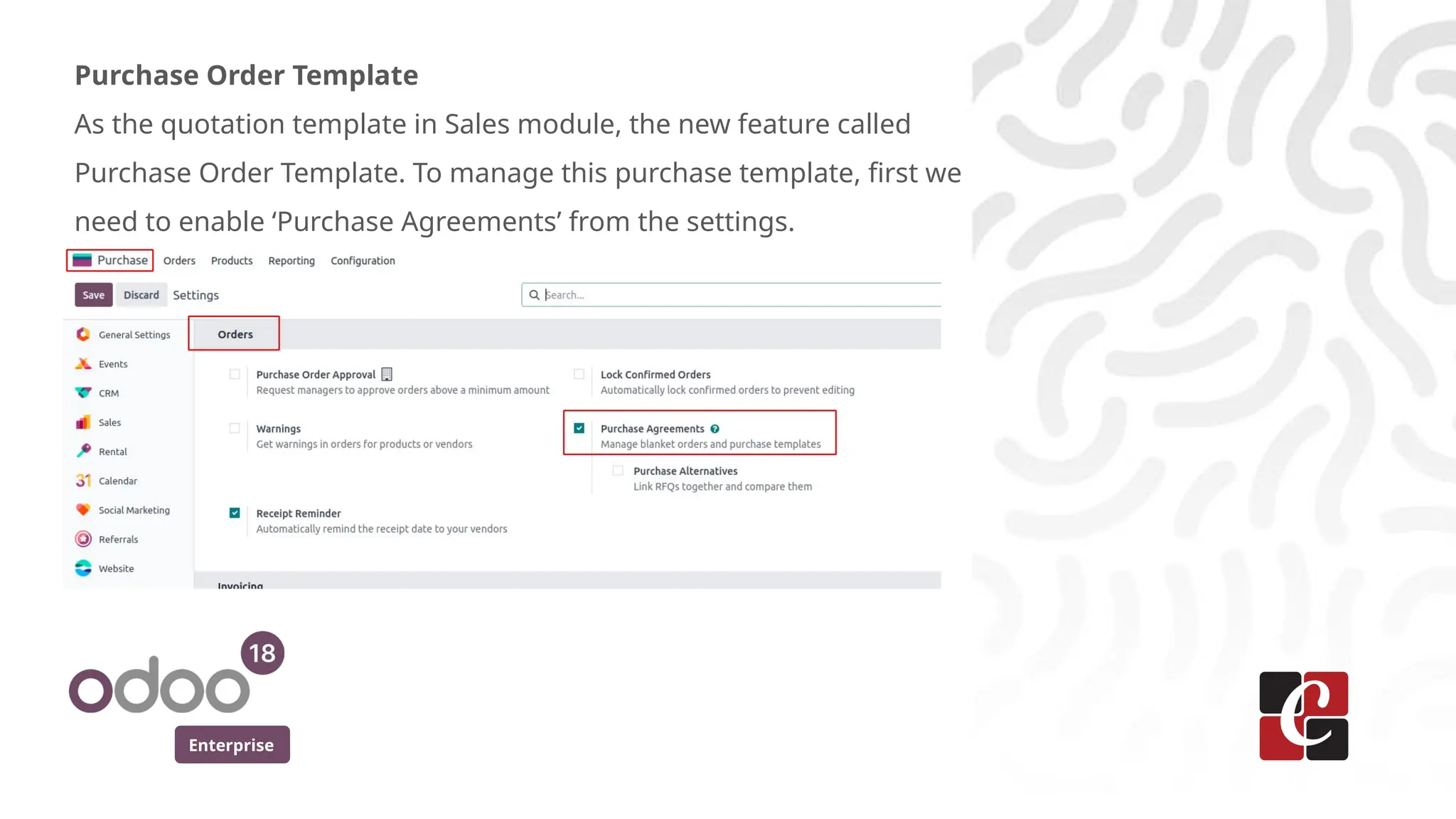
Purchase Order Template
As the quotation template in Sales module, the new feature called
Purchase Order Template. To manage this purchase template, first we
need to enable ‘Purchase Agreements’ from the settings.
Enterprise
When we want to order multiple products with multiple quantities or with different prices,
we can just use this purchase templates without creating the RFQ and purchase order
from the scratch.
These Purchase templates and blanket orders are purchase agreements in the
functionality. But they differ in the way that, whenever we create a blanket order, the
quantity of the products will get set to zero and they are usually used for purchasing bulk
items and all those items will be delivered in different delivery dates, by splitting the
deliveries. In the case of purchase templates, it won’t split the deliveries of the items,
instead it is a template or a pre-made document to make a bunch of item to be available
in the product lines of the RFQ. Also, this templates can be used multiple times.
Enterprise
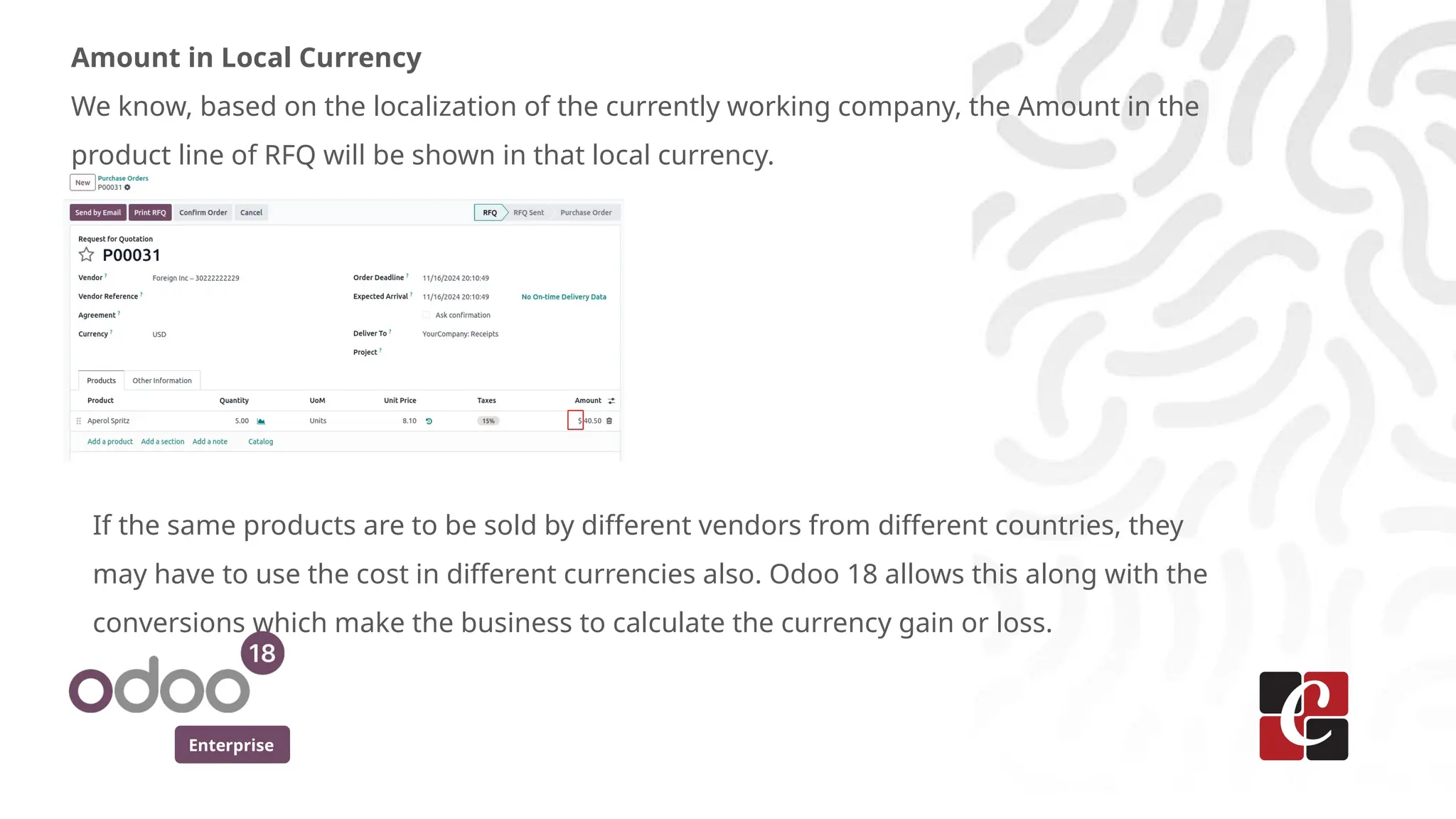
Amount in Local Currency
We know, based on the localization of the currently working company, the Amount in the
product line of RFQ will be shown in that local currency.
If the same products are to be sold by different vendors from different countries, they
may have to use the cost in different currencies also. Odoo 18 allows this along with the
conversions which make the business to calculate the currency gain or loss.
Enterprise
Super Purchase PDF
As the name indicates, Super Purchase PDF is actually a way to drag and drop a created
purchase order PDF from the Odoo 18 Purchase module into the Odoo 18 Sales module,
which is super useful if we decide to manage both purchasing and selling activities within
the same system. With this feature, we can instantly create a new sales order based on the
items and quantities listed in the purchase order and this easily eliminates the need for the
manual entry of each item, quantity and other details saves time and reduces error also.
Enterprise
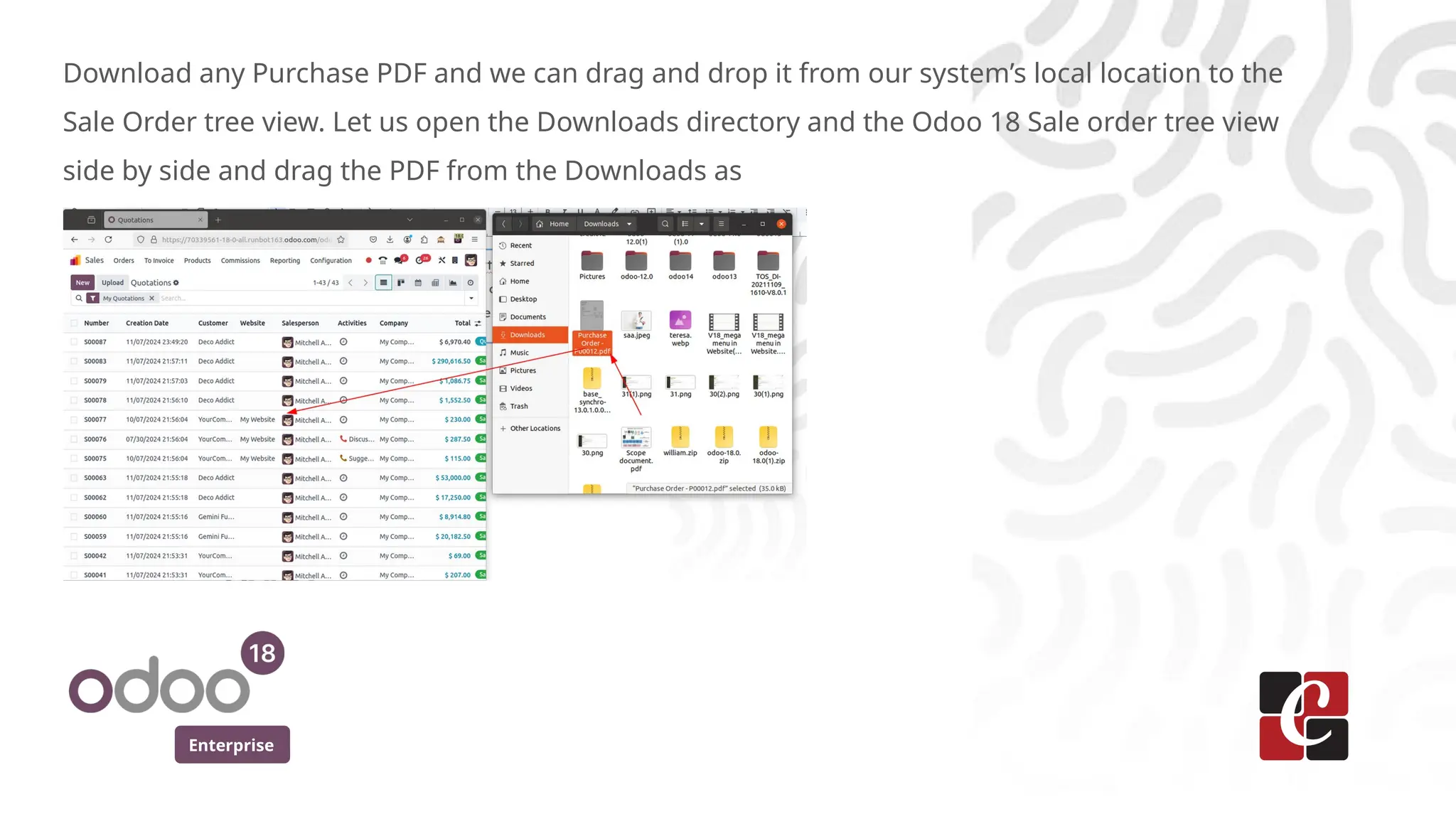
Download any Purchase PDF and we can drag and drop it from our system’s local location to the
Sale Order tree view. Let us open the Downloads directory and the Odoo 18 Sale order tree view
side by side and drag the PDF from the Downloads as
Enterprise
Purchase and Bill Matching
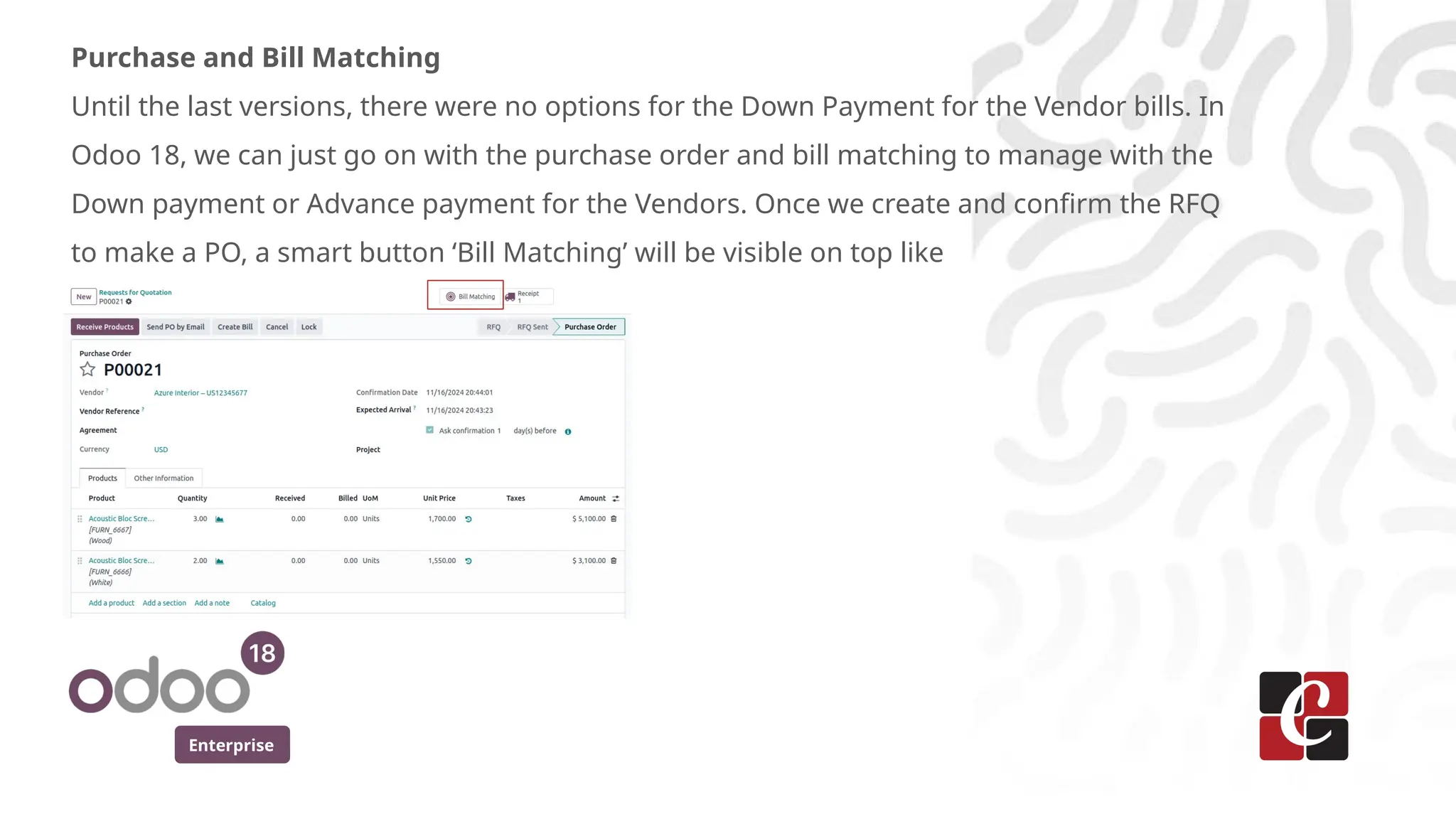
Until the last versions, there were no options for the Down Payment for the Vendor bills. In
Odoo 18, we can just go on with the purchase order and bill matching to manage with the
Down payment or Advance payment for the Vendors. Once we create and confirm the RFQ
to make a PO, a smart button ‘Bill Matching’ will be visible on top like
Enterprise
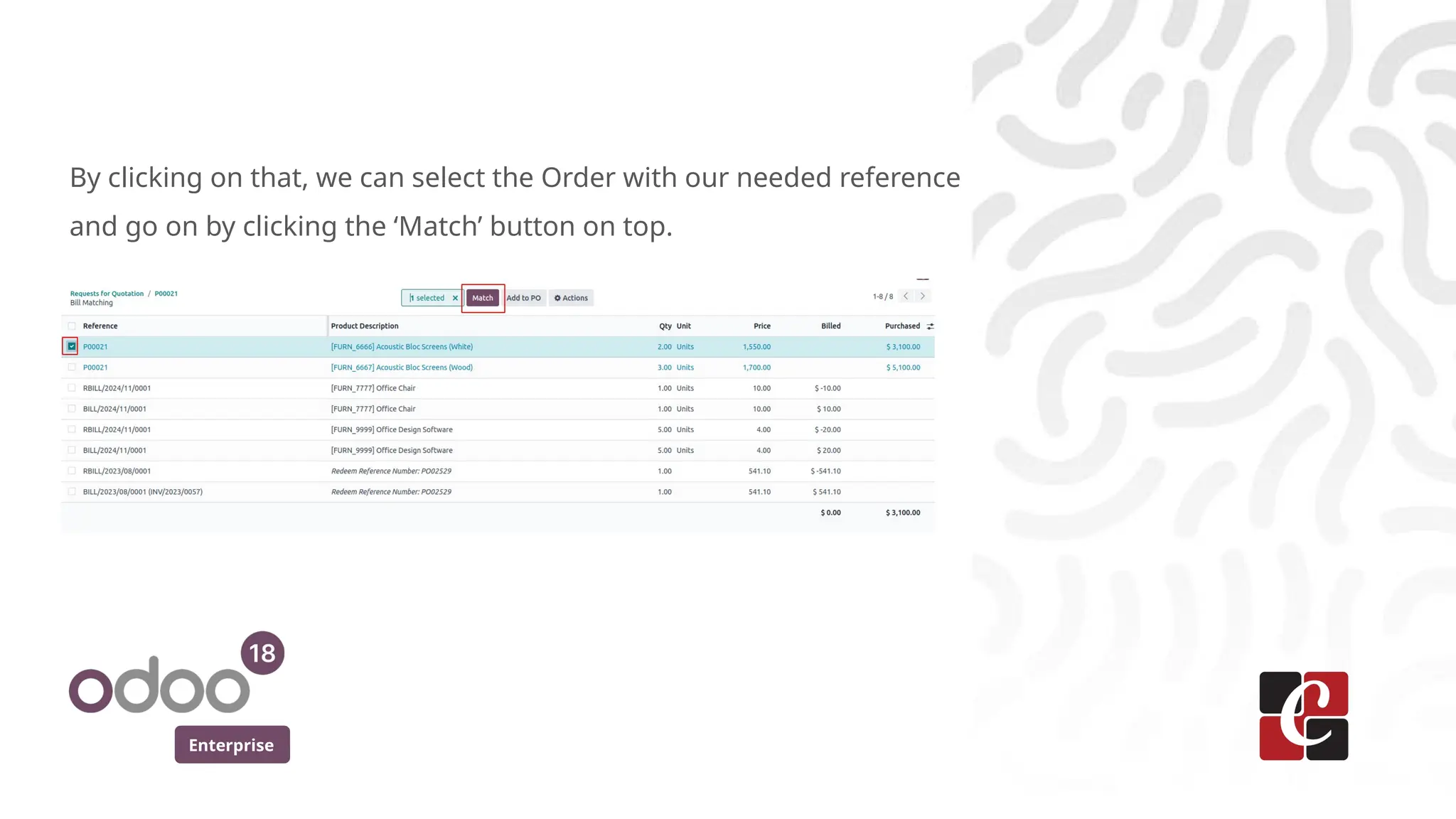
By clicking on that, we can select the Order with our needed reference
and go on by clicking the ‘Match’ button on top.
Enterprise
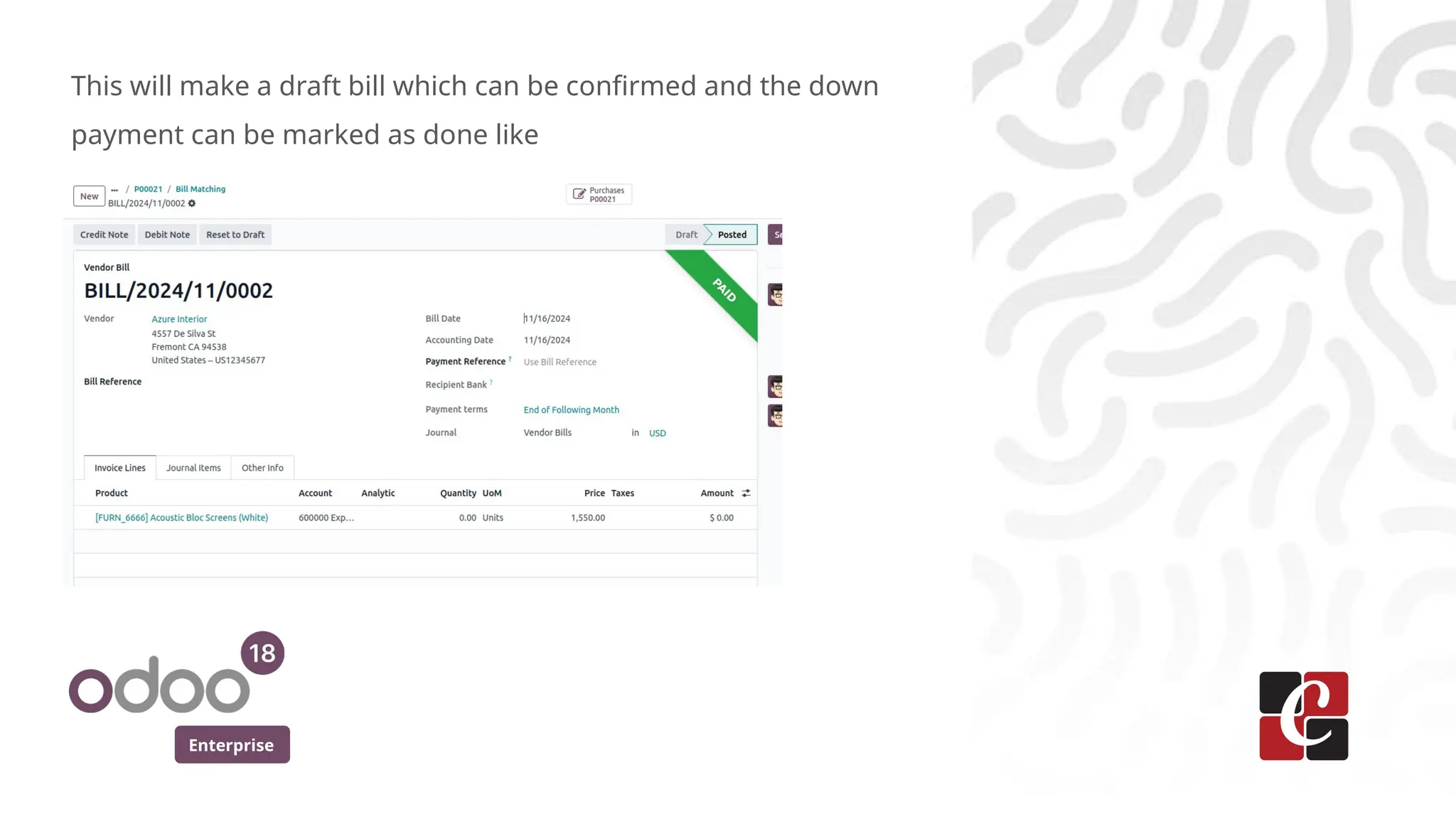
This will make a draft bill which can be confirmed and the down
payment can be marked as done like
Enterprise
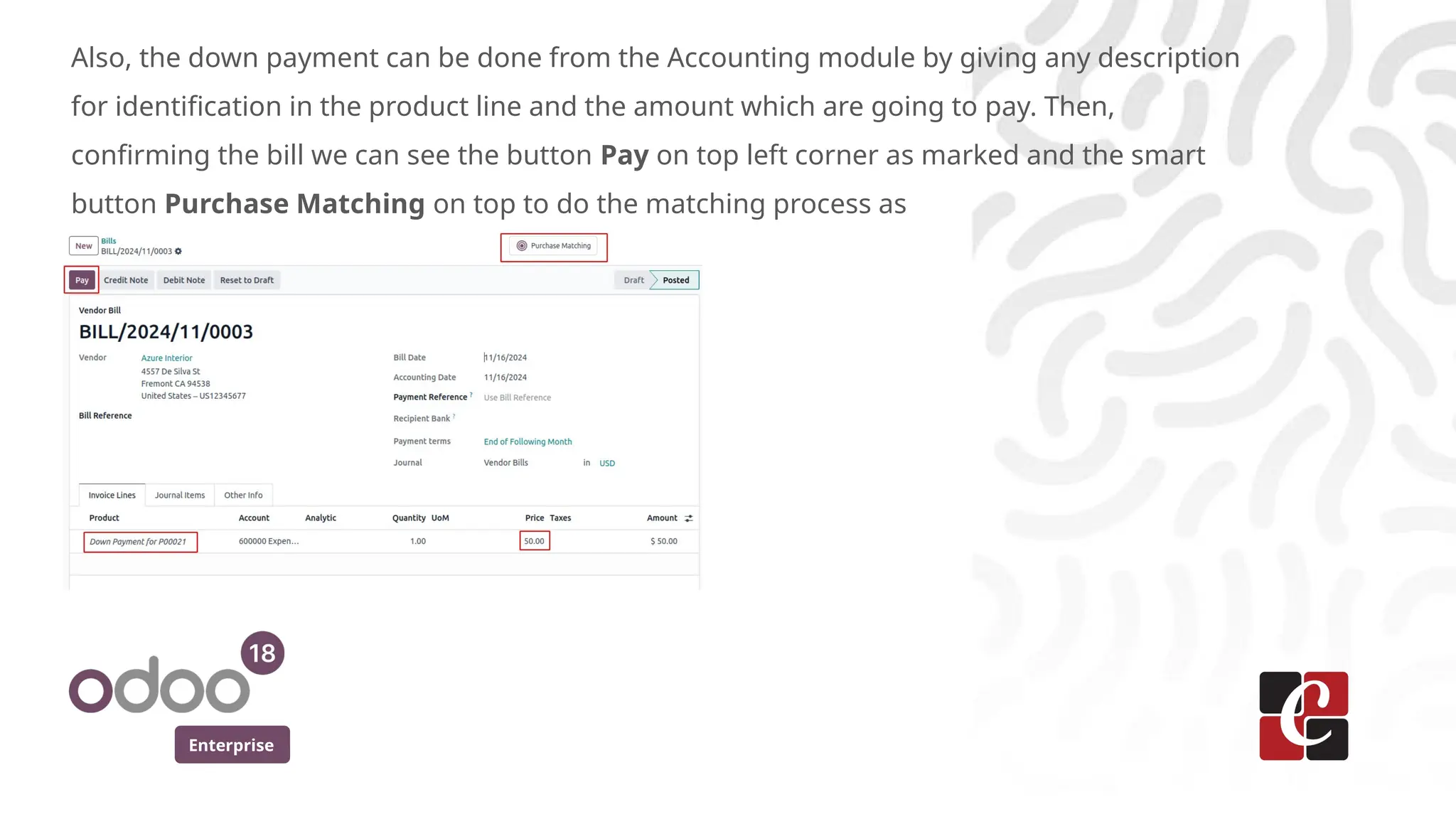
Also, the down payment can be done from the Accounting module by giving any description
for identification in the product line and the amount which are going to pay. Then,
confirming the bill we can see the button Pay on top left corner as marked and the smart
button Purchase Matching on top to do the matching process as
For More Info.
Check our company website for related blogs
and Odoo book.
Check our YouTube channel for
functional and technical videos in Odoo.
Enterprise
www.cybrosys.com

What are New Features in Purchase _Odoo 18

  • 1.
    Purchase :Odoo 18New Features Enterprise
  • 2.
    Enterprise Introduction As we knowin every new version, Odoo 18 has also launched some extra features in it. Today we are going to discuss some new features introduced in the Odoo 18 Purchase module. Let’s discuss each of them.
  • 3.
    Enterprise Debug mode The firstpoint we are going to discuss is ‘Debug mode’, which is not only related to the Purchase module. Everyone familiar with Odoo will be having knowledge about the debug mode/ developer mode which gives the full technical features from the UI. Until the last versions, we had to go to the Settings module to enable/disable this.
  • 4.
    Enterprise It was reallytime consuming before. But now in Odoo 18 has brought the debug mode as a time saver that we can directly search from the UI itself. Like we search for other modules by typing their name from the main menu of Odoo, we can search for ‘debug’ also like this.
  • 5.
    Enterprise RFQ Cancellation RFQ isan inevitable part of Odoo Purchase module which allows a company to request price quotes and other terms from vendors for specific products or services. In Odoo 18, RFQs can be easily cancelled in a single click. This truly optimizes our time. So, from the Purchase module’s RFQ menu, select the required RFQs from the tree view and click on the top ‘Cancel’ button to cancel all of them simultaneously.
  • 6.
    Enterprise RFQ Merging In thecases when we are dealing with multiple RFQs from a same vendor, Odoo 18 allows us to merge those RFQs as a single one in just a single click on the ‘Merge’ menu of the Actions button on top. This actually help the business team to manage the accounting operations with less hustle.
  • 7.
    Enterprise RFQ Management fromthe Email / Portal We know that, after we create a RFQ, there is a button on the top of the form view named ‘Send by Email’ which allows the user and vendor to have a clarification on the RFQ products and prices and so on. So, in Odoo 18, whatever the communications and discussions are made regarding the mail sent through the RFQ will be visible in the chatter of the order. If the admin sent the mail as
  • 8.
    Enterprise And if theCustomer replied from their mail, the chatter will show it as
  • 9.
    Enterprise Return for Exchange Inevery scenario, return for an exchange is a common thing we come across. Even in online shopping, if we buy certain products, we have the option to return it for various reasons. In Odoo 18, either we can return the product or it can be exchanged with some other products as we need. To carry out this, after we click on the top ‘Return’ button in the transfer form view, we get the wizard with an extra button ‘Return for Exchange’.
  • 10.
    Enterprise Purchase Order Template Asthe quotation template in Sales module, the new feature called Purchase Order Template. To manage this purchase template, first we need to enable ‘Purchase Agreements’ from the settings.
  • 11.
    Enterprise When we wantto order multiple products with multiple quantities or with different prices, we can just use this purchase templates without creating the RFQ and purchase order from the scratch. These Purchase templates and blanket orders are purchase agreements in the functionality. But they differ in the way that, whenever we create a blanket order, the quantity of the products will get set to zero and they are usually used for purchasing bulk items and all those items will be delivered in different delivery dates, by splitting the deliveries. In the case of purchase templates, it won’t split the deliveries of the items, instead it is a template or a pre-made document to make a bunch of item to be available in the product lines of the RFQ. Also, this templates can be used multiple times.
  • 12.
    Enterprise Amount in LocalCurrency We know, based on the localization of the currently working company, the Amount in the product line of RFQ will be shown in that local currency. If the same products are to be sold by different vendors from different countries, they may have to use the cost in different currencies also. Odoo 18 allows this along with the conversions which make the business to calculate the currency gain or loss.
  • 13.
    Enterprise Super Purchase PDF Asthe name indicates, Super Purchase PDF is actually a way to drag and drop a created purchase order PDF from the Odoo 18 Purchase module into the Odoo 18 Sales module, which is super useful if we decide to manage both purchasing and selling activities within the same system. With this feature, we can instantly create a new sales order based on the items and quantities listed in the purchase order and this easily eliminates the need for the manual entry of each item, quantity and other details saves time and reduces error also.
  • 14.
    Enterprise Download any PurchasePDF and we can drag and drop it from our system’s local location to the Sale Order tree view. Let us open the Downloads directory and the Odoo 18 Sale order tree view side by side and drag the PDF from the Downloads as
  • 15.
    Enterprise Purchase and BillMatching Until the last versions, there were no options for the Down Payment for the Vendor bills. In Odoo 18, we can just go on with the purchase order and bill matching to manage with the Down payment or Advance payment for the Vendors. Once we create and confirm the RFQ to make a PO, a smart button ‘Bill Matching’ will be visible on top like
  • 16.
    Enterprise By clicking onthat, we can select the Order with our needed reference and go on by clicking the ‘Match’ button on top.
  • 17.
    Enterprise This will makea draft bill which can be confirmed and the down payment can be marked as done like
  • 18.
    Enterprise Also, the downpayment can be done from the Accounting module by giving any description for identification in the product line and the amount which are going to pay. Then, confirming the bill we can see the button Pay on top left corner as marked and the smart button Purchase Matching on top to do the matching process as
  • 19.
    For More Info. Checkour company website for related blogs and Odoo book. Check our YouTube channel for functional and technical videos in Odoo. Enterprise www.cybrosys.com