How to Manage Amounts in Local
Currency in Odoo 18 Purchase
Enterprise
Enterprise
Introduction
In this slide, we’ll discuss on how to manage amounts in local
currency in Odoo 18 Purchase. Odoo 18 allows us to manage
purchase orders and invoices in our local currency. This means
that we can enter and track purchase information using the
most relevant currency to our business operations.
Enterprise
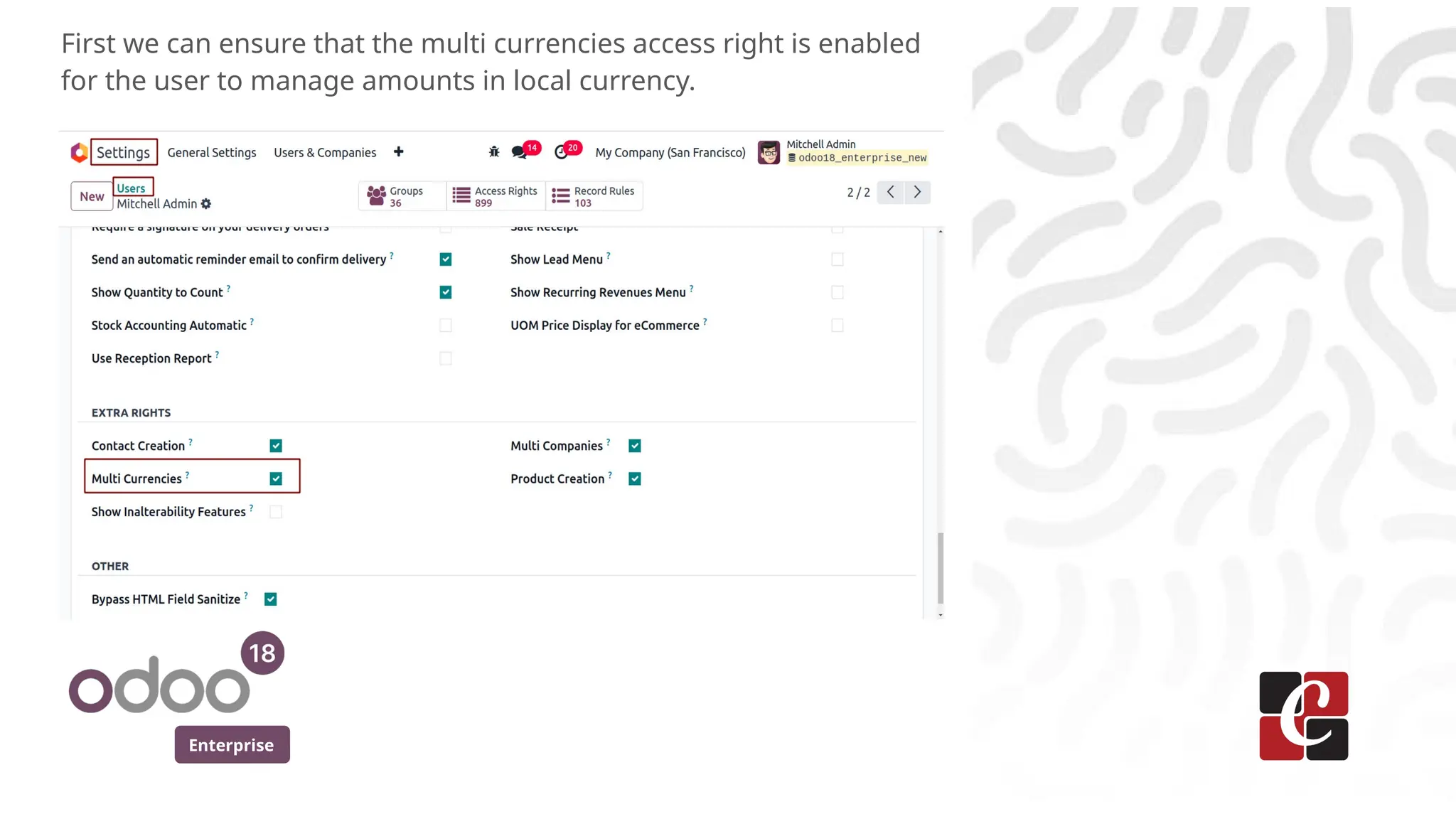
First we can ensure that the multi currencies access right is enabled
for the user to manage amounts in local currency.
Enterprise
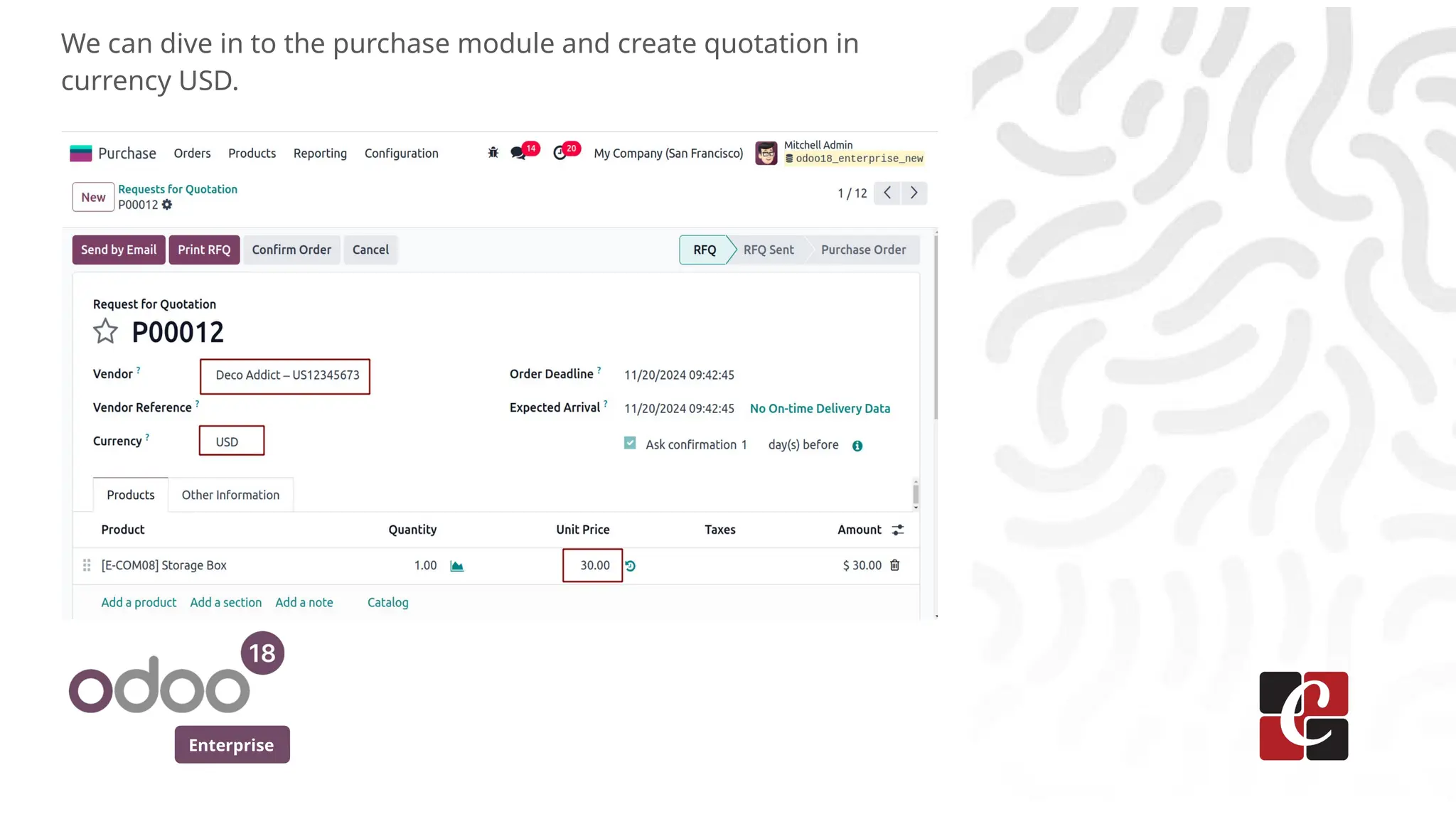
We can dive in to the purchase module and create quotation in
currency USD.
Enterprise
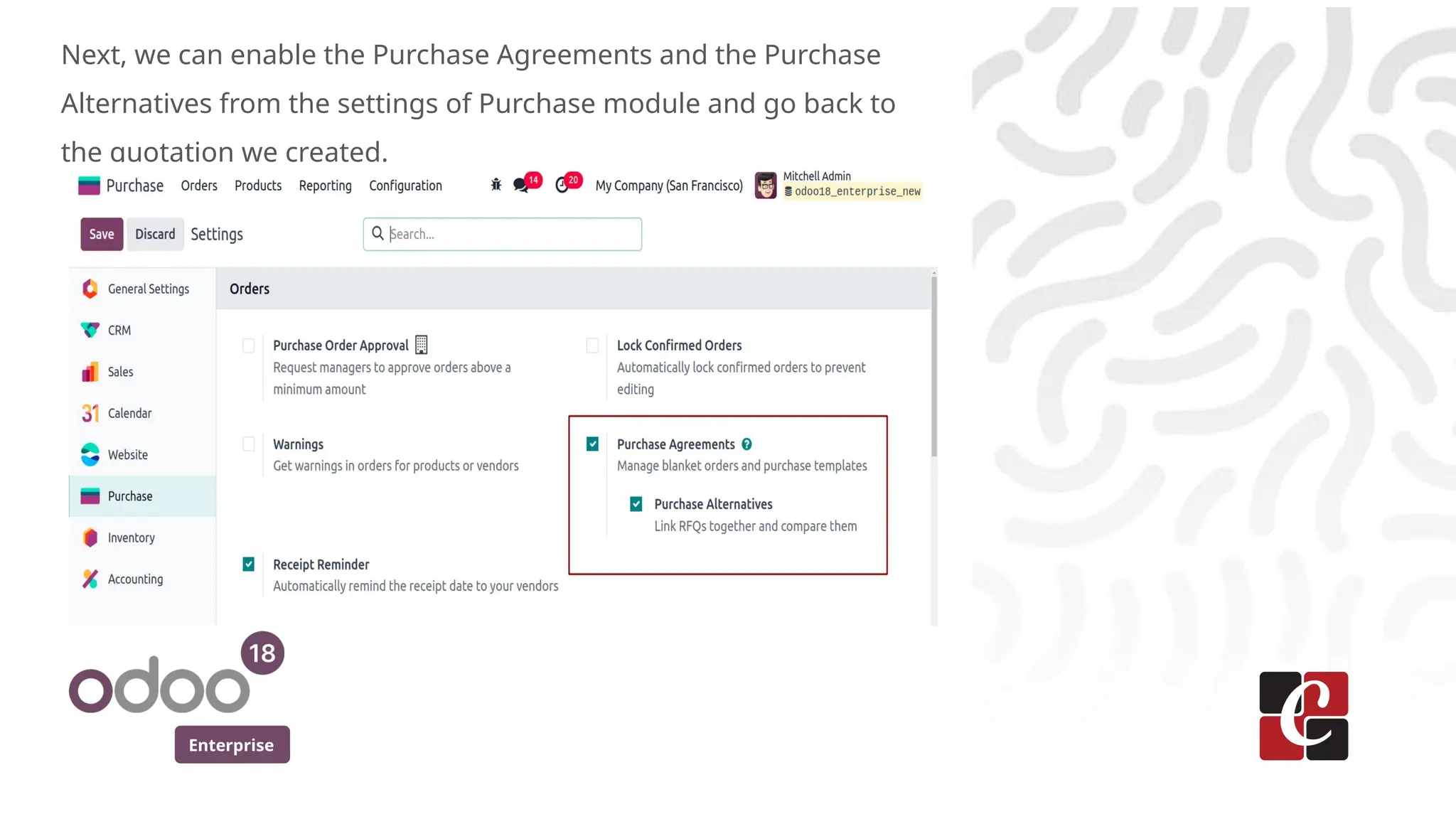
Next, we can enable the Purchase Agreements and the Purchase
Alternatives from the settings of Purchase module and go back to
the quotation we created.
Enterprise
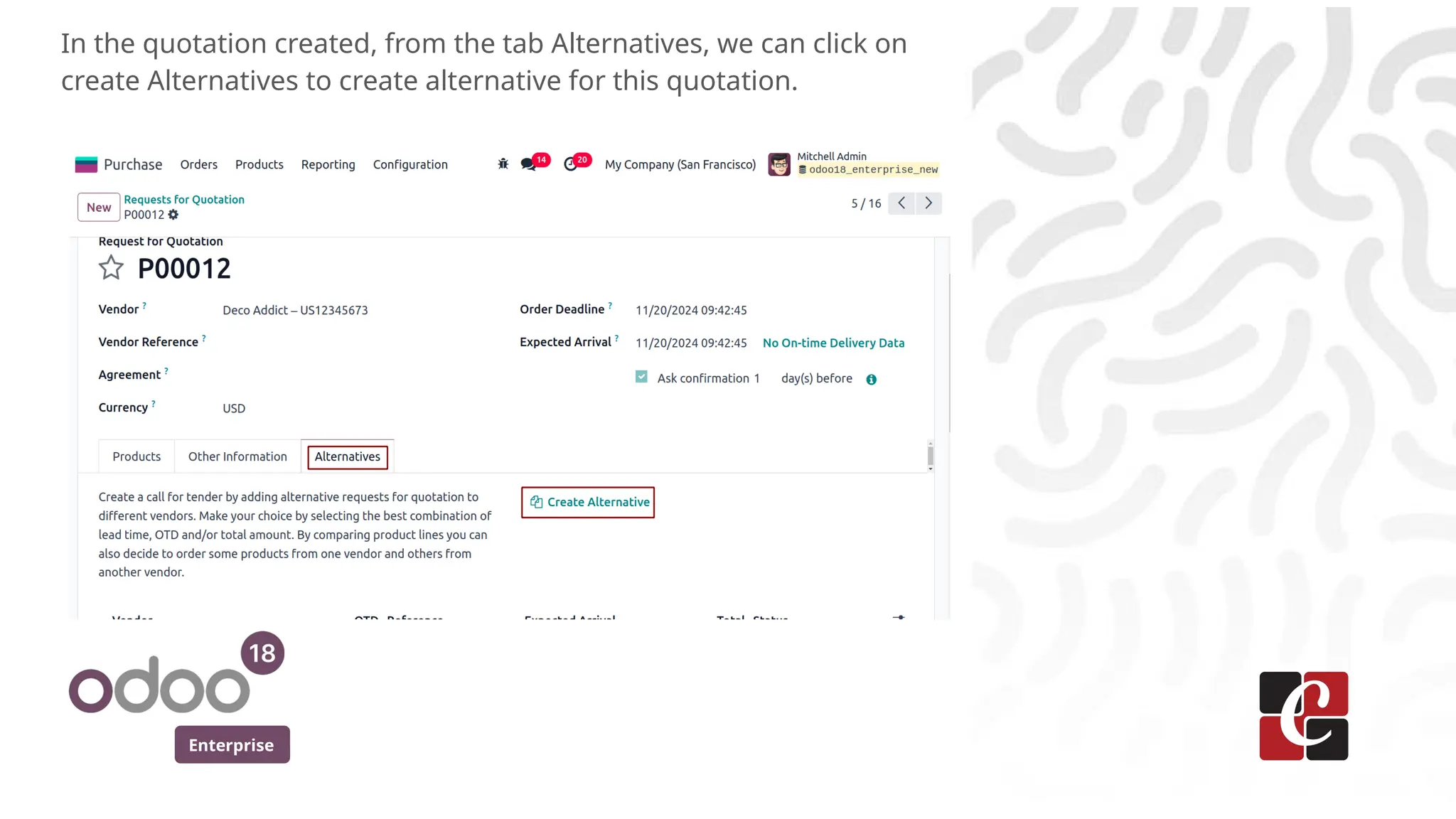
In the quotation created, from the tab Alternatives, we can click on
create Alternatives to create alternative for this quotation.
Enterprise
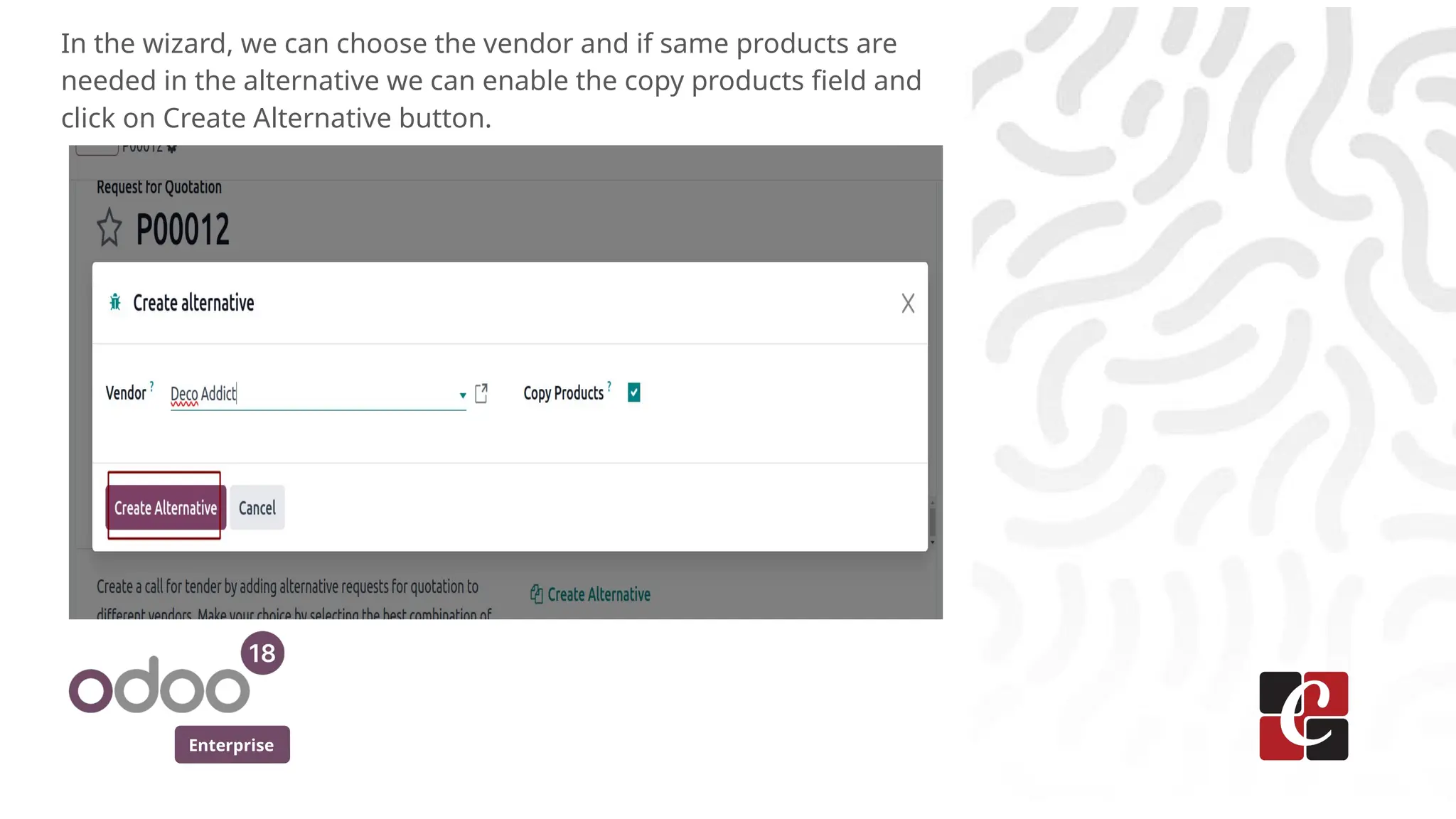
In the wizard, we can choose the vendor and if same products are
needed in the alternative we can enable the copy products field and
click on Create Alternative button.
Enterprise
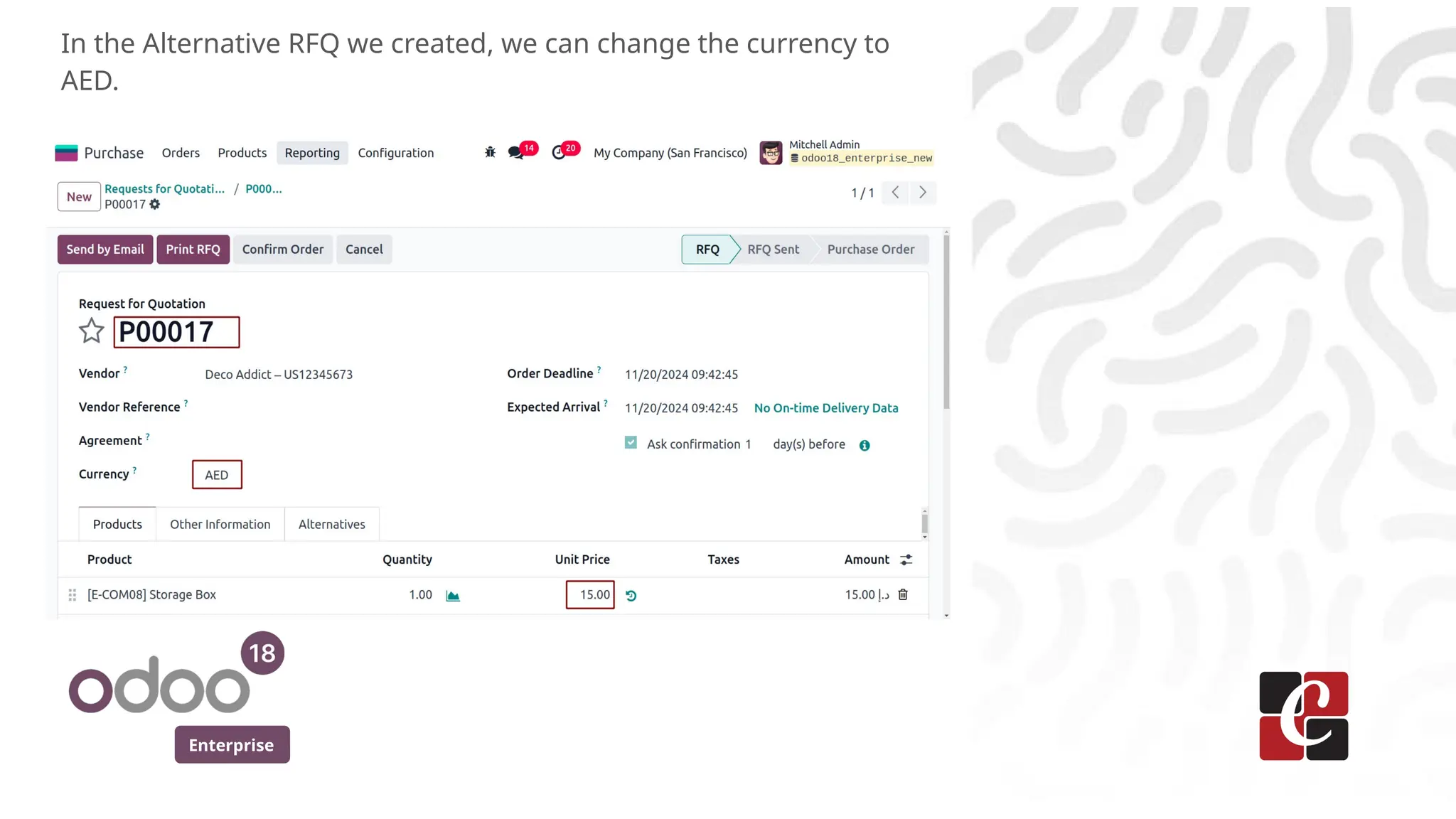
In the Alternative RFQ we created, we can change the currency to
AED.
Enterprise
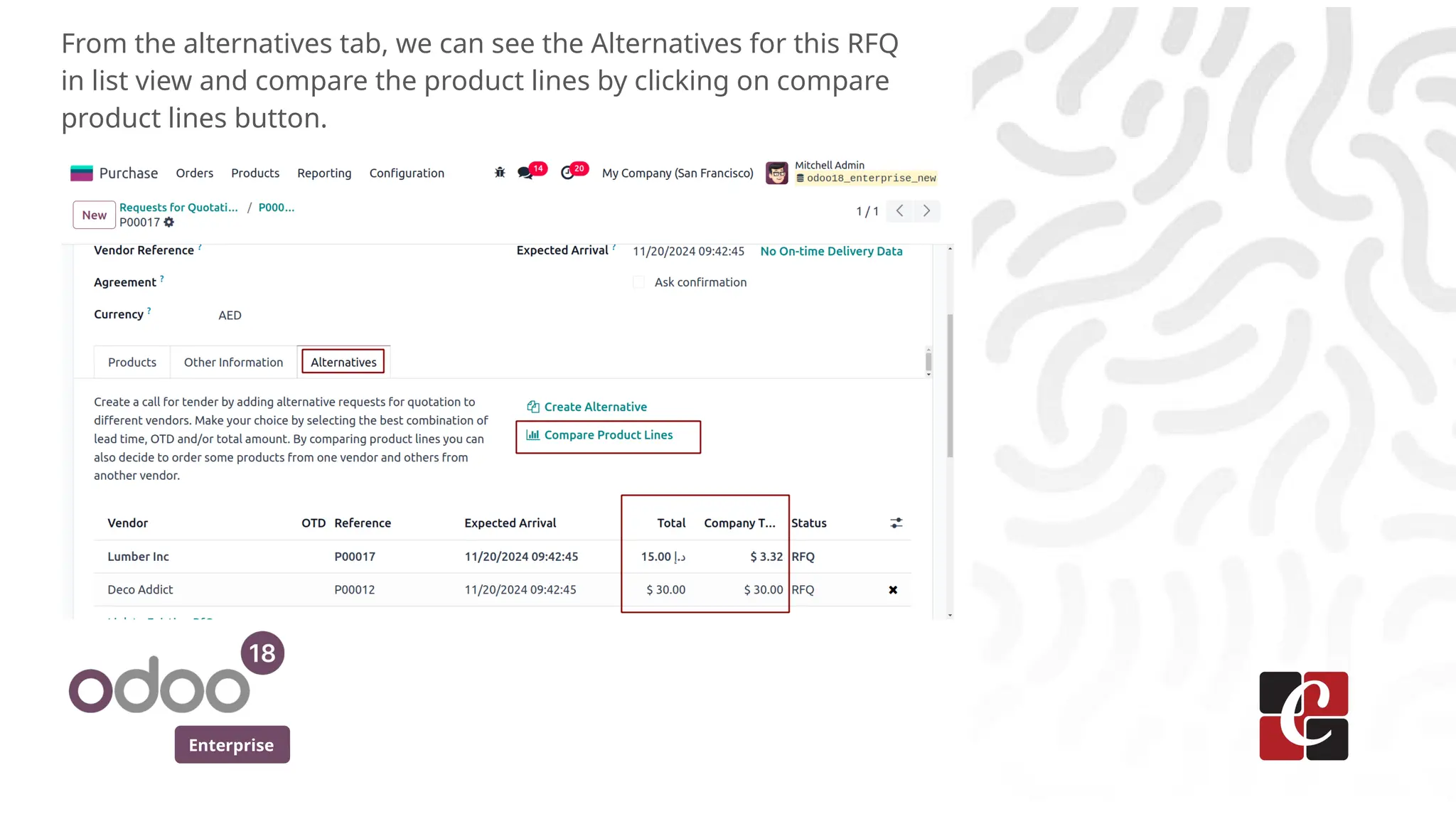
From the alternatives tab, we can see the Alternatives for this RFQ
in list view and compare the product lines by clicking on compare
product lines button.
Enterprise
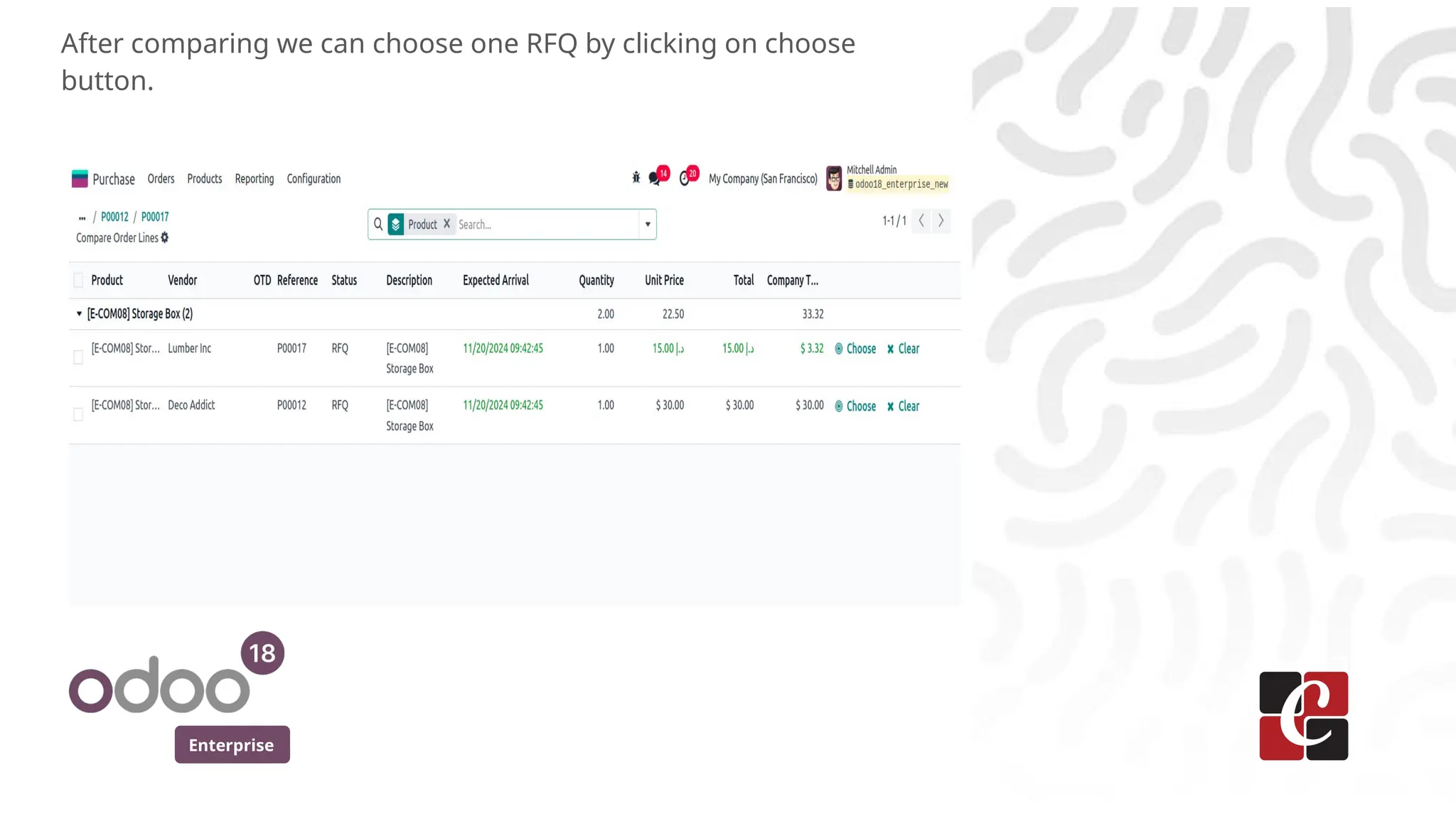
After comparing we can choose one RFQ by clicking on choose
button.
Enterprise
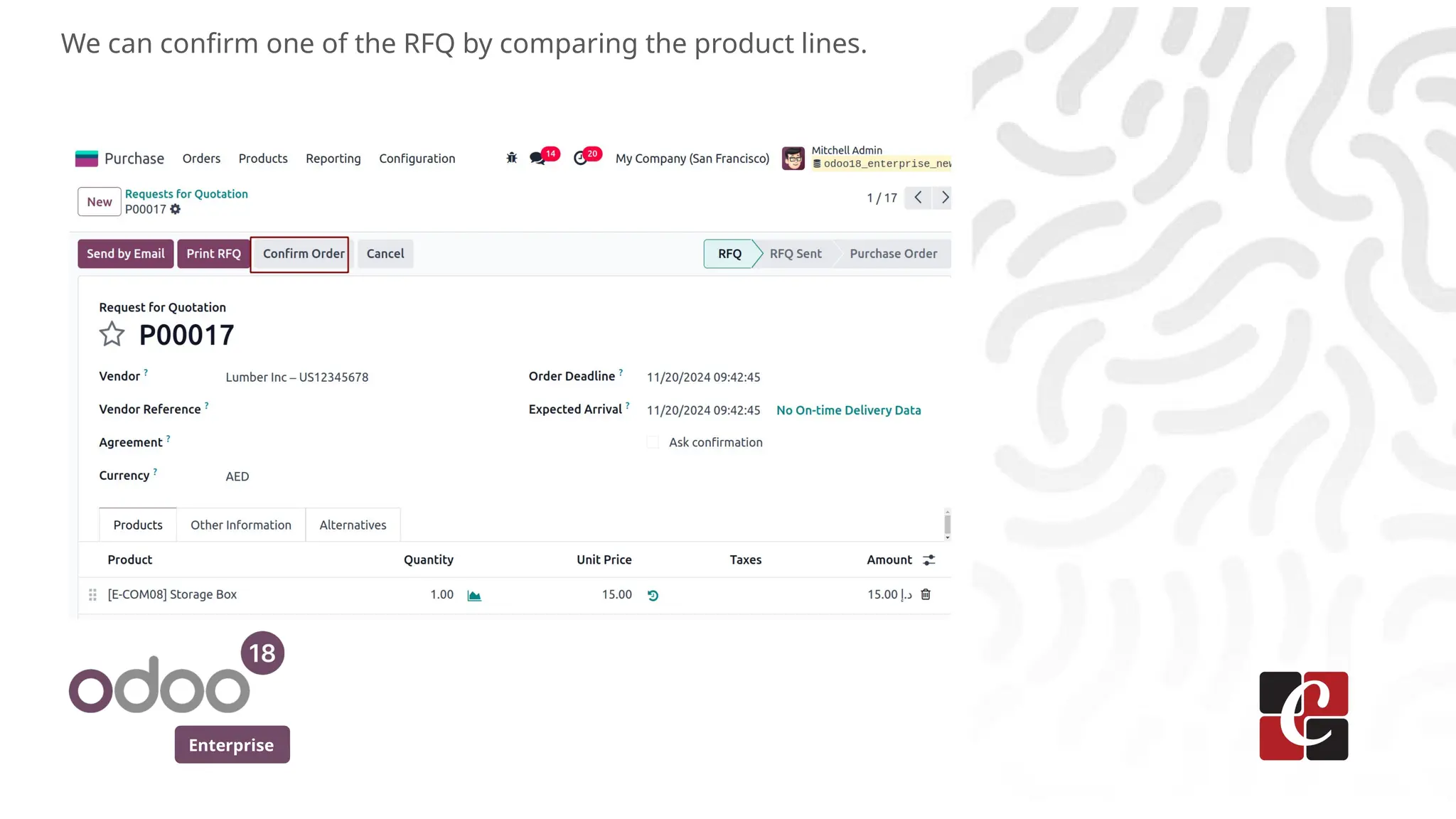
We can confirm one of the RFQ by comparing the product lines.
Enterprise
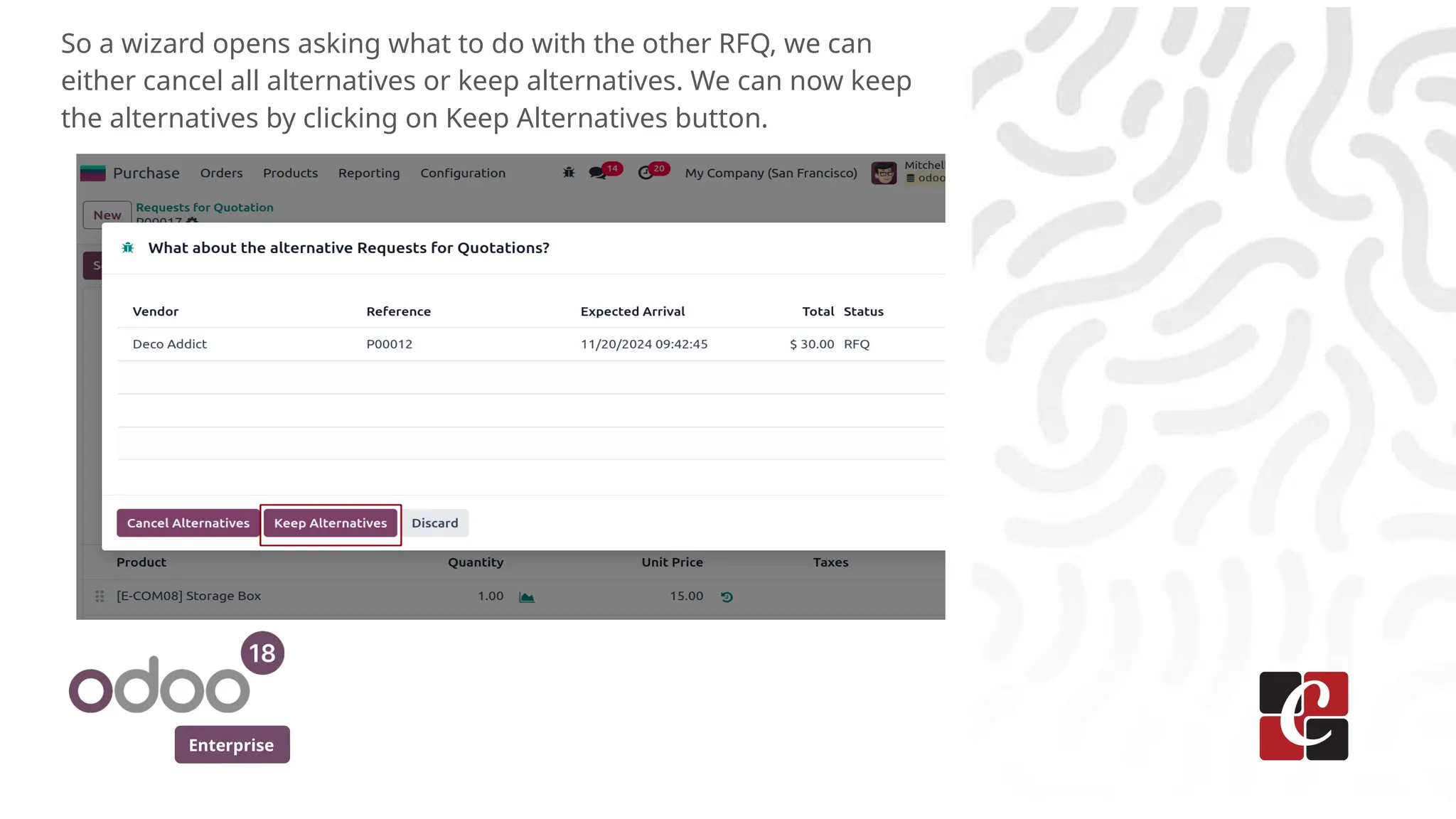
So a wizard opens asking what to do with the other RFQ, we can
either cancel all alternatives or keep alternatives. We can now keep
the alternatives by clicking on Keep Alternatives button.
Enterprise
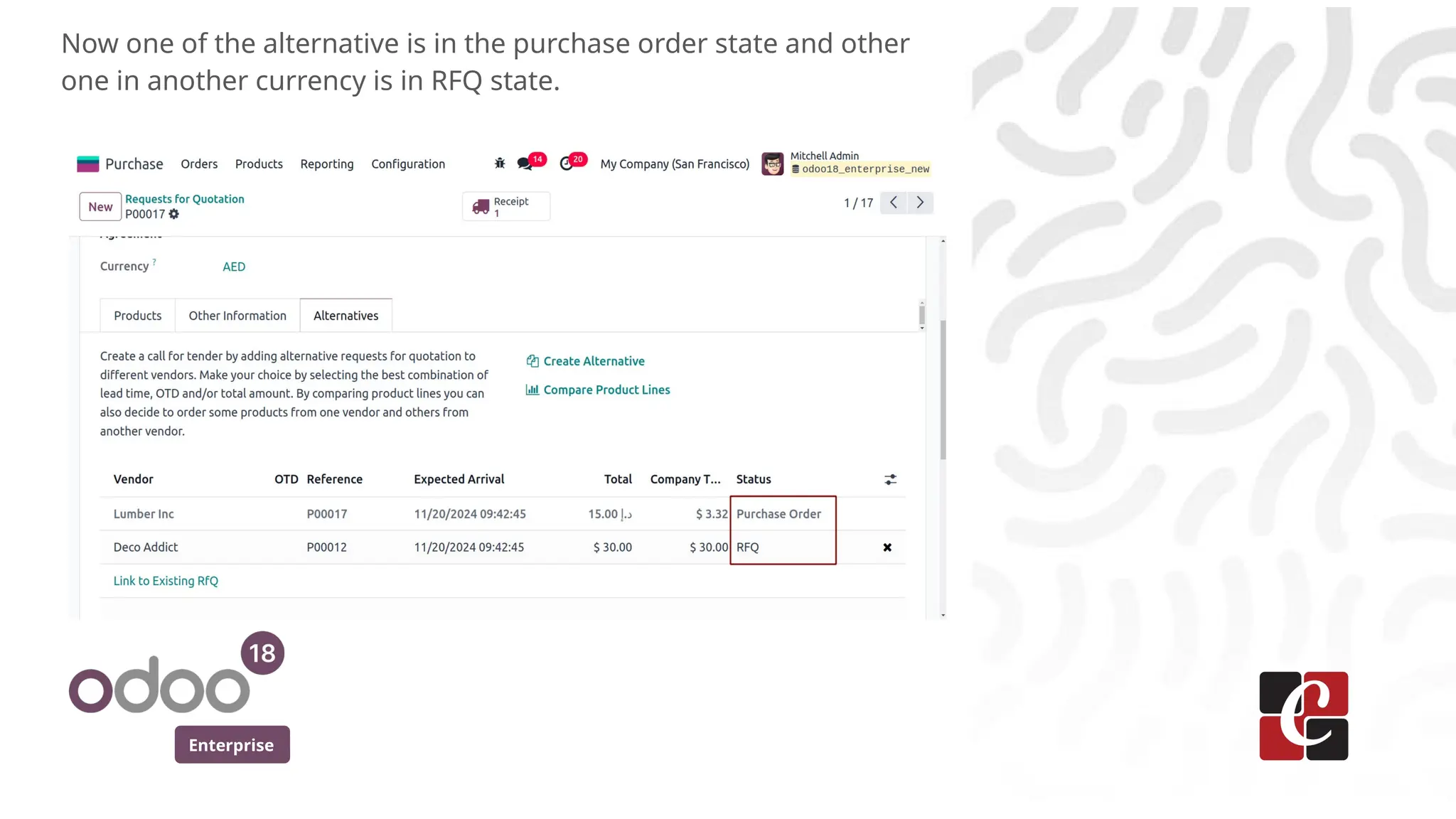
Now one of the alternative is in the purchase order state and other
one in another currency is in RFQ state.
Enterprise
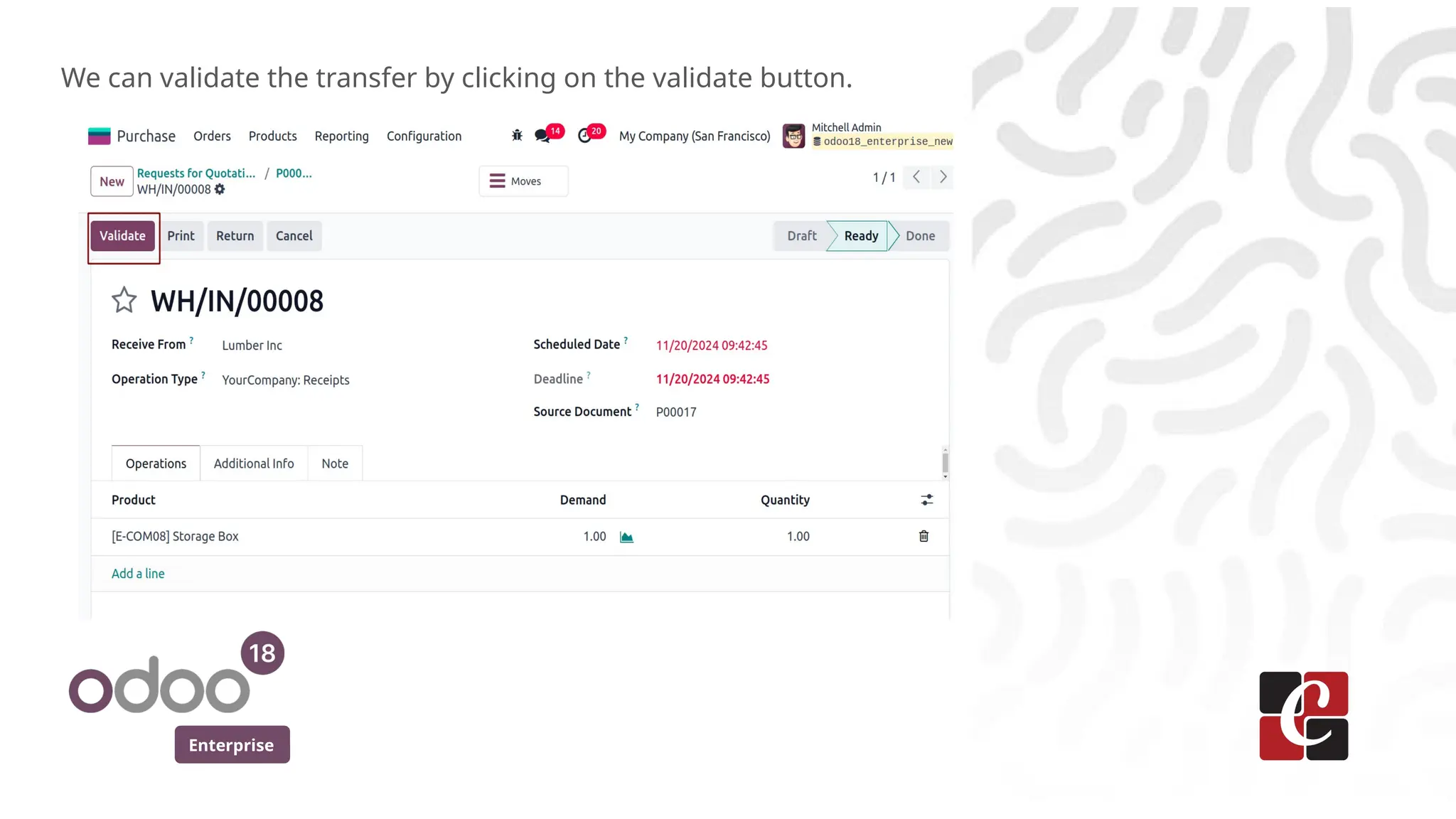
We can validate the transfer by clicking on the validate button.
Enterprise
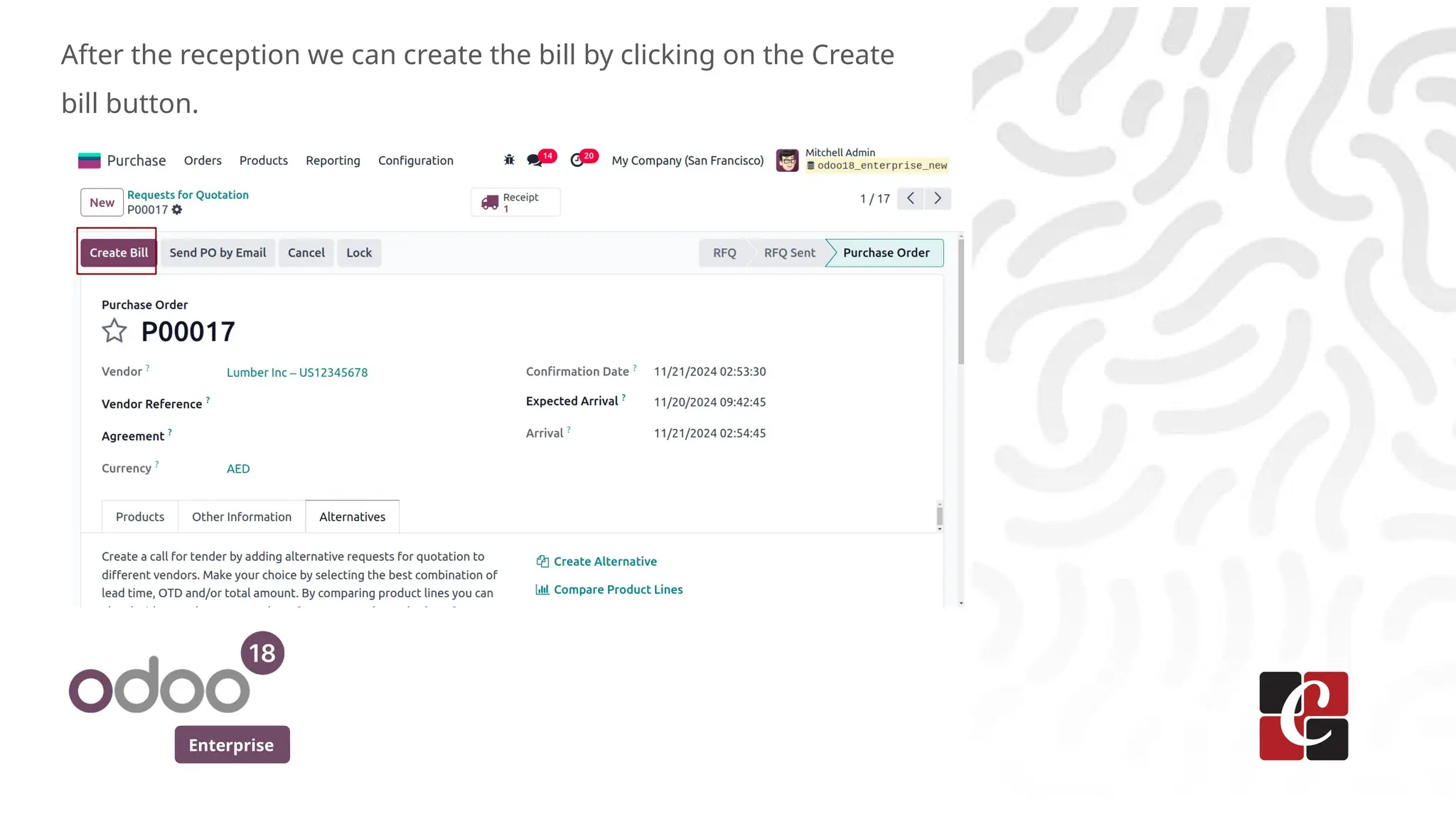
After the reception we can create the bill by clicking on the Create
bill button.
Enterprise
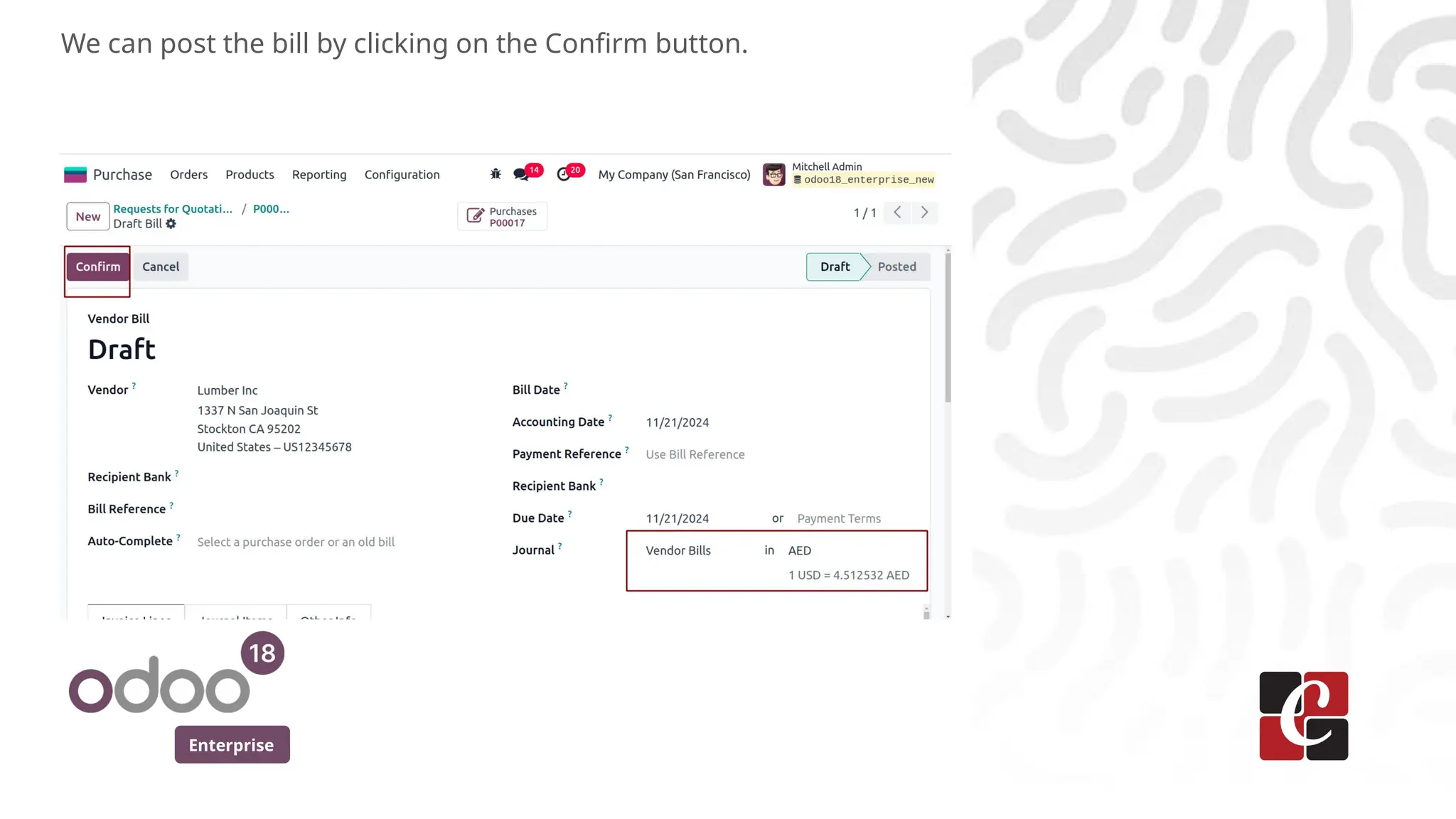
We can post the bill by clicking on the Confirm button.
Enterprise
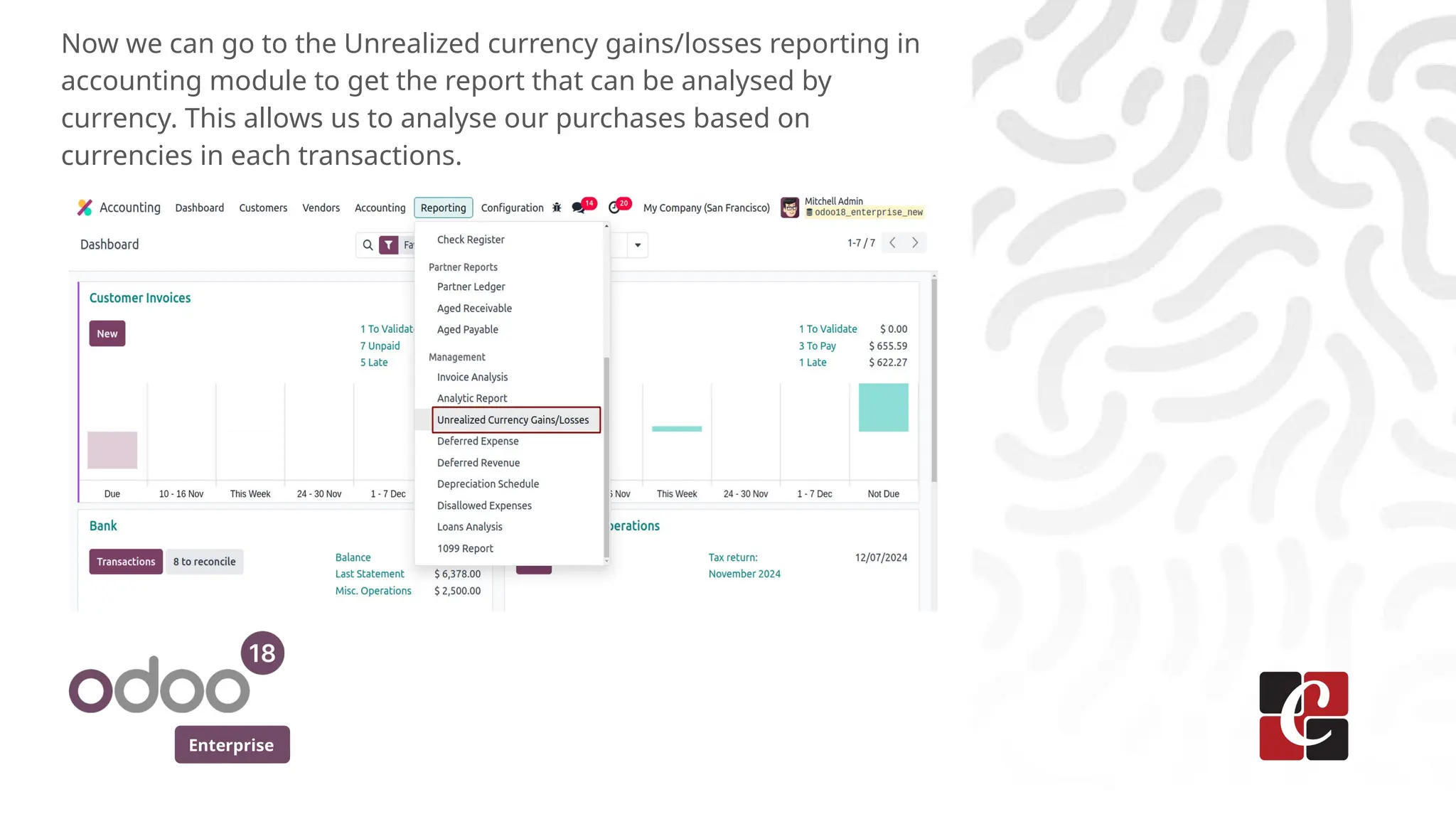
Now we can go to the Unrealized currency gains/losses reporting in
accounting module to get the report that can be analysed by
currency. This allows us to analyse our purchases based on
currencies in each transactions.
Enterprise
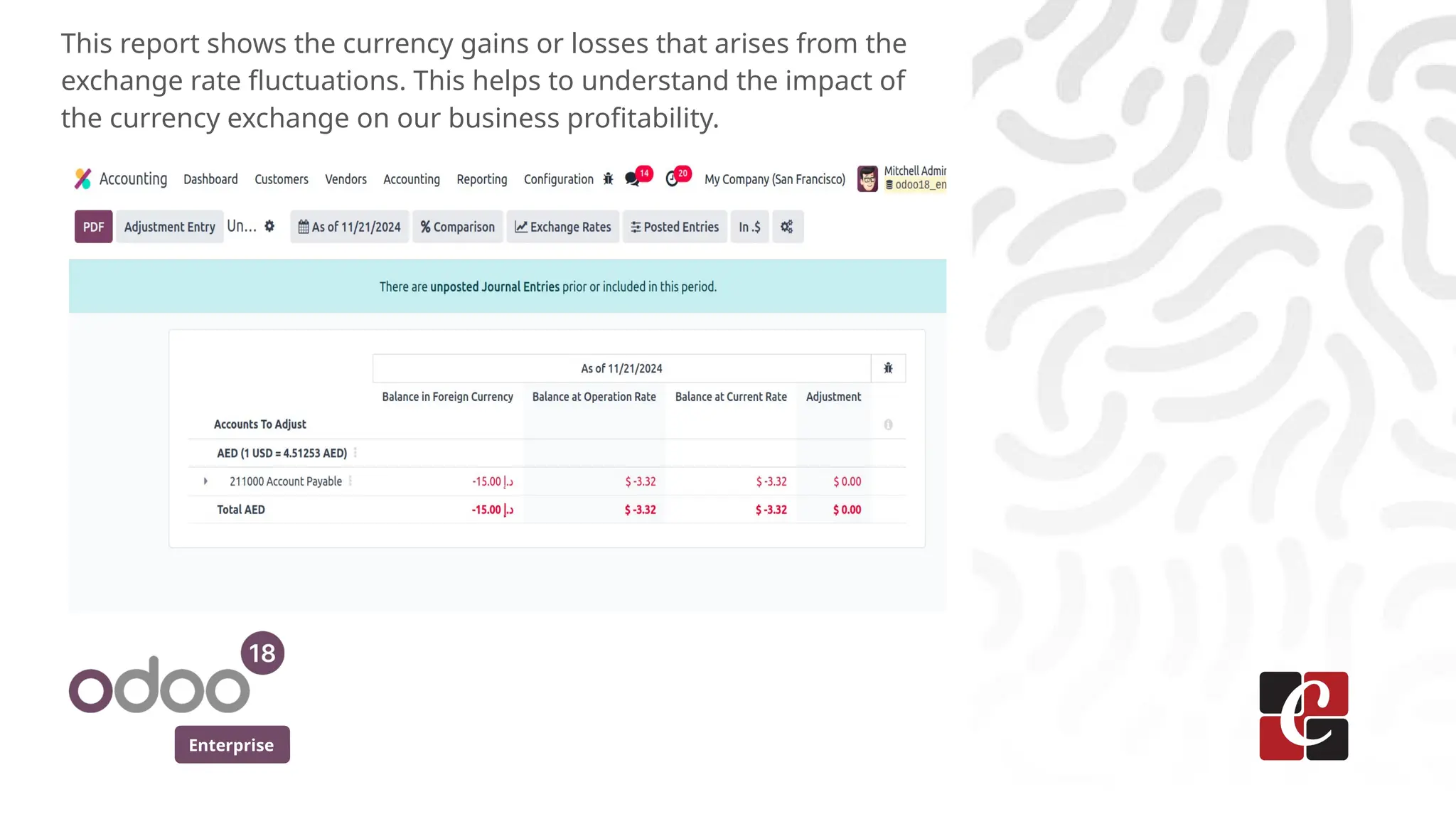
This report shows the currency gains or losses that arises from the
exchange rate fluctuations. This helps to understand the impact of
the currency exchange on our business profitability.
For More Info.
Check our company website for related blogs
and Odoo book.
Check our YouTube channel for
functional and technical videos in Odoo.
Enterprise
www.cybrosys.com
How to Manage Amounts in Local Currency in Odoo 18 Purchase

  • 1.
    How to ManageAmounts in Local Currency in Odoo 18 Purchase Enterprise
  • 2.
    Enterprise Introduction In this slide,we’ll discuss on how to manage amounts in local currency in Odoo 18 Purchase. Odoo 18 allows us to manage purchase orders and invoices in our local currency. This means that we can enter and track purchase information using the most relevant currency to our business operations.
  • 3.
    Enterprise First we canensure that the multi currencies access right is enabled for the user to manage amounts in local currency.
  • 4.
    Enterprise We can divein to the purchase module and create quotation in currency USD.
  • 5.
    Enterprise Next, we canenable the Purchase Agreements and the Purchase Alternatives from the settings of Purchase module and go back to the quotation we created.
  • 6.
    Enterprise In the quotationcreated, from the tab Alternatives, we can click on create Alternatives to create alternative for this quotation.
  • 7.
    Enterprise In the wizard,we can choose the vendor and if same products are needed in the alternative we can enable the copy products field and click on Create Alternative button.
  • 8.
    Enterprise In the AlternativeRFQ we created, we can change the currency to AED.
  • 9.
    Enterprise From the alternativestab, we can see the Alternatives for this RFQ in list view and compare the product lines by clicking on compare product lines button.
  • 10.
    Enterprise After comparing wecan choose one RFQ by clicking on choose button.
  • 11.
    Enterprise We can confirmone of the RFQ by comparing the product lines.
  • 12.
    Enterprise So a wizardopens asking what to do with the other RFQ, we can either cancel all alternatives or keep alternatives. We can now keep the alternatives by clicking on Keep Alternatives button.
  • 13.
    Enterprise Now one ofthe alternative is in the purchase order state and other one in another currency is in RFQ state.
  • 14.
    Enterprise We can validatethe transfer by clicking on the validate button.
  • 15.
    Enterprise After the receptionwe can create the bill by clicking on the Create bill button.
  • 16.
    Enterprise We can postthe bill by clicking on the Confirm button.
  • 17.
    Enterprise Now we cango to the Unrealized currency gains/losses reporting in accounting module to get the report that can be analysed by currency. This allows us to analyse our purchases based on currencies in each transactions.
  • 18.
    Enterprise This report showsthe currency gains or losses that arises from the exchange rate fluctuations. This helps to understand the impact of the currency exchange on our business profitability.
  • 19.
    For More Info. Checkour company website for related blogs and Odoo book. Check our YouTube channel for functional and technical videos in Odoo. Enterprise www.cybrosys.com