www.cybrosys.com
Odoo 15 - Purchase
dashboard
INTRODUCTION
❖ Procurement or Purchase management is the act of obtaining or procuring products and
services from suppliers typically for business purposes.
❖ Manually managing Purchase activities are very tedious and risky tasks.
❖ A well defined Purchase Management system like Odoo can make all these risky tasks simple
and effortless.
❖ The Odoo Purchase management system has the ability to manage and issue tenders,
evaluating and approving purchase orders, picking and confirming the product or services,
receiving and going with invoices and orders along with the final payments.
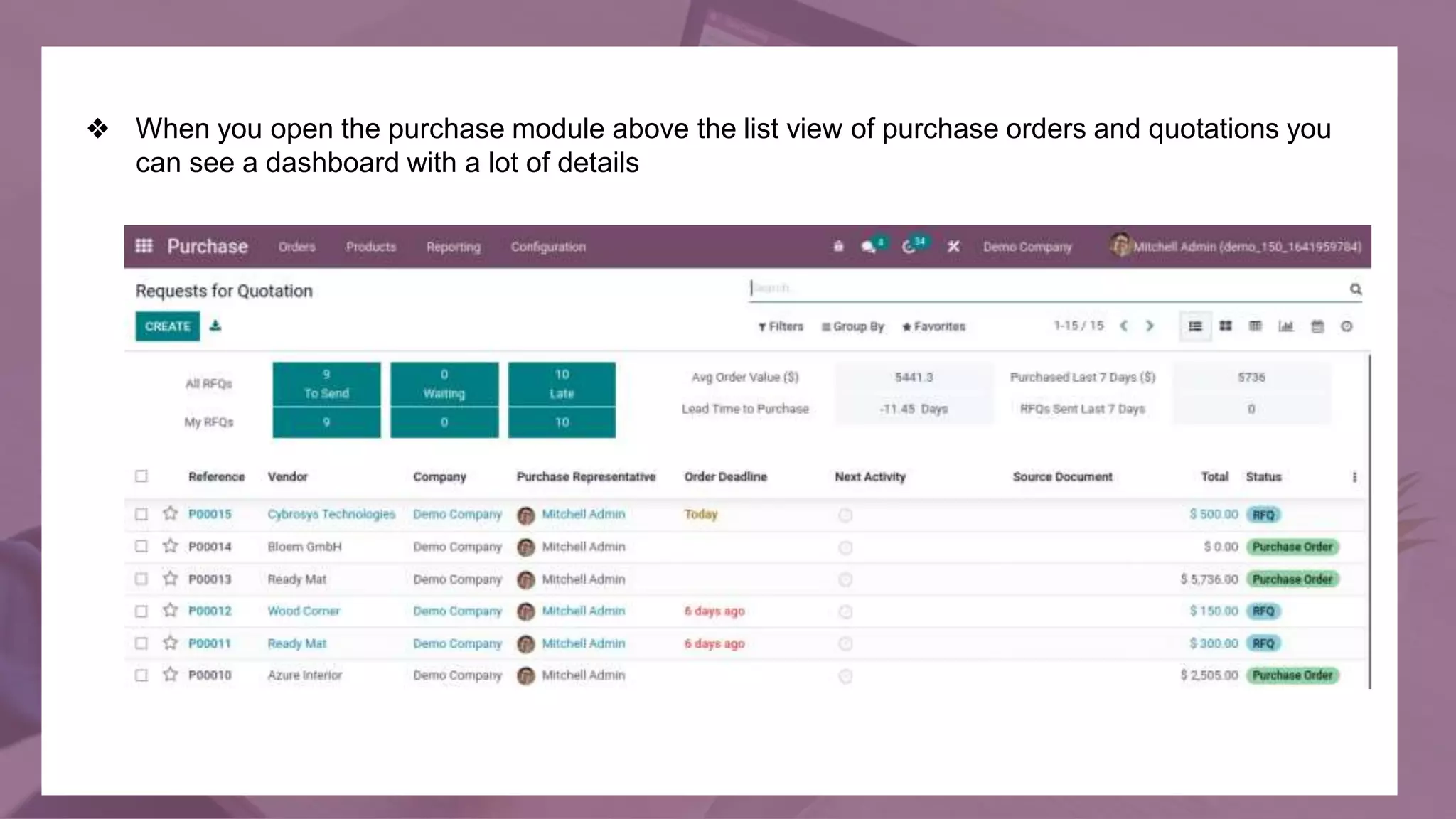
❖ When you open the purchase module above the list view of purchase orders and quotations you
can see a dashboard with a lot of details
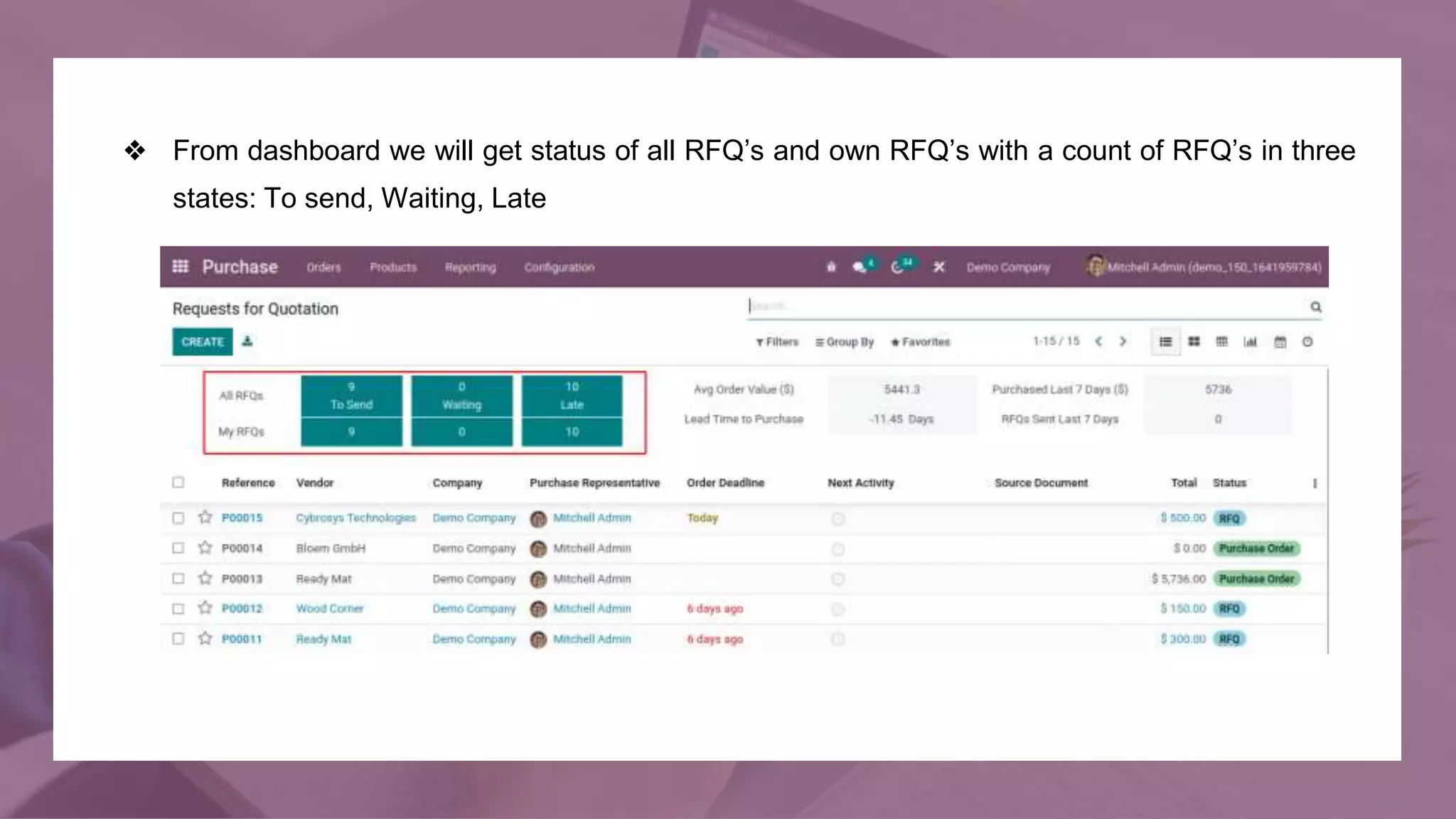
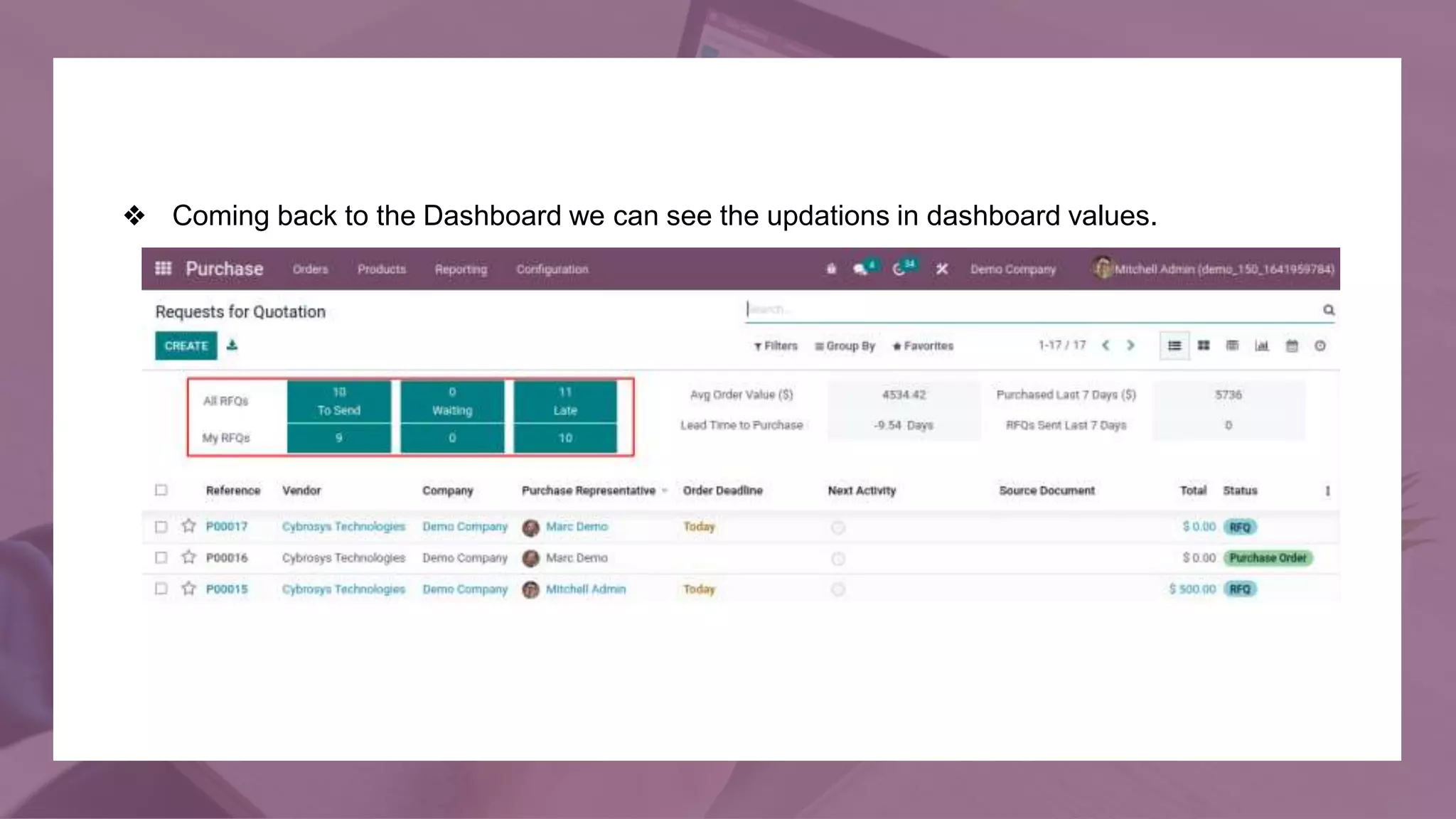
❖ From dashboard we will get status of all RFQ’s and own RFQ’s with a count of RFQ’s in three
states: To send, Waiting, Late
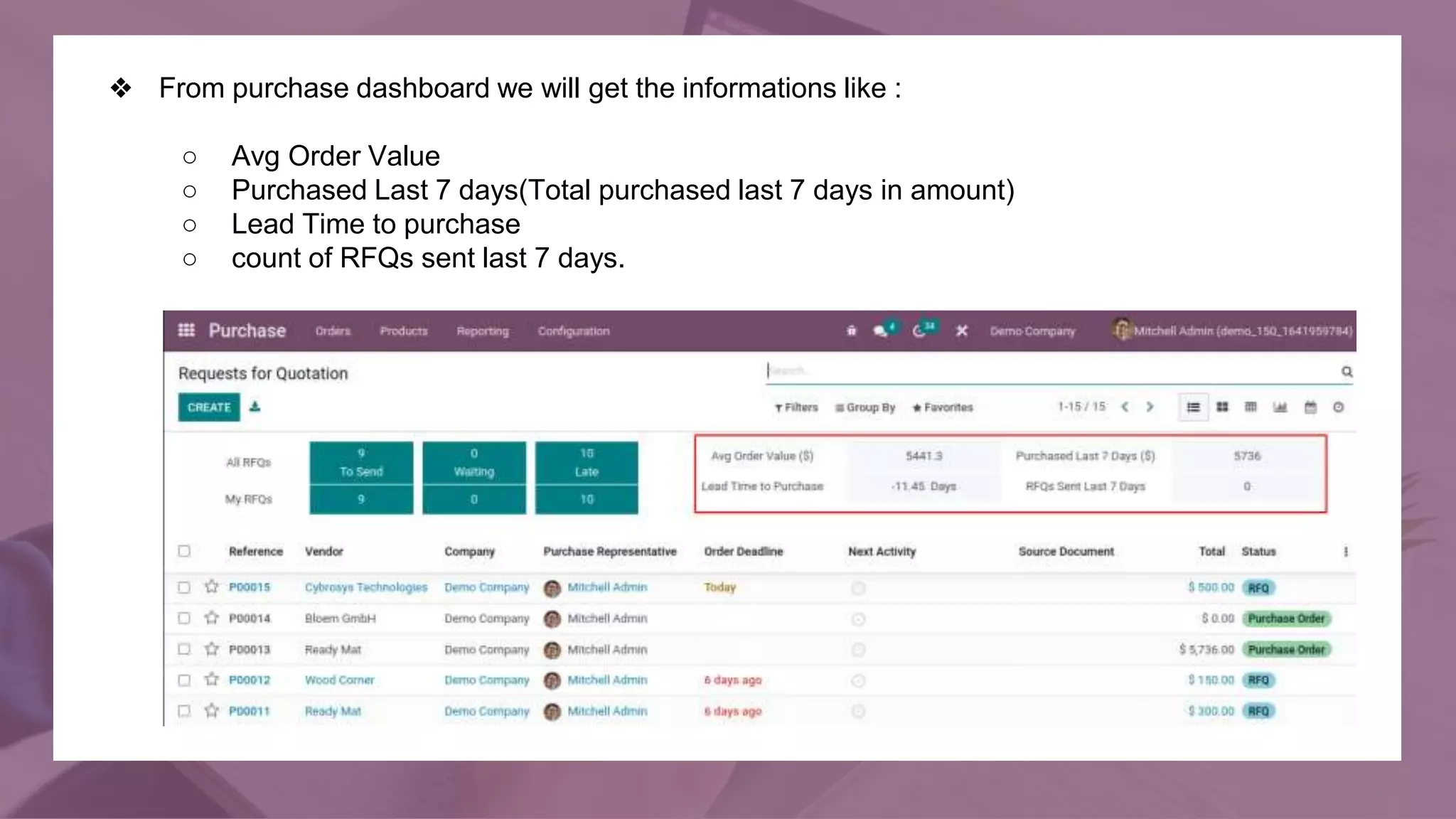
❖ From purchase dashboard we will get the informations like :
○ Avg Order Value
○ Purchased Last 7 days(Total purchased last 7 days in amount)
○ Lead Time to purchase
○ count of RFQs sent last 7 days.
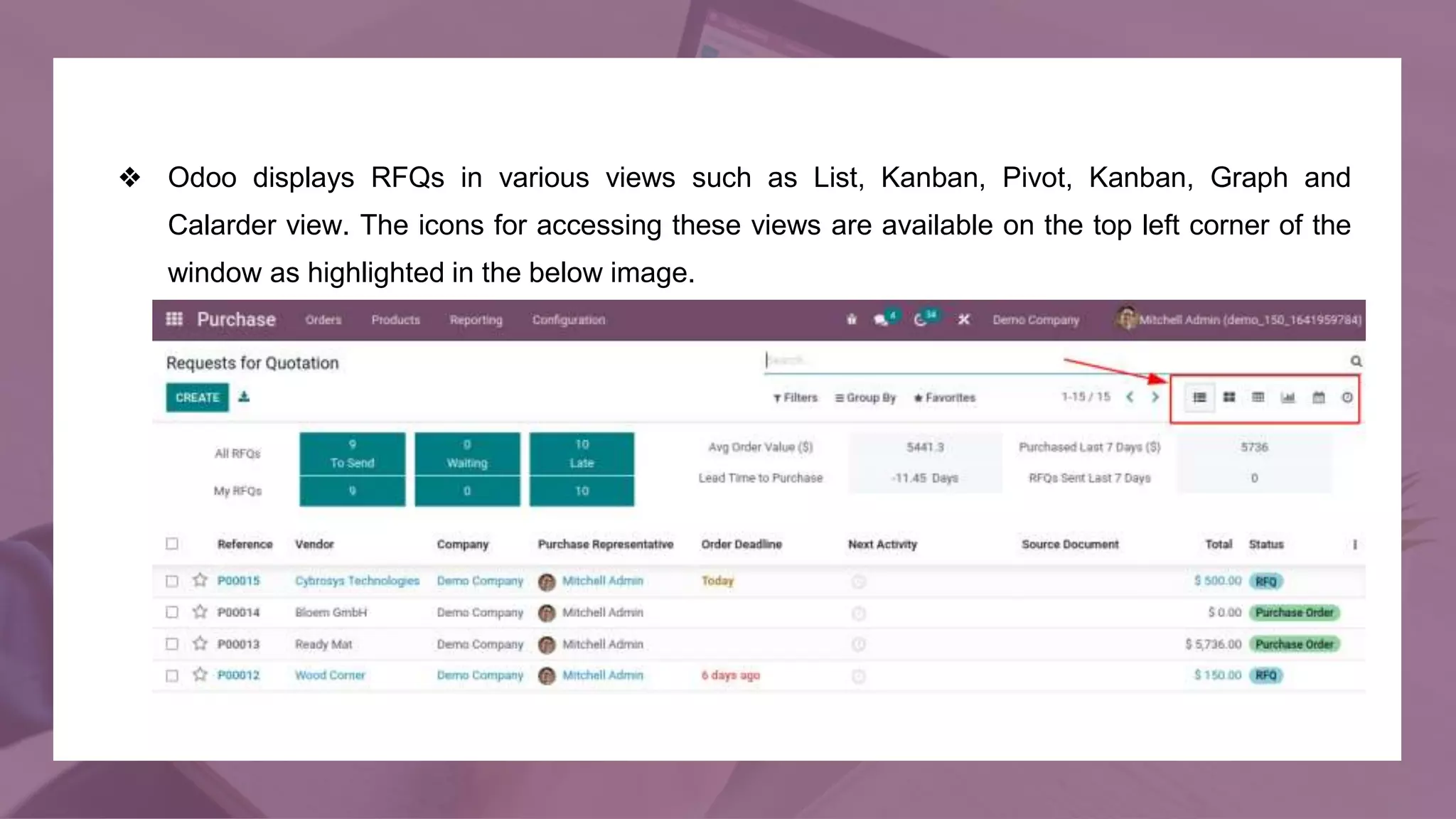
❖ Odoo displays RFQs in various views such as List, Kanban, Pivot, Kanban, Graph and
Calarder view. The icons for accessing these views are available on the top left corner of the
window as highlighted in the below image.
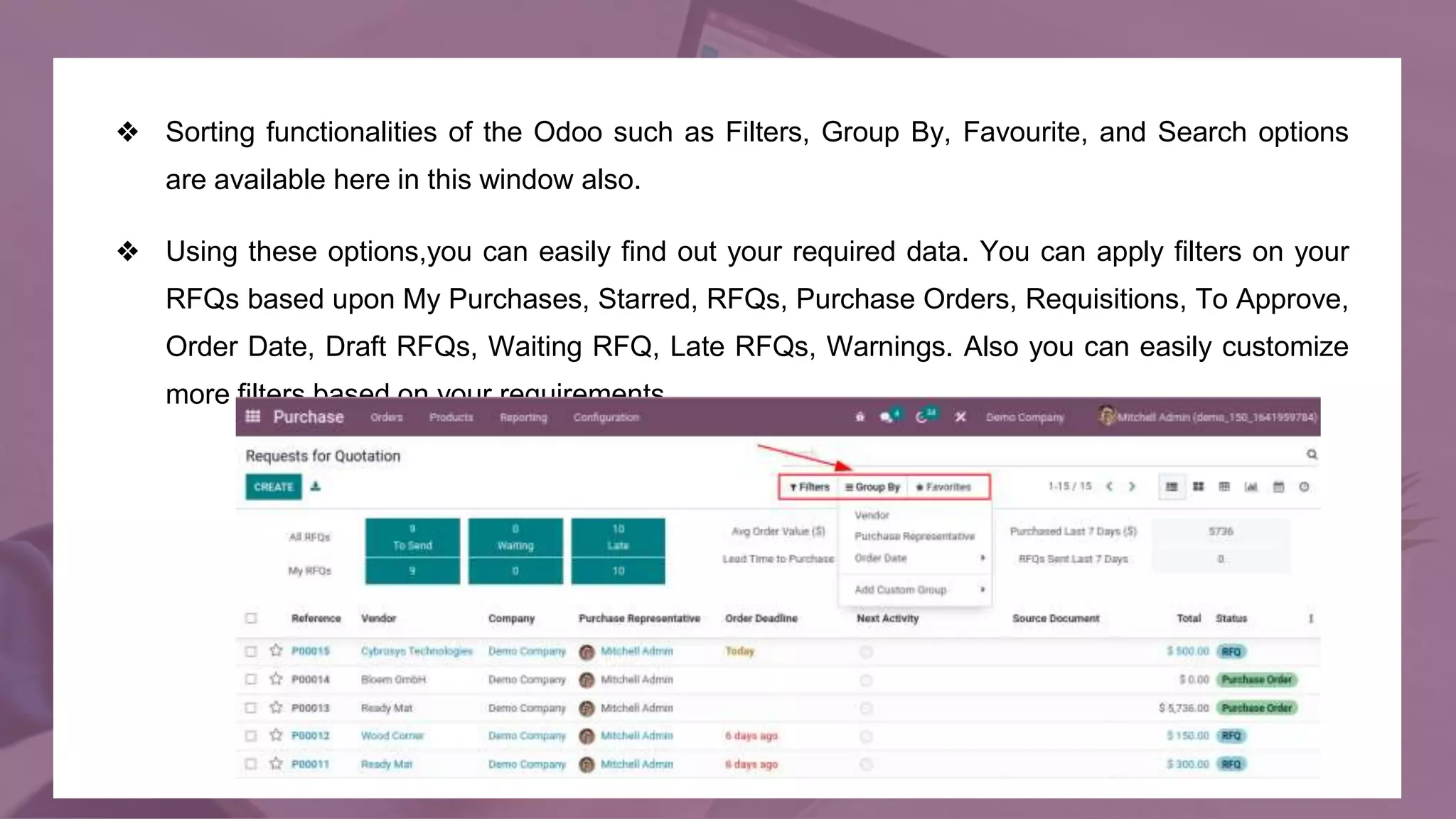
❖ Sorting functionalities of the Odoo such as Filters, Group By, Favourite, and Search options
are available here in this window also.
❖ Using these options,you can easily find out your required data. You can apply filters on your
RFQs based upon My Purchases, Starred, RFQs, Purchase Orders, Requisitions, To Approve,
Order Date, Draft RFQs, Waiting RFQ, Late RFQs, Warnings. Also you can easily customize
more filters based on your requirements.
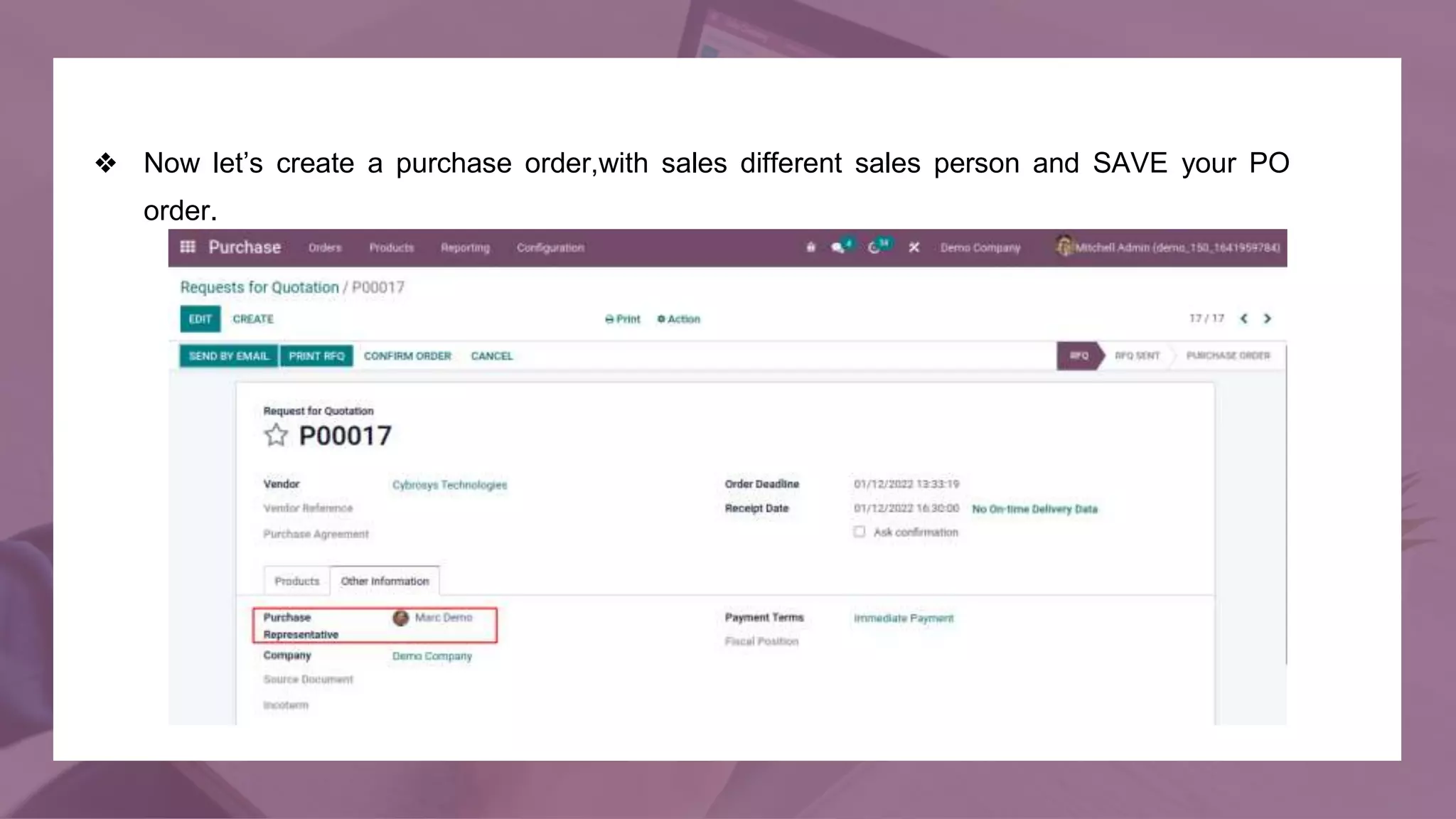
❖ Now let’s create a purchase order,with sales different sales person and SAVE your PO
order.
❖ Coming back to the Dashboard we can see the updations in dashboard values.
For More
Details
Check our company website for related blogs and Odoo book.
Purchase - Odoo 15 Enterprise Book
Check our YouTube channel for functional and technical
videos in Odoo.
Odoo 15 Purchase Dashboard
Thank You

Purchase Dashboard in Odoo 15

  • 1.
    www.cybrosys.com Odoo 15 -Purchase dashboard
  • 2.
    INTRODUCTION ❖ Procurement orPurchase management is the act of obtaining or procuring products and services from suppliers typically for business purposes. ❖ Manually managing Purchase activities are very tedious and risky tasks. ❖ A well defined Purchase Management system like Odoo can make all these risky tasks simple and effortless. ❖ The Odoo Purchase management system has the ability to manage and issue tenders, evaluating and approving purchase orders, picking and confirming the product or services, receiving and going with invoices and orders along with the final payments.
  • 3.
    ❖ When youopen the purchase module above the list view of purchase orders and quotations you can see a dashboard with a lot of details
  • 4.
    ❖ From dashboardwe will get status of all RFQ’s and own RFQ’s with a count of RFQ’s in three states: To send, Waiting, Late
  • 5.
    ❖ From purchasedashboard we will get the informations like : ○ Avg Order Value ○ Purchased Last 7 days(Total purchased last 7 days in amount) ○ Lead Time to purchase ○ count of RFQs sent last 7 days.
  • 6.
    ❖ Odoo displaysRFQs in various views such as List, Kanban, Pivot, Kanban, Graph and Calarder view. The icons for accessing these views are available on the top left corner of the window as highlighted in the below image.
  • 7.
    ❖ Sorting functionalitiesof the Odoo such as Filters, Group By, Favourite, and Search options are available here in this window also. ❖ Using these options,you can easily find out your required data. You can apply filters on your RFQs based upon My Purchases, Starred, RFQs, Purchase Orders, Requisitions, To Approve, Order Date, Draft RFQs, Waiting RFQ, Late RFQs, Warnings. Also you can easily customize more filters based on your requirements.
  • 8.
    ❖ Now let’screate a purchase order,with sales different sales person and SAVE your PO order.
  • 9.
    ❖ Coming backto the Dashboard we can see the updations in dashboard values.
  • 10.
    For More Details Check ourcompany website for related blogs and Odoo book. Purchase - Odoo 15 Enterprise Book Check our YouTube channel for functional and technical videos in Odoo. Odoo 15 Purchase Dashboard
  • 12.