How to Look Great, Get Noticed
and Get Hired
Paul Barber
Golden Career Strategies Roundtable
September 16, 2013
Thanks to Andy Priestner & Meg Westbury for 20 Top Tips & Tricks for 2013
and to Charles Hardy for Optimize Your Career using LinkedIn
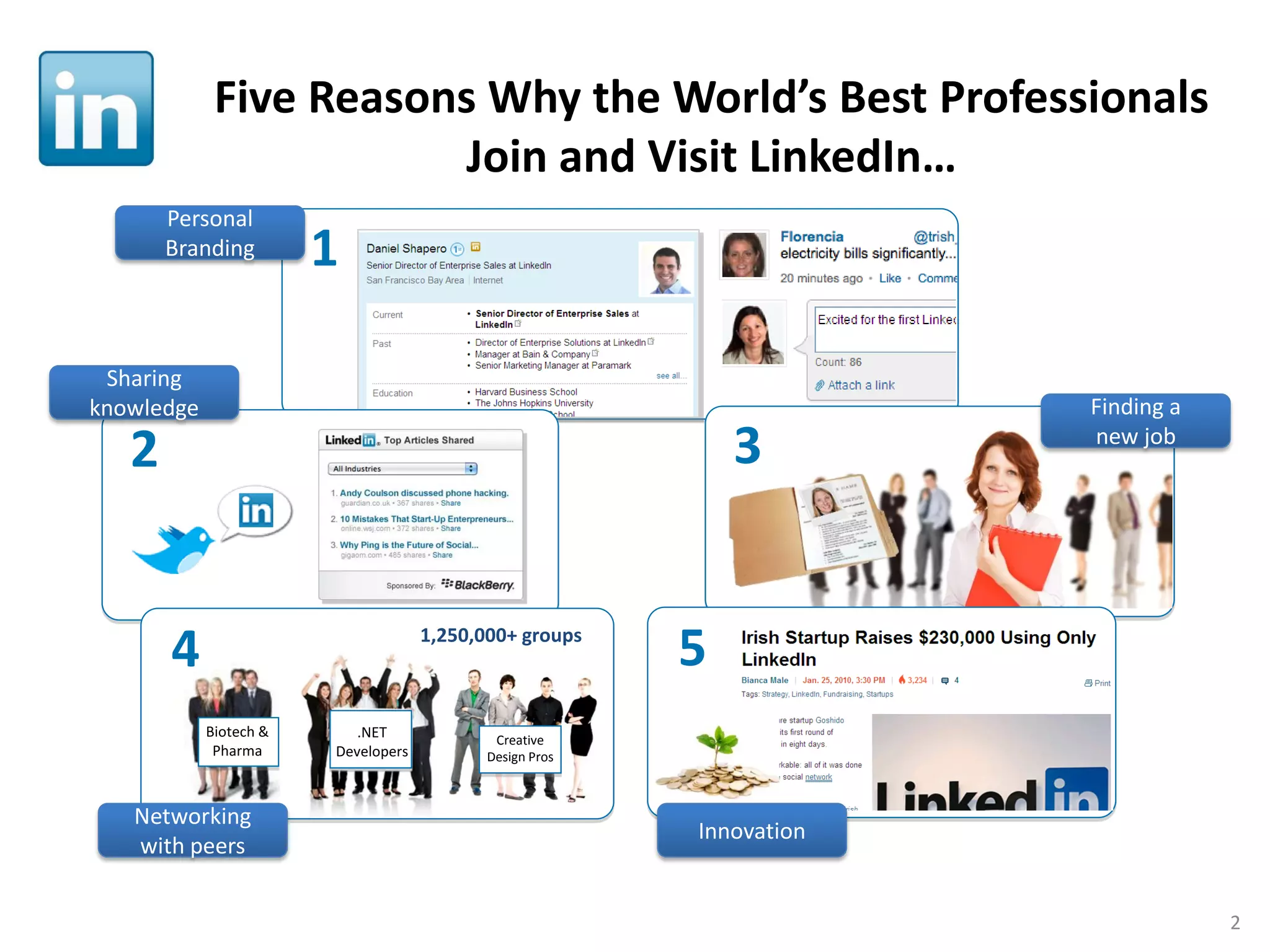
Five Reasons Why the World’s Best Professionals
Join and Visit LinkedIn…
Personal
Branding

1

Sharing
knowledge

3

2

4

1,250,000+ groups

Biotech &
Pharma

Networking
with peers

.NET
Developers

Finding a
new job

5

Creative
Design Pros

Innovation

2
LinkedIn: How to Join
Becoming a Member is Easy

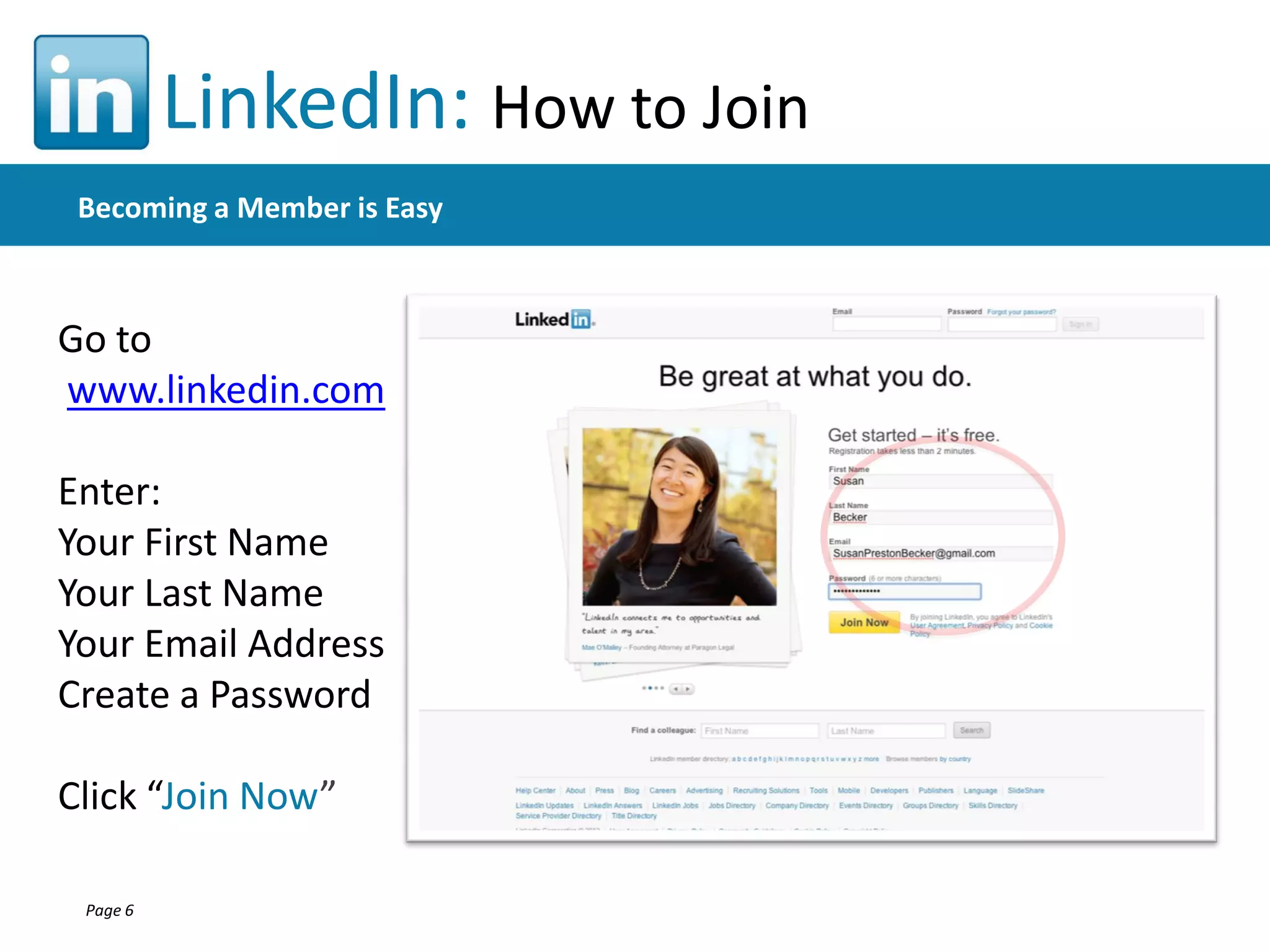
Go to
www.linkedin.com

Enter:
Your First Name
Your Last Name
Your Email Address
Create a Password
Click “Join Now”
Page 6
Check out
new Profile
sections
Go to Profile/
Edit Profile &
use pencil icons
to edit

20 top tips & tricks

• Upload files – showcase presentations,
white papers, etc.
• Add a link – blog, Twitter, etc.
• Volunteer Experience
• Rearrange profile order
LinkedIn: Build Your Profile
The Personal Identification Box – Your “15-Second Bumper Sticker”
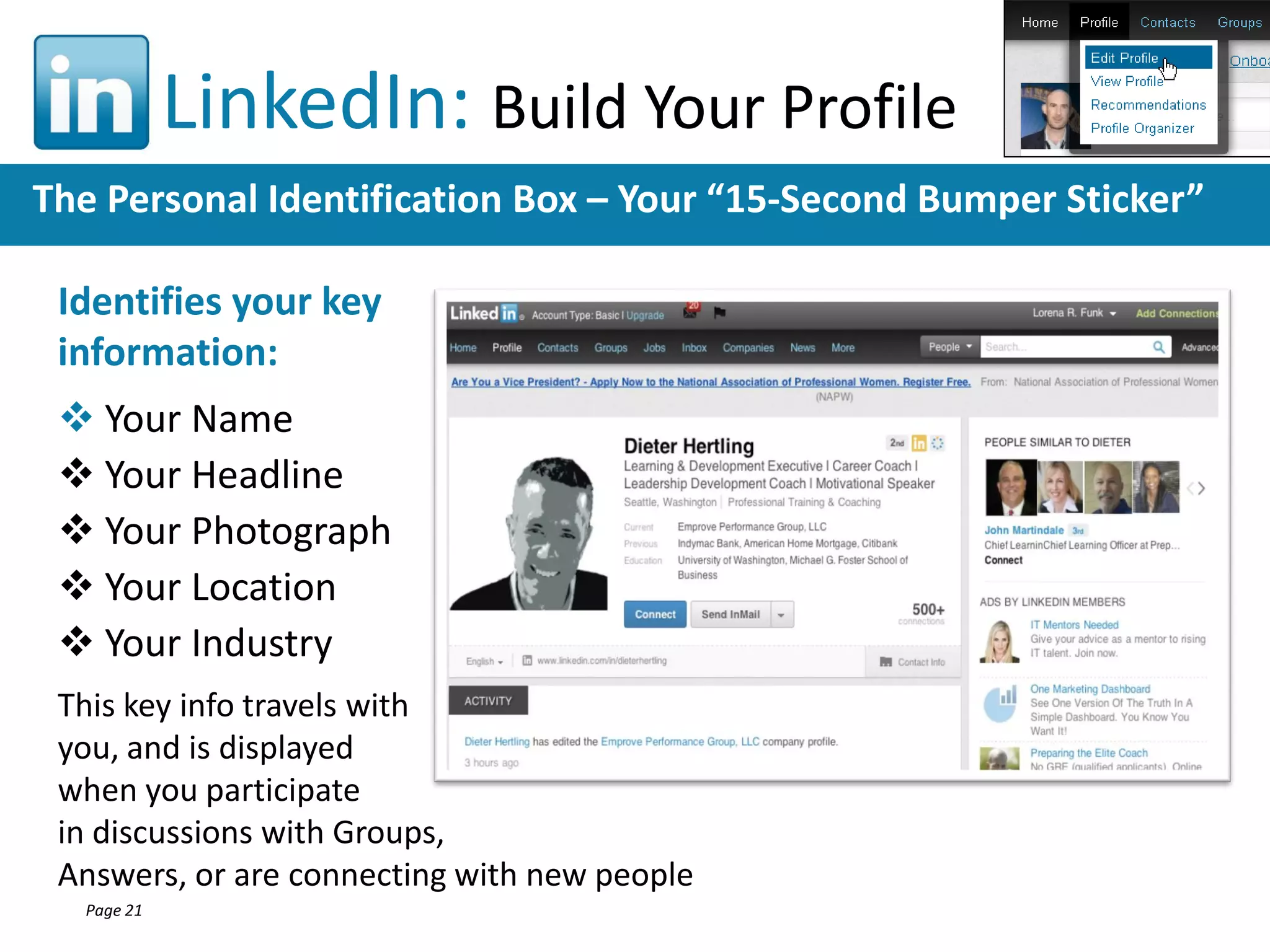
Identifies your key
information:
 Your Name
 Your Headline
 Your Photograph
 Your Location
 Your Industry
This key info travels with
you, and is displayed
when you participate
in discussions with Groups,
Answers, or are connecting with new people
Page 21
LinkedIn: Build Your Profile
The Summary Section – Your “60-Second Commercial”
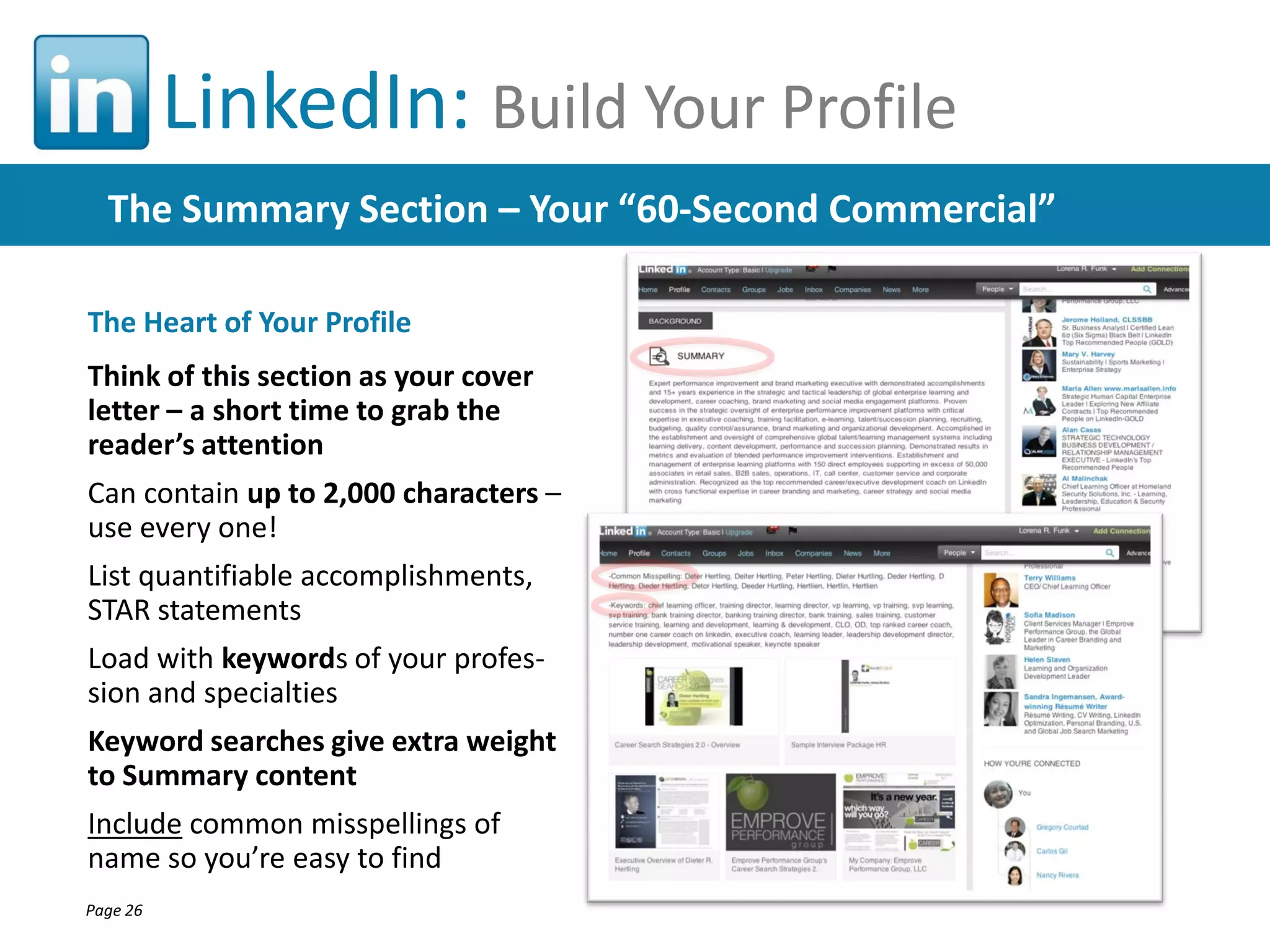
The Heart of Your Profile
Think of this section as your cover
letter – a short time to grab the
reader’s attention
Can contain up to 2,000 characters –
use every one!
List quantifiable accomplishments,
STAR statements
Load with keywords of your profession and specialties
Keyword searches give extra weight
to Summary content
Include common misspellings of
name so you’re easy to find
Page 26
LinkedIn: Build Your Profile
Write Summary to communicate Brand / Value Proposition

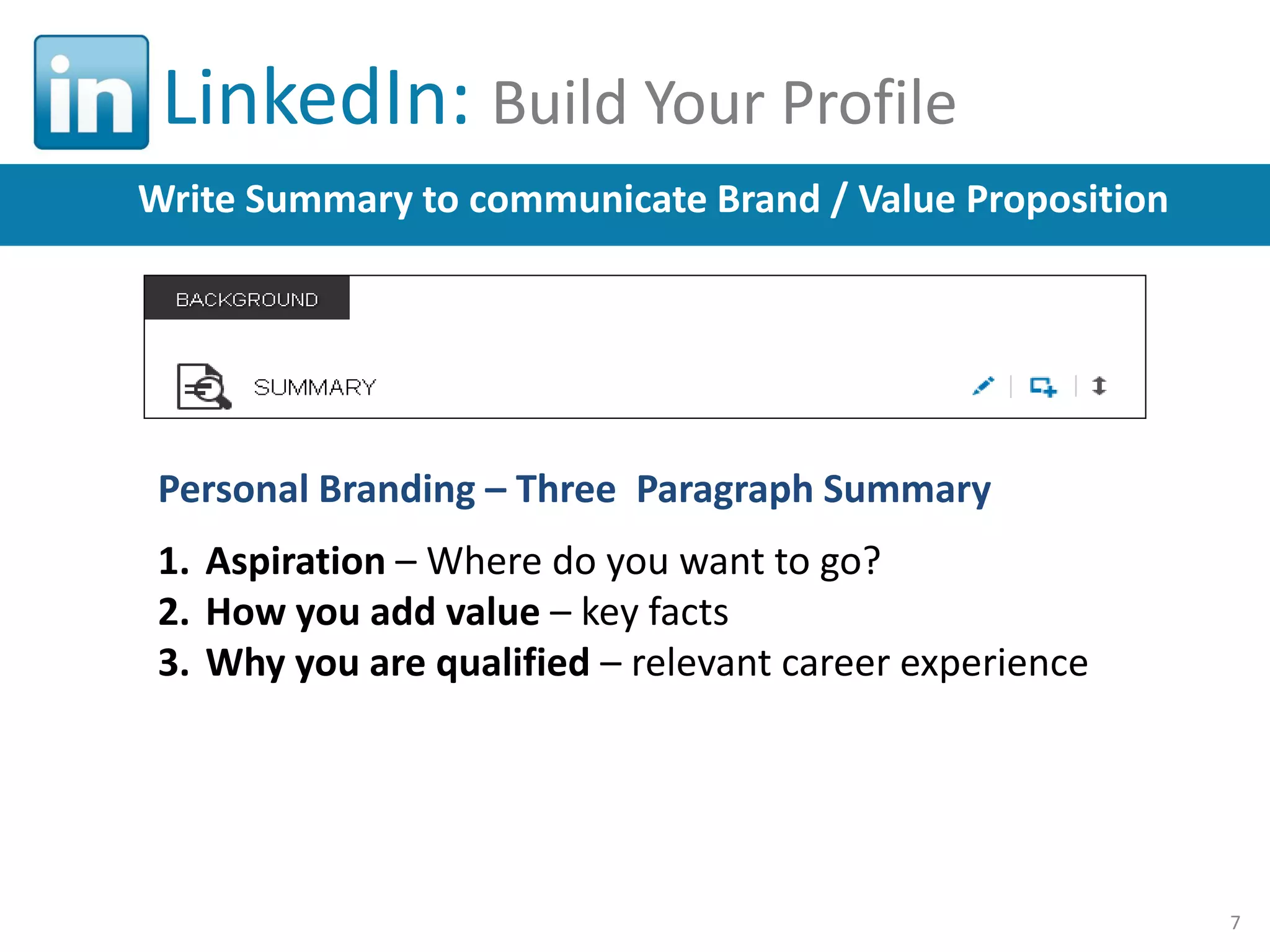
Personal Branding – Three Paragraph Summary
1. Aspiration – Where do you want to go?
2. How you add value – key facts
3. Why you are qualified – relevant career experience

7
LinkedIn: Build Your Profile
The Experience Section – The “Meat and Potatoes”
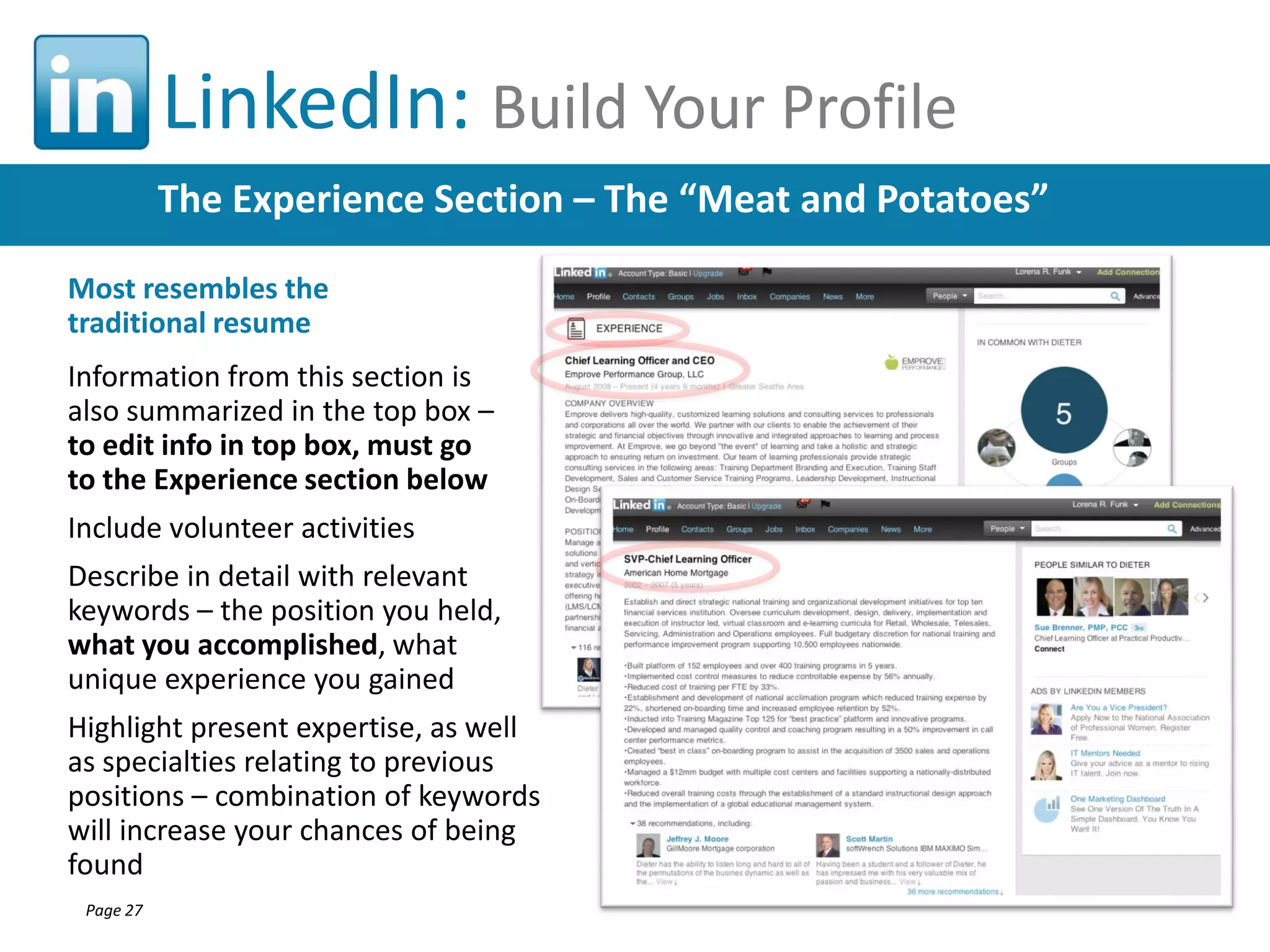
Most resembles the
traditional resume
Information from this section is
also summarized in the top box –
to edit info in top box, must go
to the Experience section below
Include volunteer activities
Describe in detail with relevant
keywords – the position you held,
what you accomplished, what
unique experience you gained
Highlight present expertise, as well
as specialties relating to previous
positions – combination of keywords
will increase your chances of being
found
Page 27
LinkedIn: Build Your Profile
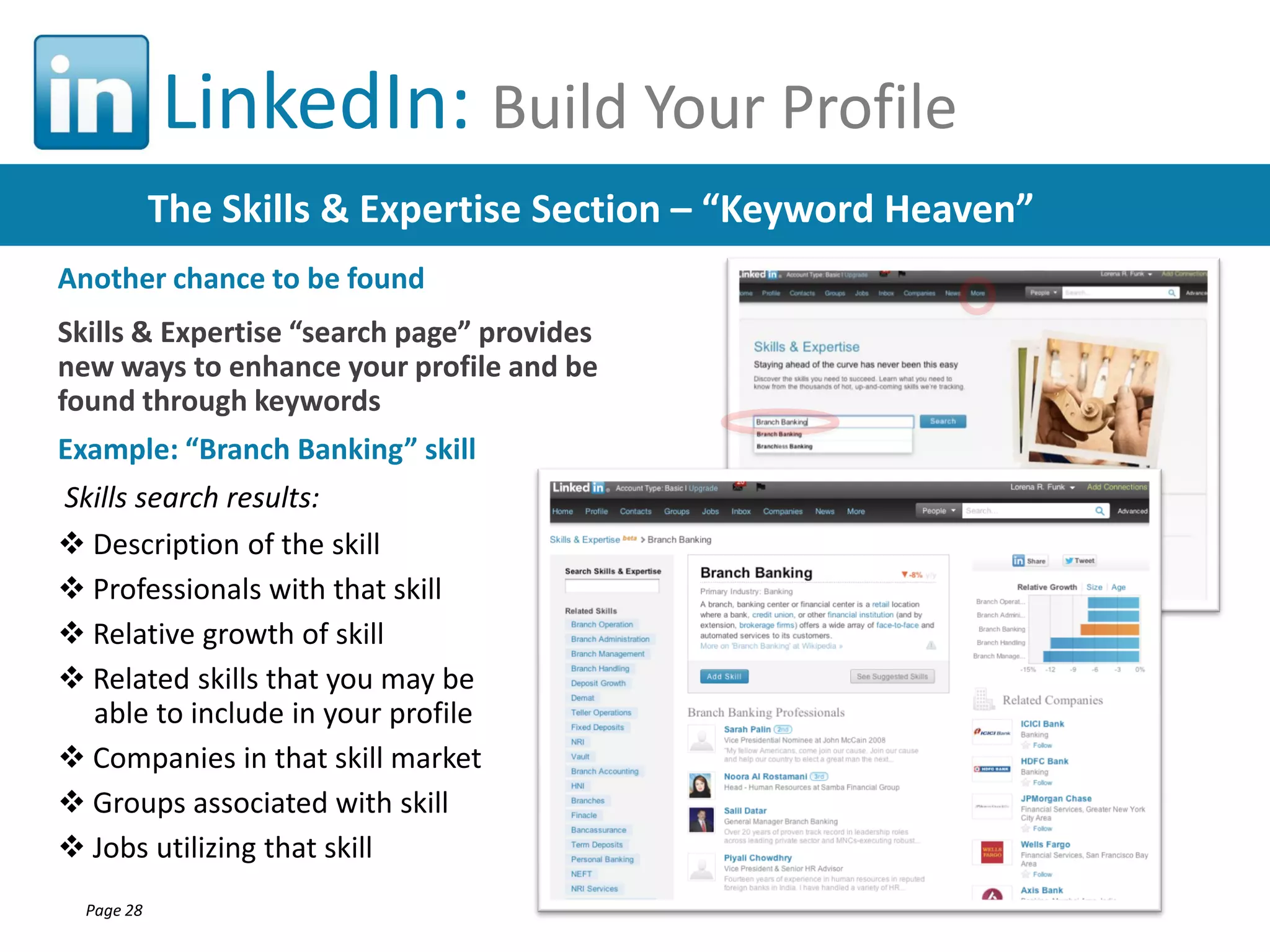
The Skills & Expertise Section – “Keyword Heaven”
Another chance to be found
Skills & Expertise “search page” provides
new ways to enhance your profile and be
found through keywords
Example: “Branch Banking” skill
Skills search results:
 Description of the skill
 Professionals with that skill
 Relative growth of skill
 Related skills that you may be
able to include in your profile
 Companies in that skill market
 Groups associated with skill
 Jobs utilizing that skill
Page 28
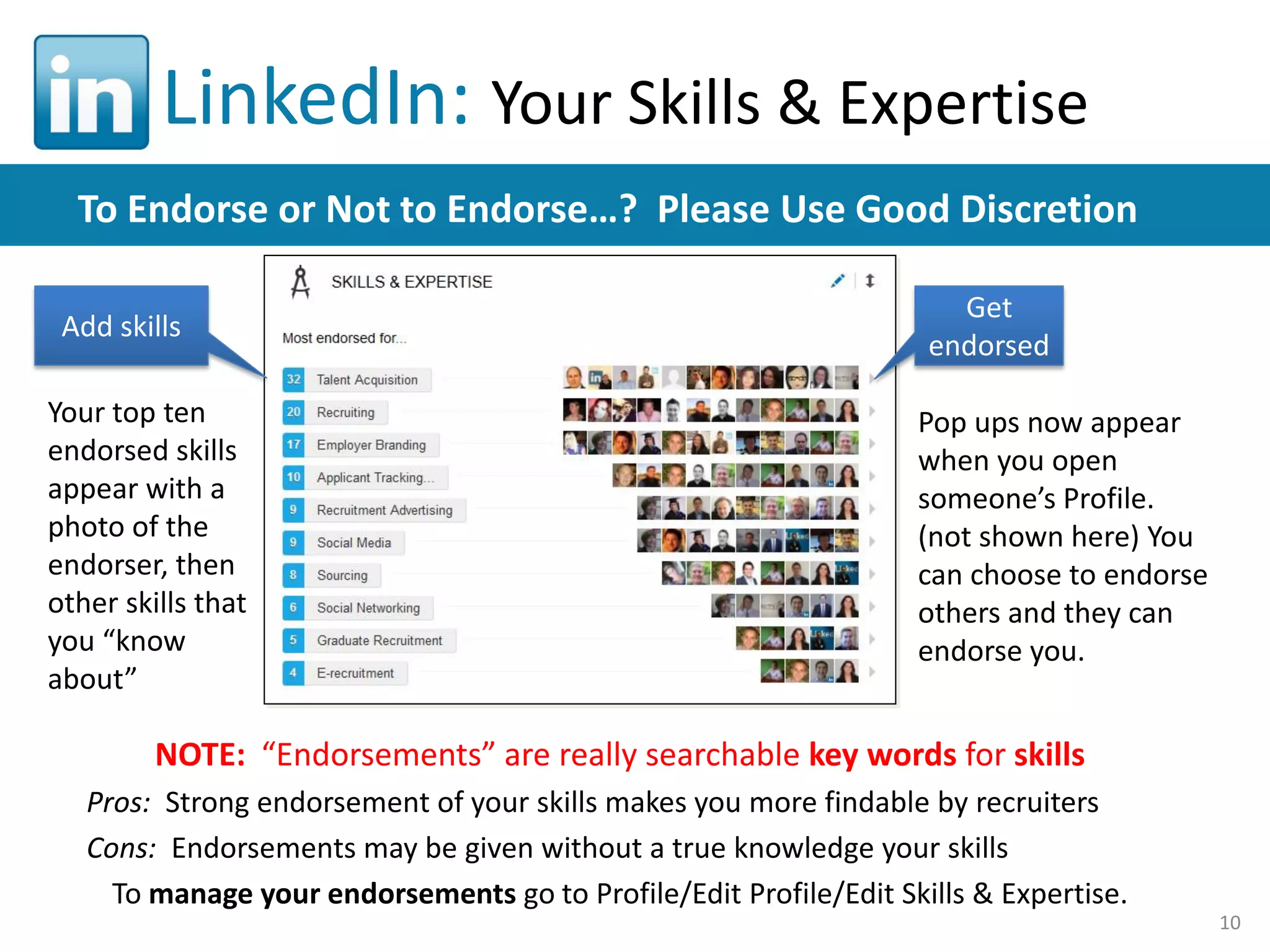
LinkedIn: Your Skills & Expertise
To Endorse or Not to Endorse…? Please Use Good Discretion
Add skills
Your top ten
endorsed skills
appear with a
photo of the
endorser, then
other skills that
you “know
about”

Get
endorsed
Pop ups now appear
when you open
someone’s Profile.
(not shown here) You
can choose to endorse
others and they can
endorse you.

NOTE: “Endorsements” are really searchable key words for skills
Pros: Strong endorsement of your skills makes you more findable by recruiters
Cons: Endorsements may be given without a true knowledge your skills
To manage your endorsements go to Profile/Edit Profile/Edit Skills & Expertise.
10
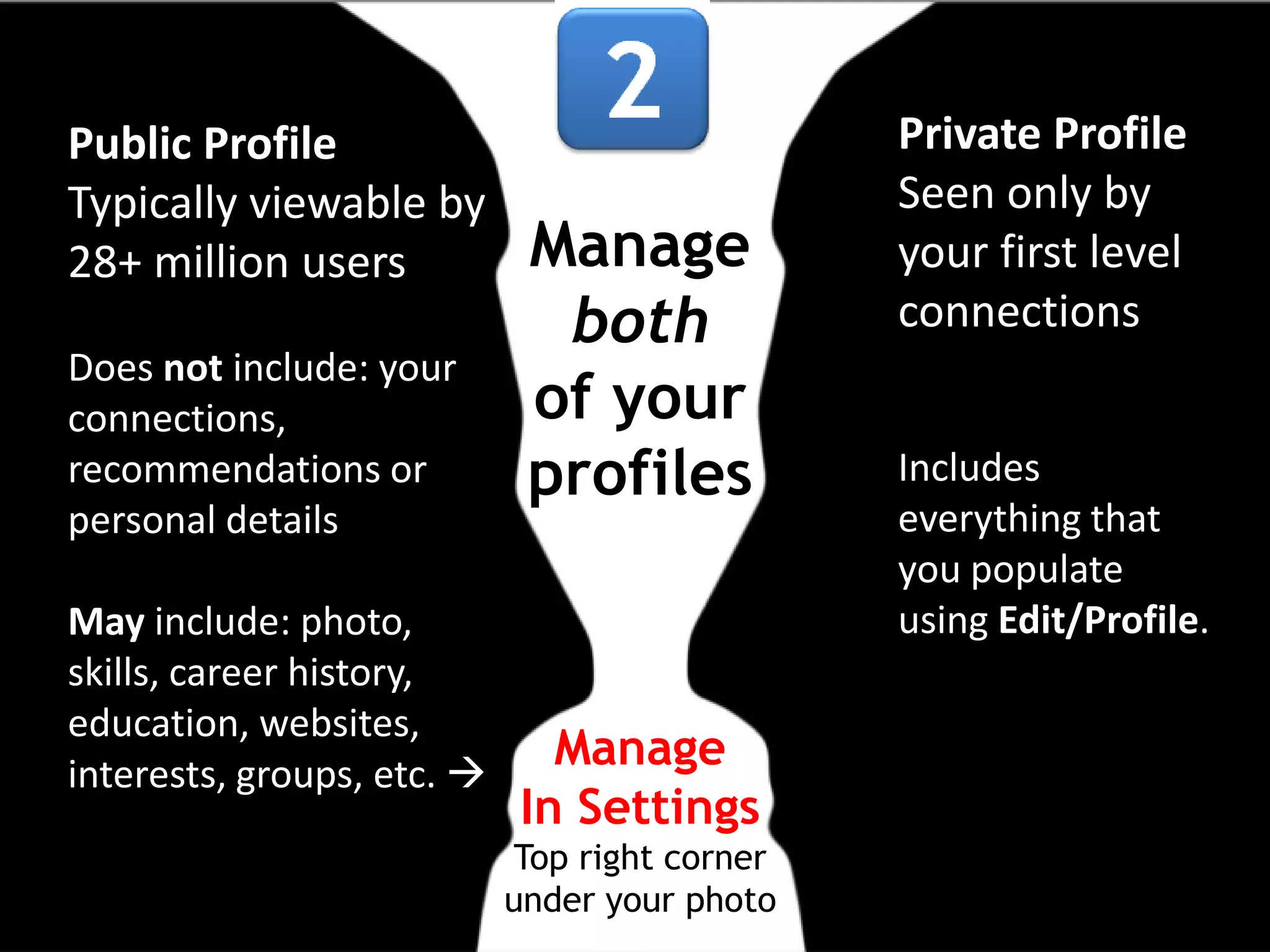
Public Profile
Typically viewable by
28+ million users
Does not include: your
connections,
recommendations or
personal details
May include: photo,
skills, career history,
education, websites,
interests, groups, etc. 

Manage
both
of your
profiles

Manage
In Settings
Top right corner
under your photo

Private Profile
Seen only by
your first level
connections
Includes
everything that
you populate
using Edit/Profile.
Enhance
Your
Networking
Using
LinkedIn
Best Practice Networking Approach
Informal (events)  Formal (1:1 meetings)  Online (LinkedIn)
Use LinkedIn to follow up meetings and build relationships
LinkedIn: Making Connections
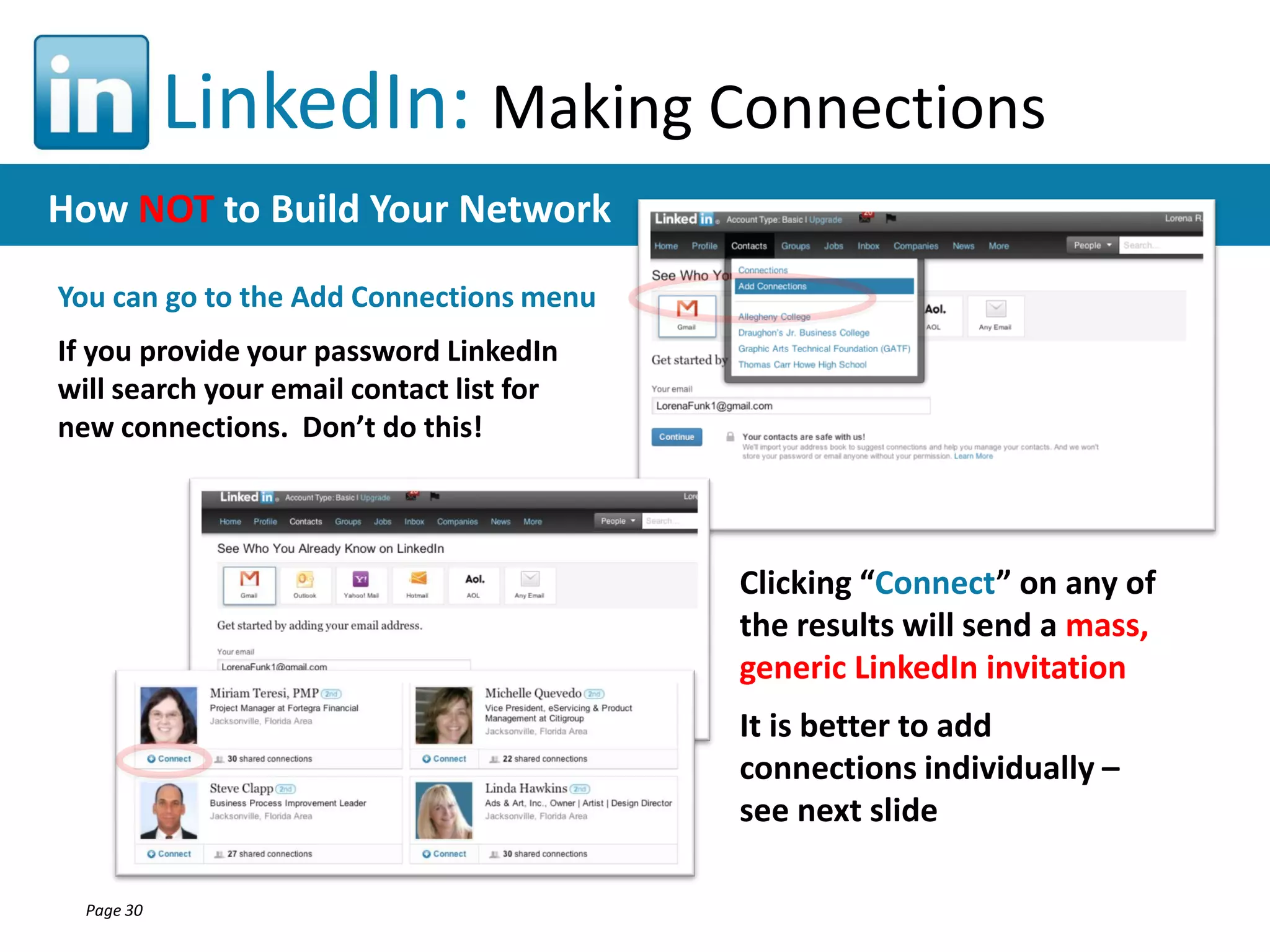
How NOT to Build Your Network
You can go to the Add Connections menu

If you provide your password LinkedIn
will search your email contact list for
new connections. Don’t do this!

Clicking “Connect” on any of
the results will send a mass,
generic LinkedIn invitation
It is better to add
connections individually –
see next slide
Page 30
LinkedIn: Making Connections
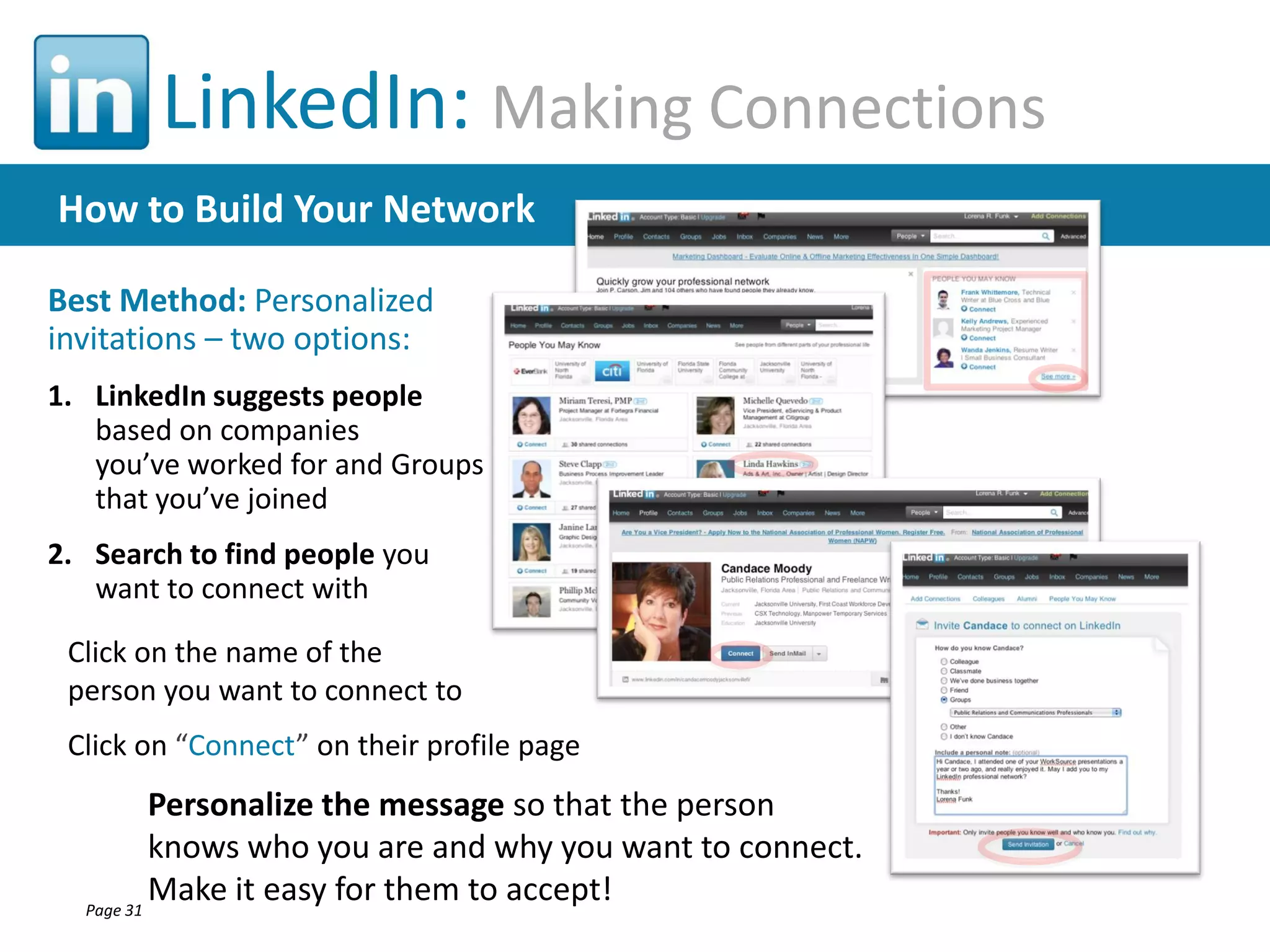
How to Build Your Network
Best Method: Personalized
invitations – two options:
1. LinkedIn suggests people
based on companies
you’ve worked for and Groups
that you’ve joined
2. Search to find people you
want to connect with
Click on the name of the
person you want to connect to
Click on “Connect” on their profile page

Personalize the message so that the person
knows who you are and why you want to connect.
Make it easy for them to accept!
Page 31
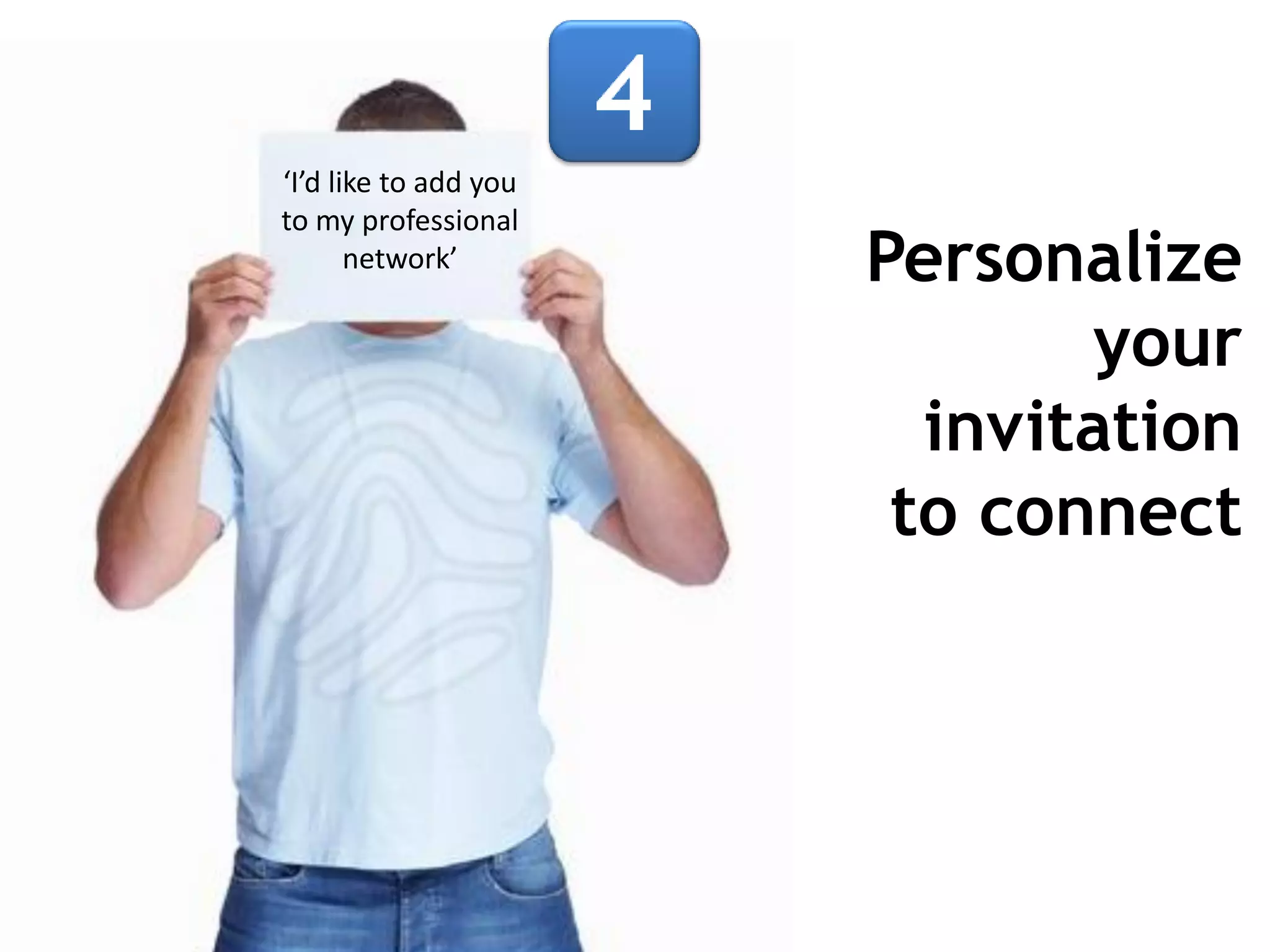
‘I’d like to add you
to my professional
network’

Personalize
your
invitation
to connect
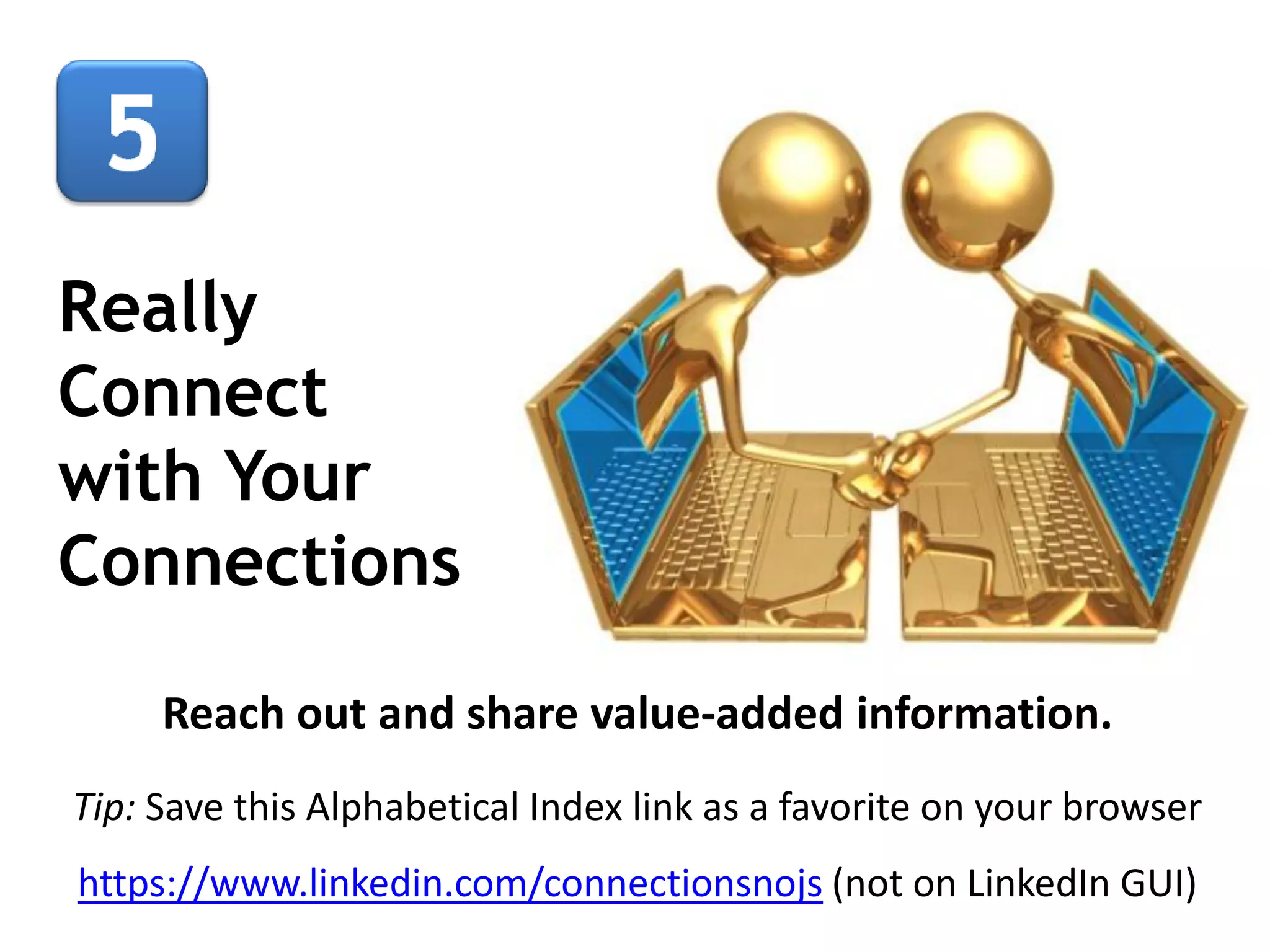
Really
Connect
with Your
Connections
Reach out and share value-added information.
Tip: Save this Alphabetical Index link as a favorite on your browser
https://www.linkedin.com/connectionsnojs (not on LinkedIn GUI)
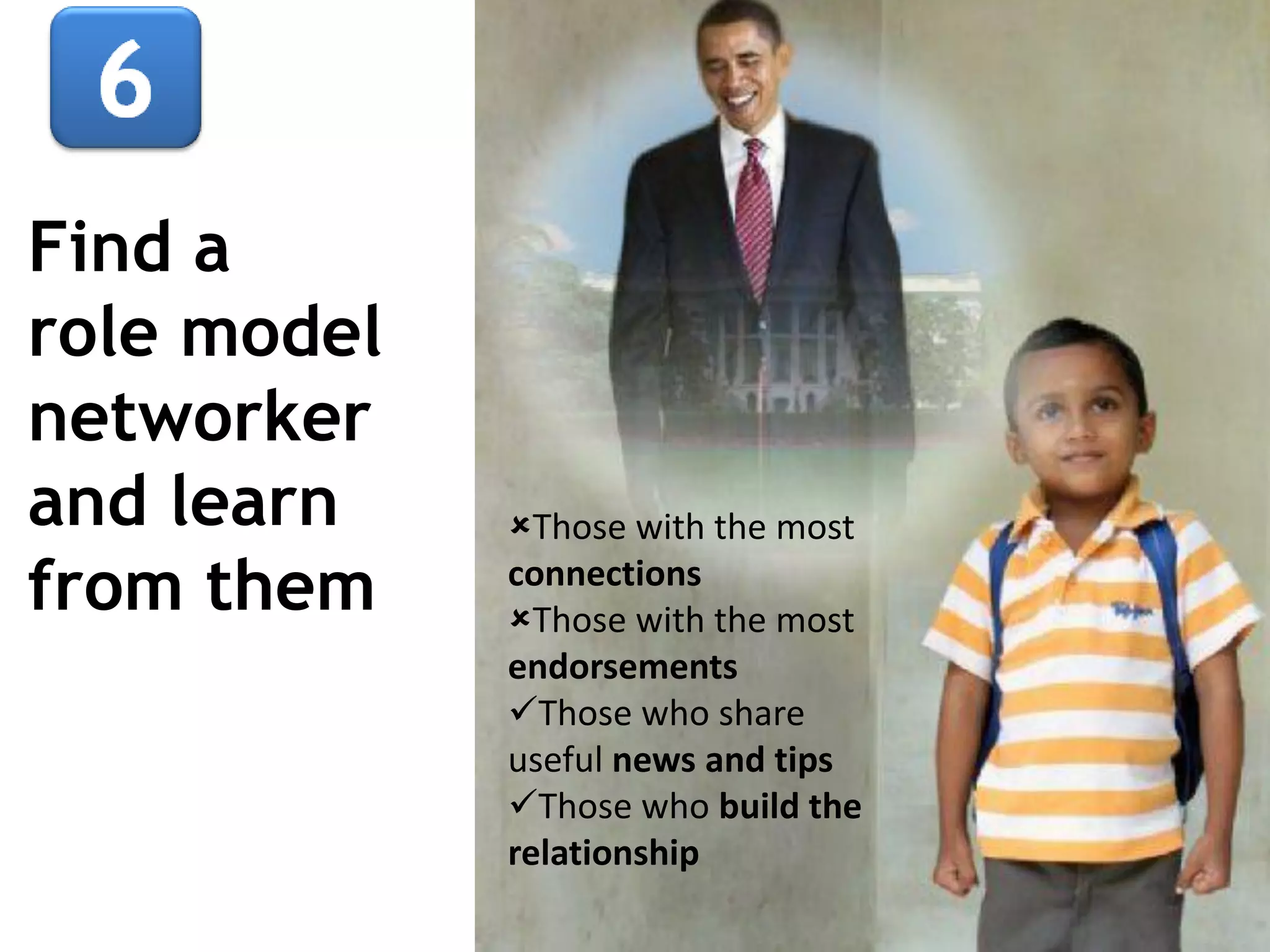
Find a
role model
networker
and learn
from them

Those with the most
connections
Those with the most
endorsements
Those who share
useful news and tips
Those who build the
relationship
Join a group
and actively
contribute
to it
“…as of March 29, 2012
there are 1,248,019 groups
whose membership varies
from 1 to 744,662…”
Wikipedia
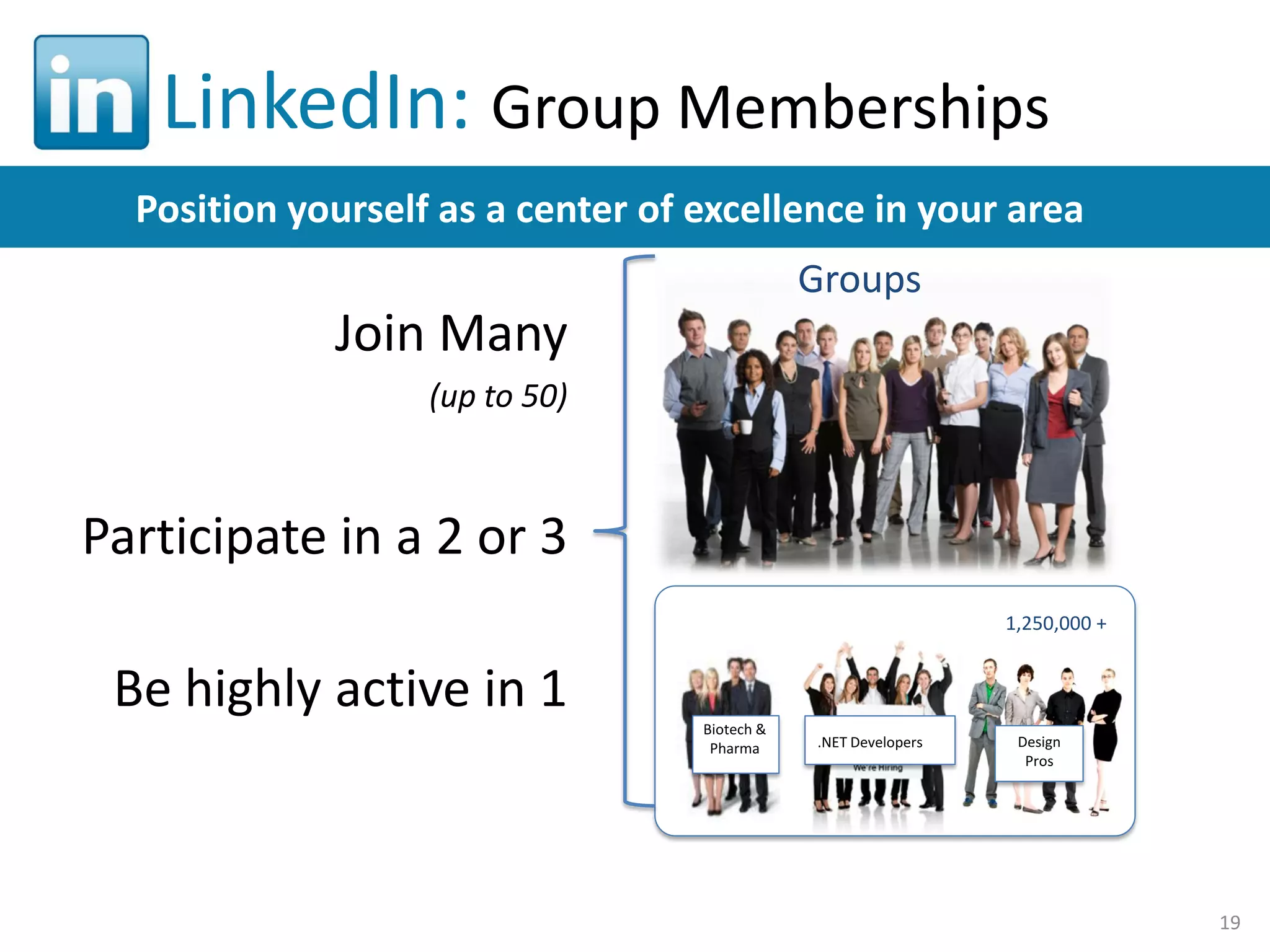
LinkedIn: Group Memberships
Position yourself as a center of excellence in your area
Groups

Join Many
(up to 50)

Participate in a 2 or 3
1,250,000 +

Be highly active in 1
Biotech &
Pharma

.NET Developers

Design
Pros

19
If there is
not a group
around your
area of
interest or
expertise,
start one
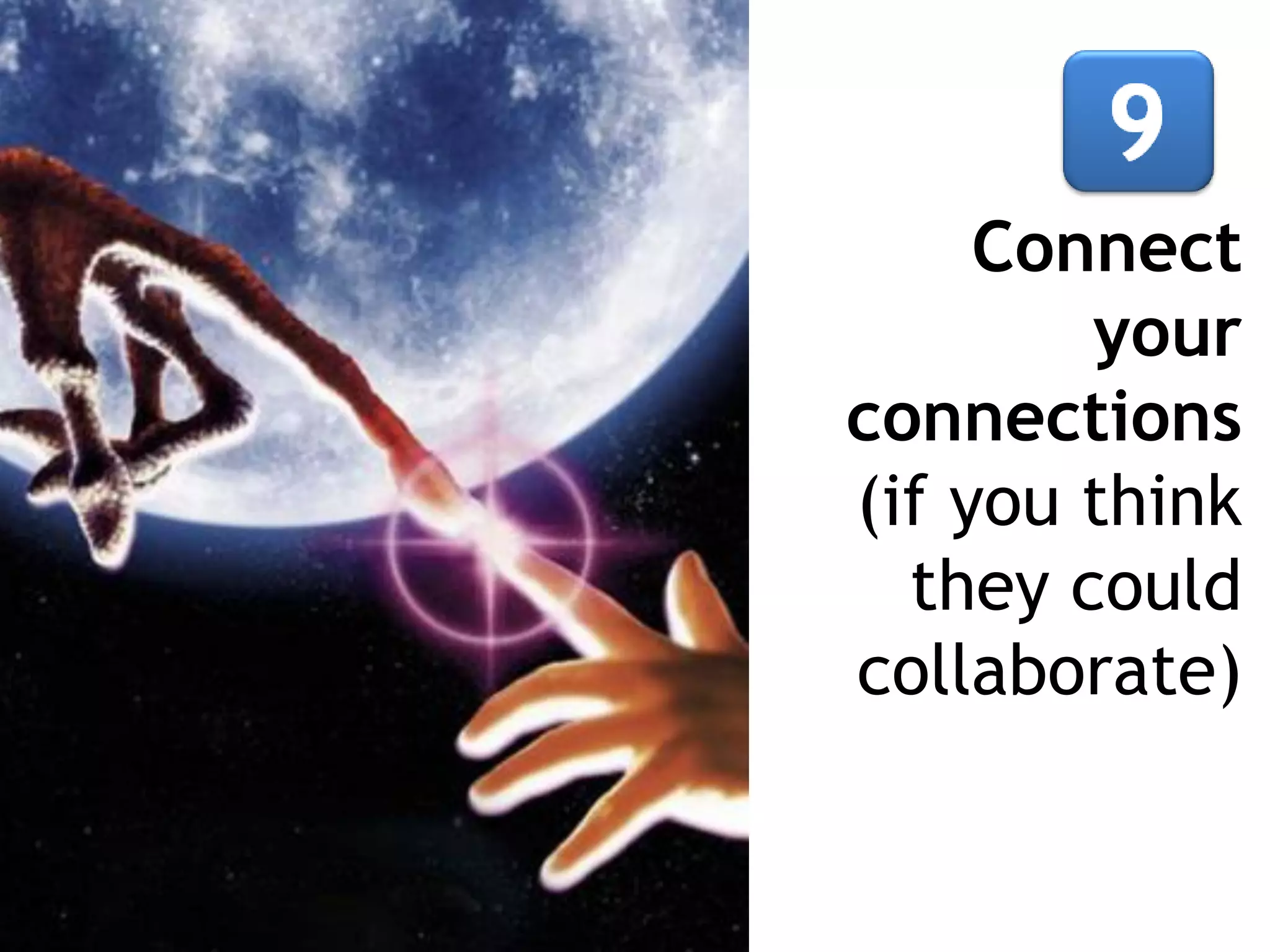
Connect
your
connections
(if you think
they could
collaborate)
Update your
status with
meaningful &
appropriate
content (this is
a professional
network)
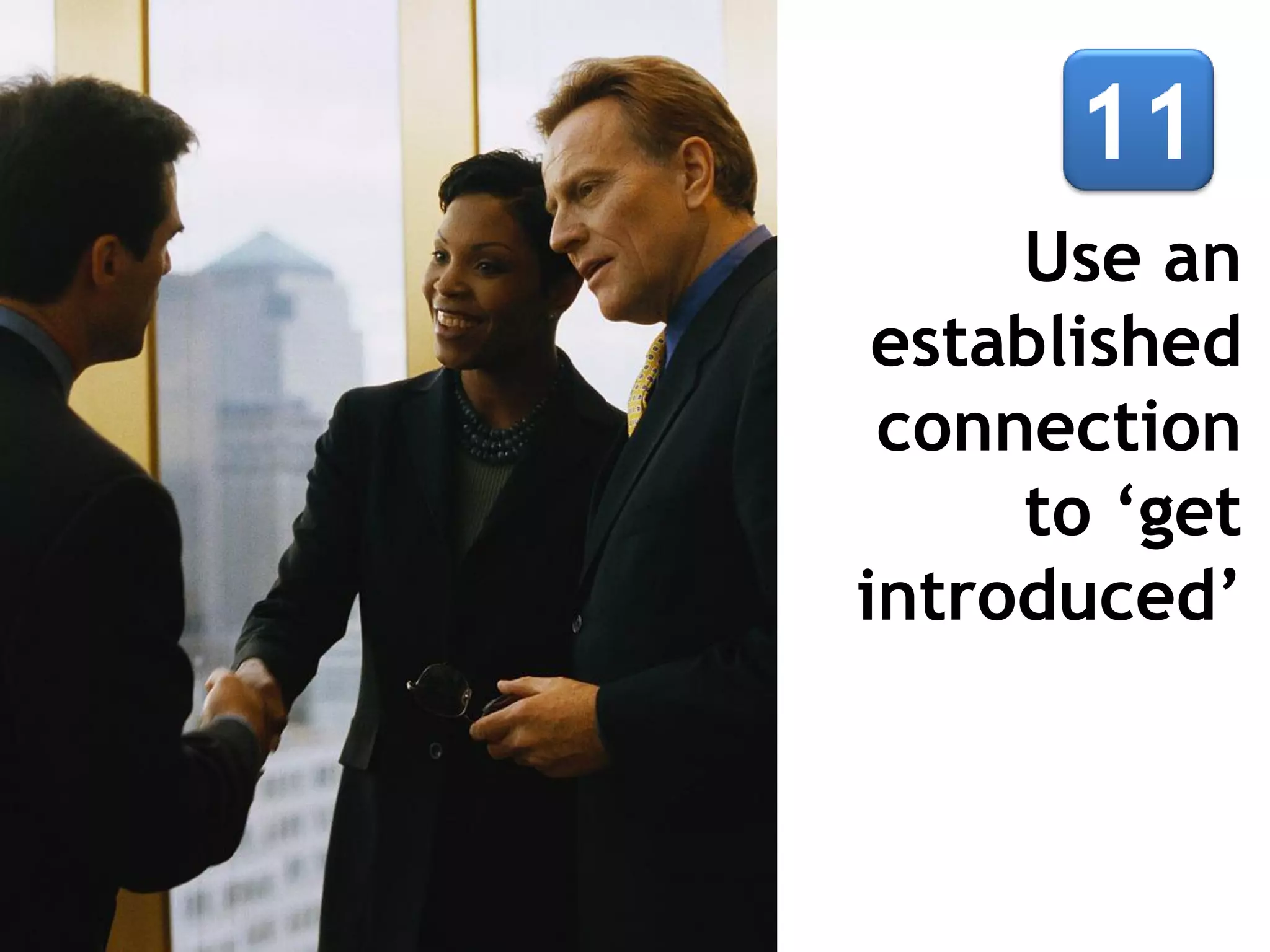
Use an
established
connection
to ‘get
introduced’
When jobsearching,
find a
company
insider to
give
you the
lowdown
A complete
profile and
smart use of
keywords
will improve
your
findability
Write a
Recommendation
or Endorse a skill
Pay in forward.
Don’t sit and wait
to be recommended.
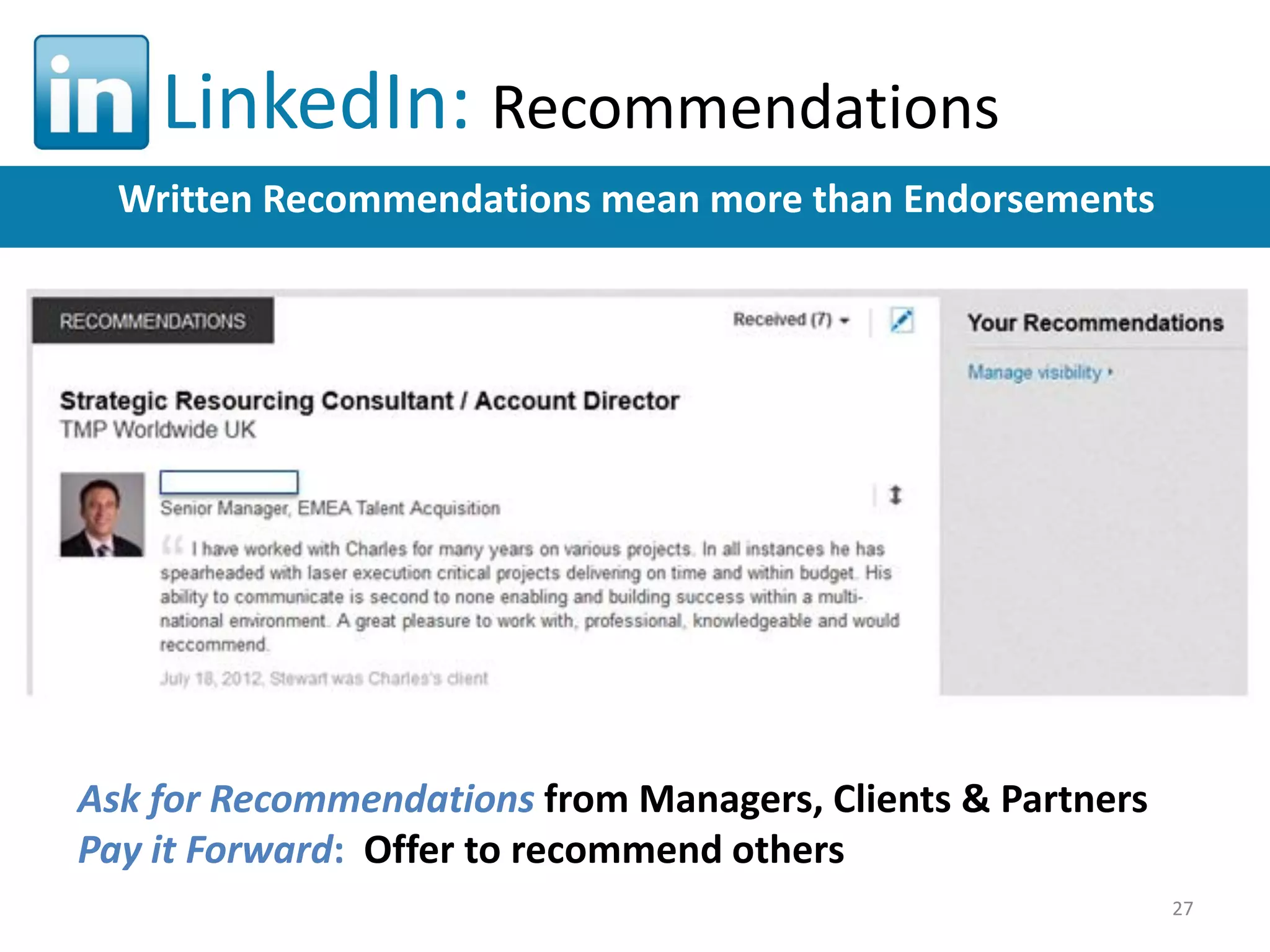
LinkedIn: Recommendations
Written Recommendations mean more than Endorsements

Ask for Recommendations from Managers, Clients & Partners
Pay it Forward: Offer to recommend others
27
Promote
your profile
In Settings:

• Customize your URL
• Link to Twitter
• Add LinkedIn to your
email signature
Check out
contacts
at your
alma mater,
via the alumni
search facility
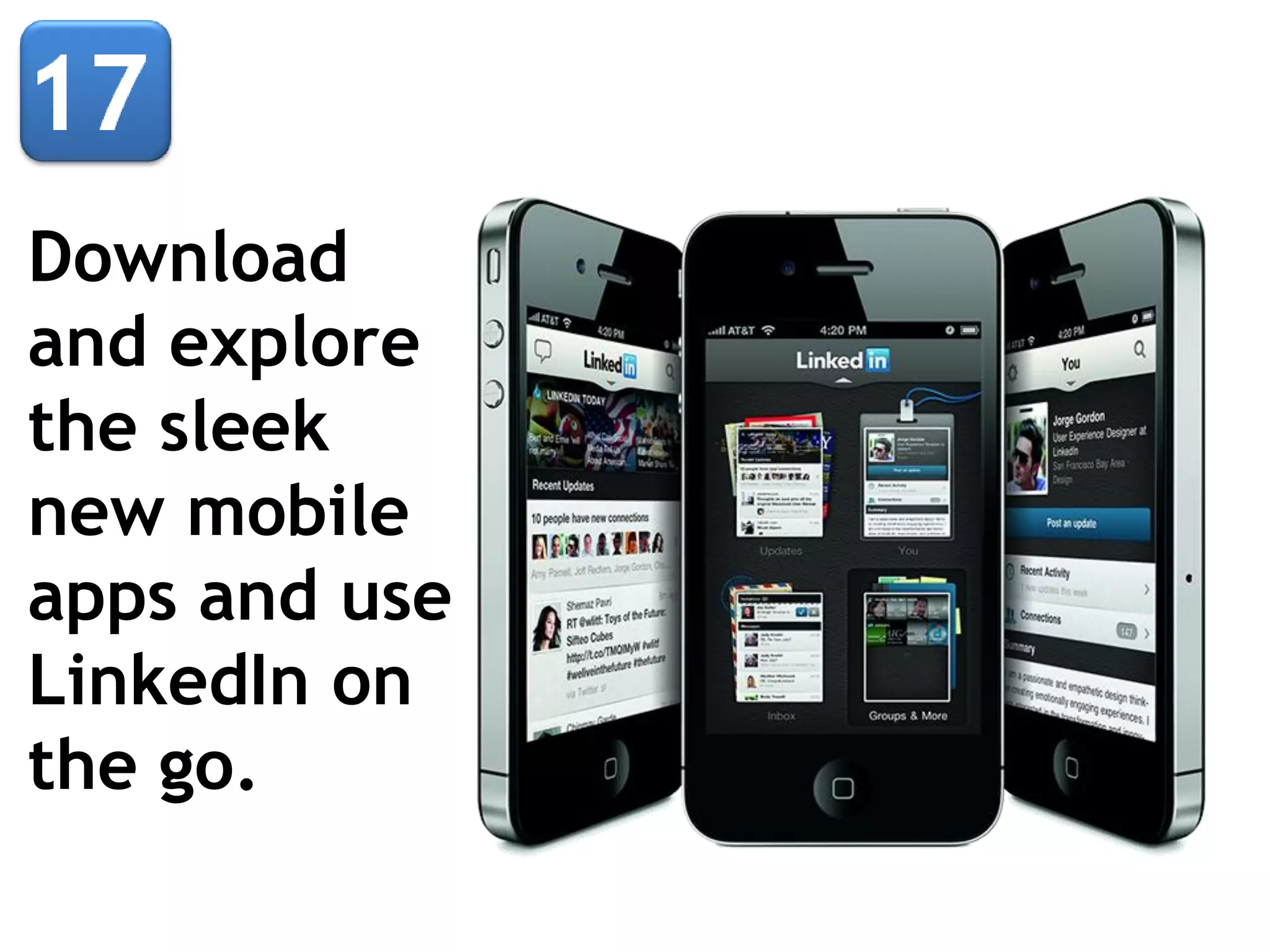
Download
and explore
the sleek
new mobile
apps and use
LinkedIn on
the go.
Check out
company
pages
(they’re
cool)
Make your
home page
feel less
cluttered by
customizing
your News
Feed
Connect...
Share...
Like.
Become a
‘good
LinkedIn
citizen’
Connect with me on

www.linkedin.com/in/paulbarber

Using linked in barber_091613

  • 1.
    How to LookGreat, Get Noticed and Get Hired Paul Barber Golden Career Strategies Roundtable September 16, 2013 Thanks to Andy Priestner & Meg Westbury for 20 Top Tips & Tricks for 2013 and to Charles Hardy for Optimize Your Career using LinkedIn
  • 2.
    Five Reasons Whythe World’s Best Professionals Join and Visit LinkedIn… Personal Branding 1 Sharing knowledge 3 2 4 1,250,000+ groups Biotech & Pharma Networking with peers .NET Developers Finding a new job 5 Creative Design Pros Innovation 2
  • 3.
    LinkedIn: How toJoin Becoming a Member is Easy Go to www.linkedin.com Enter: Your First Name Your Last Name Your Email Address Create a Password Click “Join Now” Page 6
  • 4.
    Check out new Profile sections Goto Profile/ Edit Profile & use pencil icons to edit 20 top tips & tricks • Upload files – showcase presentations, white papers, etc. • Add a link – blog, Twitter, etc. • Volunteer Experience • Rearrange profile order
  • 5.
    LinkedIn: Build YourProfile The Personal Identification Box – Your “15-Second Bumper Sticker” Identifies your key information:  Your Name  Your Headline  Your Photograph  Your Location  Your Industry This key info travels with you, and is displayed when you participate in discussions with Groups, Answers, or are connecting with new people Page 21
  • 6.
    LinkedIn: Build YourProfile The Summary Section – Your “60-Second Commercial” The Heart of Your Profile Think of this section as your cover letter – a short time to grab the reader’s attention Can contain up to 2,000 characters – use every one! List quantifiable accomplishments, STAR statements Load with keywords of your profession and specialties Keyword searches give extra weight to Summary content Include common misspellings of name so you’re easy to find Page 26
  • 7.
    LinkedIn: Build YourProfile Write Summary to communicate Brand / Value Proposition Personal Branding – Three Paragraph Summary 1. Aspiration – Where do you want to go? 2. How you add value – key facts 3. Why you are qualified – relevant career experience 7
  • 8.
    LinkedIn: Build YourProfile The Experience Section – The “Meat and Potatoes” Most resembles the traditional resume Information from this section is also summarized in the top box – to edit info in top box, must go to the Experience section below Include volunteer activities Describe in detail with relevant keywords – the position you held, what you accomplished, what unique experience you gained Highlight present expertise, as well as specialties relating to previous positions – combination of keywords will increase your chances of being found Page 27
  • 9.
    LinkedIn: Build YourProfile The Skills & Expertise Section – “Keyword Heaven” Another chance to be found Skills & Expertise “search page” provides new ways to enhance your profile and be found through keywords Example: “Branch Banking” skill Skills search results:  Description of the skill  Professionals with that skill  Relative growth of skill  Related skills that you may be able to include in your profile  Companies in that skill market  Groups associated with skill  Jobs utilizing that skill Page 28
  • 10.
    LinkedIn: Your Skills& Expertise To Endorse or Not to Endorse…? Please Use Good Discretion Add skills Your top ten endorsed skills appear with a photo of the endorser, then other skills that you “know about” Get endorsed Pop ups now appear when you open someone’s Profile. (not shown here) You can choose to endorse others and they can endorse you. NOTE: “Endorsements” are really searchable key words for skills Pros: Strong endorsement of your skills makes you more findable by recruiters Cons: Endorsements may be given without a true knowledge your skills To manage your endorsements go to Profile/Edit Profile/Edit Skills & Expertise. 10
  • 11.
    Public Profile Typically viewableby 28+ million users Does not include: your connections, recommendations or personal details May include: photo, skills, career history, education, websites, interests, groups, etc.  Manage both of your profiles Manage In Settings Top right corner under your photo Private Profile Seen only by your first level connections Includes everything that you populate using Edit/Profile.
  • 12.
    Enhance Your Networking Using LinkedIn Best Practice NetworkingApproach Informal (events)  Formal (1:1 meetings)  Online (LinkedIn) Use LinkedIn to follow up meetings and build relationships
  • 13.
    LinkedIn: Making Connections HowNOT to Build Your Network You can go to the Add Connections menu If you provide your password LinkedIn will search your email contact list for new connections. Don’t do this! Clicking “Connect” on any of the results will send a mass, generic LinkedIn invitation It is better to add connections individually – see next slide Page 30
  • 14.
    LinkedIn: Making Connections Howto Build Your Network Best Method: Personalized invitations – two options: 1. LinkedIn suggests people based on companies you’ve worked for and Groups that you’ve joined 2. Search to find people you want to connect with Click on the name of the person you want to connect to Click on “Connect” on their profile page Personalize the message so that the person knows who you are and why you want to connect. Make it easy for them to accept! Page 31
  • 15.
    ‘I’d like toadd you to my professional network’ Personalize your invitation to connect
  • 16.
    Really Connect with Your Connections Reach outand share value-added information. Tip: Save this Alphabetical Index link as a favorite on your browser https://www.linkedin.com/connectionsnojs (not on LinkedIn GUI)
  • 17.
    Find a role model networker andlearn from them Those with the most connections Those with the most endorsements Those who share useful news and tips Those who build the relationship
  • 18.
    Join a group andactively contribute to it “…as of March 29, 2012 there are 1,248,019 groups whose membership varies from 1 to 744,662…” Wikipedia
  • 19.
    LinkedIn: Group Memberships Positionyourself as a center of excellence in your area Groups Join Many (up to 50) Participate in a 2 or 3 1,250,000 + Be highly active in 1 Biotech & Pharma .NET Developers Design Pros 19
  • 20.
    If there is nota group around your area of interest or expertise, start one
  • 21.
  • 22.
    Update your status with meaningful& appropriate content (this is a professional network)
  • 23.
  • 24.
  • 25.
    A complete profile and smartuse of keywords will improve your findability
  • 26.
    Write a Recommendation or Endorsea skill Pay in forward. Don’t sit and wait to be recommended.
  • 27.
    LinkedIn: Recommendations Written Recommendationsmean more than Endorsements Ask for Recommendations from Managers, Clients & Partners Pay it Forward: Offer to recommend others 27
  • 28.
    Promote your profile In Settings: •Customize your URL • Link to Twitter • Add LinkedIn to your email signature
  • 29.
    Check out contacts at your almamater, via the alumni search facility
  • 30.
    Download and explore the sleek newmobile apps and use LinkedIn on the go.
  • 31.
  • 32.
    Make your home page feelless cluttered by customizing your News Feed
  • 33.
  • 34.
    Connect with meon www.linkedin.com/in/paulbarber