Microsoft Word 2016
Tutorial for creating a Word document
Open a new session
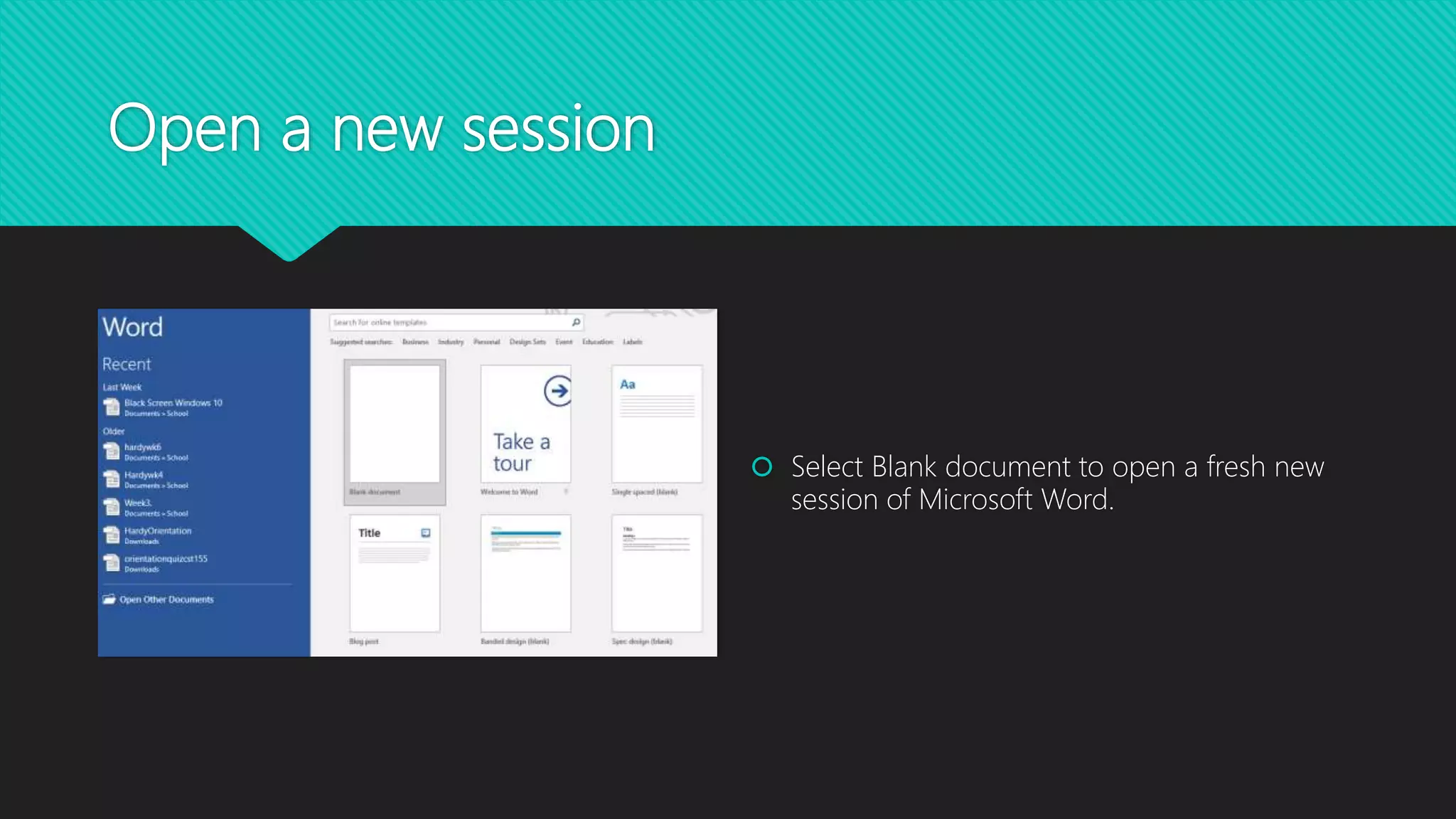
 Select Blank document to open a fresh new
session of Microsoft Word.
Create a title
People use Microsoft Word for a variety of
reasons. One feature that is common is to
have a title.
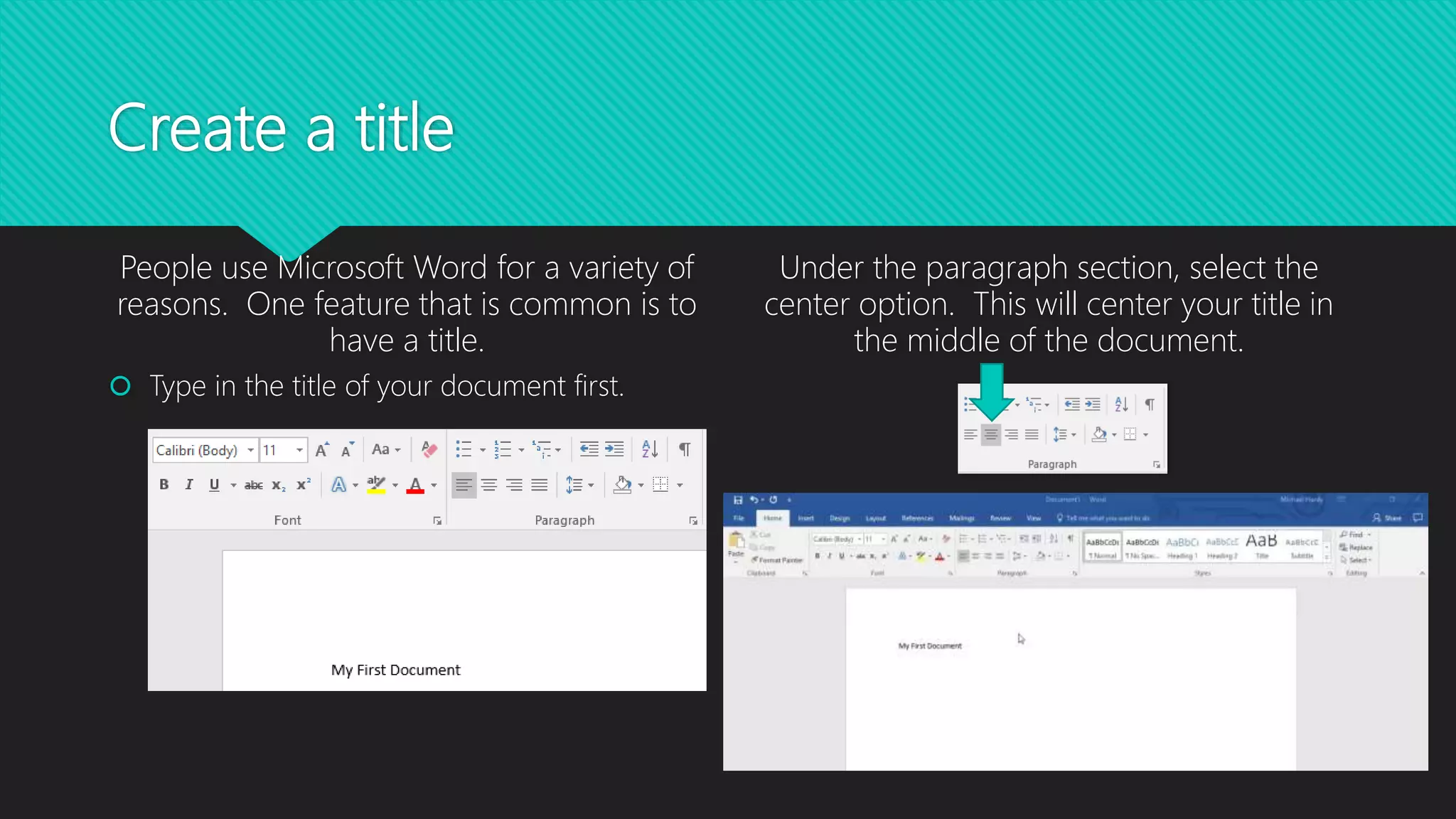
Under the paragraph section, select the
center option. This will center your title in
the middle of the document.
 Type in the title of your document first.
How to Bold
Here we will make your title stand out by
adding a bold feature to the text.
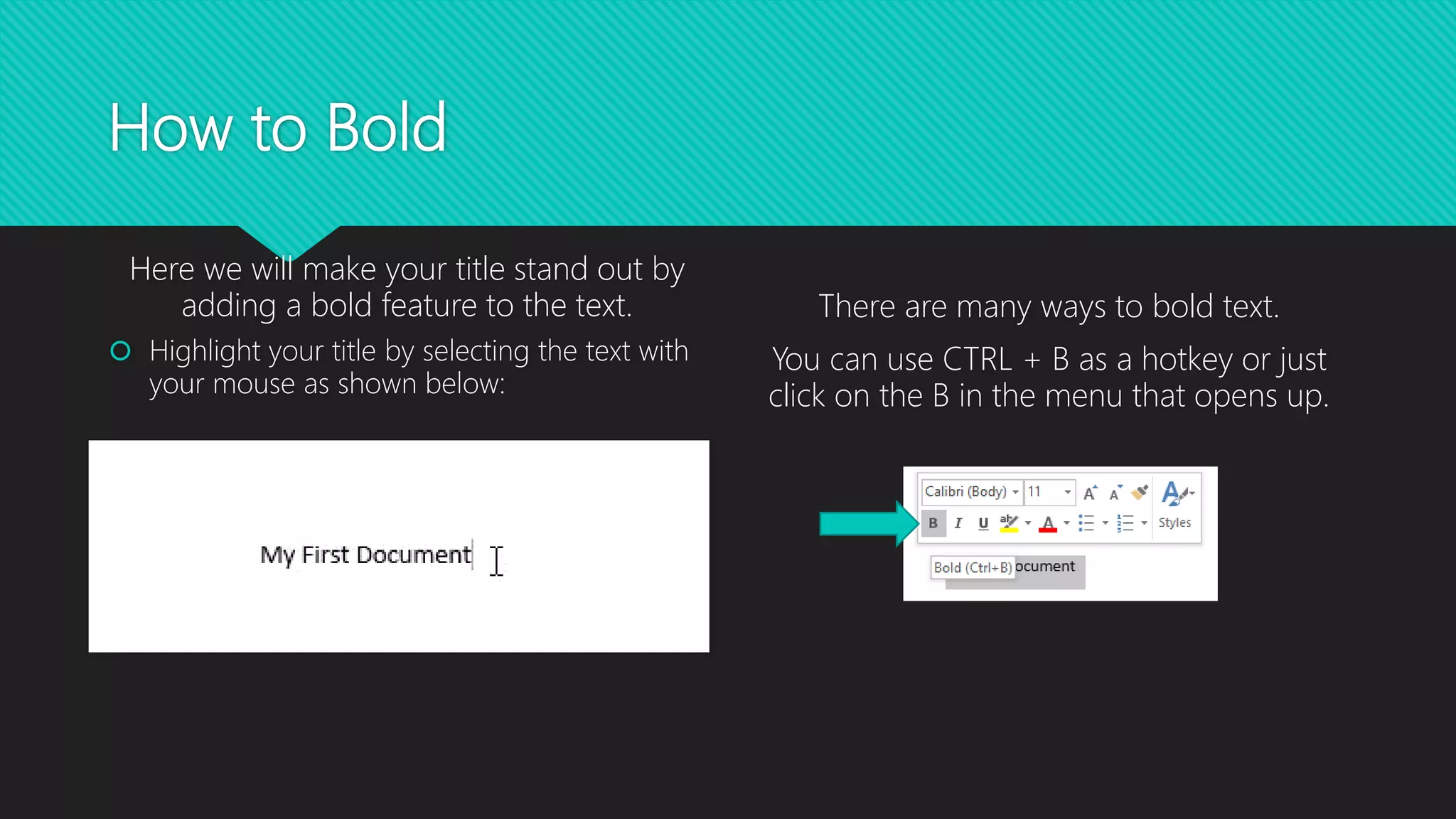
 Highlight your title by selecting the text with
your mouse as shown below:
There are many ways to bold text.
You can use CTRL + B as a hotkey or just
click on the B in the menu that opens up.
Changing Font and Font Size
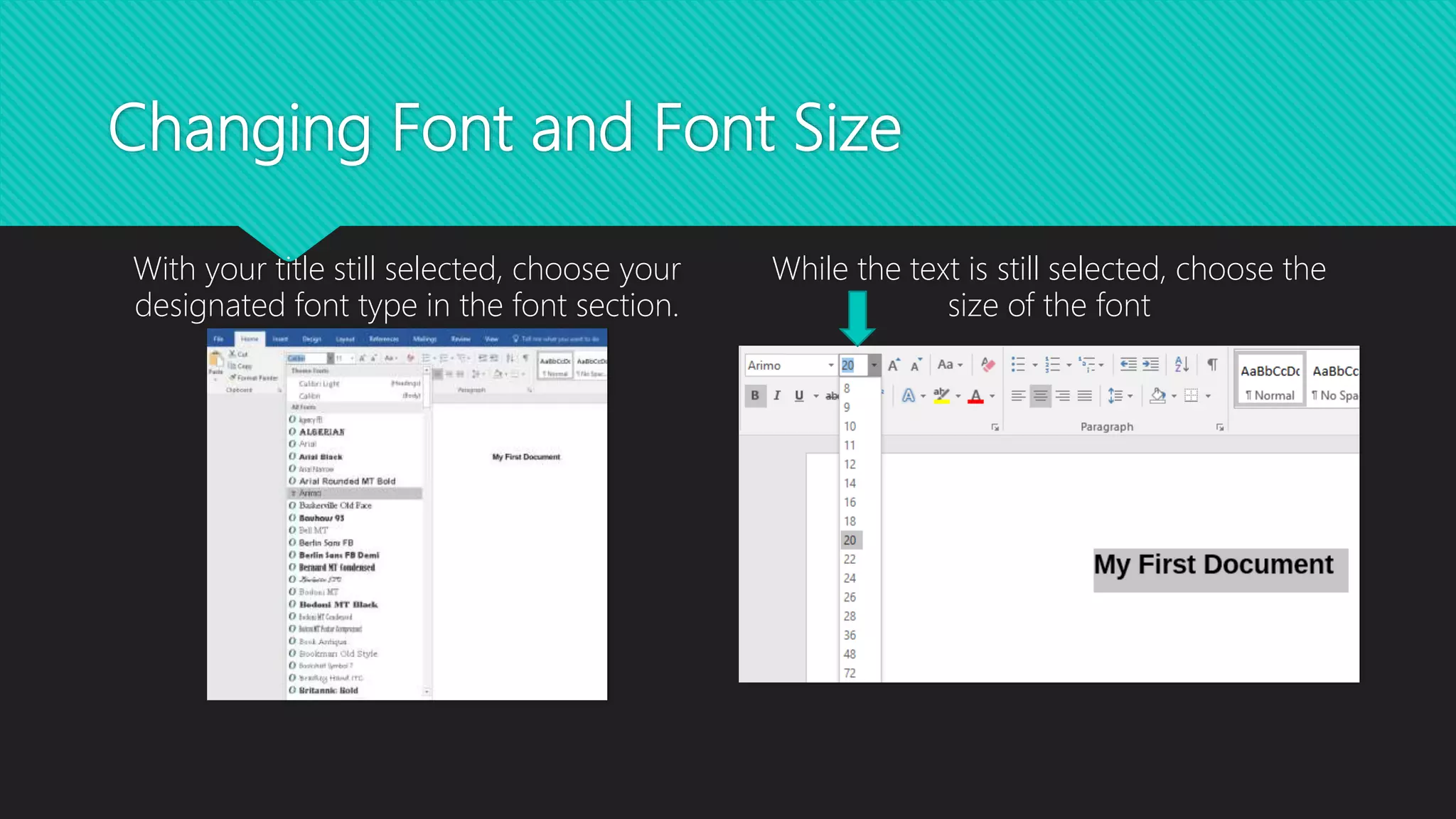
With your title still selected, choose your
designated font type in the font section.
While the text is still selected, choose the
size of the font
Left Align
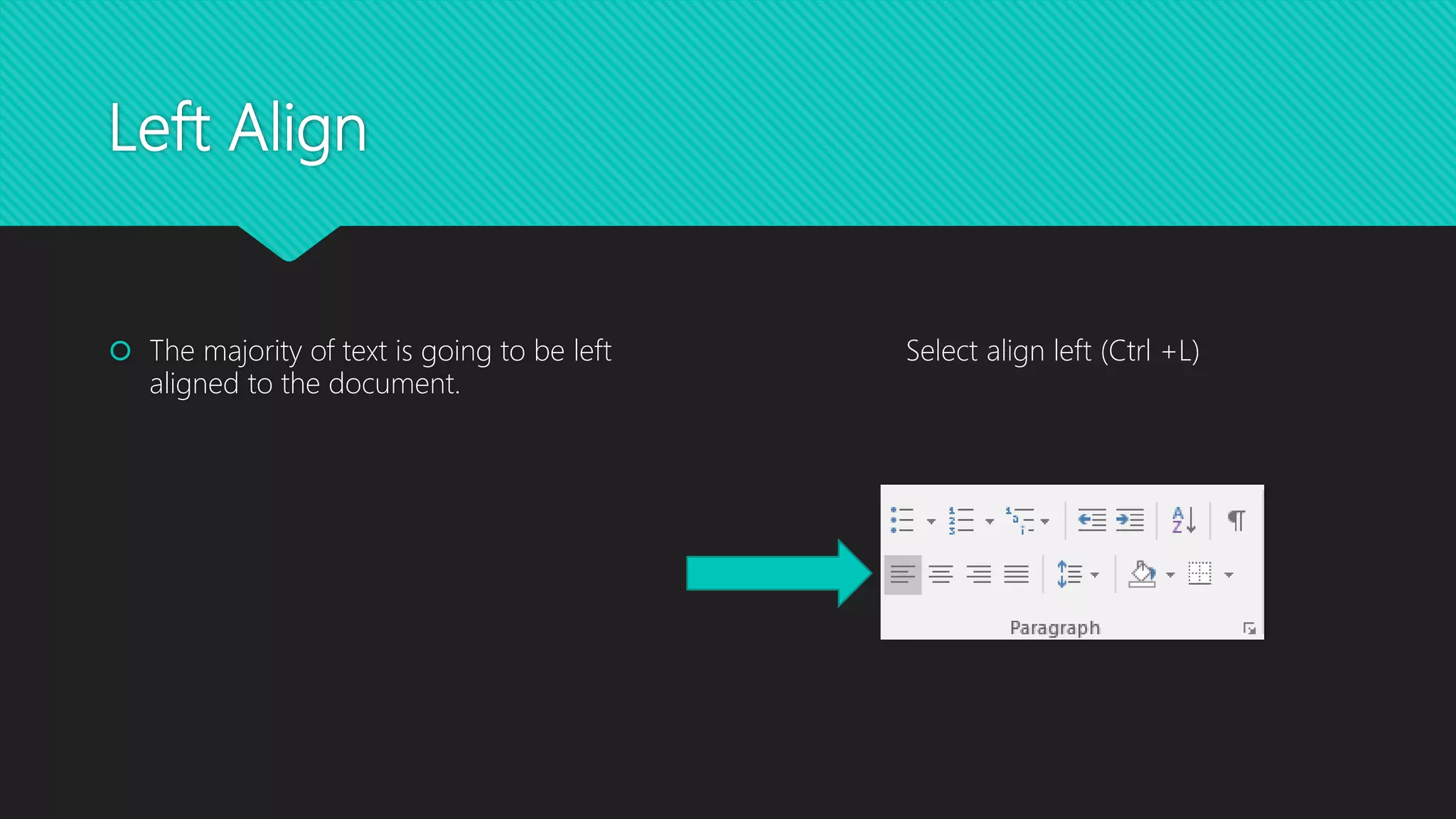
 The majority of text is going to be left
aligned to the document.
Select align left (Ctrl +L)
Creating Bullets
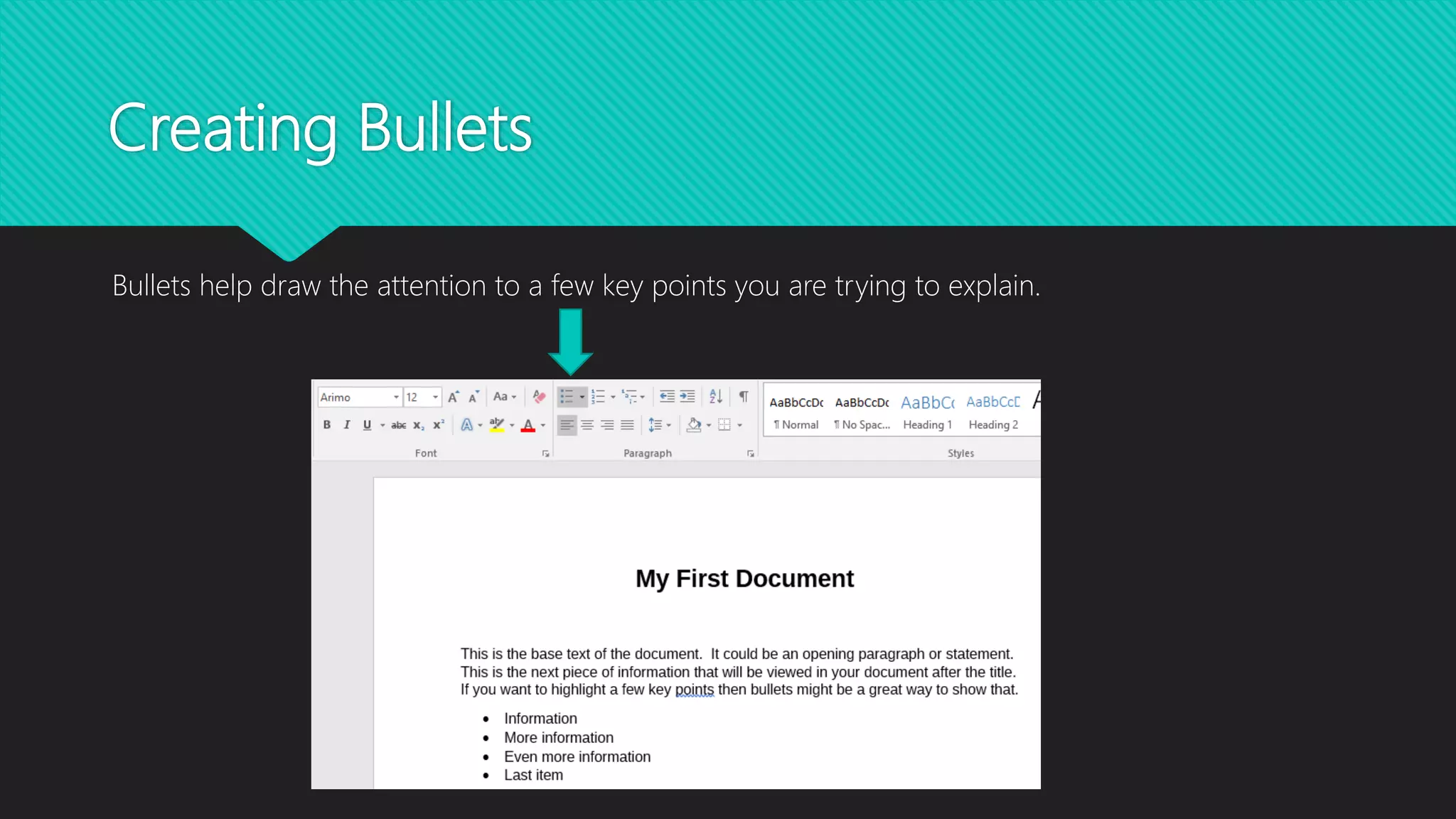
Bullets help draw the attention to a few key points you are trying to explain.
How to underline
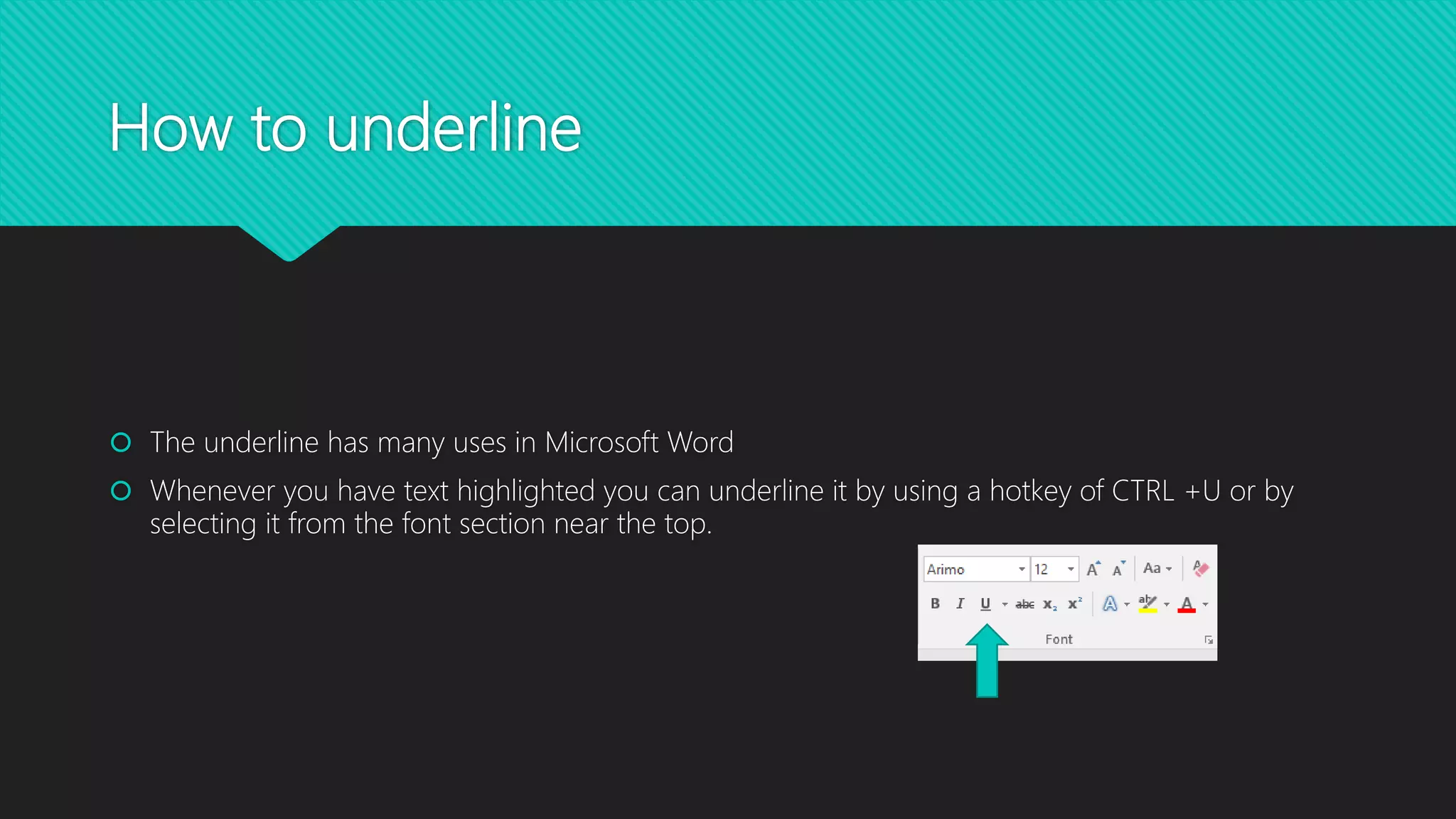
 The underline has many uses in Microsoft Word
 Whenever you have text highlighted you can underline it by using a hotkey of CTRL +U or by
selecting it from the font section near the top.
Creating a Header and footer
 When writing a document on which you
want to have the same thing show up at the
top and/or bottom of every page.
 A header might contain the title of the paper,
and the footer might contain page numbers,
dates, etc.
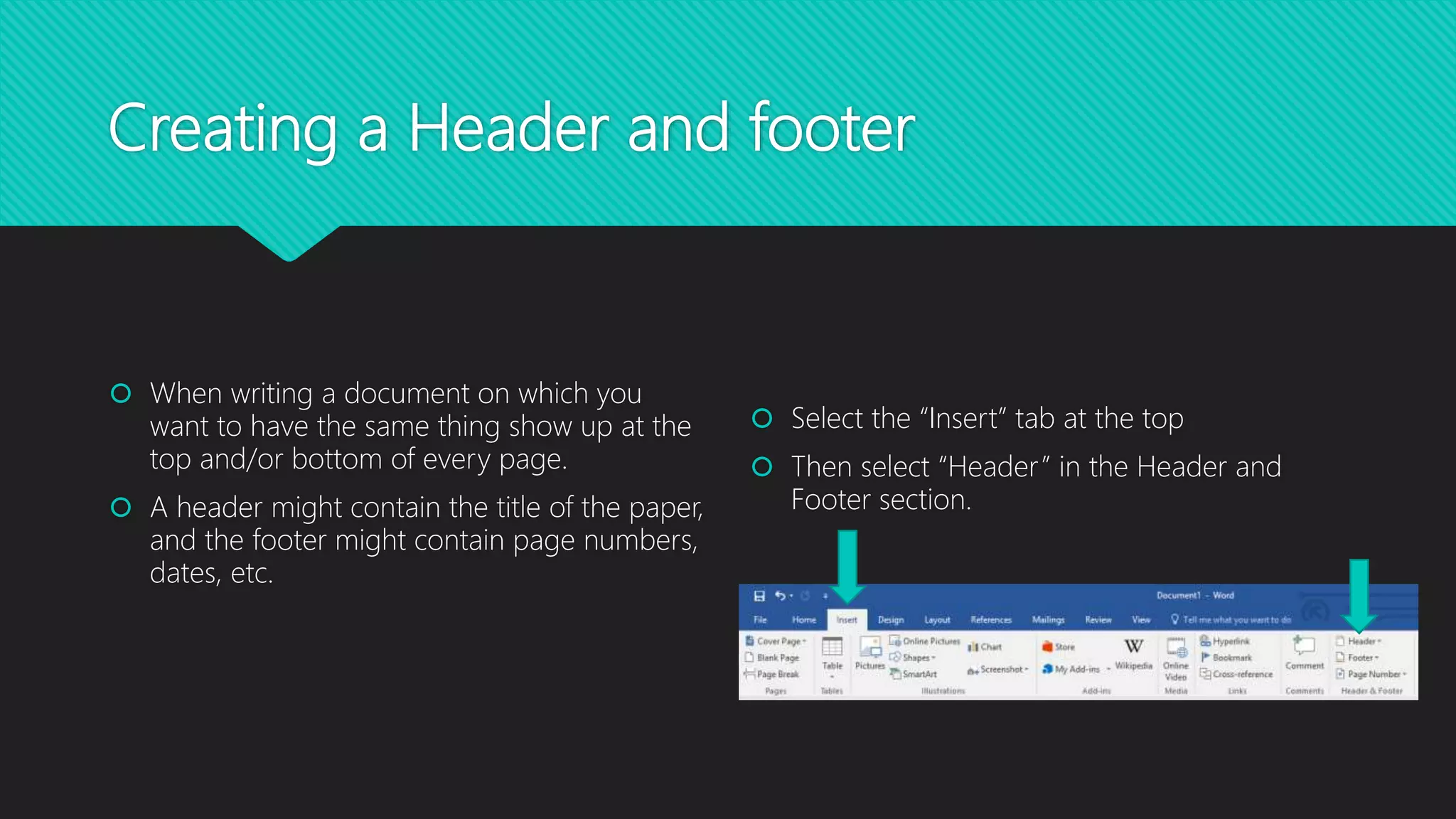
 Select the “Insert” tab at the top
 Then select “Header” in the Header and
Footer section.
Header (Continued)
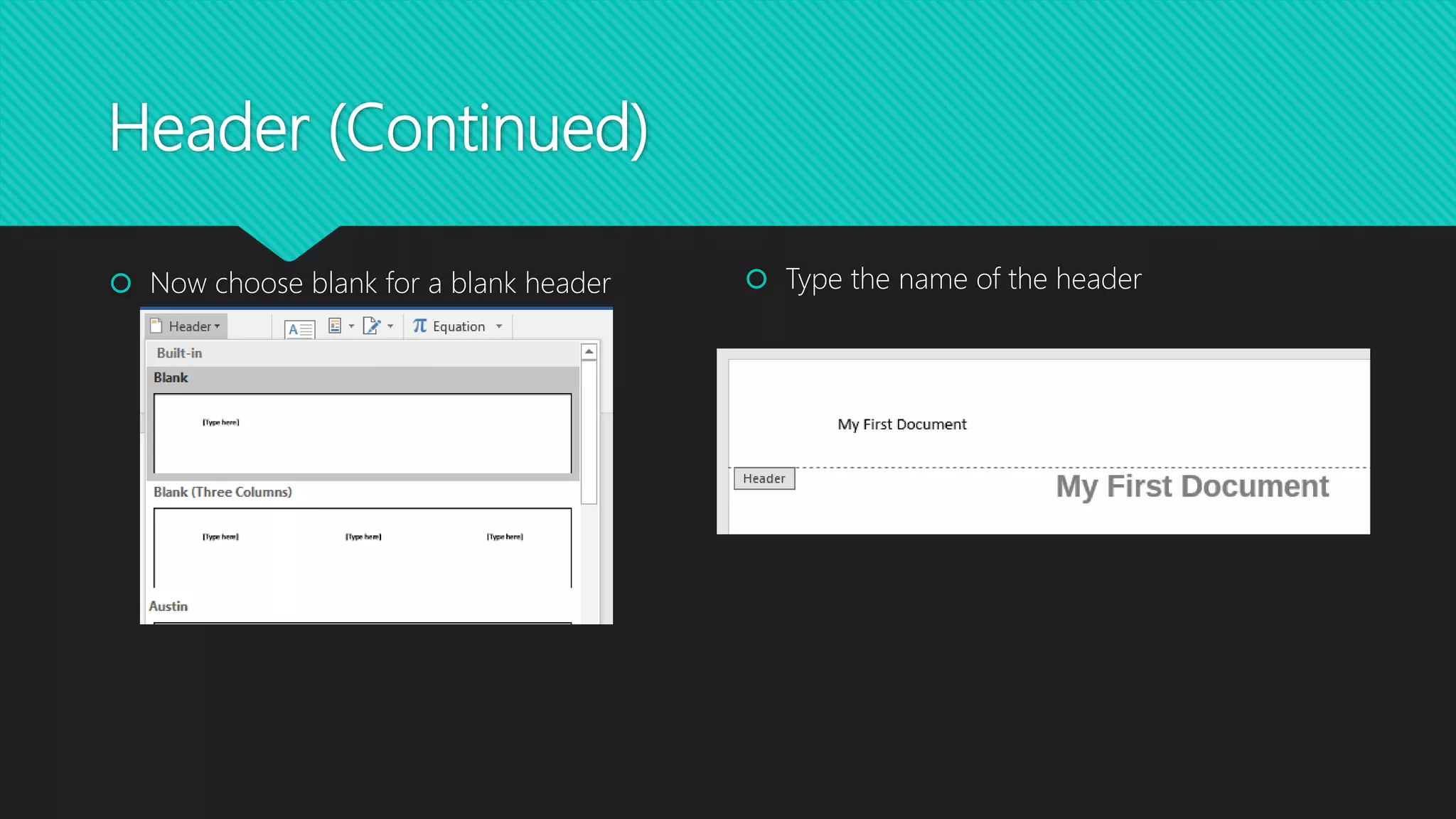
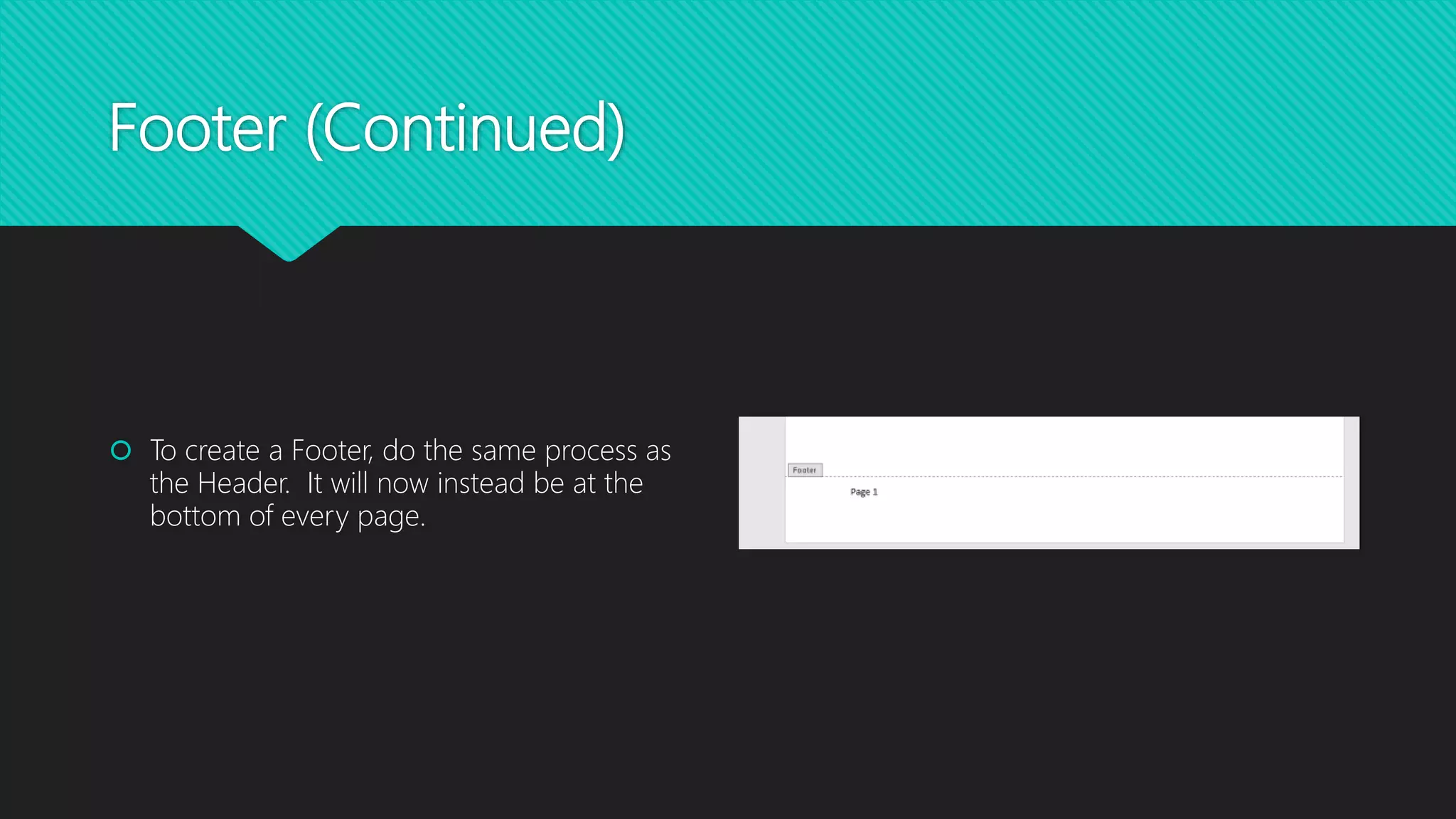
 Now choose blank for a blank header  Type the name of the header
Footer (Continued)
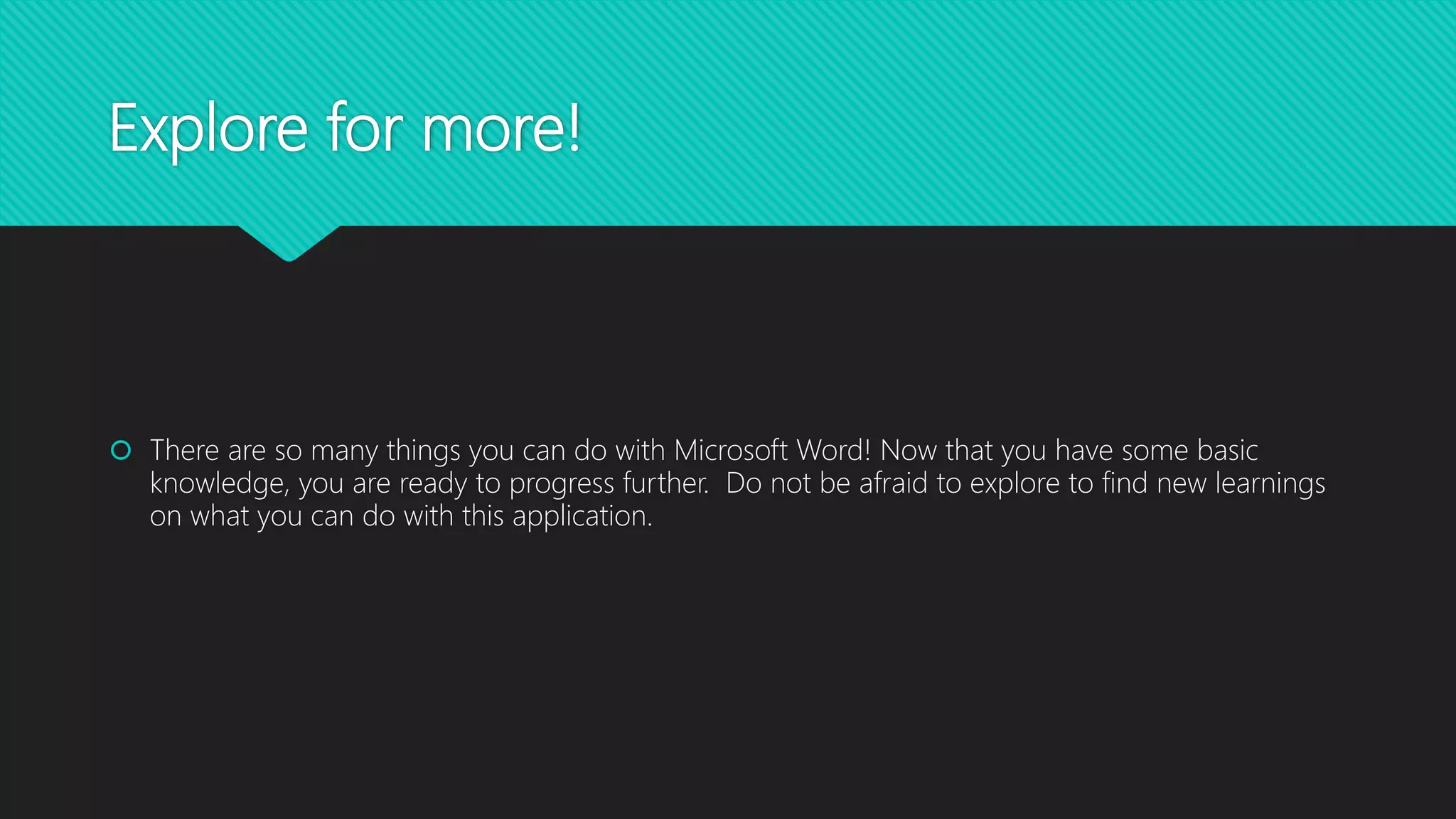
 To create a Footer, do the same process as
the Header. It will now instead be at the
bottom of every page.
Explore for more!
 There are so many things you can do with Microsoft Word! Now that you have some basic
knowledge, you are ready to progress further. Do not be afraid to explore to find new learnings
on what you can do with this application.

Microsoft word tutorial

  • 1.
    Microsoft Word 2016 Tutorialfor creating a Word document
  • 2.
    Open a newsession  Select Blank document to open a fresh new session of Microsoft Word.
  • 3.
    Create a title Peopleuse Microsoft Word for a variety of reasons. One feature that is common is to have a title. Under the paragraph section, select the center option. This will center your title in the middle of the document.  Type in the title of your document first.
  • 4.
    How to Bold Herewe will make your title stand out by adding a bold feature to the text.  Highlight your title by selecting the text with your mouse as shown below: There are many ways to bold text. You can use CTRL + B as a hotkey or just click on the B in the menu that opens up.
  • 5.
    Changing Font andFont Size With your title still selected, choose your designated font type in the font section. While the text is still selected, choose the size of the font
  • 6.
    Left Align  Themajority of text is going to be left aligned to the document. Select align left (Ctrl +L)
  • 7.
    Creating Bullets Bullets helpdraw the attention to a few key points you are trying to explain.
  • 8.
    How to underline The underline has many uses in Microsoft Word  Whenever you have text highlighted you can underline it by using a hotkey of CTRL +U or by selecting it from the font section near the top.
  • 9.
    Creating a Headerand footer  When writing a document on which you want to have the same thing show up at the top and/or bottom of every page.  A header might contain the title of the paper, and the footer might contain page numbers, dates, etc.  Select the “Insert” tab at the top  Then select “Header” in the Header and Footer section.
  • 10.
    Header (Continued)  Nowchoose blank for a blank header  Type the name of the header
  • 11.
    Footer (Continued)  Tocreate a Footer, do the same process as the Header. It will now instead be at the bottom of every page.
  • 12.
    Explore for more! There are so many things you can do with Microsoft Word! Now that you have some basic knowledge, you are ready to progress further. Do not be afraid to explore to find new learnings on what you can do with this application.