

Joining, Searching, & Interacting on
          LinkedIn Groups
Overview
•   What are LinkedIn groups?
•   Joining a group
•   Searching a group
•   Interacting within a group
•   Wrap-up
LinkedIn Groups

  What are they?
LinkedIn Groups
• A place for professionals in the same industry
  or with similar interests to:
  – Share content
  – Find answers
  – Post and view jobs
  – Make business contacts
  – Establish themselves as industry experts
How to Join a LinkedIn Group
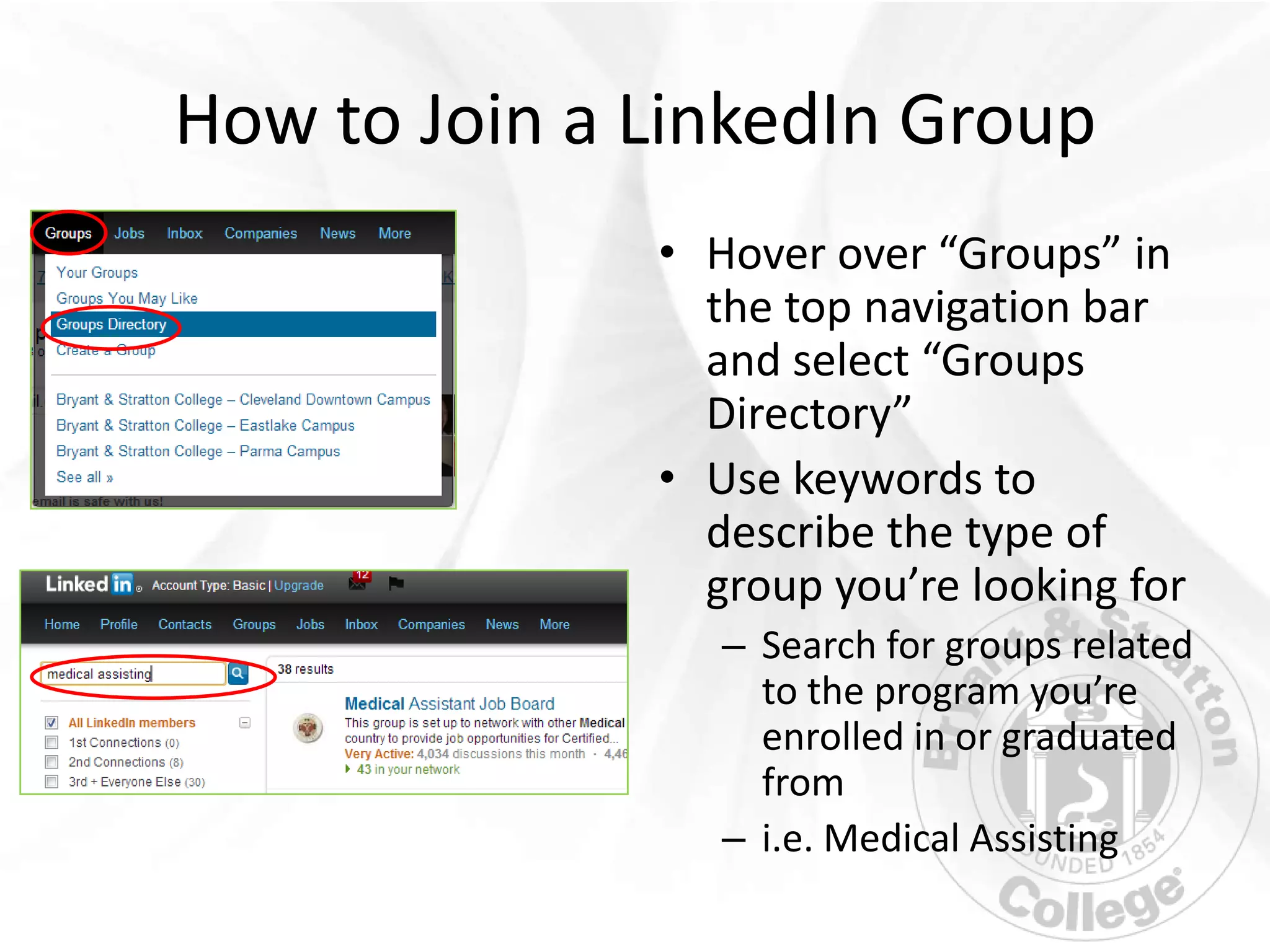
              • Hover over “Groups” in
                the top navigation bar
                and select “Groups
                Directory”
              • Use keywords to
                describe the type of
                group you’re looking for
                 – Search for groups related
                   to the program you’re
                   enrolled in or graduated
                   from
                 – i.e. Medical Assisting
How to Join a Group on LinkedIn (cont.)


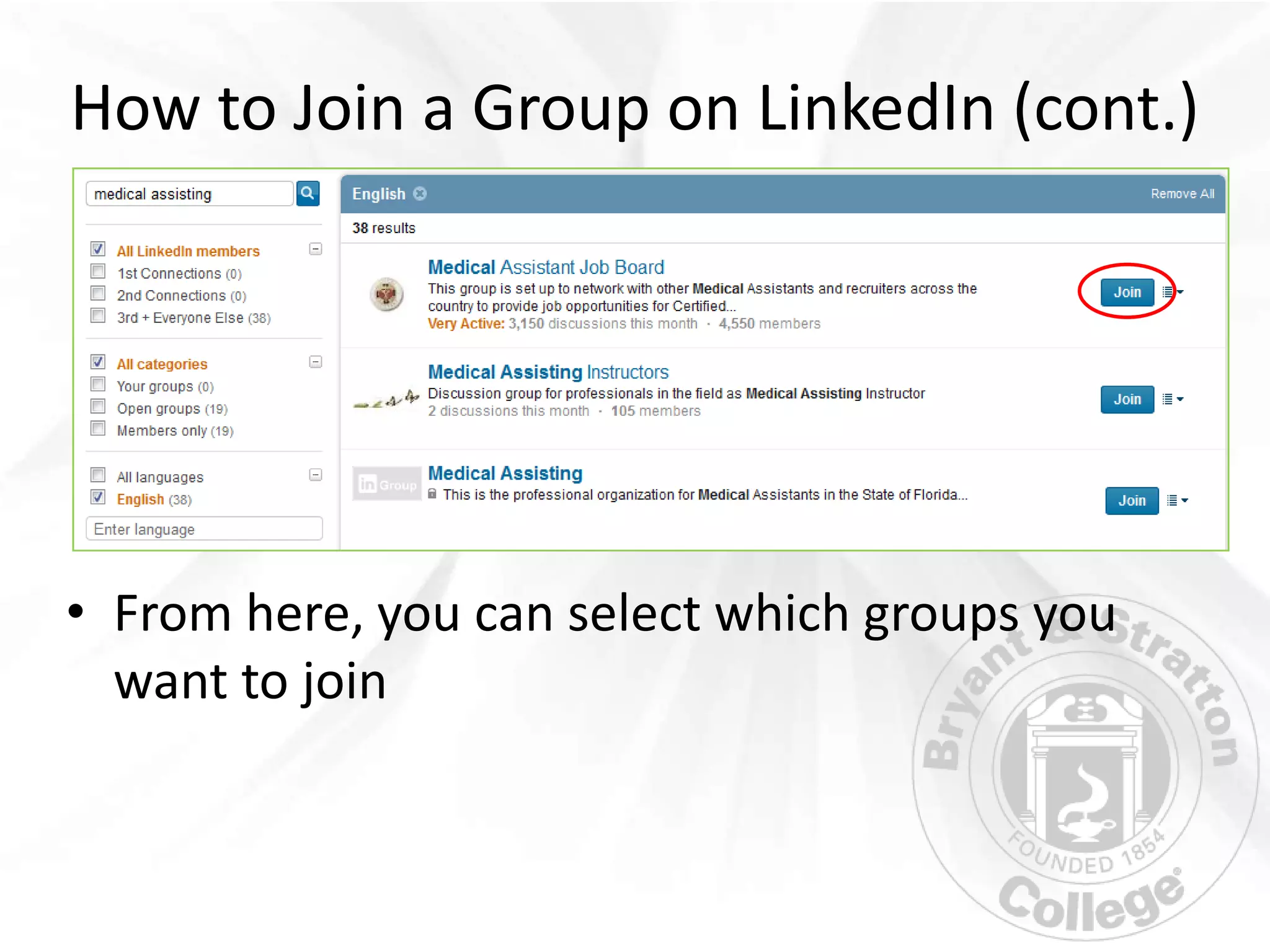
• From here, you can select which groups you
  want to join
Searching a Group
Searching a Group


After joining a group use the search functionality
to see who’s in the group and how they’re
connected to you.
How to Search a Group
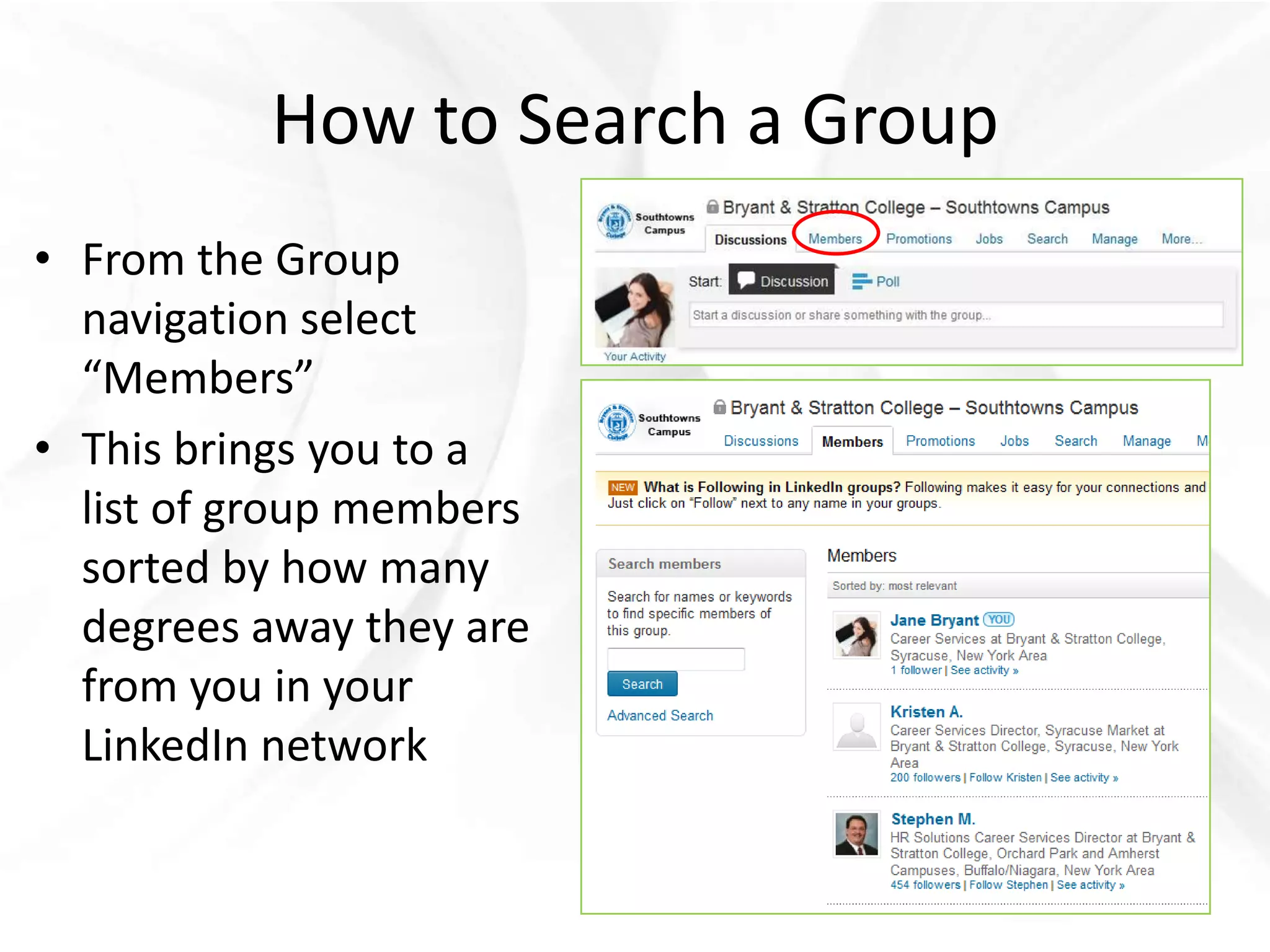
• From the Group
  navigation select
  “Members”
• This brings you to a
  list of group members
  sorted by how many
  degrees away they are
  from you in your
  LinkedIn network
How to Search a Group
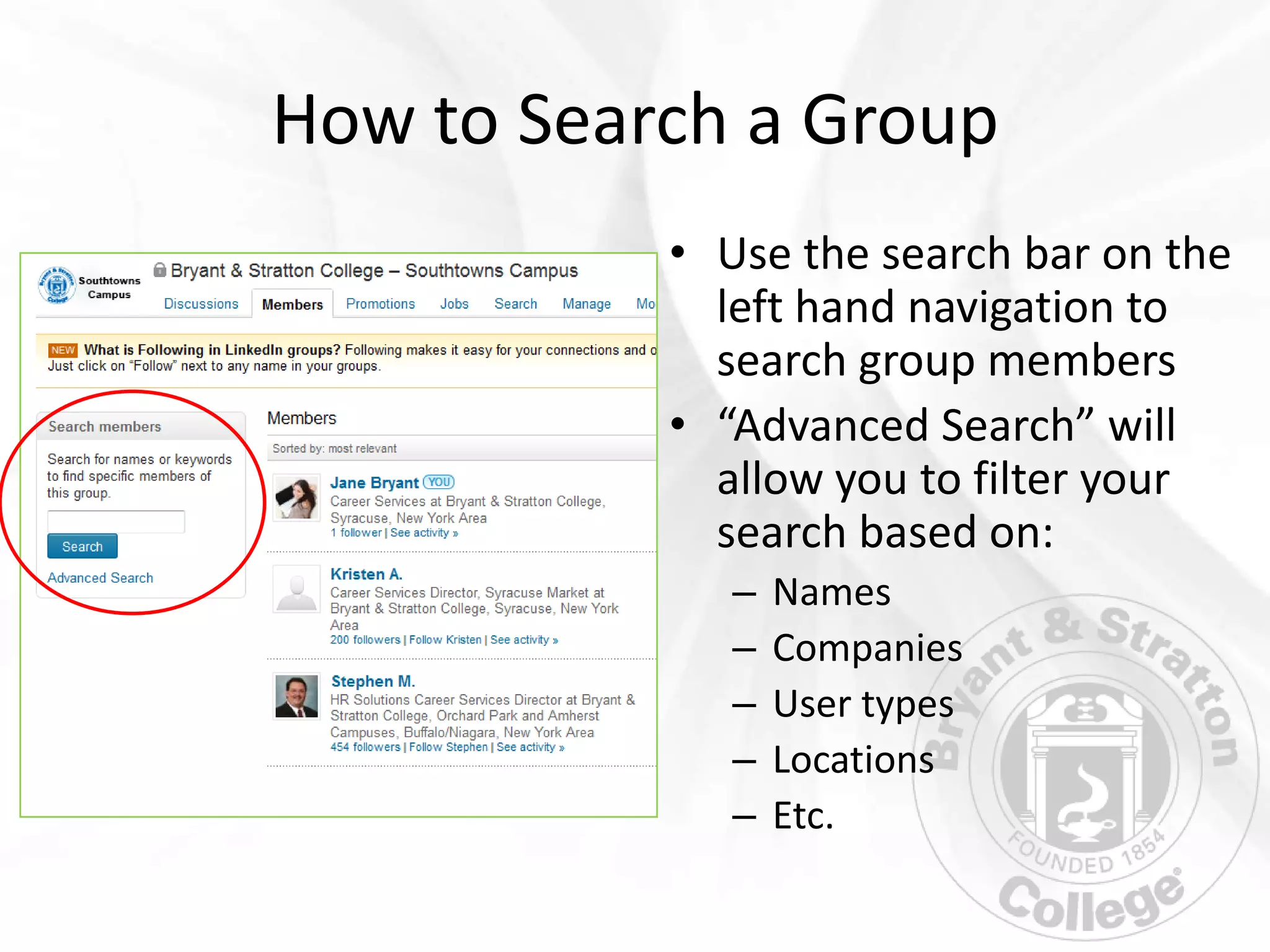
           • Use the search bar on the
             left hand navigation to
             search group members
           • “Advanced Search” will
             allow you to filter your
             search based on:
              –   Names
              –   Companies
              –   User types
              –   Locations
              –   Etc.
Interacting Within a Group
• Once you join a group, be sure to interact and
  contribute
  – Post relevant and timely articles and/or information
  – Share your insight by commenting on posts by other
    group members
  – Ask questions to gather opinions of other group
    members
Wrap-Up
• Only join relevant groups
• Contribute to the groups you join
• Network with other group members


 Remember to join your campus’
 group and subgroups on LinkedIn!

Joining, Searching, & Interacting on LinkedIn Groups

  • 1.
    Joining, Searching, &Interacting on LinkedIn Groups
  • 2.
    Overview • What are LinkedIn groups? • Joining a group • Searching a group • Interacting within a group • Wrap-up
  • 3.
    LinkedIn Groups What are they?
  • 4.
    LinkedIn Groups • Aplace for professionals in the same industry or with similar interests to: – Share content – Find answers – Post and view jobs – Make business contacts – Establish themselves as industry experts
  • 5.
    How to Joina LinkedIn Group • Hover over “Groups” in the top navigation bar and select “Groups Directory” • Use keywords to describe the type of group you’re looking for – Search for groups related to the program you’re enrolled in or graduated from – i.e. Medical Assisting
  • 6.
    How to Joina Group on LinkedIn (cont.) • From here, you can select which groups you want to join
  • 7.
  • 8.
    Searching a Group Afterjoining a group use the search functionality to see who’s in the group and how they’re connected to you.
  • 9.
    How to Searcha Group • From the Group navigation select “Members” • This brings you to a list of group members sorted by how many degrees away they are from you in your LinkedIn network
  • 10.
    How to Searcha Group • Use the search bar on the left hand navigation to search group members • “Advanced Search” will allow you to filter your search based on: – Names – Companies – User types – Locations – Etc.
  • 11.
  • 12.
    Interacting Within aGroup • Once you join a group, be sure to interact and contribute – Post relevant and timely articles and/or information – Share your insight by commenting on posts by other group members – Ask questions to gather opinions of other group members
  • 13.
    Wrap-Up • Only joinrelevant groups • Contribute to the groups you join • Network with other group members Remember to join your campus’ group and subgroups on LinkedIn!