Google Docs for Researchers: Creating, Editing, and Sharing Your Work Online Whitney Townsend, MLIS Health Sciences Libraries University of Michigan
The Document Creation Process Create a new document in Word, Excel, or Powerpoint Do a little work on it, then save it to your desktop or network You're going to work on it at home, so you e-mail a copy to yourself You do more work on it at home, save the changes to your new document, and e-mail to yourself again Edit it more at work, then e-mail it to your colleagues for input and edits Save a new copy with your colleagues' edits and finalize it E-mail your document to everyone that needs to see it
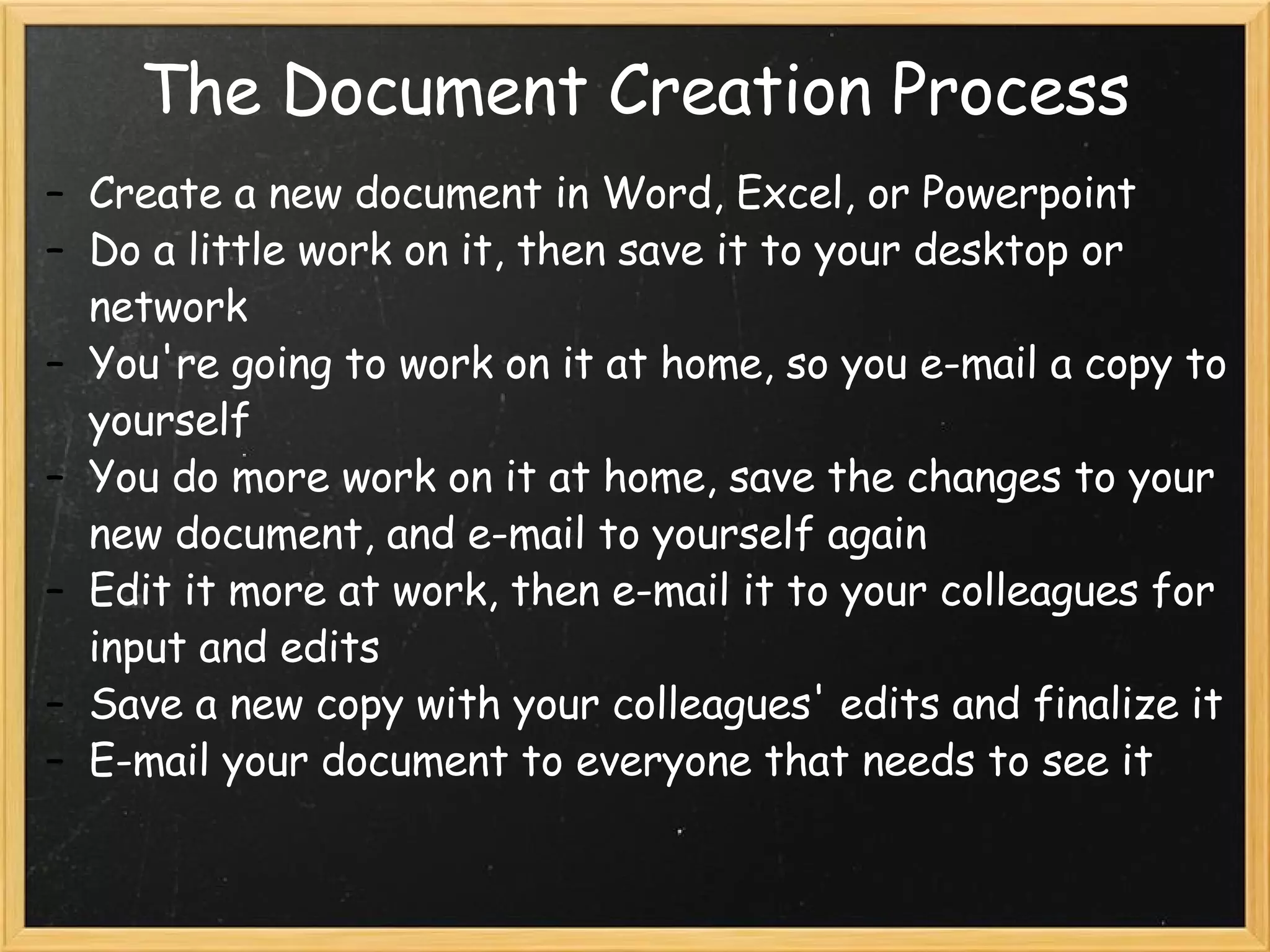
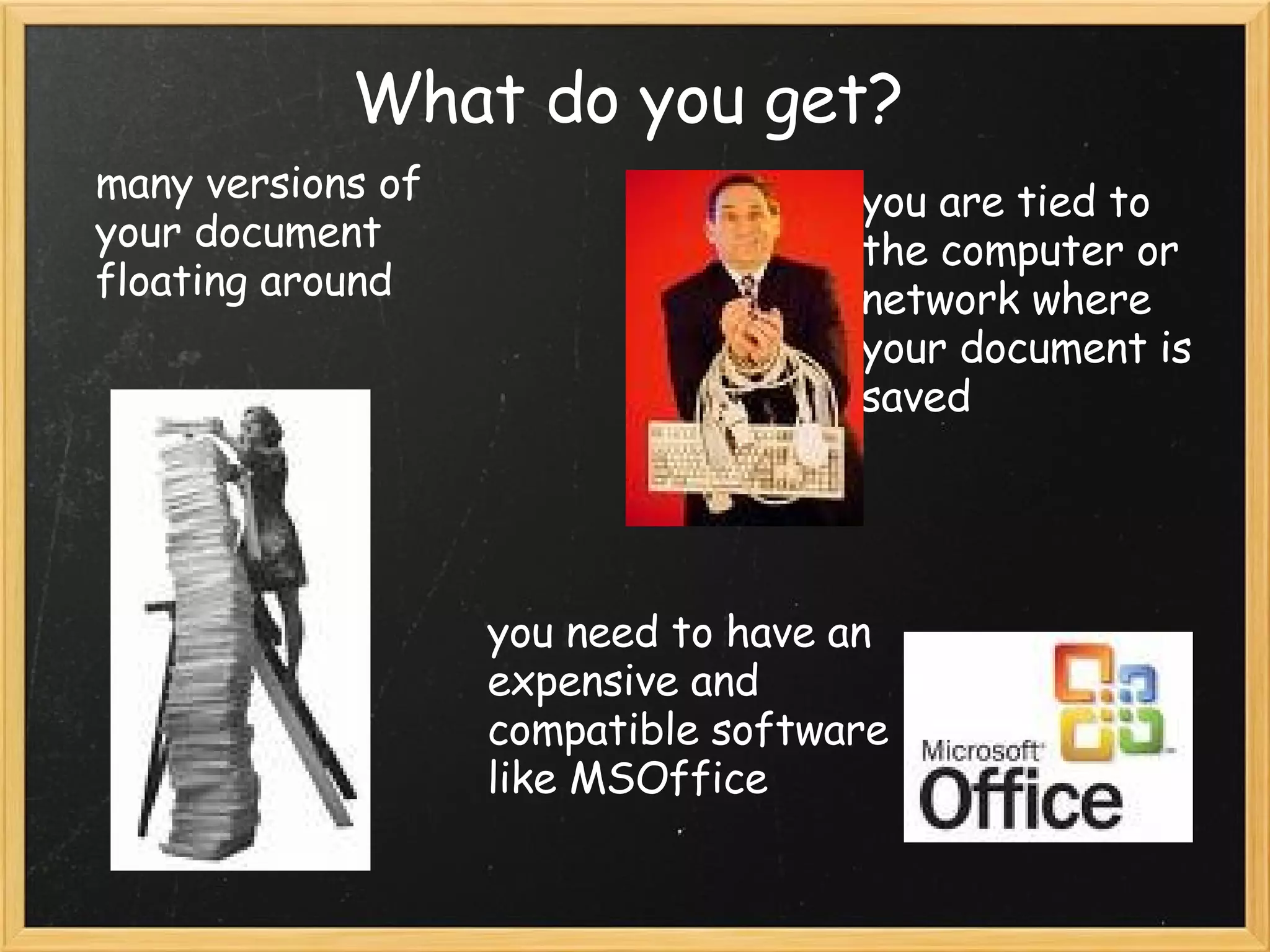
What do you get? many versions of your document floating around you are tied to the computer or network where your document is saved you need to have an expensive and compatible software like MSOffice
It doesn't have to be this hard! With Google Docs you can easily: access your documents from any computer upload and edit previously created word, excel, and powerpoint documents track the history of your documents' revisions, and  revert to old versions collaborate, share, and publish your documents easily
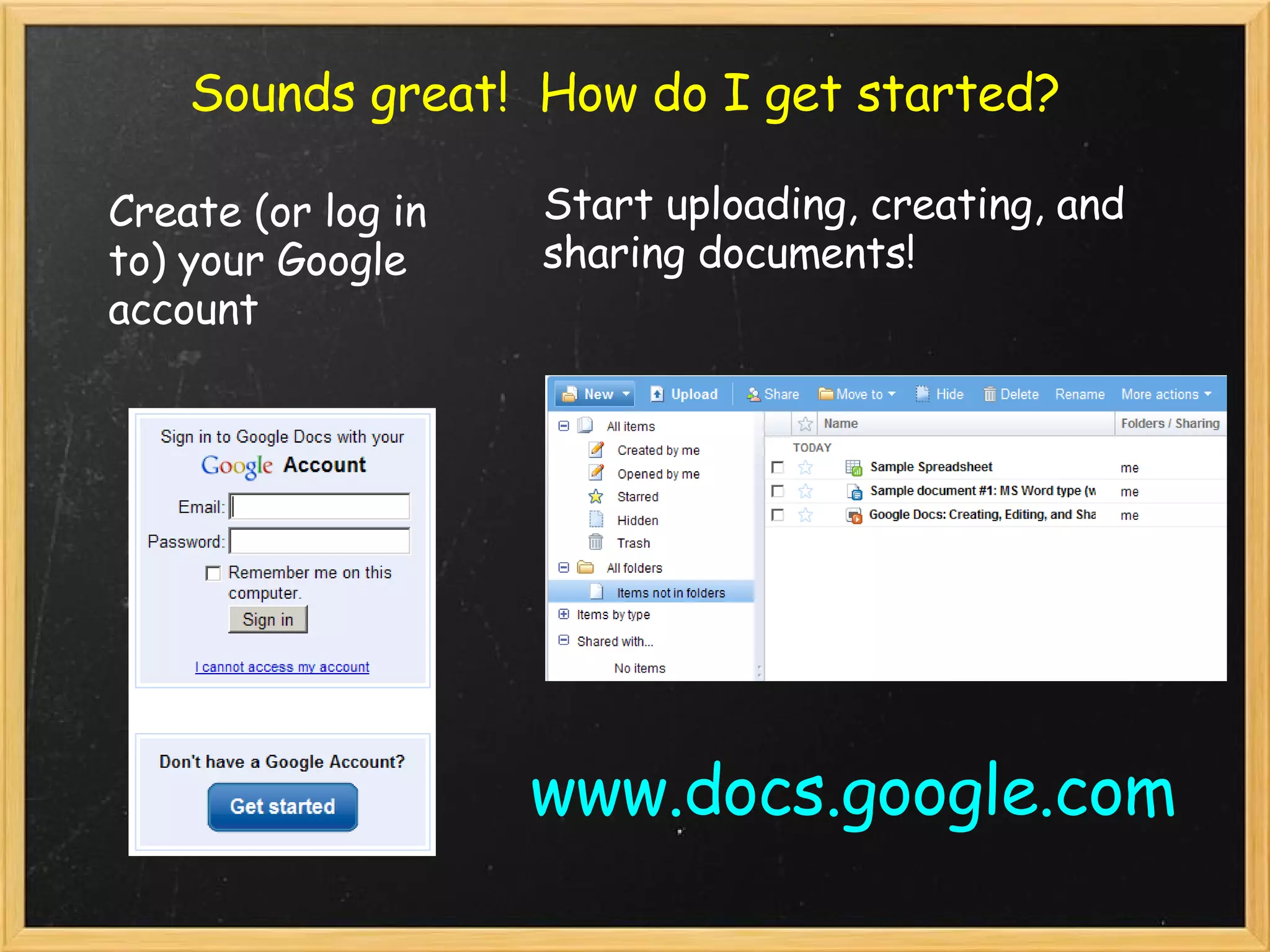
Sounds great!  How do I get started? Create (or log in to) your Google account Start uploading, creating, and sharing documents! www.docs.google.com
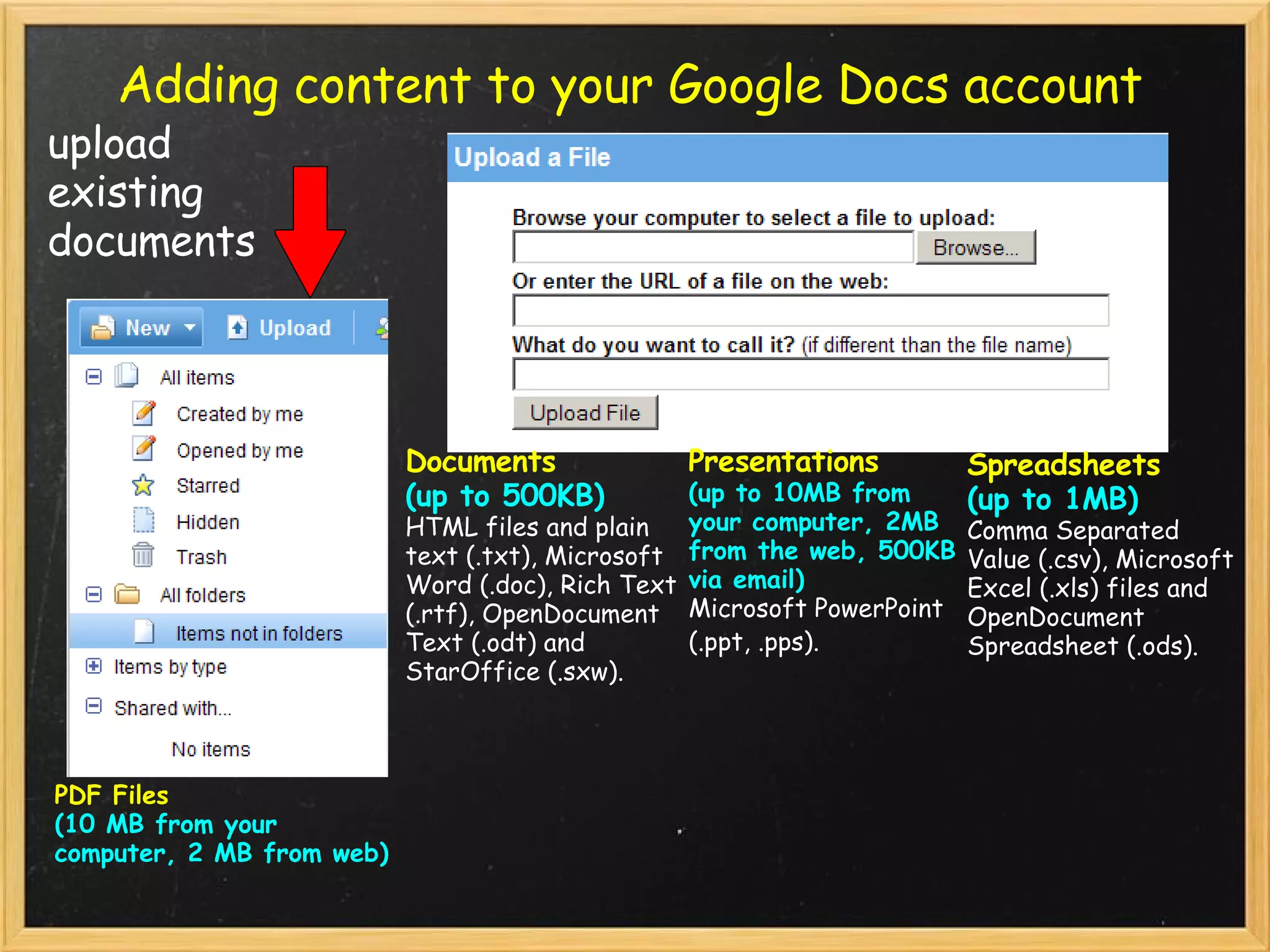
Adding content to your Google Docs account Documents   (up to 500KB) HTML files and plain text (.txt), Microsoft Word (.doc), Rich Text (.rtf), OpenDocument Text (.odt) and StarOffice (.sxw).  Presentations  (up to 10MB from your computer, 2MB from the web, 500KB via email) Microsoft PowerPoint (.ppt, .pps).   Spreadsheets  (up to 1MB) Comma Separated Value (.csv), Microsoft Excel (.xls) files and OpenDocument Spreadsheet (.ods). PDF Files (10 MB from your computer, 2 MB from web) upload existing documents
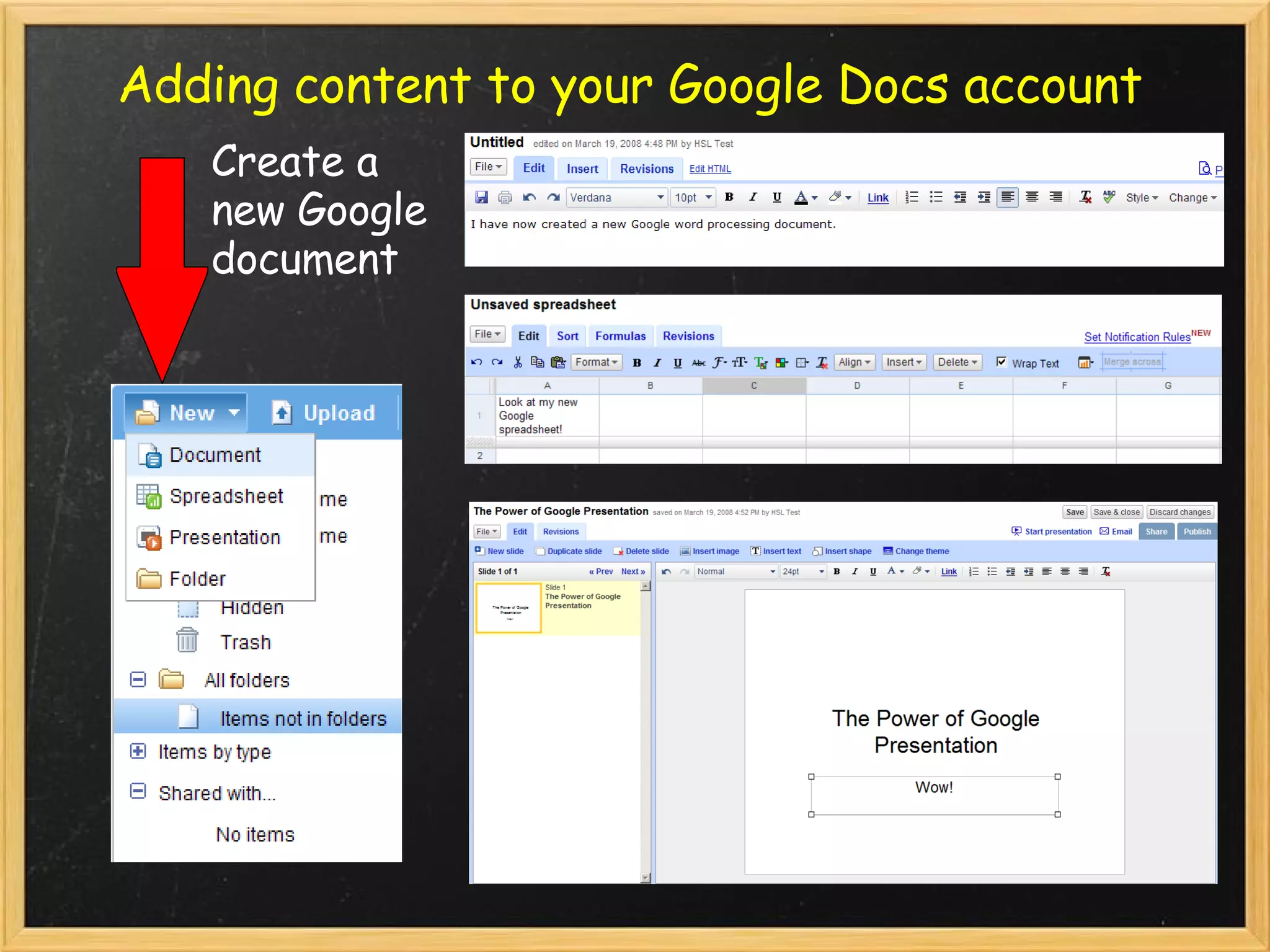
Adding content to your Google Docs account Create a new Google document
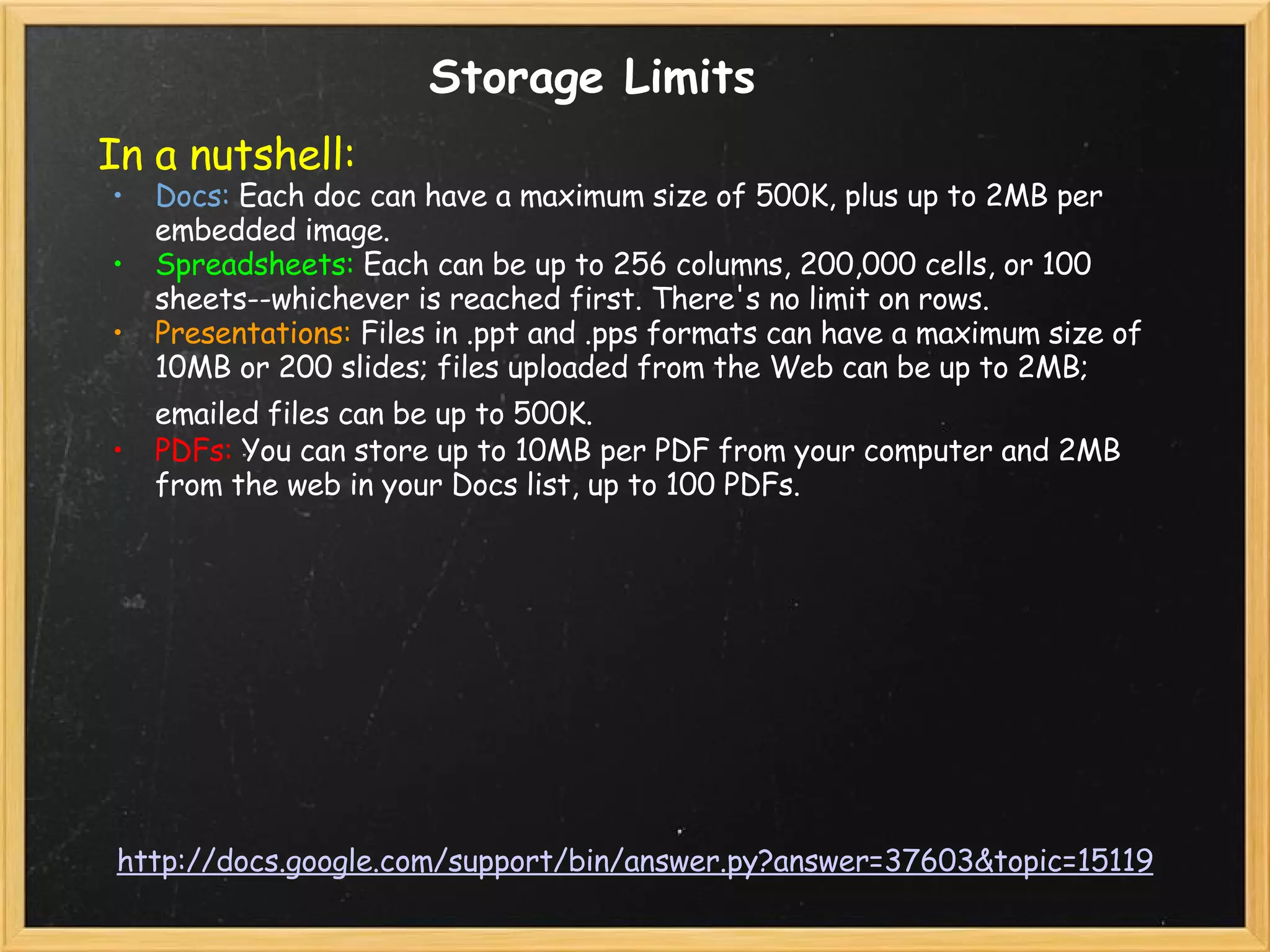
http://docs.google.com/support/bin/answer.py?answer=37603&topic=15119 Storage Limits In a nutshell:   Docs:  Each doc can have a maximum size of 500K, plus up to 2MB per embedded image.  Spreadsheets:  Each can be up to 256 columns, 200,000 cells, or 100 sheets--whichever is reached first. There's no limit on rows. Presentations:  Files in .ppt and .pps formats can have a maximum size of 10MB or 200 slides; files uploaded from the Web can be up to 2MB; emailed files can be up to 500K.   PDFs:  You can store up to 10MB per PDF from your computer and 2MB from the web in your Docs list, up to 100 PDFs.
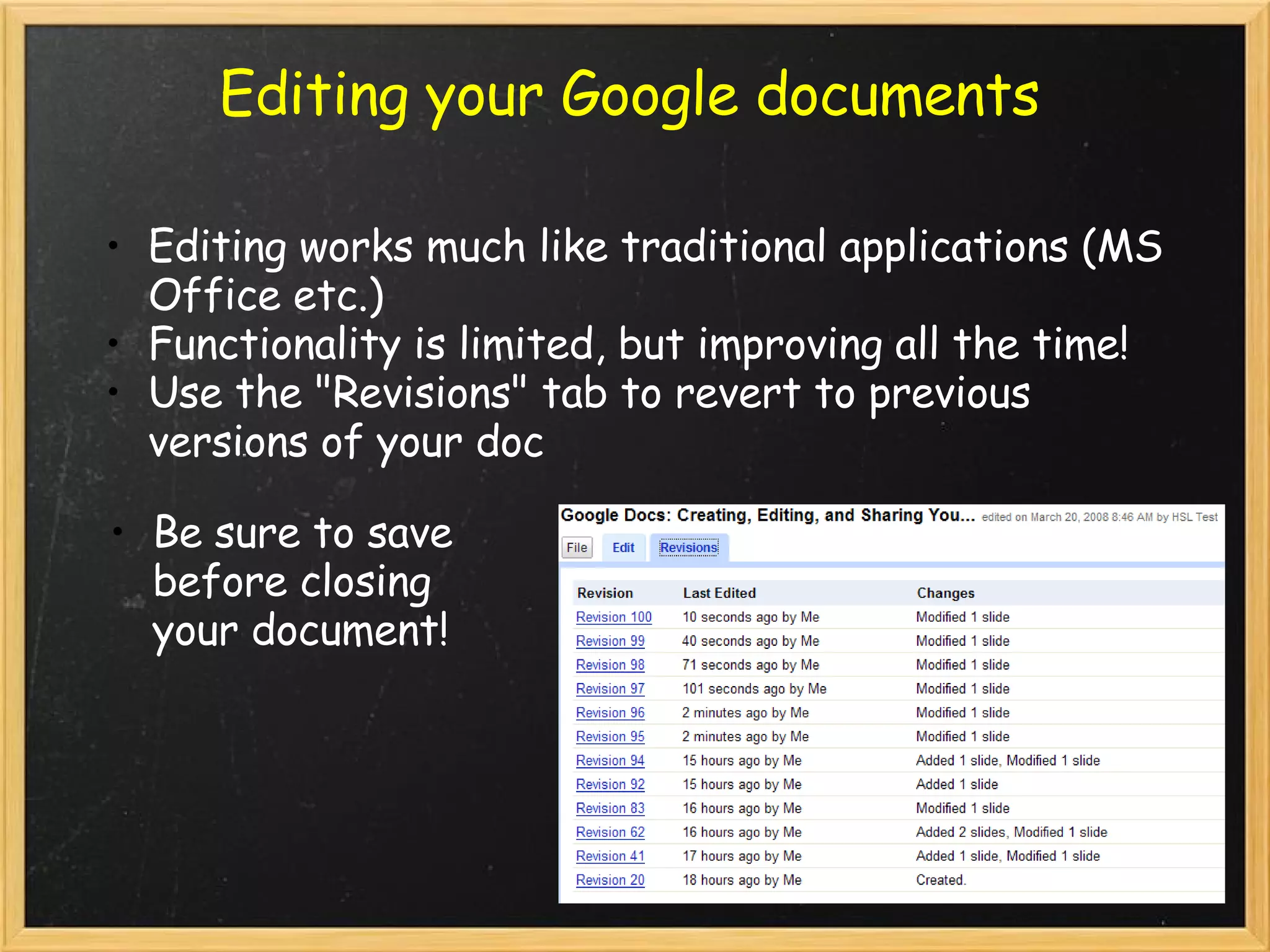
Editing your Google documents Editing works much like traditional applications (MS Office etc.) Functionality is limited, but improving all the time! Use the "Revisions" tab to revert to previous versions of your doc Be sure to save before closing your document!
Google Docs Basic word processing  Similar to MS Word Fewer fonts, symbols, features, etc. Not compatible with Endnote, Refworks, or Zotero citation management softwares   Great for: working on drafts with multiple collaborators when meeting is impossible converting Word files to PDFs without expensive software    
Spreadsheets Excel-type spreadsheet files New enhancements coming all the time Ability to insert graphs, charts, and "gadgets" Instant formulas   Great for: Collaboratively adding data to a single spreadsheet file Basic to intermediate functionality Real-time updates for collaborators-no more waiting for the newest version to be e-mailed Basic forms
Forms for Spreadsheets Easily create basic forms Forms can be e-mailed or embedded onto a webpage Data from submitted forms is put into a spreadsheet Form templates are available, or you can make your own   Great for: Quickly collecting basic information from colleagues (current phone, title, etc.) Populating spreadsheets with data points for information that is entered regularly
Presentations Basic Powerpoint-type presentation tool Ability to share and collaborate on basic presentations Easily publish and conduct presentations online New templates added frequently    Great for: Clean, basic presentations Online presentations with chat option BACKUP!!!!
Useful Google Docs Tools PDFs Upload PDFs (articles etc.) and share with colleagues  Convert files to PDF without expensive software CANNOT edit original PDF documents Templates Create or select frequently used document types Lots of background options Particularly useful for Forms
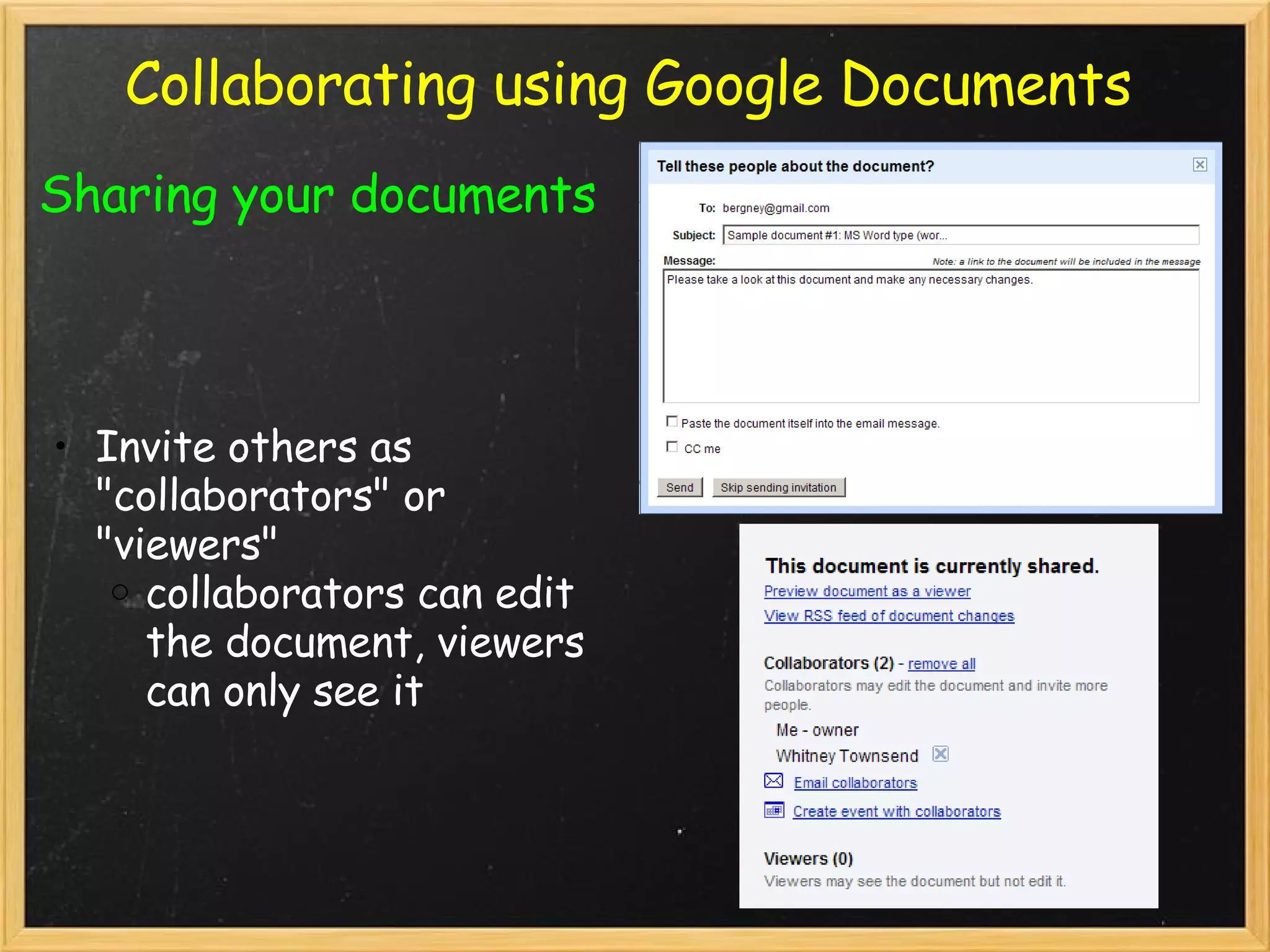
Collaborating using Google Documents Sharing your documents Invite others as "collaborators" or "viewers" collaborators can edit the document, viewers can only see it
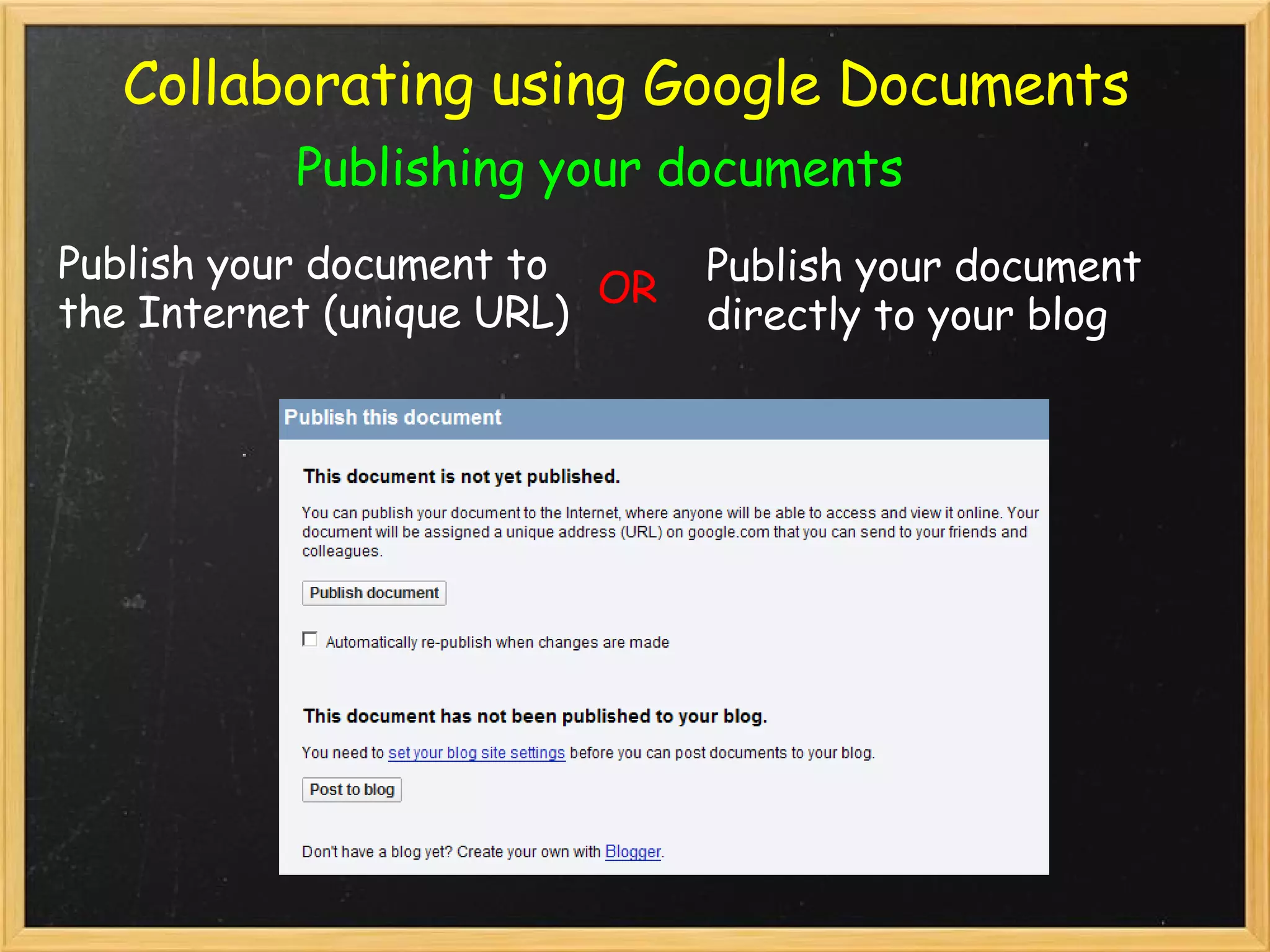
Collaborating using Google Documents Publishing your documents Publish your document to the Internet (unique URL) Publish your document directly to your blog OR
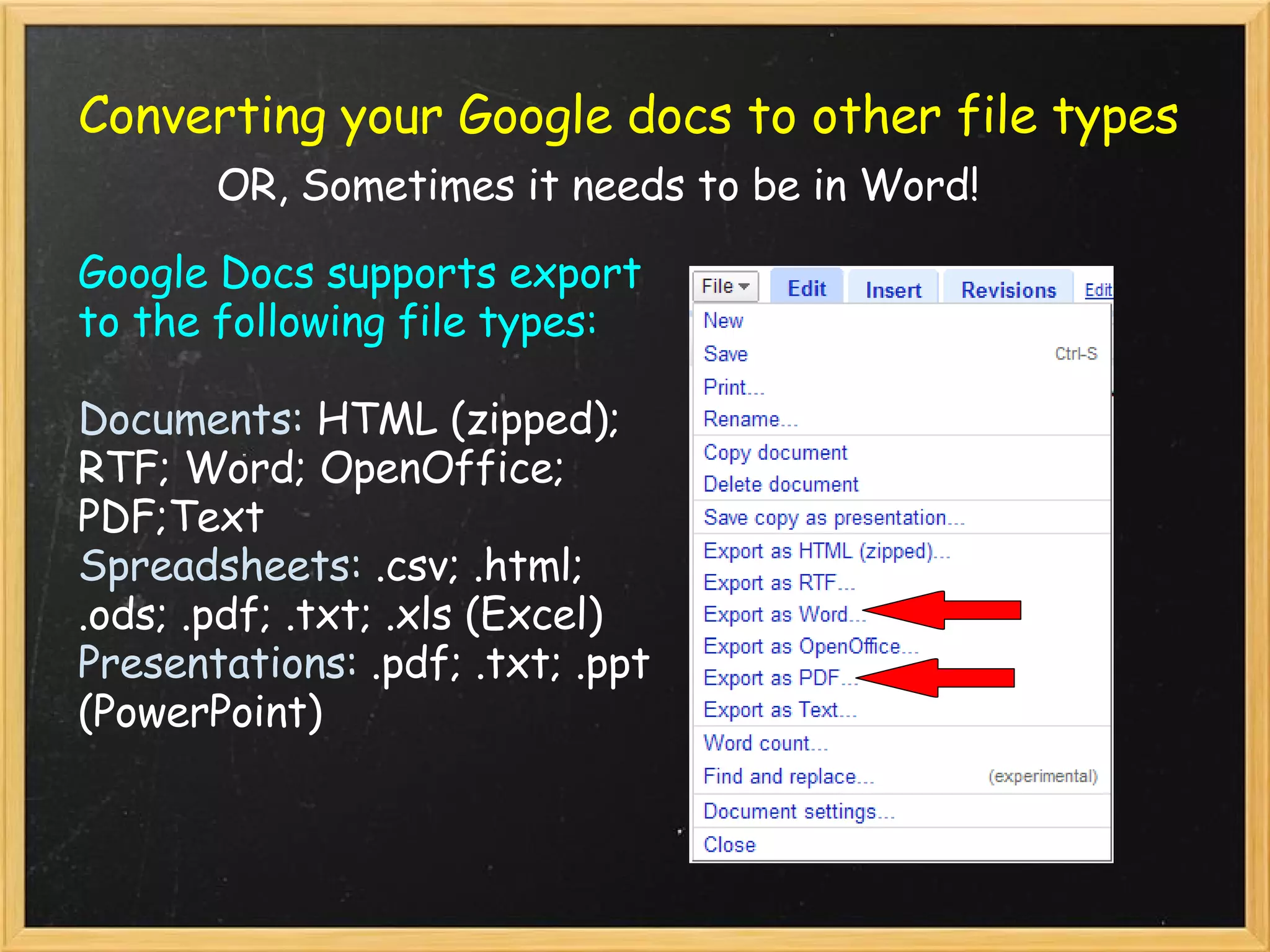
Converting your Google docs to other file types   OR, Sometimes it needs to be in Word! Google Docs supports export to the following file types: Documents:  HTML (zipped); RTF; Word; OpenOffice; PDF;Text Spreadsheets:  .csv; .html; .ods; .pdf; .txt; .xls (Excel) Presentations:  .pdf; .txt; .ppt (PowerPoint)
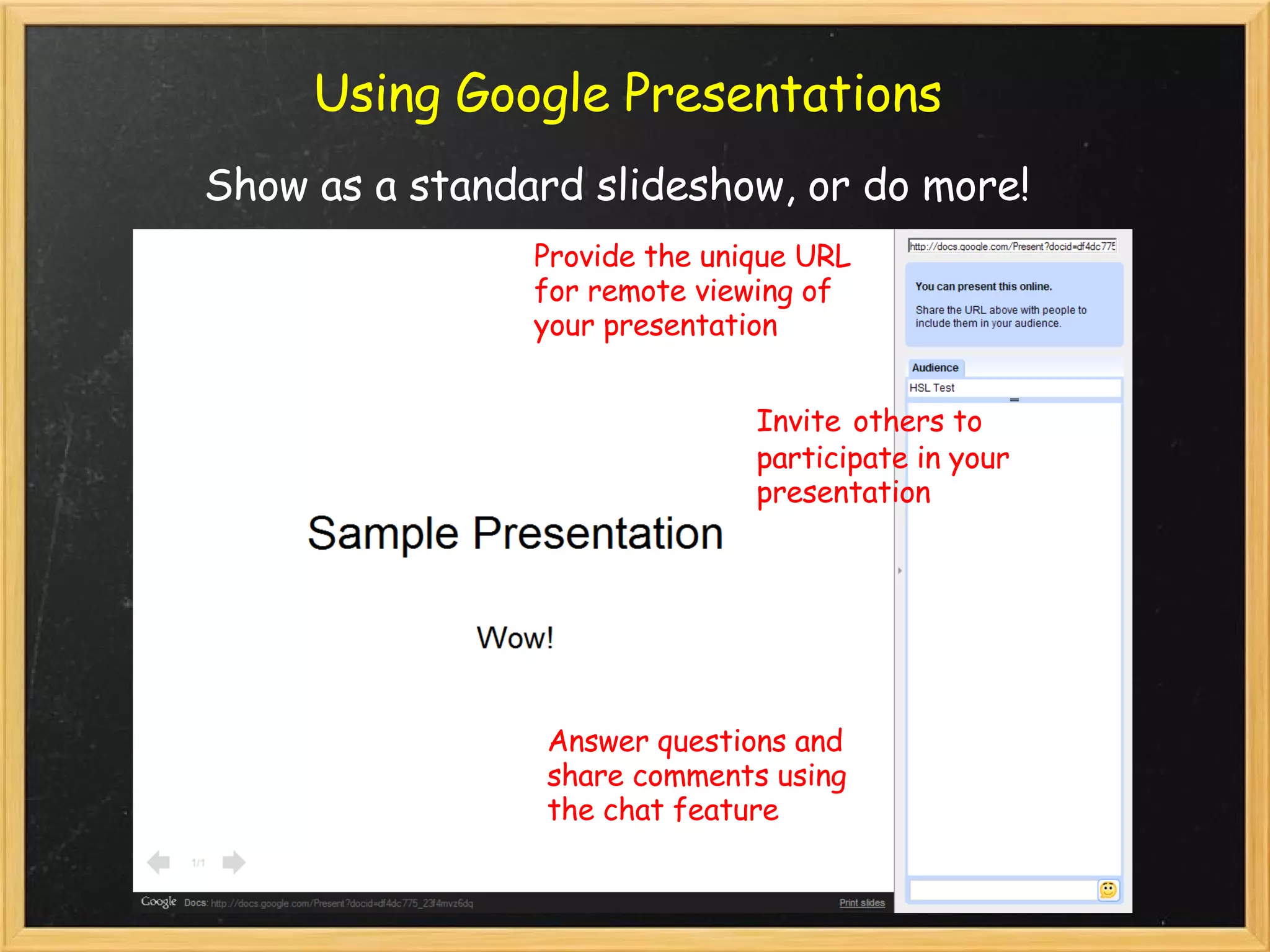
Using Google Presentations Show as a standard slideshow, or do more! Provide the unique URL for remote viewing of your presentation Invite   others to participate in your presentation Answer questions and share comments using the chat feature
THINGS TO REMEMBER Google Docs IS NOT the same thing as MS Office! There is less functionality in Google Docs compared to Word, Excel, and PowerPoint Importing existing MS Office docs is not seamless; you may need to do some editing (does NOT support Office 2007!) Exporting Google Docs to other filetypes is not seamless; you may need to do some editing The primary advantages of Google Docs are its web-based access mode and collaborative features Keep your Google Docs organized!  Make folders, and use the "revisions" tab instead of saving old copies of a working document.
The Big Question Is Google Docs secure? What Google says: Rest assured that your documents, spreadsheets and presentations will remain private unless you publish them to the Web or invite collaborators and/or viewers. Once you're signed in, you can grant access to whomever you'd like. Until then, your documents, spreadsheets and presentations are private.  Because robots and spiders can't get to your documents, spreadsheets or presentations, your docs won't appear in any search index.    Keep in mind: Documents are hosted on Google's servers Default sharing permissions are NOT the most secure options available There has been one security breach (will discuss) Do not store highly sensitive information Make sure your Google login and password is extremely secure  
How could I use Google Docs? Google Docs is good for... time sensitive items worked on by multiple people items that are worked on from many locations drafting and brainstorming sharing PDFs Google Docs IS NOT for... the final product of ANYTHING! writing that requires Endnote, Refworks, or Zotero (articles, etc.) extremely sensitive information areas with poor internet connectivity
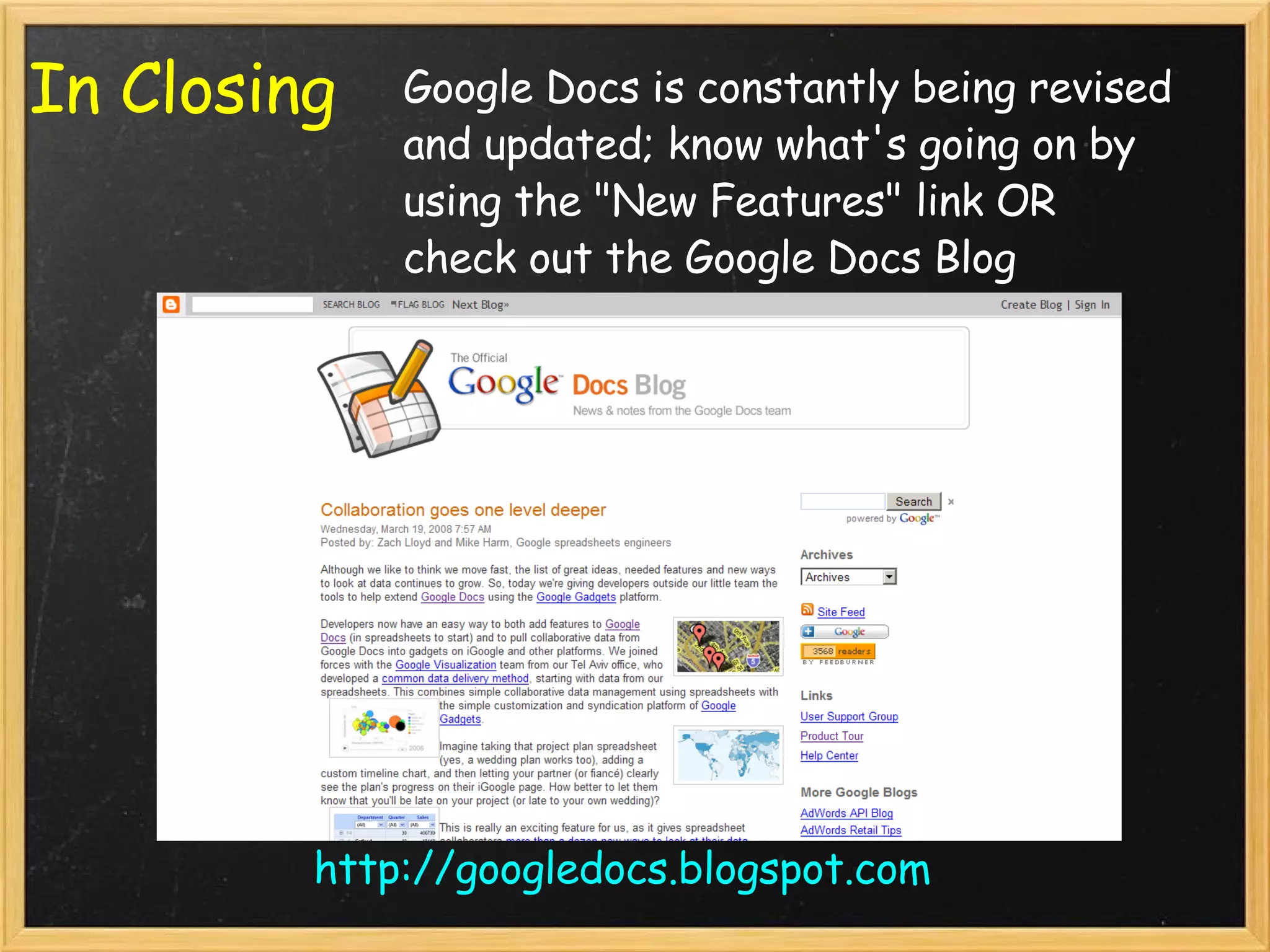
In Closing Google Docs is constantly being revised and updated; know what's going on by using the "New Features" link OR check out the Google Docs Blog  http://googledocs.blogspot.com
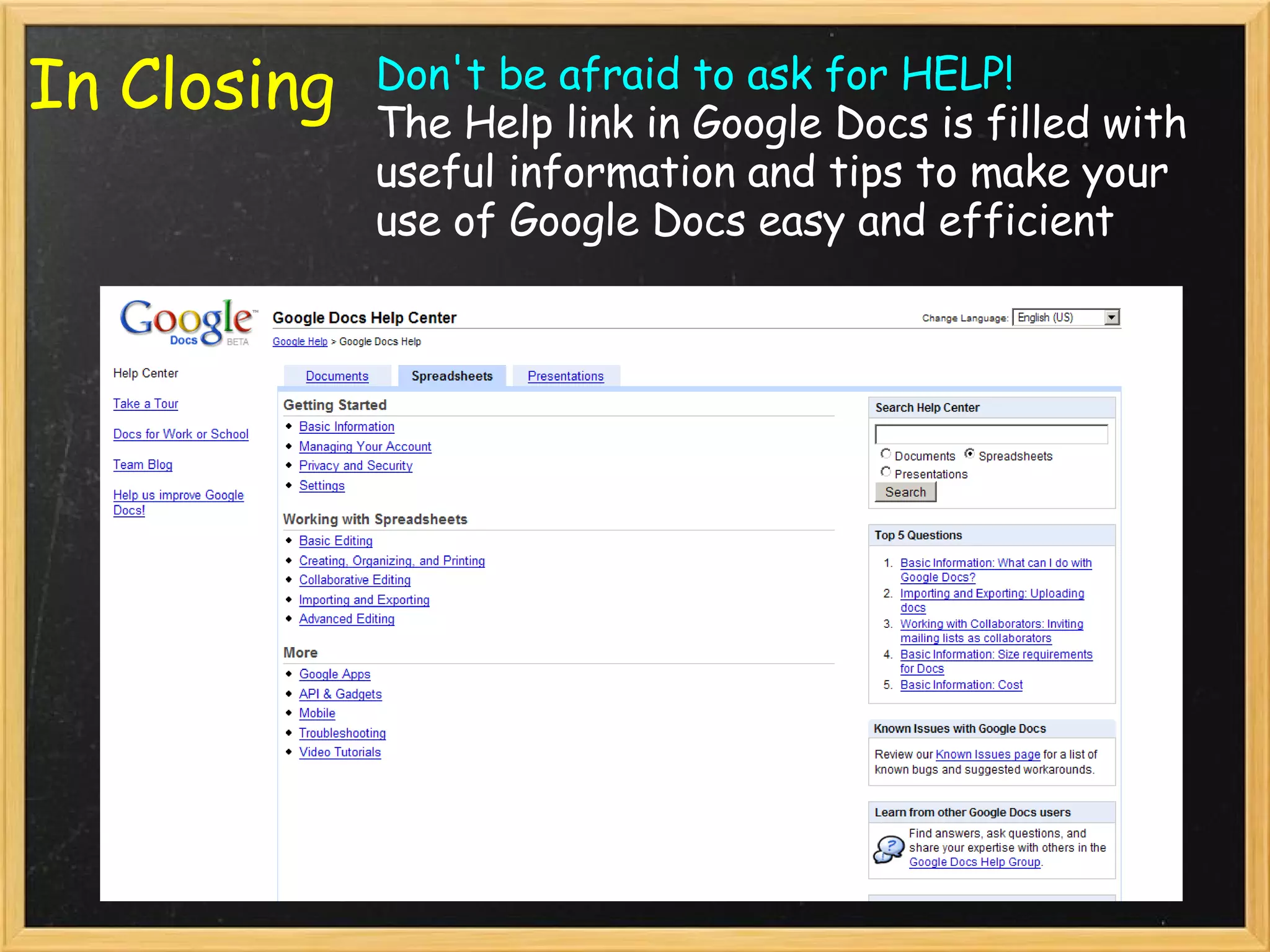
In Closing Don't be afraid to ask for HELP! The Help link in Google Docs is filled with useful information and tips to make your use of Google Docs easy and efficient
Questions? Whitney A. Townsend, MLIS Liaison Services Librarian 734-615-7898 [email_address]

Google Docs for Researchers: Creating, Editing, And Sharing Your Work Online

  • 1.
    Google Docs forResearchers: Creating, Editing, and Sharing Your Work Online Whitney Townsend, MLIS Health Sciences Libraries University of Michigan
  • 2.
    The Document CreationProcess Create a new document in Word, Excel, or Powerpoint Do a little work on it, then save it to your desktop or network You're going to work on it at home, so you e-mail a copy to yourself You do more work on it at home, save the changes to your new document, and e-mail to yourself again Edit it more at work, then e-mail it to your colleagues for input and edits Save a new copy with your colleagues' edits and finalize it E-mail your document to everyone that needs to see it
  • 3.
    What do youget? many versions of your document floating around you are tied to the computer or network where your document is saved you need to have an expensive and compatible software like MSOffice
  • 4.
    It doesn't haveto be this hard! With Google Docs you can easily: access your documents from any computer upload and edit previously created word, excel, and powerpoint documents track the history of your documents' revisions, and  revert to old versions collaborate, share, and publish your documents easily
  • 5.
    Sounds great!  Howdo I get started? Create (or log in to) your Google account Start uploading, creating, and sharing documents! www.docs.google.com
  • 6.
    Adding content toyour Google Docs account Documents (up to 500KB) HTML files and plain text (.txt), Microsoft Word (.doc), Rich Text (.rtf), OpenDocument Text (.odt) and StarOffice (.sxw). Presentations (up to 10MB from your computer, 2MB from the web, 500KB via email) Microsoft PowerPoint (.ppt, .pps). Spreadsheets (up to 1MB) Comma Separated Value (.csv), Microsoft Excel (.xls) files and OpenDocument Spreadsheet (.ods). PDF Files (10 MB from your computer, 2 MB from web) upload existing documents
  • 7.
    Adding content toyour Google Docs account Create a new Google document
  • 8.
    http://docs.google.com/support/bin/answer.py?answer=37603&topic=15119 Storage LimitsIn a nutshell: Docs: Each doc can have a maximum size of 500K, plus up to 2MB per embedded image. Spreadsheets: Each can be up to 256 columns, 200,000 cells, or 100 sheets--whichever is reached first. There's no limit on rows. Presentations: Files in .ppt and .pps formats can have a maximum size of 10MB or 200 slides; files uploaded from the Web can be up to 2MB; emailed files can be up to 500K. PDFs: You can store up to 10MB per PDF from your computer and 2MB from the web in your Docs list, up to 100 PDFs.
  • 9.
    Editing your Googledocuments Editing works much like traditional applications (MS Office etc.) Functionality is limited, but improving all the time! Use the "Revisions" tab to revert to previous versions of your doc Be sure to save before closing your document!
  • 10.
    Google Docs Basicword processing  Similar to MS Word Fewer fonts, symbols, features, etc. Not compatible with Endnote, Refworks, or Zotero citation management softwares   Great for: working on drafts with multiple collaborators when meeting is impossible converting Word files to PDFs without expensive software    
  • 11.
    Spreadsheets Excel-type spreadsheetfiles New enhancements coming all the time Ability to insert graphs, charts, and "gadgets" Instant formulas   Great for: Collaboratively adding data to a single spreadsheet file Basic to intermediate functionality Real-time updates for collaborators-no more waiting for the newest version to be e-mailed Basic forms
  • 12.
    Forms for SpreadsheetsEasily create basic forms Forms can be e-mailed or embedded onto a webpage Data from submitted forms is put into a spreadsheet Form templates are available, or you can make your own   Great for: Quickly collecting basic information from colleagues (current phone, title, etc.) Populating spreadsheets with data points for information that is entered regularly
  • 13.
    Presentations Basic Powerpoint-typepresentation tool Ability to share and collaborate on basic presentations Easily publish and conduct presentations online New templates added frequently   Great for: Clean, basic presentations Online presentations with chat option BACKUP!!!!
  • 14.
    Useful Google DocsTools PDFs Upload PDFs (articles etc.) and share with colleagues  Convert files to PDF without expensive software CANNOT edit original PDF documents Templates Create or select frequently used document types Lots of background options Particularly useful for Forms
  • 15.
    Collaborating using GoogleDocuments Sharing your documents Invite others as "collaborators" or "viewers" collaborators can edit the document, viewers can only see it
  • 16.
    Collaborating using GoogleDocuments Publishing your documents Publish your document to the Internet (unique URL) Publish your document directly to your blog OR
  • 17.
    Converting your Googledocs to other file types   OR, Sometimes it needs to be in Word! Google Docs supports export to the following file types: Documents: HTML (zipped); RTF; Word; OpenOffice; PDF;Text Spreadsheets: .csv; .html; .ods; .pdf; .txt; .xls (Excel) Presentations: .pdf; .txt; .ppt (PowerPoint)
  • 18.
    Using Google PresentationsShow as a standard slideshow, or do more! Provide the unique URL for remote viewing of your presentation Invite others to participate in your presentation Answer questions and share comments using the chat feature
  • 19.
    THINGS TO REMEMBERGoogle Docs IS NOT the same thing as MS Office! There is less functionality in Google Docs compared to Word, Excel, and PowerPoint Importing existing MS Office docs is not seamless; you may need to do some editing (does NOT support Office 2007!) Exporting Google Docs to other filetypes is not seamless; you may need to do some editing The primary advantages of Google Docs are its web-based access mode and collaborative features Keep your Google Docs organized!  Make folders, and use the "revisions" tab instead of saving old copies of a working document.
  • 20.
    The Big QuestionIs Google Docs secure? What Google says: Rest assured that your documents, spreadsheets and presentations will remain private unless you publish them to the Web or invite collaborators and/or viewers. Once you're signed in, you can grant access to whomever you'd like. Until then, your documents, spreadsheets and presentations are private. Because robots and spiders can't get to your documents, spreadsheets or presentations, your docs won't appear in any search index.    Keep in mind: Documents are hosted on Google's servers Default sharing permissions are NOT the most secure options available There has been one security breach (will discuss) Do not store highly sensitive information Make sure your Google login and password is extremely secure  
  • 21.
    How could Iuse Google Docs? Google Docs is good for... time sensitive items worked on by multiple people items that are worked on from many locations drafting and brainstorming sharing PDFs Google Docs IS NOT for... the final product of ANYTHING! writing that requires Endnote, Refworks, or Zotero (articles, etc.) extremely sensitive information areas with poor internet connectivity
  • 22.
    In Closing GoogleDocs is constantly being revised and updated; know what's going on by using the "New Features" link OR check out the Google Docs Blog http://googledocs.blogspot.com
  • 23.
    In Closing Don'tbe afraid to ask for HELP! The Help link in Google Docs is filled with useful information and tips to make your use of Google Docs easy and efficient
  • 24.
    Questions? Whitney A.Townsend, MLIS Liaison Services Librarian 734-615-7898 [email_address]