Human Computer Interaction
UNIT – I:
HCI Foundations
Syllabus
Introduction, Input–output channels, Human memory Thinking: reasoning and problem
solving, Emotion, Individual differences, Psychology and the design of interactive systems,
Text entry devices, Positioning, pointing and drawing, Display devices, Devices for virtual
reality and 3D interaction, Physical controls, sensors and special devices, Paper: printing and
scanning.
Introduction
• What is Human-computer interaction ?
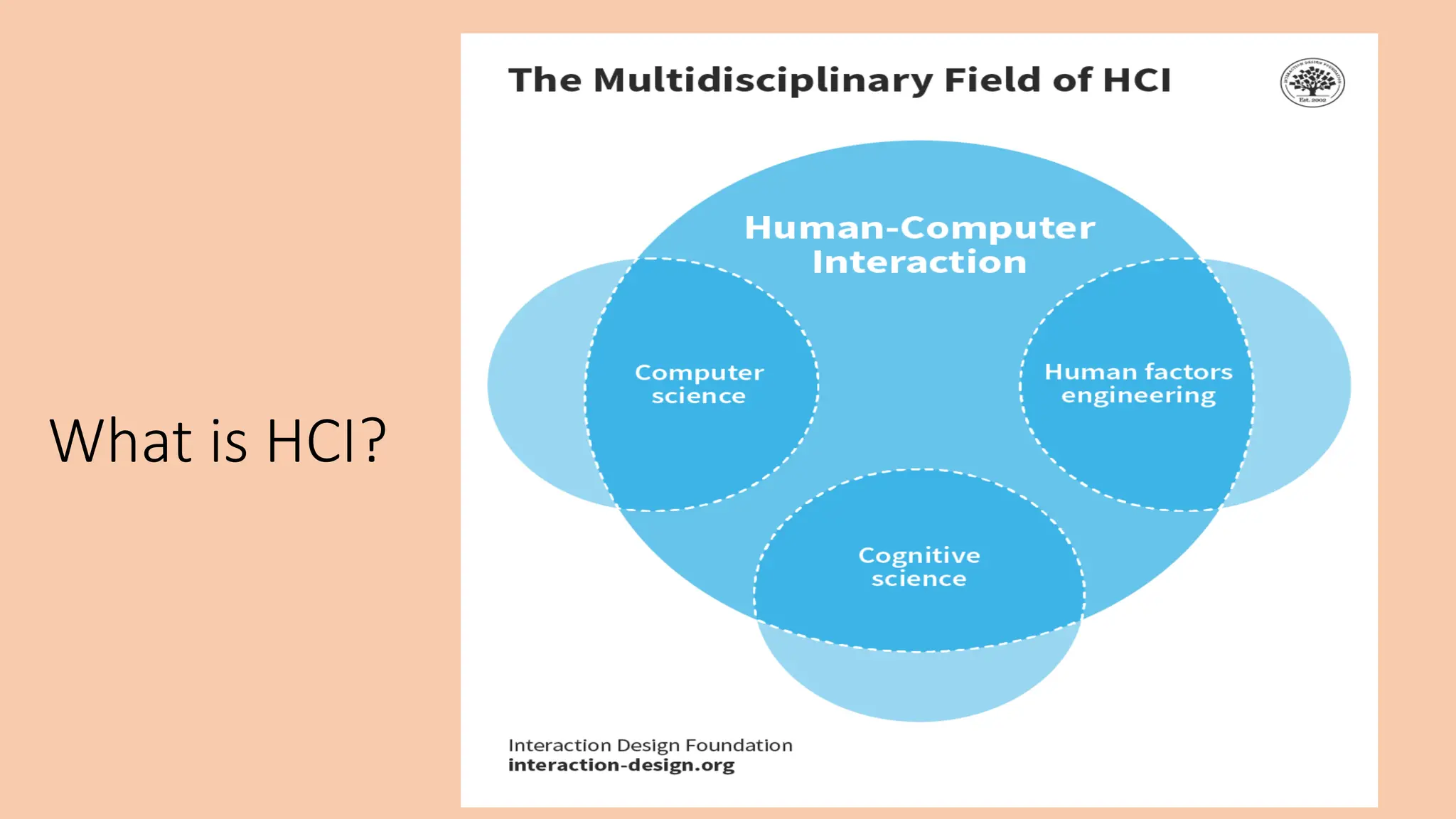
• Human-computer interaction (HCI) is a multidisciplinary field of
study focusing on the design of computer technology and, in
particular, the interaction between humans (the users) and
computers.
• While initially concerned with computers, HCI has since
expanded to cover almost all forms of information
technology design.
What is HCI?
HCI
• What happens when a human and a computer
system interact to perform a task?
• Task - write document, explore the web, solve mathematic problem,
search for knowledge , drive home, book movie tickets, do banking, ...
• Why is this important?
1. Computer systems affect every person
2. Safety, satisfaction, utility is critical
3. Product success depends on ease of use
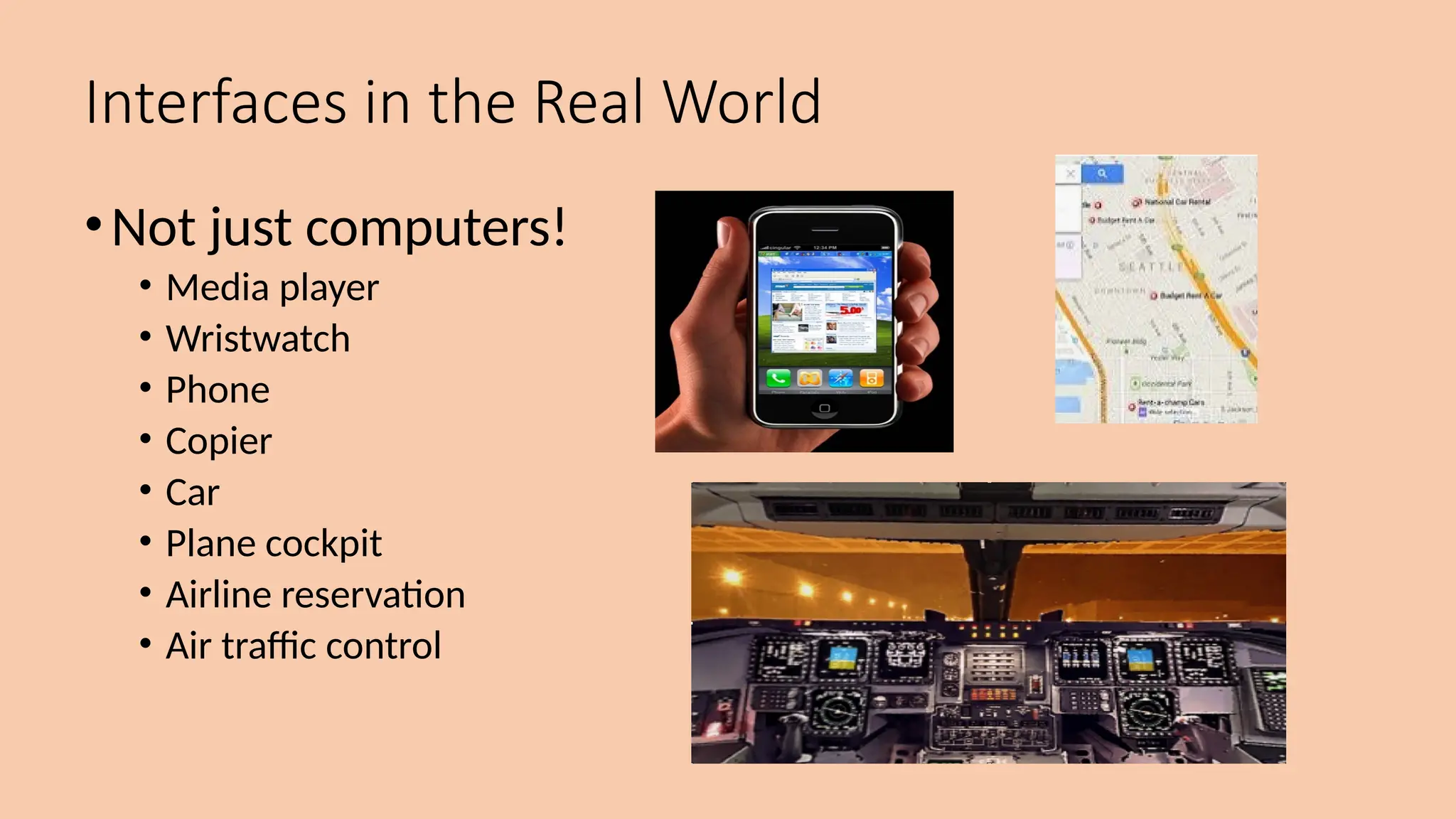
Interfaces in the Real World
•Not just computers!
• Media player
• Wristwatch
• Phone
• Copier
• Car
• Plane cockpit
• Airline reservation
• Air traffic control
Introduction
• User
• By "user", we may mean an individual user, a group of users working
together. An appreciation of the way people's sensory systems (sight,
hearing, touch) relay information is vital.
Introduction
• Computer
• When we talk about the computer, we're referring to any
technology ranging from desktop computers, to large scale
computer systems.
• Interaction
• By interaction we mean any communication between a user and
computer, be it direct or indirect.
• Direct interaction - involves a dialog with feedback and
control throughout performance of the task.
• Indirect interaction - involves batch processing or intelligent
sensors controlling the environment
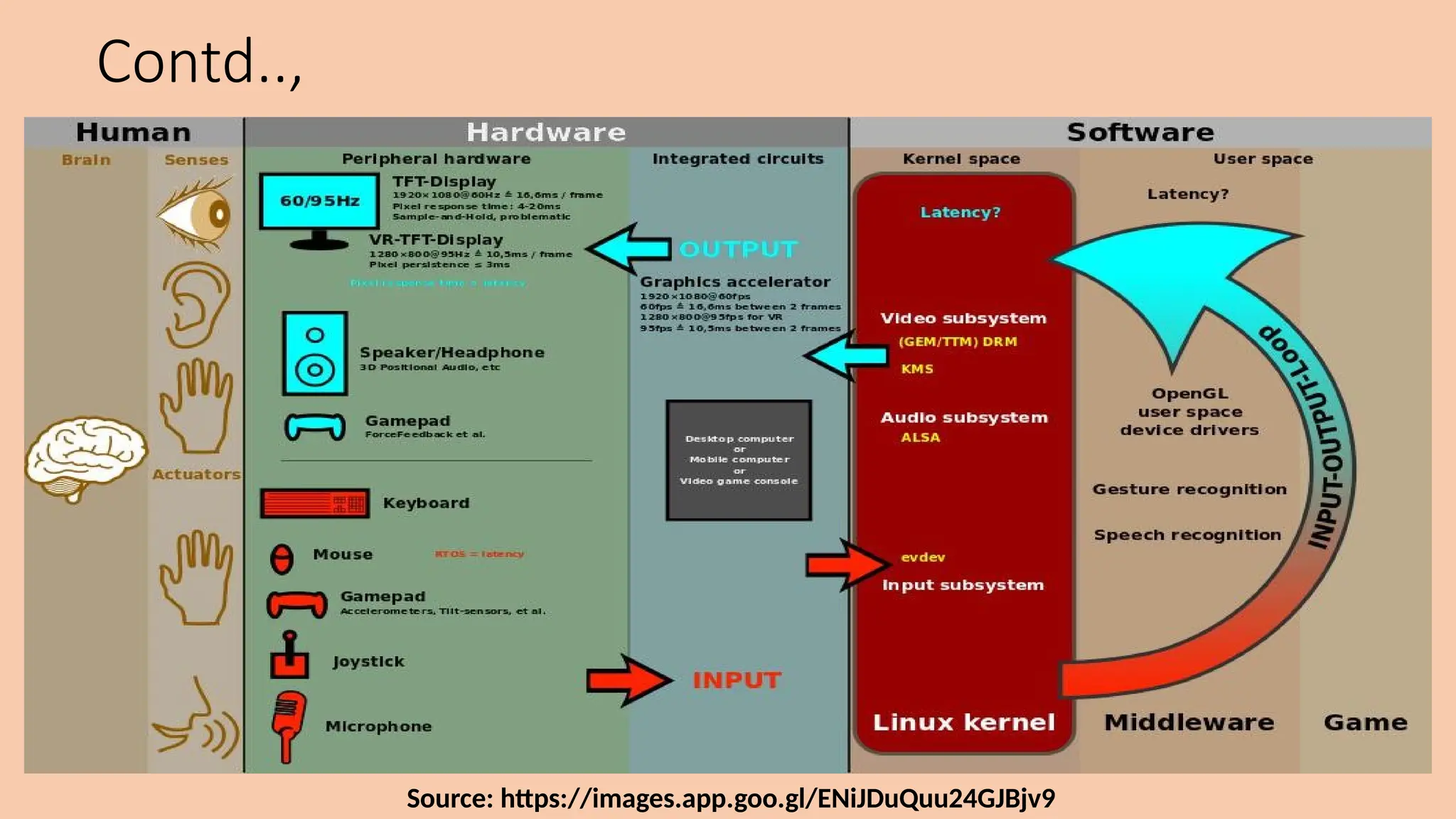
Contd..,
Source: https://images.app.goo.gl/ENiJDuQuu24GJBjv9
Input – Output Channels
the human
• Information i/o …
• visual, auditory, haptic, movement
• Information stored in memory
• sensory, short-term, long-term
• Information processed and applied
• reasoning, problem solving, skill, error
• Emotion influences human capabilities
• Each person is different
Vision
Two stages in vision
• physical reception of stimulus
• processing and interpretation of stimulus
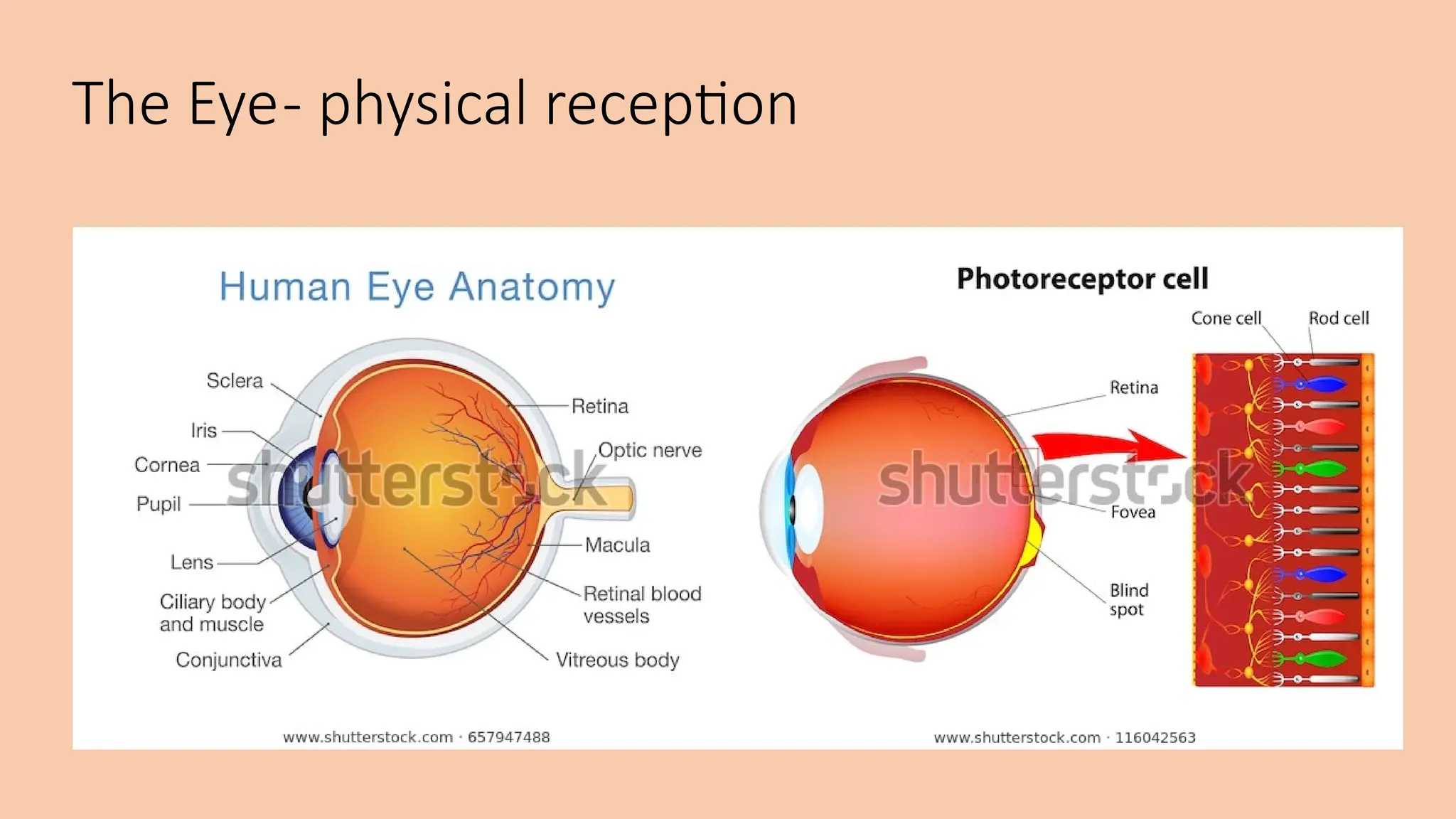
The Eye- physical reception
• mechanism for receiving light and transforming it into
electrical energy
• light reflects from objects
• images are focused upside-down on retina
• retina contains rods for low light vision and cones for colour
vision
• ganglion cells (brain!) detect pattern and movement
The Eye- physical reception
Interpreting the signal
•Size and depth
• visual angle indicates how much of view object occupies
(relates to size and distance from eye)
• visual acuity is ability to perceive detail (limited)
• familiar objects perceived as constant size
(in spite of changes in visual angle when far away)
• cues like overlapping help perception of size and depth
Interpreting the signal (cont)
• Brightness
• subjective reaction to levels of light
• affected by luminance of object
• measured by just noticeable difference
• visual acuity increases with luminance as does flicker
• Colour
• made up of hue, intensity, saturation
• cones sensitive to colour wavelengths
• blue acuity is lowest
• 8% males and 1% females colour blind
Interpreting the signal (cont)
• The visual system compensates for:
• movement
• changes in luminance.
• Context is used to resolve ambiguity
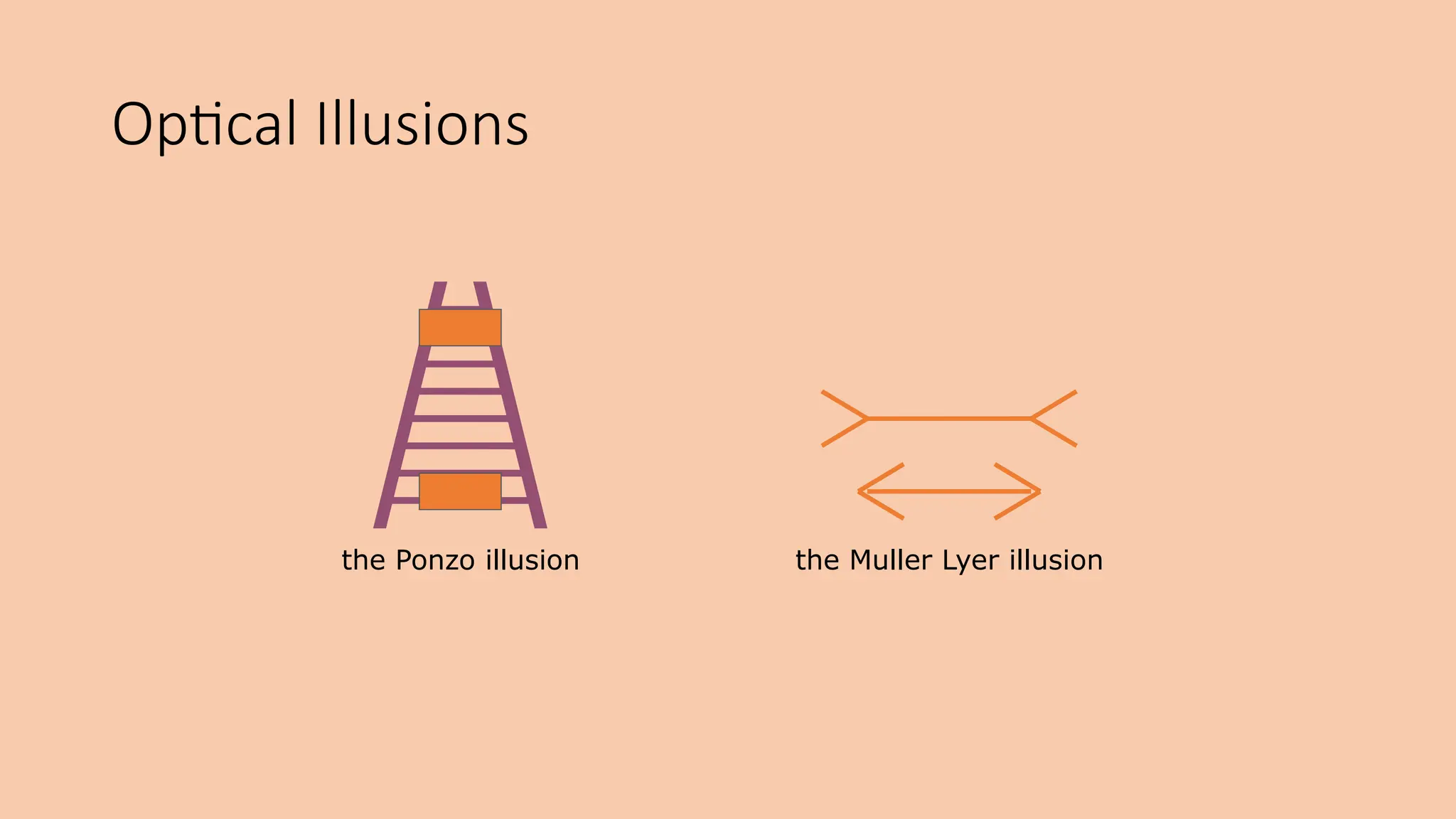
• Optical illusions sometimes occur due to over compensation
Optical Illusions
Optical Illusions
the Ponzo illusion the Muller Lyer illusion
Reading
• Several stages:
• visual pattern perceived
• decoded using internal representation of language
• interpreted using knowledge of syntax, semantics, pragmatics
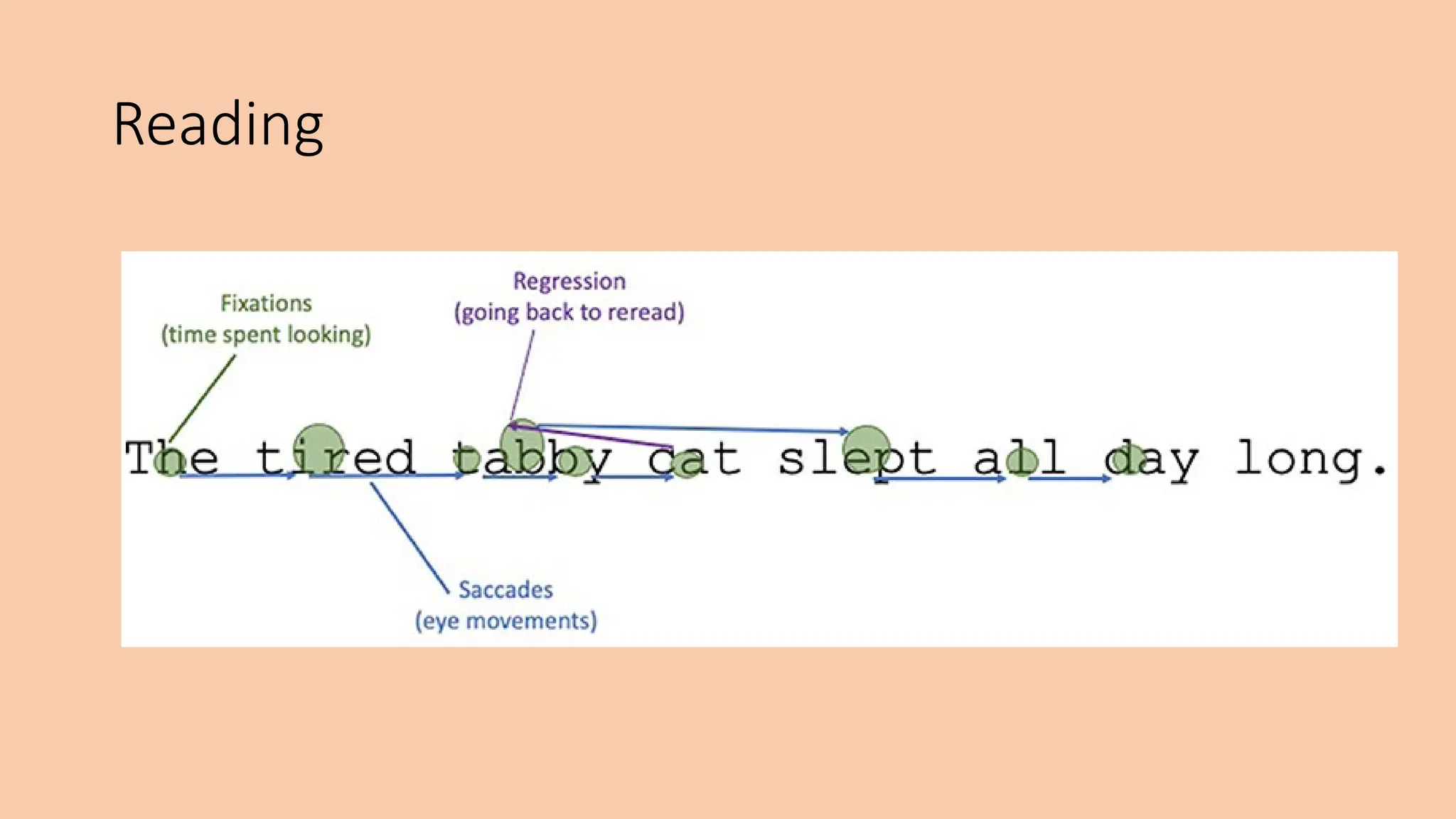
• Reading involves saccades and fixations
• Perception occurs during fixations
• Word shape is important to recognition
• Negative contrast improves reading from computer screen
Reading
Hearing
• Provides information about environment:
distances, directions, objects etc.
• Physical apparatus:
• outer ear – protects inner and amplifies sound
• middle ear – transmits sound waves as
vibrations to inner ear
• inner ear – chemical transmitters are released
and cause impulses in auditory nerve
• Sound
• pitch – sound frequency
• loudness – amplitude
• timbre– type or quality
Hearing (cont)
• Humans can hear frequencies from 20Hz to 15kHz
• less accurate distinguishing high frequencies than low.
• Auditory system filters sounds
• can attend to sounds over background noise.
• for example, the cocktail party phenomenon.
Touch
• Provides important feedback about environment.
• May be key sense for someone who is visually impaired.
• Stimulus received via receptors in the skin:
• thermoreceptors – heat and cold
• nociceptors – pain
• mechanoreceptors – pressure (some instant, some continuous)
• Some areas more sensitive than others e.g. fingers.
• Kinethesis - awareness of body position
• affects comfort and performance.
Movement
• Time taken to respond to stimulus:
reaction time + movement time
• Movement time dependent on age, fitness etc.
• Reaction time - dependent on stimulus type:
• visual ~ 200ms
• auditory ~ 150 ms
• pain ~ 700ms
• Increasing reaction time decreases accuracy in the unskilled
operator but not in the skilled operator.
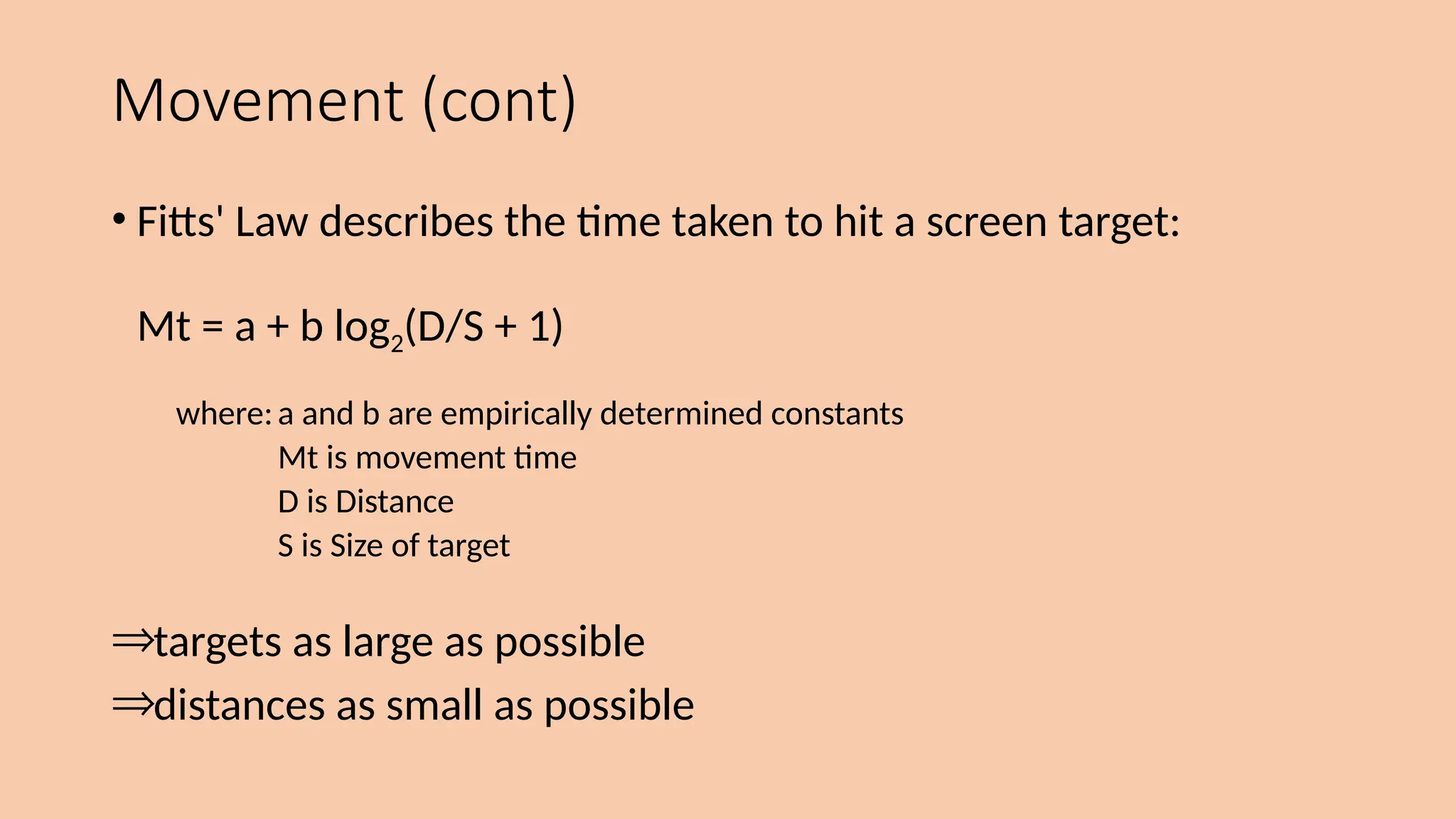
Movement (cont)
• Fitts' Law describes the time taken to hit a screen target:
Mt = a + b log2(D/S + 1)
where:a and b are empirically determined constants
Mt is movement time
D is Distance
S is Size of target
Þtargets as large as possible
Þdistances as small as possible
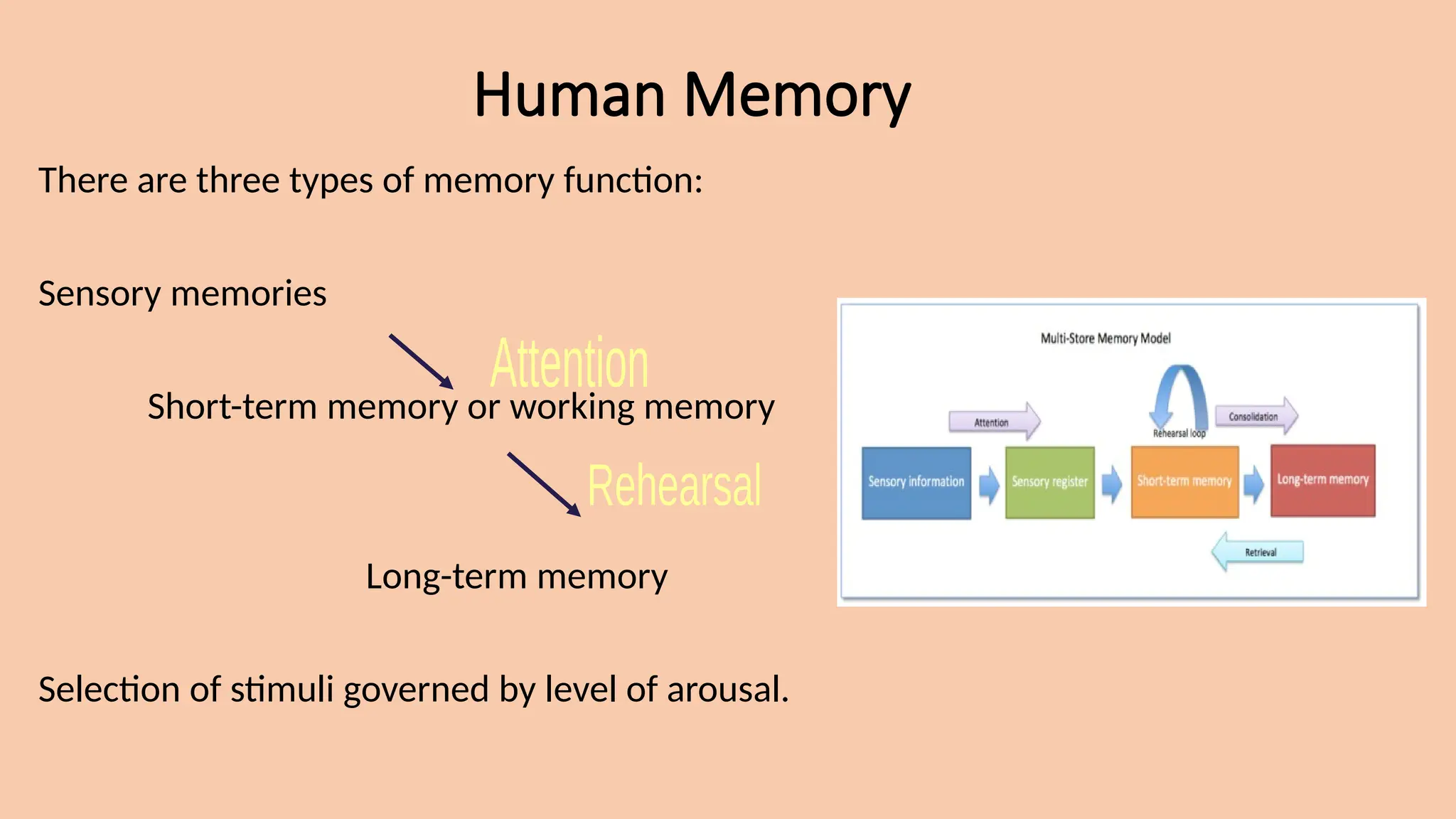
Human Memory
There are three types of memory function:
Sensory memories
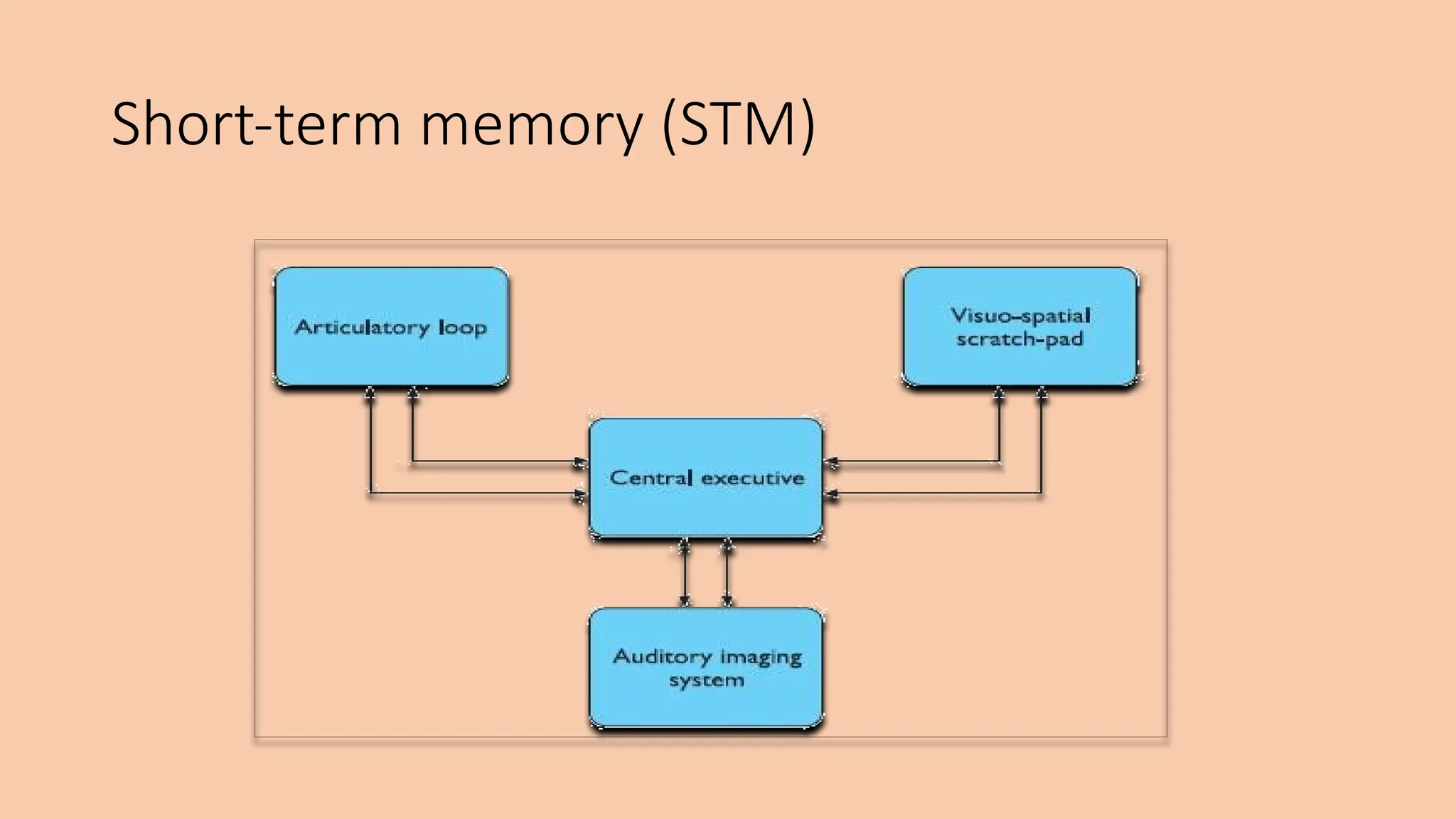
Short-term memory or working memory
Long-term memory
Selection of stimuli governed by level of arousal.
sensory memory
•Buffers for stimuli received through senses
• iconic memory: visual stimuli
• echoic memory: aural stimuli
• haptic memory: tactile stimuli
•Examples
• “sparkler” trail
• stereo sound
•Continuously overwritten
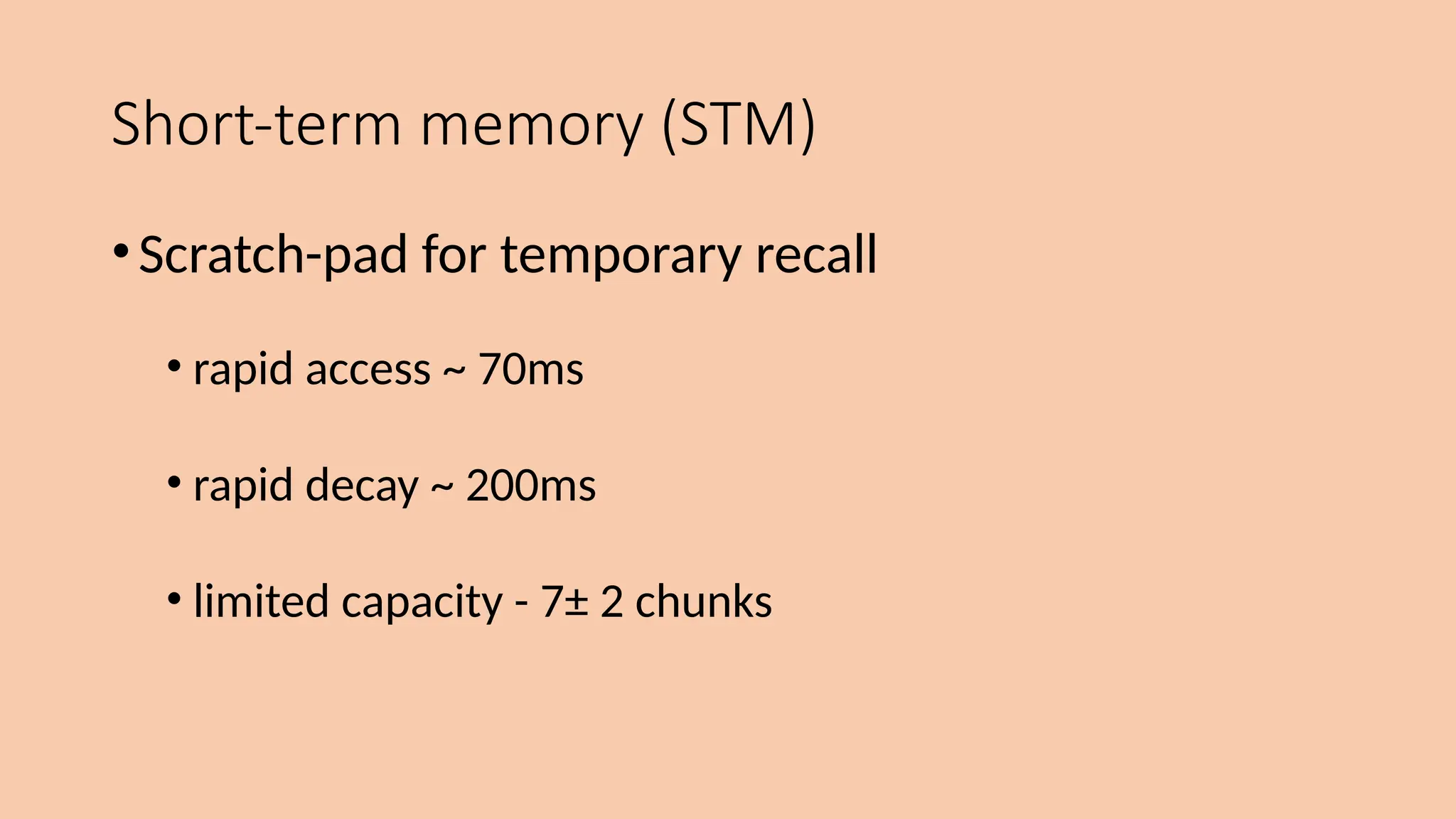
Short-term memory (STM)
•Scratch-pad for temporary recall
• rapid access ~ 70ms
• rapid decay ~ 200ms
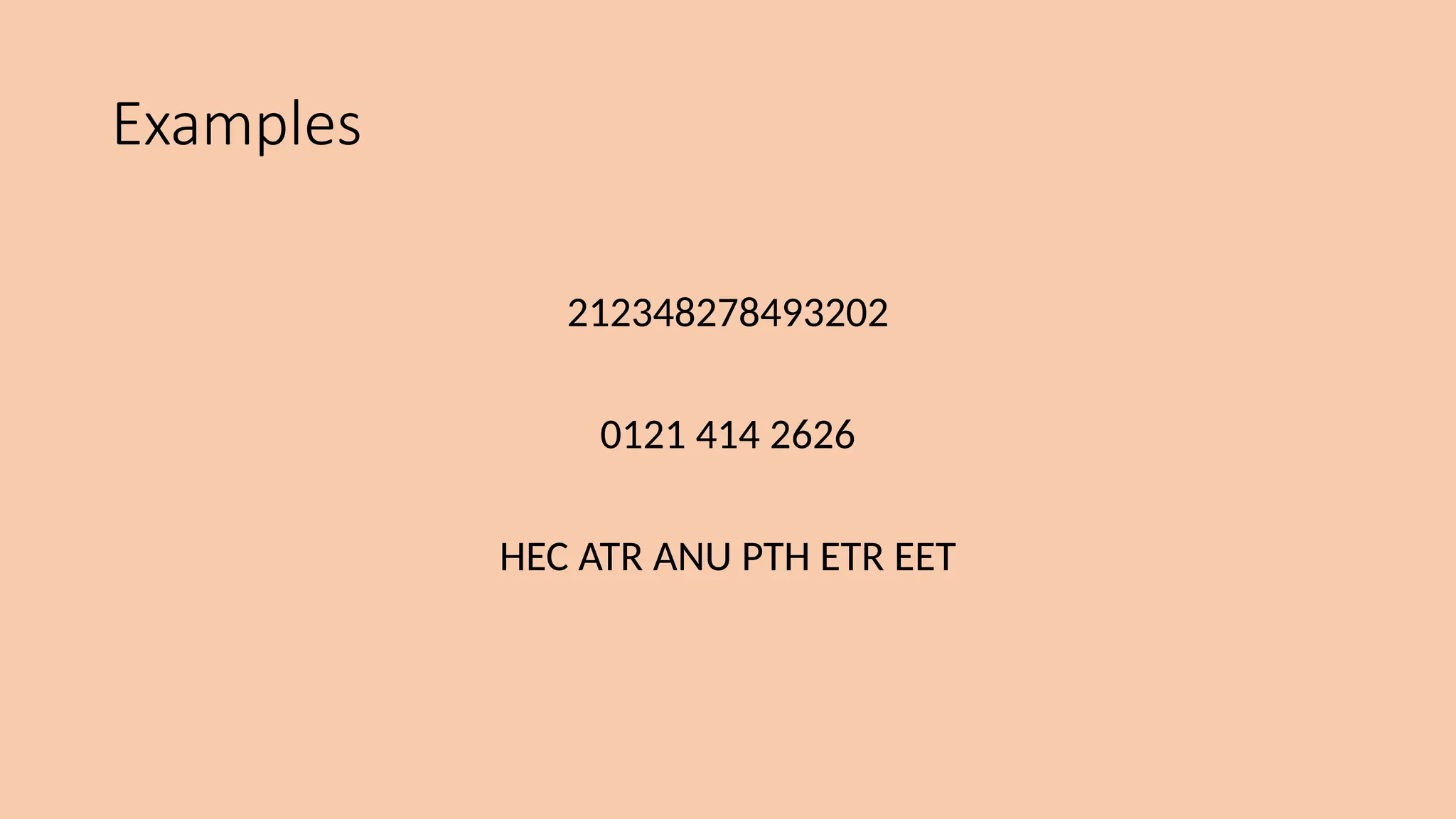
• limited capacity - 7± 2 chunks
Short-term memory (STM)
Examples
212348278493202
0121 414 2626
HEC ATR ANU PTH ETR EET
Long-term memory (LTM)
• Repository for all our knowledge
• slow access ~ 1/10 second
• slow decay, if any
• huge or unlimited capacity
• Two types
• episodic – serial memory of events
• semantic – structured memory of facts, concepts, skills
semantic LTM derived from episodic LTM
Long-term memory (cont.)
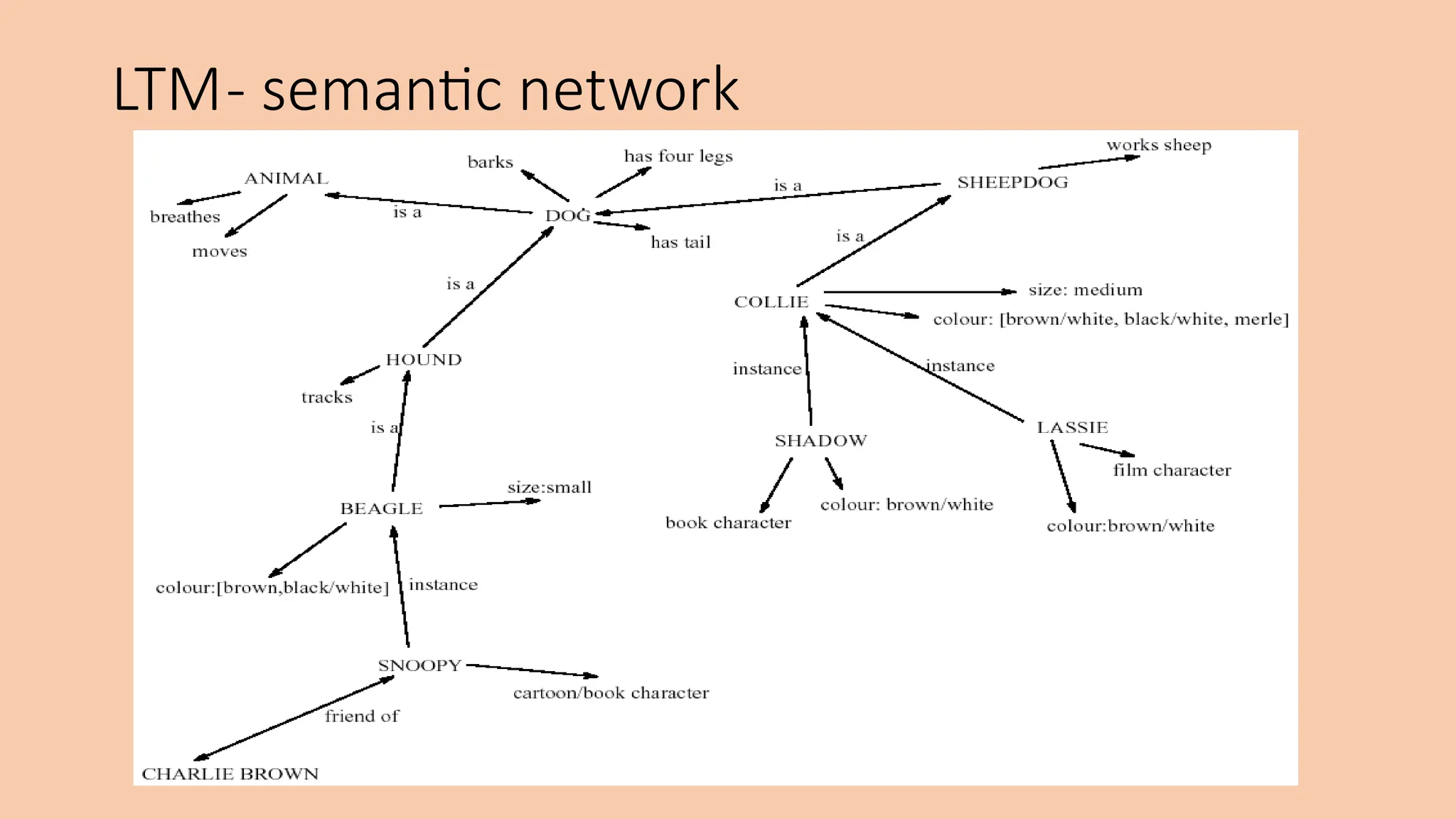
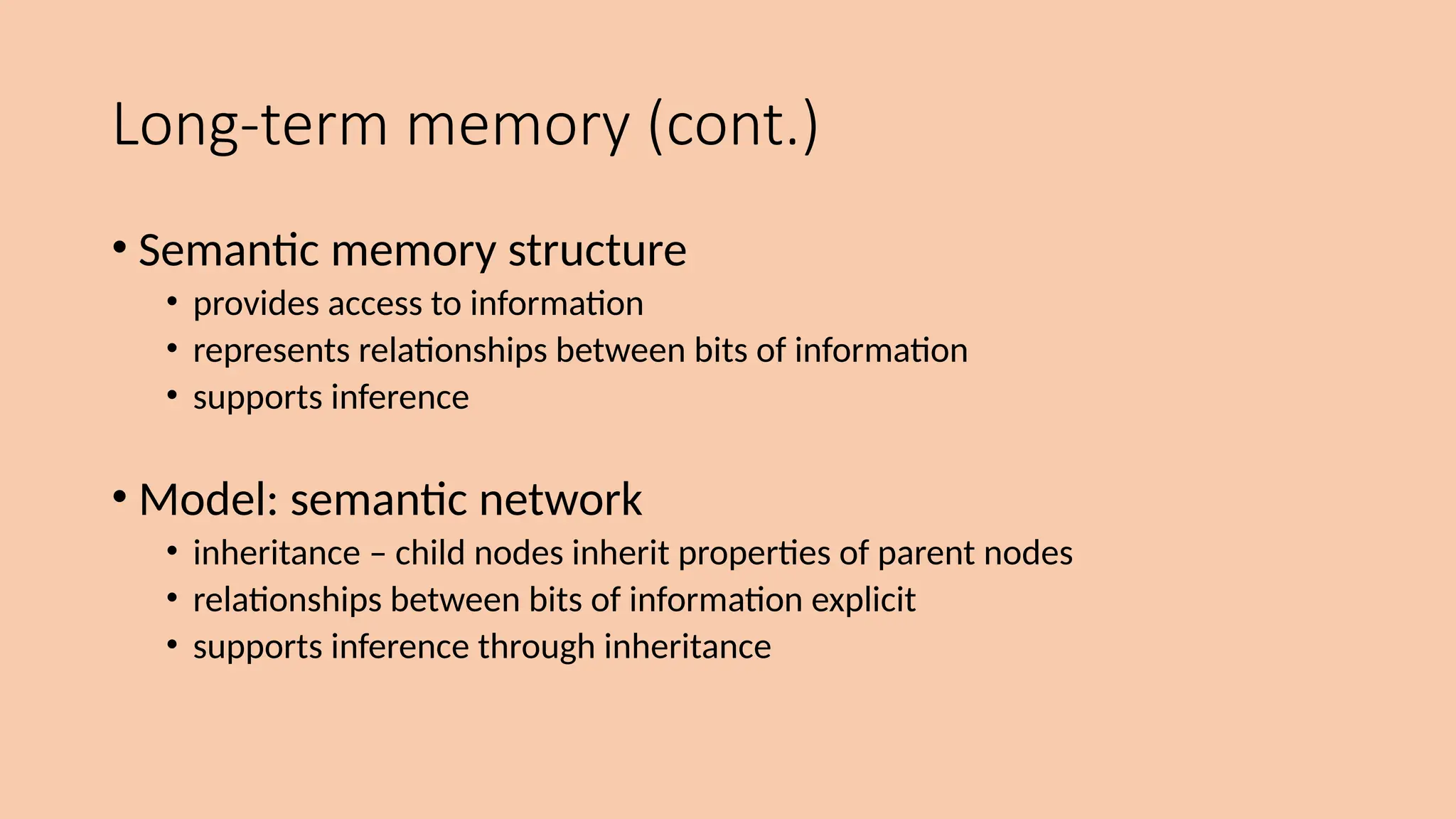
• Semantic memory structure
• provides access to information
• represents relationships between bits of information
• supports inference
• Model: semantic network
• inheritance – child nodes inherit properties of parent nodes
• relationships between bits of information explicit
• supports inference through inheritance
LTM- semantic network
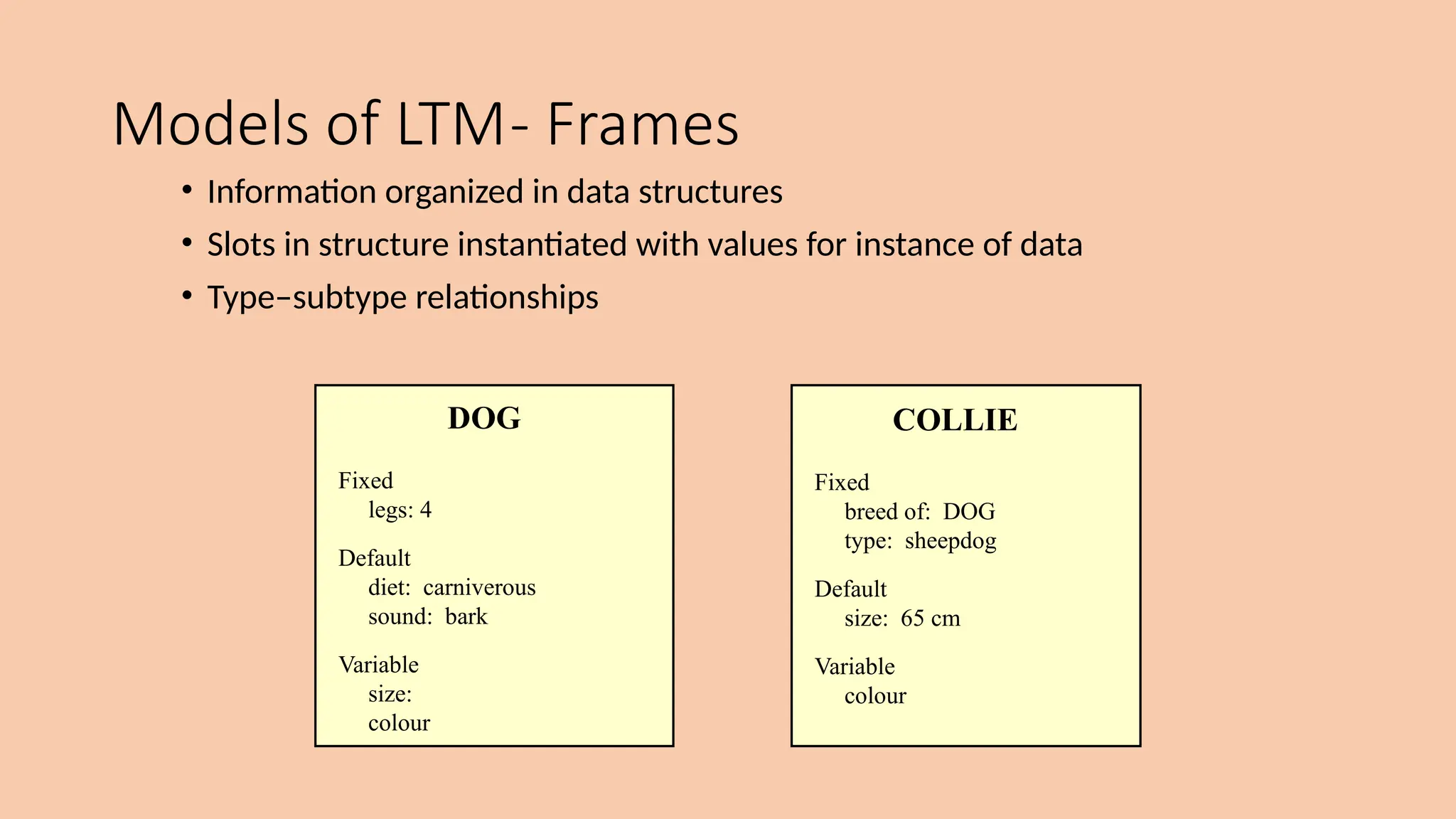
Models of LTM- Frames
• Information organized in data structures
• Slots in structure instantiated with values for instance of data
• Type–subtype relationships
DOG
Fixed
legs: 4
Default
diet: carniverous
sound: bark
Variable
size:
colour
COLLIE
Fixed
breed of: DOG
type: sheepdog
Default
size: 65 cm
Variable
colour
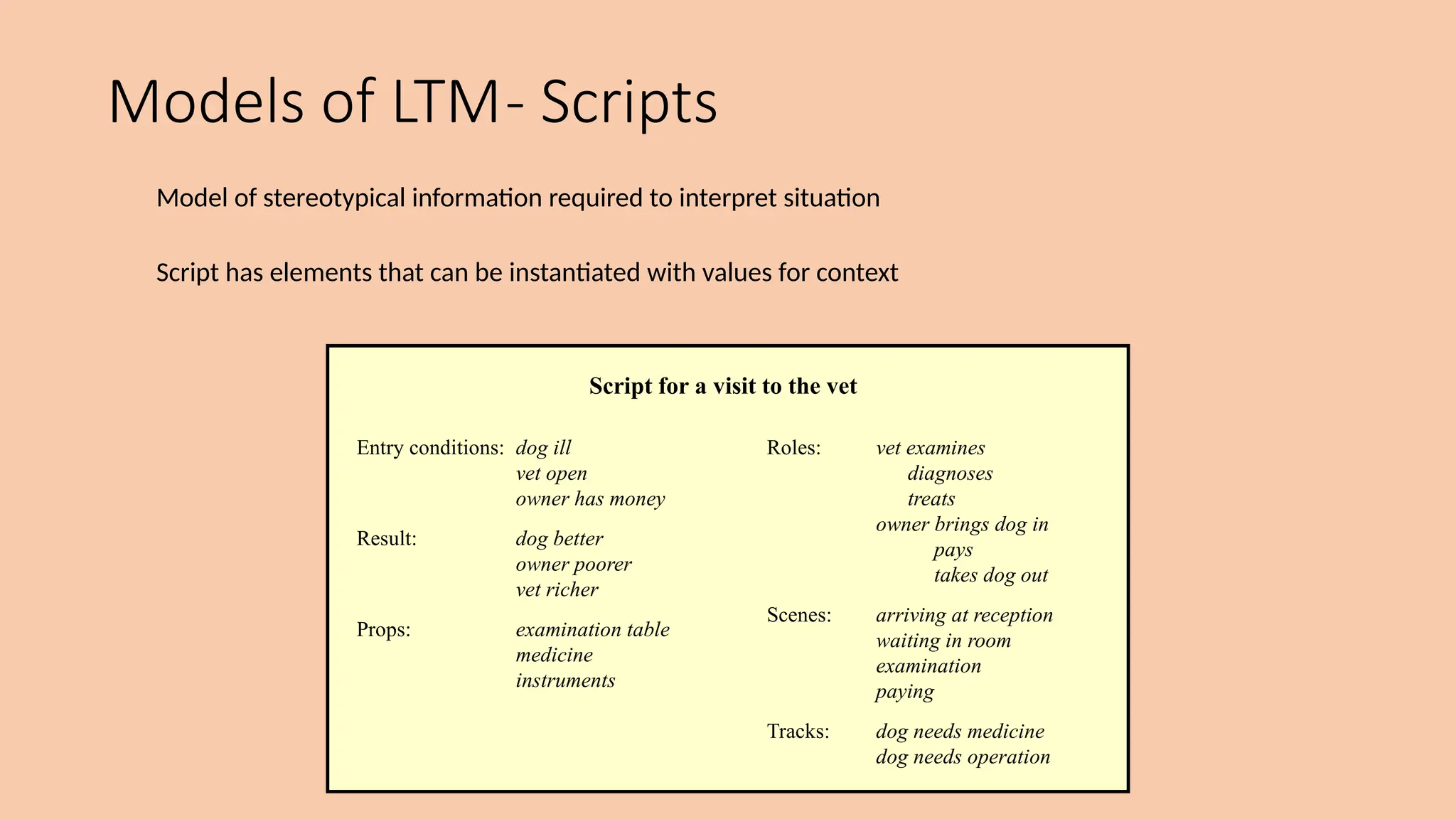
Models of LTM- Scripts
Model of stereotypical information required to interpret situation
Script has elements that can be instantiated with values for context
Script for a visit to the vet
Entry conditions: dog ill
vet open
owner has money
Result: dog better
owner poorer
vet richer
Props: examination table
medicine
instruments
Roles: vet examines
diagnoses
treats
owner brings dog in
pays
takes dog out
Scenes: arriving at reception
waiting in room
examination
paying
Tracks: dog needs medicine
dog needs operation
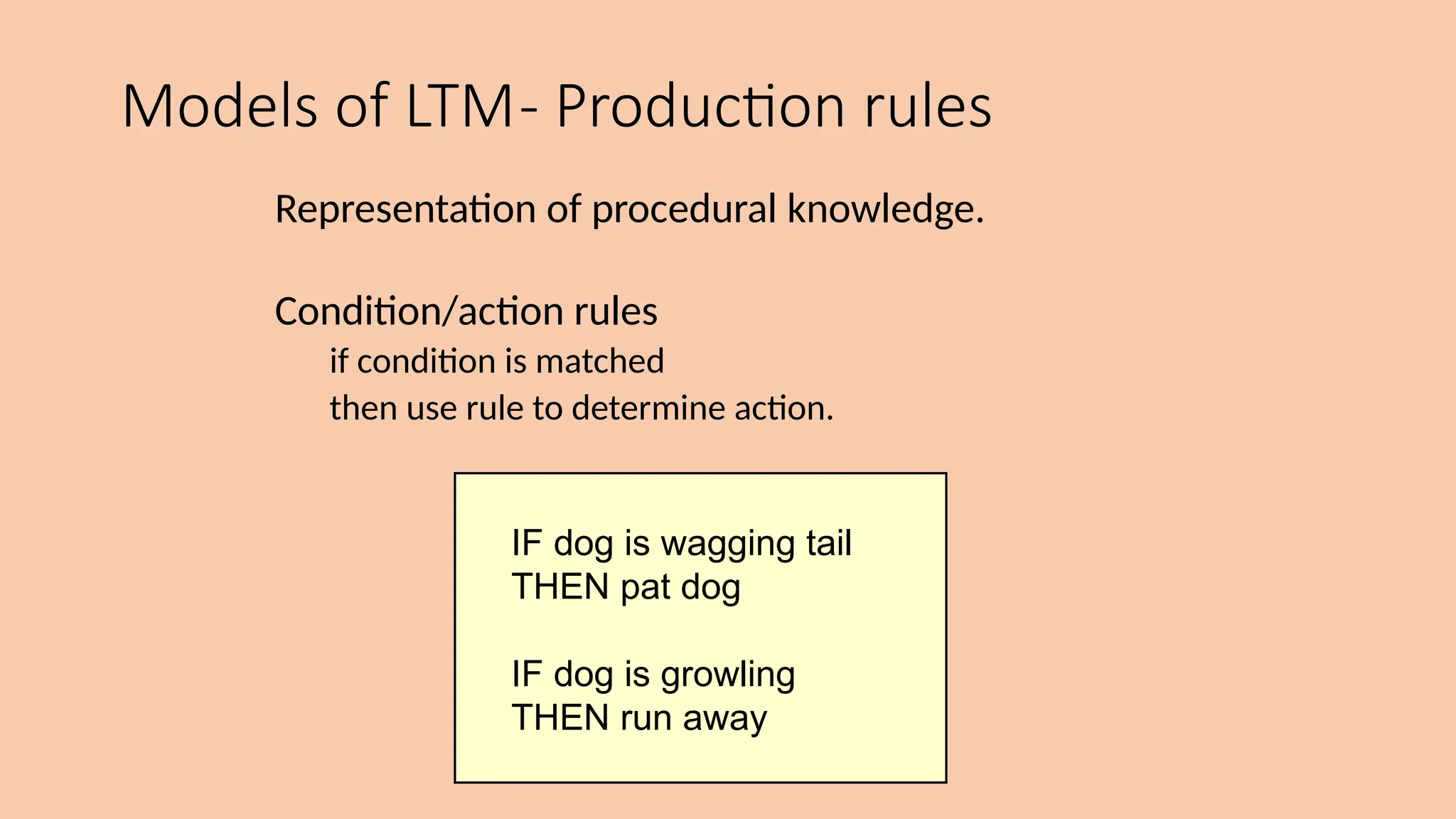
Models of LTM- Production rules
Representation of procedural knowledge.
Condition/action rules
if condition is matched
then use rule to determine action.
IF dog is wagging tail
THEN pat dog
IF dog is growling
THEN run away
LTM- Storage of information
• rehearsal
• information moves from STM to LTM
• total time hypothesis
• amount retained proportional to rehearsal time
• distribution of practice effect
• optimized by spreading learning over time
• structure, meaning and familiarity
• information easier to remember
LTM- Forgetting
decay
• information is lost gradually but very slowly
interference
• new information replaces old: retroactive interference
• old may interfere with new: proactive inhibition
so may not forget at all memory is selective …
… affected by emotion – can subconsciously `choose' to forget
LTM- retrieval
recall
• information reproduced from memory can be assisted by cues, e.g.
categories, imagery
recognition
• information gives knowledge that it has been seen before
• less complex than recall - information is cue
Thinking
Reasoning
deduction, induction, abduction
Problem solving
Deductive Reasoning
• Deduction:
• derive logically necessary conclusion from given premises.
e.g. If it is Friday then she will go to work
It is Friday
Therefore she will go to work.
• Logical conclusion not necessarily true:
e.g. If it is raining then the ground is dry
It is raining
Therefore the ground is dry
Deduction (cont.)
• When truth and logical validity clash …
e.g. Some people are babies
Some babies cry
Inference - Some people cry
Correct?
• People bring world knowledge to bear
Inductive Reasoning
• Induction:
• generalize from cases seen to cases unseen
e.g. all elephants we have seen have trunks
therefore all elephants have trunks.
• Unreliable:
• can only prove false not true
… but useful!
• Humans not good at using negative evidence
e.g. Wason's cards.
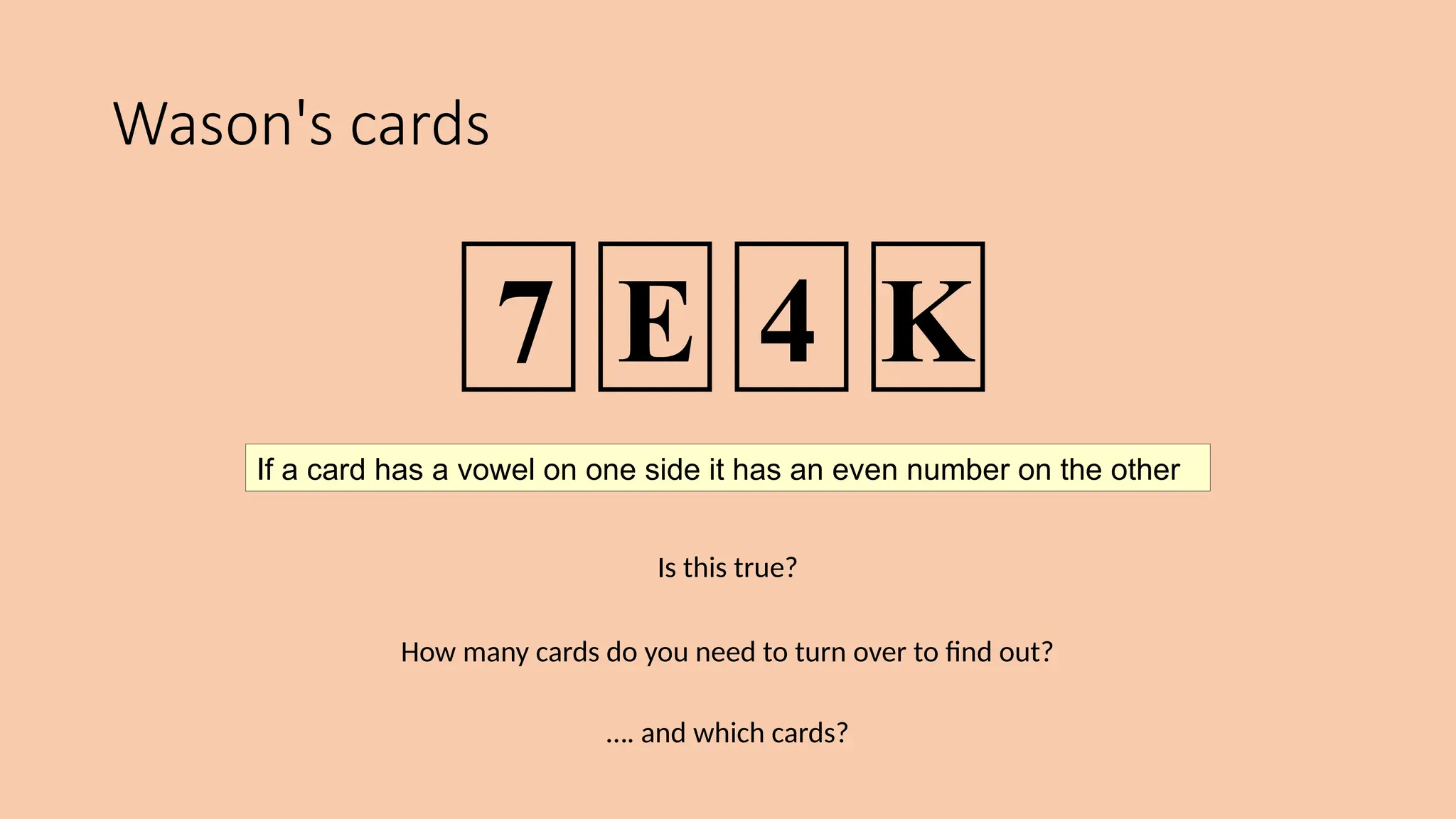
Wason's cards
Is this true?
How many cards do you need to turn over to find out?
…. and which cards?
If a card has a vowel on one side it has an even number on the other
7 E 4 K
Abductive reasoning
• reasoning from event to cause
e.g. Sam drives fast when drunk.
If I see Sam driving fast, assume drunk.
• Unreliable:
• can lead to false explanations
Problem solving
• Process of finding solution to unfamiliar task using knowledge.
• Several theories.
• Gestalt
• problem solving both productive and reproductive
• productive draws on insight and restructuring of problem
• attractive but not enough evidence to explain `insight' etc.
• move away from behaviourism and led towards information processing theories
Problem solving (cont.)
Problem space theory
• problem space comprises problem states
• problem solving involves generating states using legal operators
• heuristics may be employed to select operators
e.g. means-ends analysis
• operates within human information processing system
e.g. STM limits etc.
• largely applied to problem solving in well-defined areas
e.g. puzzles rather than knowledge intensive areas
Problem solving (cont.)
• Analogy
• analogical mapping:
• novel problems in new domain?
• use knowledge of similar problem from similar domain
• analogical mapping difficult if domains are semantically different
• Skill acquisition
• skilled activity characterized by chunking
• lot of information is chunked to optimize STM
• conceptual rather than superficial grouping of problems
• information is structured more effectively
Errors and mental models
Types of error
• slips
• right intention, but failed to do it right
• causes: poor physical skill,inattention etc.
• change to aspect of skilled behaviour can cause slip
• mistakes
• wrong intention
• cause: incorrect understanding
humans create mental models to explain behaviour.
if wrong (different from actual system) errors can occur
Emotions
• The biological response to physical stimuli is called affect
• Positive emotions - enable us to think more creatively, to solve
complex problems
• Negative emotions - pushes us into narrow, focussed thinking
• Emotion clearly involves both cognitive and physical responses to stimuli
Emotion- Theories
• James–Lange theory: emotion was the interpretation of a
physiological response
• Cannon: emotion is a psychological response to a stimuli
• Schacter-Singer: emotion is the result of our evaluation of our
physiological responses, in the light of the whole situation we
are in
Emotion- Interface Design
• Implications for interface design
• stress will increase the difficulty of problem solving
• relaxed users will be more forgiving of shortcomings in design
• aesthetically pleasing and rewarding interfaces will increase
positive affect
Individual differences
• long term
– gender, physical and intellectual abilities
• short term
– effect of stress or fatigue
• changing
– age
Ask yourself:
will design decision exclude section of user population?
Psychology and the Design of Interactive
System
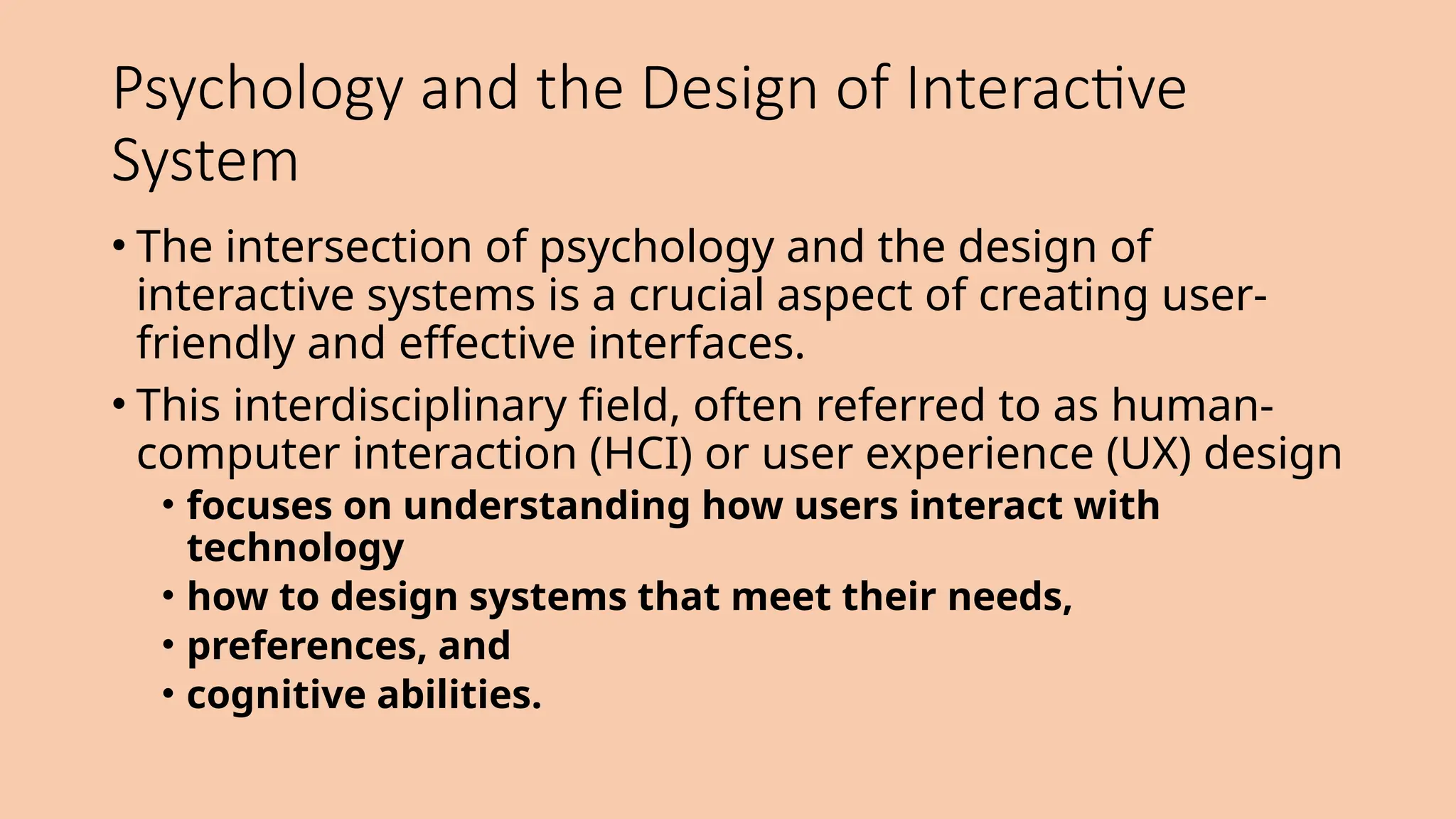
• The intersection of psychology and the design of
interactive systems is a crucial aspect of creating user-
friendly and effective interfaces.
• This interdisciplinary field, often referred to as human-
computer interaction (HCI) or user experience (UX) design
• focuses on understanding how users interact with
technology
• how to design systems that meet their needs,
• preferences, and
• cognitive abilities.
Psychology and the Design of Interactive System
• Some direct applications e.g. blue acuity is poor
 blue should not be used for important detail
• However, correct application generally requires understanding of context in
psychology, and an understanding of particular experimental conditions
• A lot of knowledge has been distilled in
• guidelines - general design principles and guidelines can be and have
been derived from the theories
• cognitive models - specific model of human problem solving, others of
physical activity, and attempt a more comprehensive view of cognition.
• experimental and analytic evaluation techniques
Psychology and the Design of Interactive
System
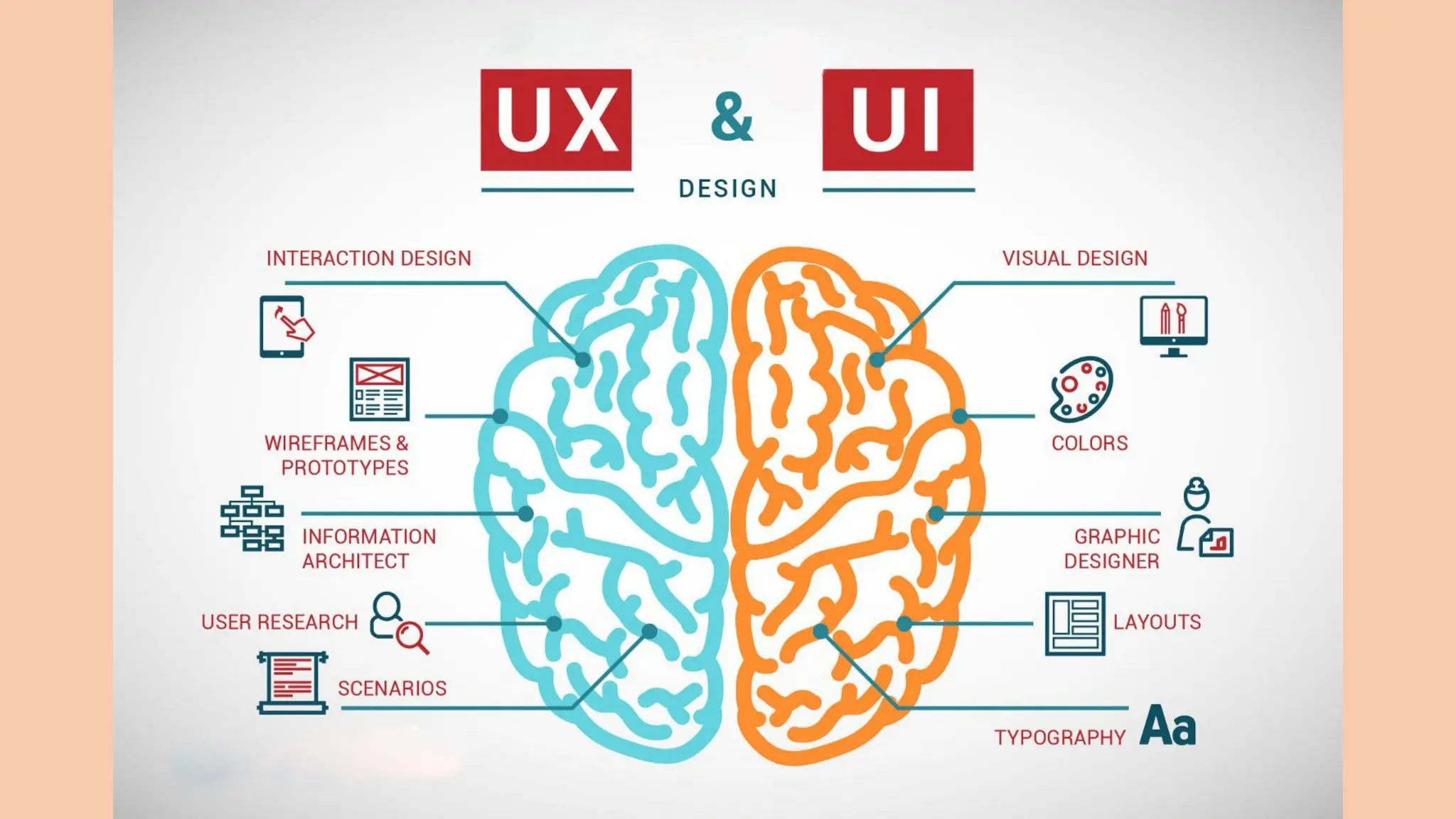
1.User-Centered Design (UCD): UCD is a fundamental approach that
involves designing products and systems with the end user in mind. It
emphasizes involving users in the design process through activities
such as user research, persona development, and usability testing.
2. Cognitive Psychology Principles:
• Memory: Consider limitations in short-term and long-term memory. Use
strategies like chunking, repetition, and clear information architecture to
enhance memory retention.
• Attention: Understand how attention works and design interfaces that guide
users' attention effectively. Minimize distractions and prioritize important
information.
Psychology and the Design of Interactive
System
3. Perception and Sensation:
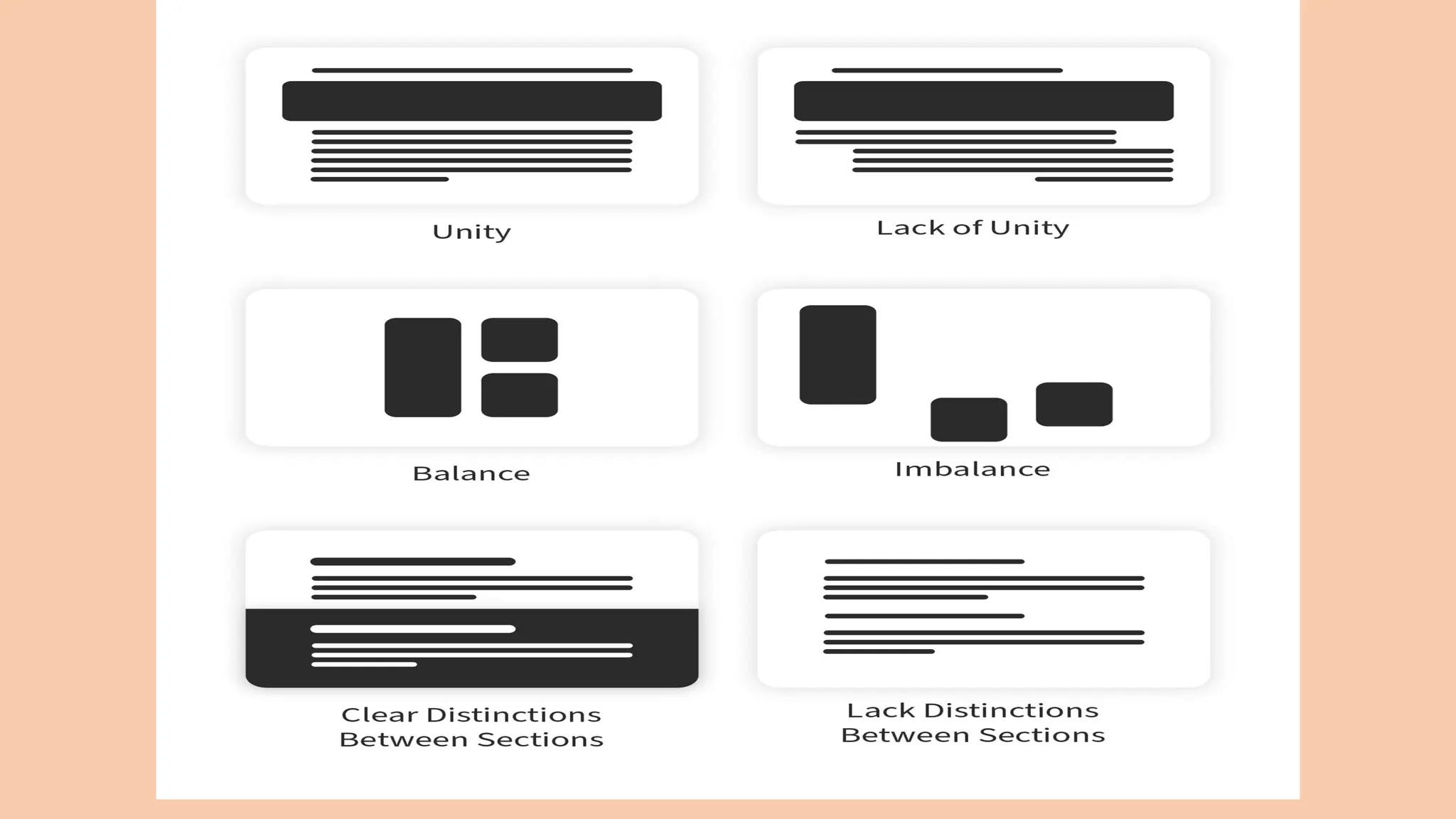
• Visual Hierarchy: Utilize visual elements to guide users' focus on important
information. Use color, contrast, and size to create a clear visual hierarchy.
• Feedback: Provide immediate and informative feedback to users when they
interact with the system. This helps users understand the consequences of
their actions.
4. Human Error and Error Recovery:
• Prevent Errors: Design systems that minimize the likelihood of errors through
clear instructions, intuitive interfaces, and affordances.
• Error Messages: If errors occur, provide user-friendly error messages that
guide users on how to recover from mistakes.
Psychology and the Design of Interactive
System
5. User Feedback and Usability Testing:
• Usability Testing: Regularly test prototypes and final products with real users to identify
usability issues and gather feedback for improvements.
• Iterative Design: Use an iterative design process, incorporating user feedback to refine
and enhance the user experience over time.
6. Emotional Design:
• Aesthetics: Consider the emotional impact of the design. Visual appeal, aesthetics, and
emotional engagement can significantly impact user satisfaction and overall experience.
Psychology and the Design of Interactive
System
7. Accessibility and Inclusivity:
• Universal Design: Design interfaces that are accessible to a diverse range of
users, including those with disabilities. Consider factors such as color
contrast, font size, and alternative navigation methods.
8. Social Psychology:
• Collaboration and Communication: Understand how users interact socially
and design systems that facilitate collaboration and effective communication.
9. Adaptability and Flexibility:
• User Preferences: Allow users to customize and personalize their experience
whenever possible. Consider different user preferences and adapt the
interface accordingly.
Text Entry Devices
keyboards (QWERTY et al.)
chord keyboards, phone pads
handwriting, speech
Keyboards
• Most common text input device
• Allows rapid entry of text by experienced users
• Keypress closes connection, causing a character code to be sent
• Usually connected by cable, but can be wireless
layout – QWERTY
• Standardised layout
but …
• non-alphanumeric keys are placed differently
• accented symbols needed for different scripts
• minor differences between UK and USA keyboards
• QWERTY arrangement not optimal for typing
– layout to prevent typewriters jamming!
• Alternative designs allow faster typing but large social base of QWERTY typists produces
reluctance to change
alternative keyboard layouts
Alphabetic
• keys arranged in alphabetic order
• not faster for trained typists
• not faster for beginners either!
Dvorak
• common letters under dominant fingers
• biased towards right hand
• common combinations of letters alternate between hands
• 10-15% improvement in speed and reduction in fatigue
• But - large social base of QWERTY typists produce market pressures not to change
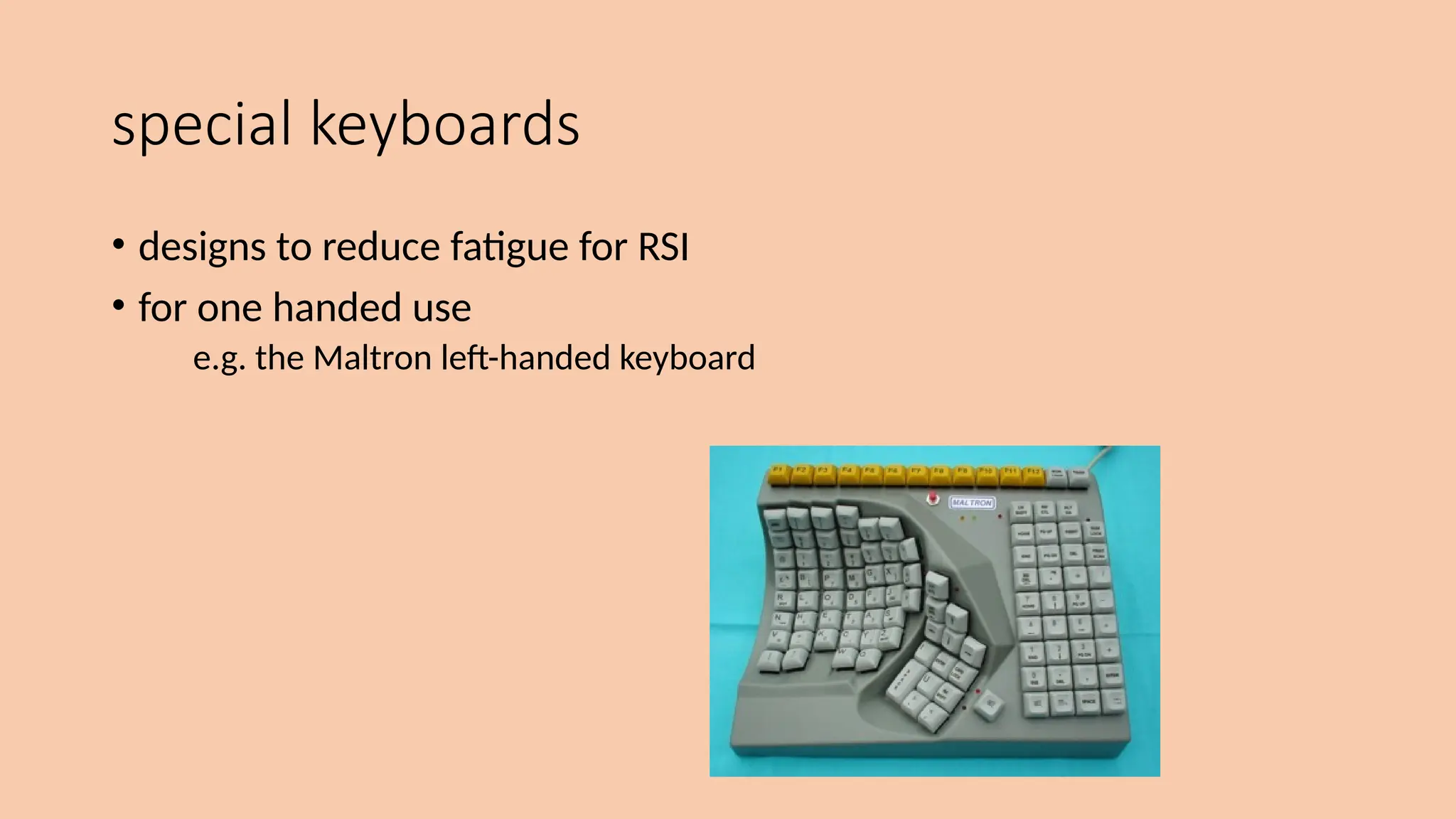
special keyboards
• designs to reduce fatigue for RSI
• for one handed use
e.g. the Maltron left-handed keyboard
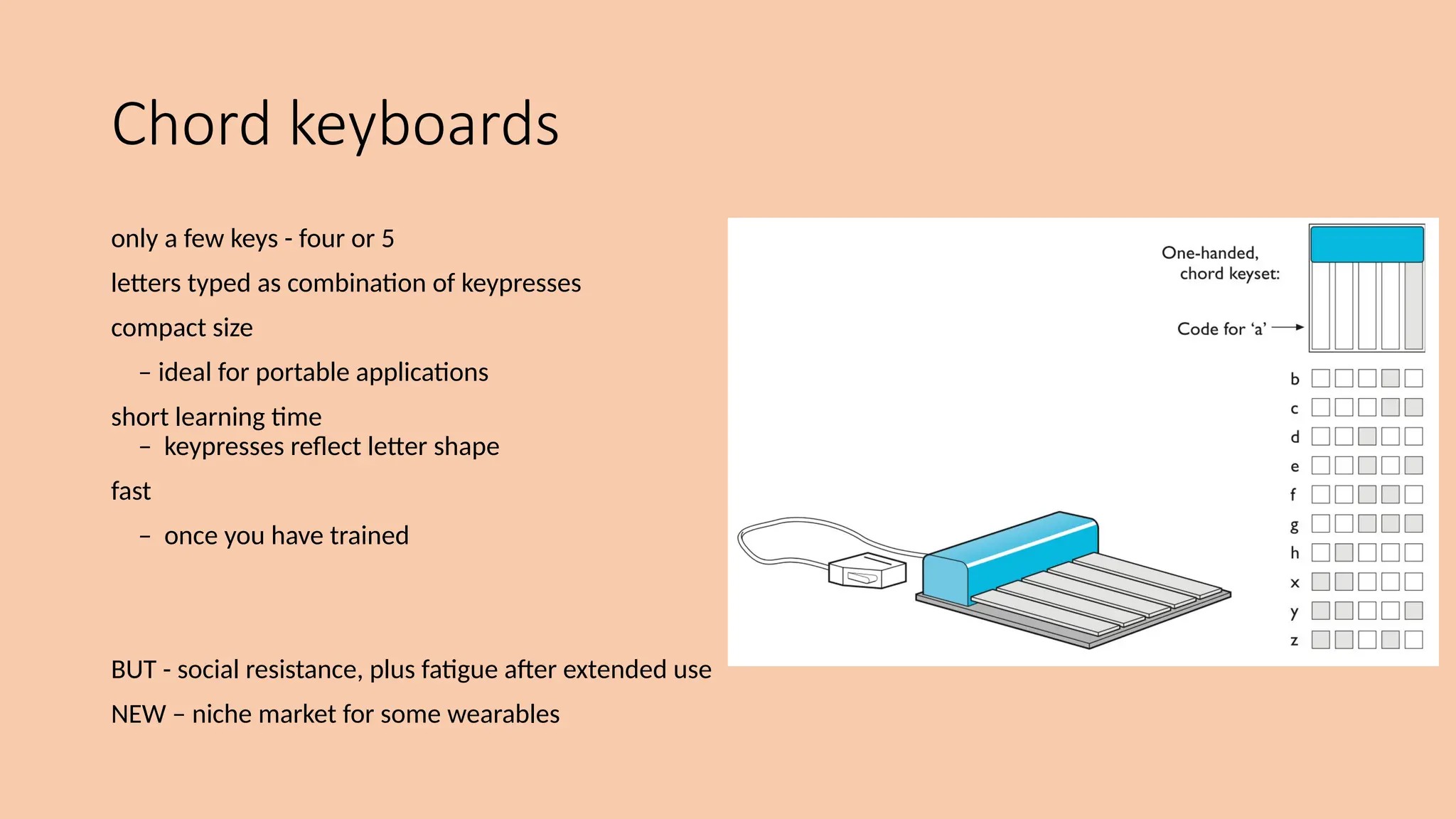
Chord keyboards
only a few keys - four or 5
letters typed as combination of keypresses
compact size
– ideal for portable applications
short learning time
– keypresses reflect letter shape
fast
– once you have trained
BUT - social resistance, plus fatigue after extended use
NEW – niche market for some wearables
phone pad and T9 entry
• use numeric keys with
multiple presses
2 – a b c 6 - m n o
3 - d e f 7 - p q r s
4 - g h i 8 - t u v
5 - j k l 9 - w x y z
hello = 4433555[pause]555666
surprisingly fast!
• T9 predictive entry
• type as if single key for each letter
• use dictionary to ‘guess’ the right word
• hello = 43556 …
• but 26 -> menu ‘am’ or ‘an’
Handwriting recognition
• Text can be input into the computer, using a pen and a digesting tablet
• natural interaction
• Technical problems:
• capturing all useful information - stroke path, pressure, etc. in a natural manner
• segmenting joined up writing into individual letters
• interpreting individual letters
• coping with different styles of handwriting
• Used in PDAs, and tablet computers …
… leave the keyboard on the desk!
Speech recognition
• Improving rapidly
• Most successful when:
• single user – initial training and learns peculiarities
• limited vocabulary systems
• Problems with
• external noise interfering
• imprecision of pronunciation
• large vocabularies
• different speakers
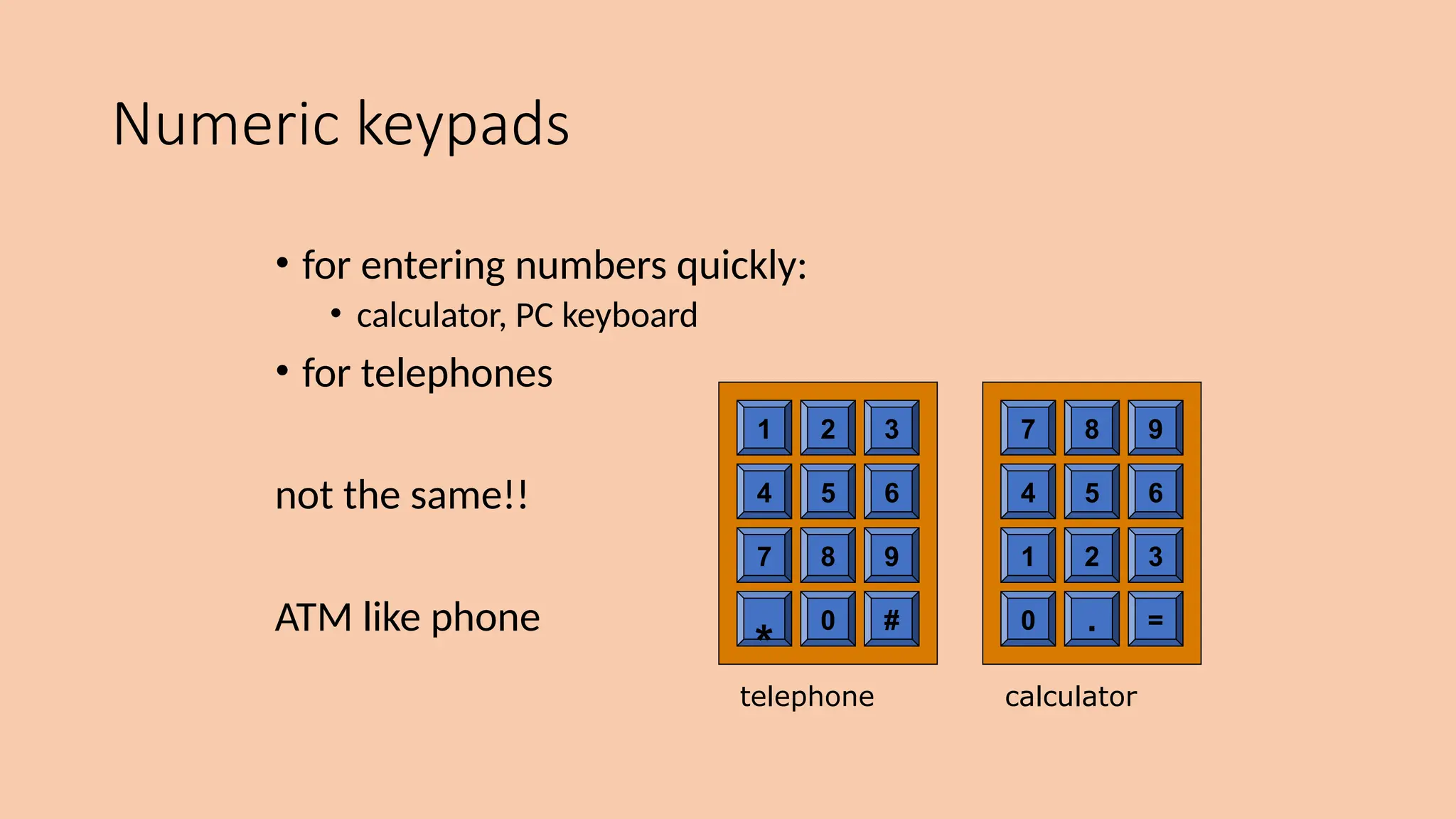
Numeric keypads
• for entering numbers quickly:
• calculator, PC keyboard
• for telephones
not the same!!
ATM like phone
4 5 6
7 8 9
*
0 #
1 2 3
4 5 6
1 2 3
0 . =
7 8 9
telephone calculator
Positioning, Pointing And Drawing
mouse, touchpad
trackballs, joysticks etc.
touch screens, tablets
eyegaze, cursors
the Mouse
• Handheld pointing device
• very common
• easy to use
• Two characteristics
• planar movement
• buttons
(usually from 1 to 3 buttons on top, used for making a selection, indicating an option, or to
initiate drawing etc.)
the mouse (ctd)
Mouse located on desktop
• requires physical space
• no arm fatigue
Relative movement only is detectable.
Movement of mouse moves screen cursor
Screen cursor oriented in (x, y) plane,
mouse movement in (x, z) plane …
… an indirect manipulation device.
• device itself doesn’t obscure screen, is accurate and fast.
• hand-eye coordination problems for novice users
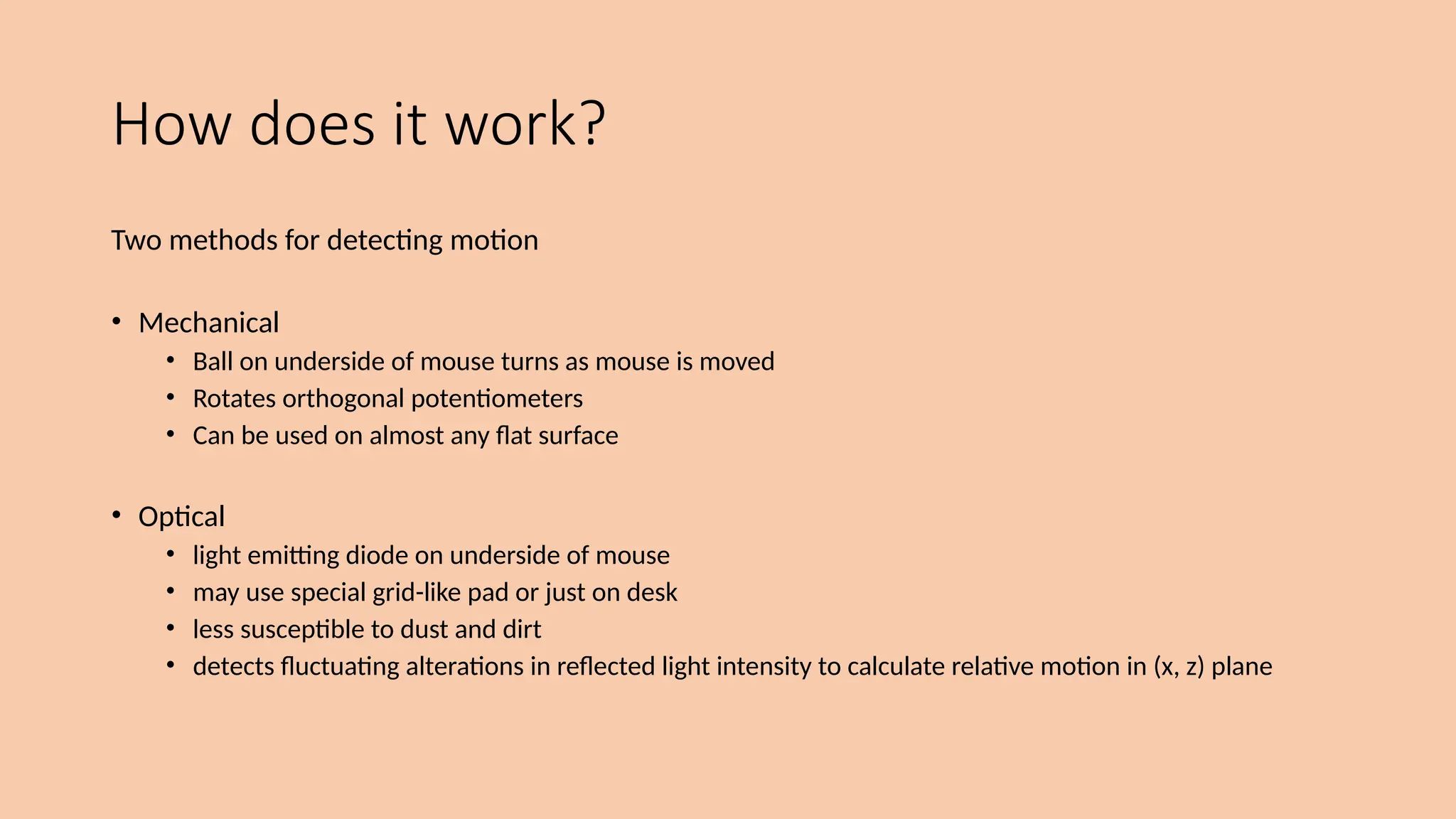
How does it work?
Two methods for detecting motion
• Mechanical
• Ball on underside of mouse turns as mouse is moved
• Rotates orthogonal potentiometers
• Can be used on almost any flat surface
• Optical
• light emitting diode on underside of mouse
• may use special grid-like pad or just on desk
• less susceptible to dust and dirt
• detects fluctuating alterations in reflected light intensity to calculate relative motion in (x, z) plane
Even by foot …
• some experiments with the footmouse
• controlling mouse movement with feet …
• not very common :-)
• but foot controls are common elsewhere:
• car pedals
• sewing machine speed control
• organ and piano pedals
Touchpad
• small touch sensitive tablets
• ‘stroke’ to move mouse pointer
• used mainly in laptop computers
• good ‘acceleration’ settings important
• fast stroke
• lots of pixels per inch moved
• initial movement to the target
• slow stroke
• less pixels per inch
• for accurate positioning
Trackball and thumbwheels
Trackball
• ball is rotated inside static housing
• like an upsdie down mouse!
• relative motion moves cursor
• indirect device, fairly accurate
• separate buttons for picking
• very fast for gaming
• used in some portable and notebook computers.
Thumbwheels …
• for accurate CAD – two dials for X-Y cursor position
• for fast scrolling – single dial on mouse
Joystick and keyboard nipple
Joystick
• indirect
pressure of stick = velocity of movement
• buttons for selection
on top or on front like a trigger
• often used for computer games
aircraft controls and 3D navigation
Keyboard nipple
• for laptop computers
• miniature joystick in the middle of the keyboard
Touch-sensitive screen
• Detect the presence of finger or stylus on the screen.
• works by interrupting matrix of light beams, capacitance changes or ultrasonic reflections
• direct pointing device
• Advantages:
• fast, and requires no specialised pointer
• good for menu selection
• suitable for use in hostile environment: clean and safe from damage.
• Disadvantages:
• finger can mark screen
• imprecise (finger is a fairly blunt instrument!)
• difficult to select small regions or perform accurate drawing
• lifting arm can be tiring
Stylus and light pen
Stylus
• small pen-like pointer to draw directly on screen
• may use touch sensitive surface or magnetic detection
• used in PDA, tablets PCs and drawing tables
Light Pen
• now rarely used
• uses light from screen to detect location
BOTH …
• very direct and obvious to use
• but can obscure screen
Digitizing tablet
• Mouse like-device with cross hairs
• used on special surface
- rather like stylus
• very accurate
- used for digitizing maps
Eyegaze
• control interface by eye gaze direction
• e.g. look at a menu item to select it
• uses laser beam reflected off retina
• … a very low power laser!
• mainly used for evaluation (ch x)
• potential for hands-free control
• high accuracy requires headset
• cheaper and lower accuracy devices available
sit under the screen like a small webcam
Cursor keys
• Four keys (up, down, left, right) on keyboard.
• Very, very cheap, but slow.
• Useful for not much more than basic motion for text-editing tasks.
• No standardised layout, but inverted “T”, most common
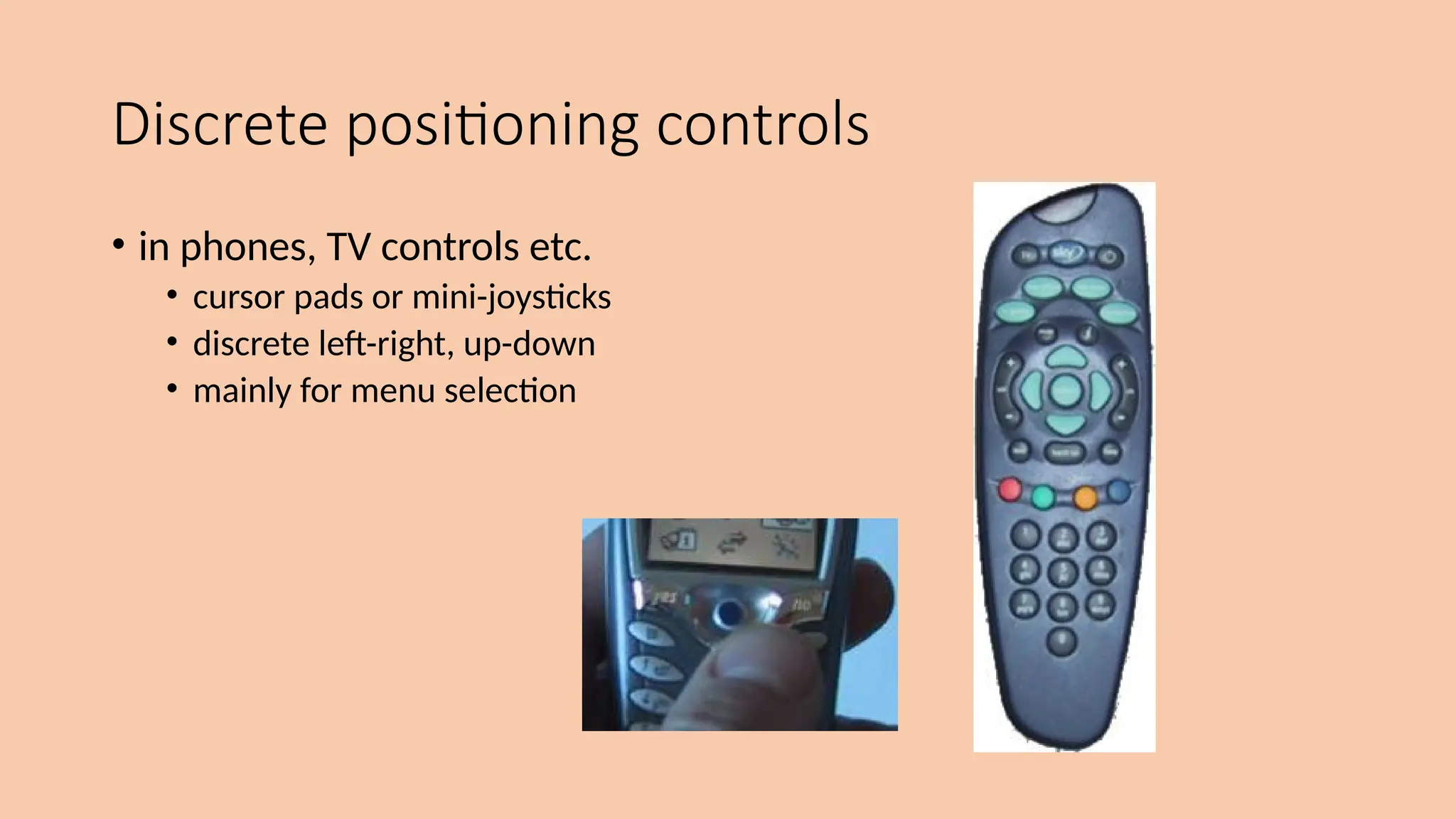
Discrete positioning controls
• in phones, TV controls etc.
• cursor pads or mini-joysticks
• discrete left-right, up-down
• mainly for menu selection
Display devices
bitmap screens (CRT & LCD)
large & situated displays
digital paper
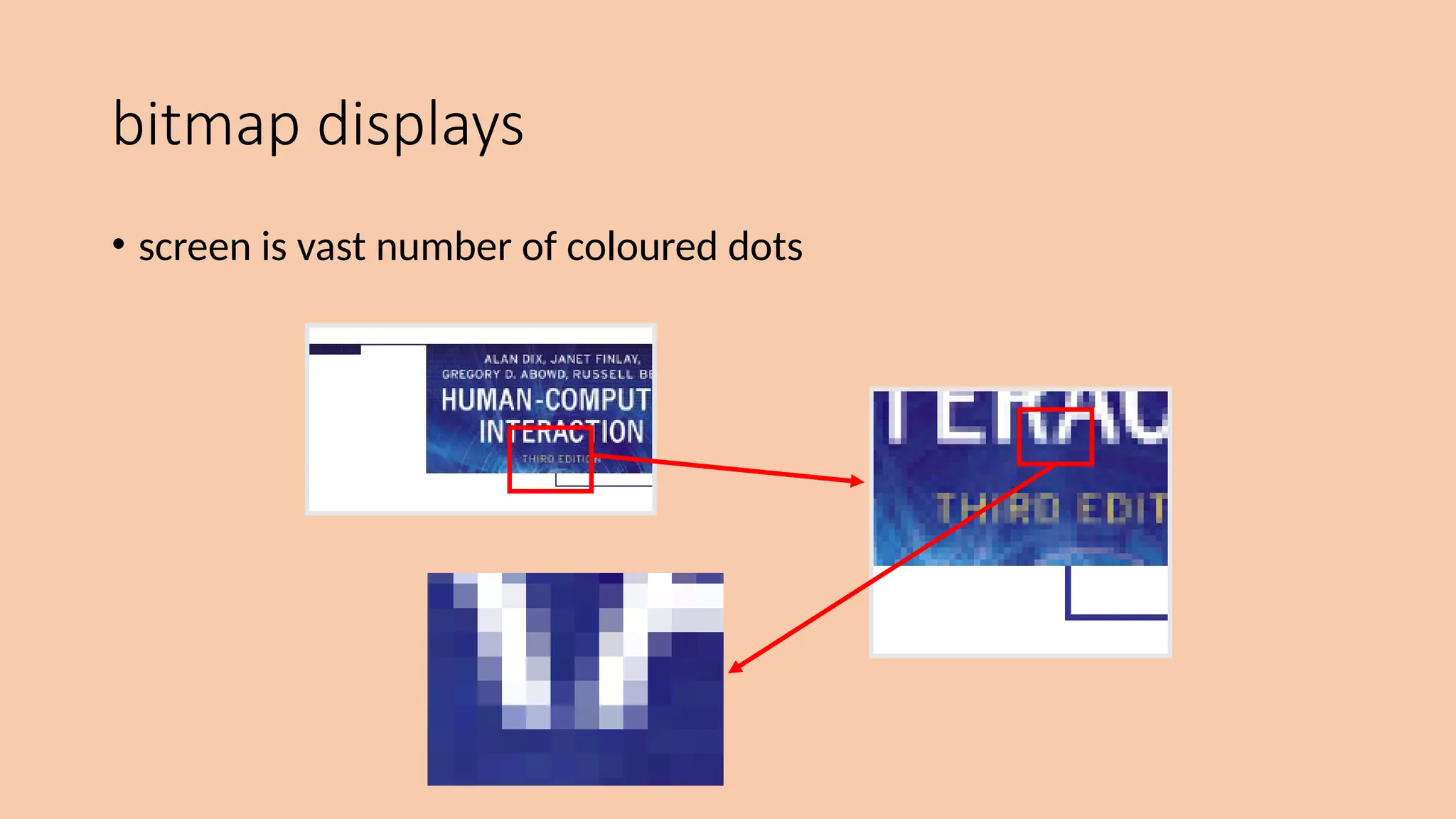
bitmap displays
• screen is vast number of coloured dots
resolution and colour depth
• Resolution … used (inconsistently) for
• number of pixels on screen (width x height)
• e.g. SVGA 1024 x 768, PDA perhaps 240x400
• density of pixels (in pixels or dots per inch - dpi)
• typically between 72 and 96 dpi
• Aspect ratio
• ration between width and height
• 4:3 for most screens, 16:9 for wide-screen TV
• Colour depth:
• how many different colours for each pixel?
• black/white or greys only
• 256 from a pallete
• 8 bits each for red/green/blue = millions of colours
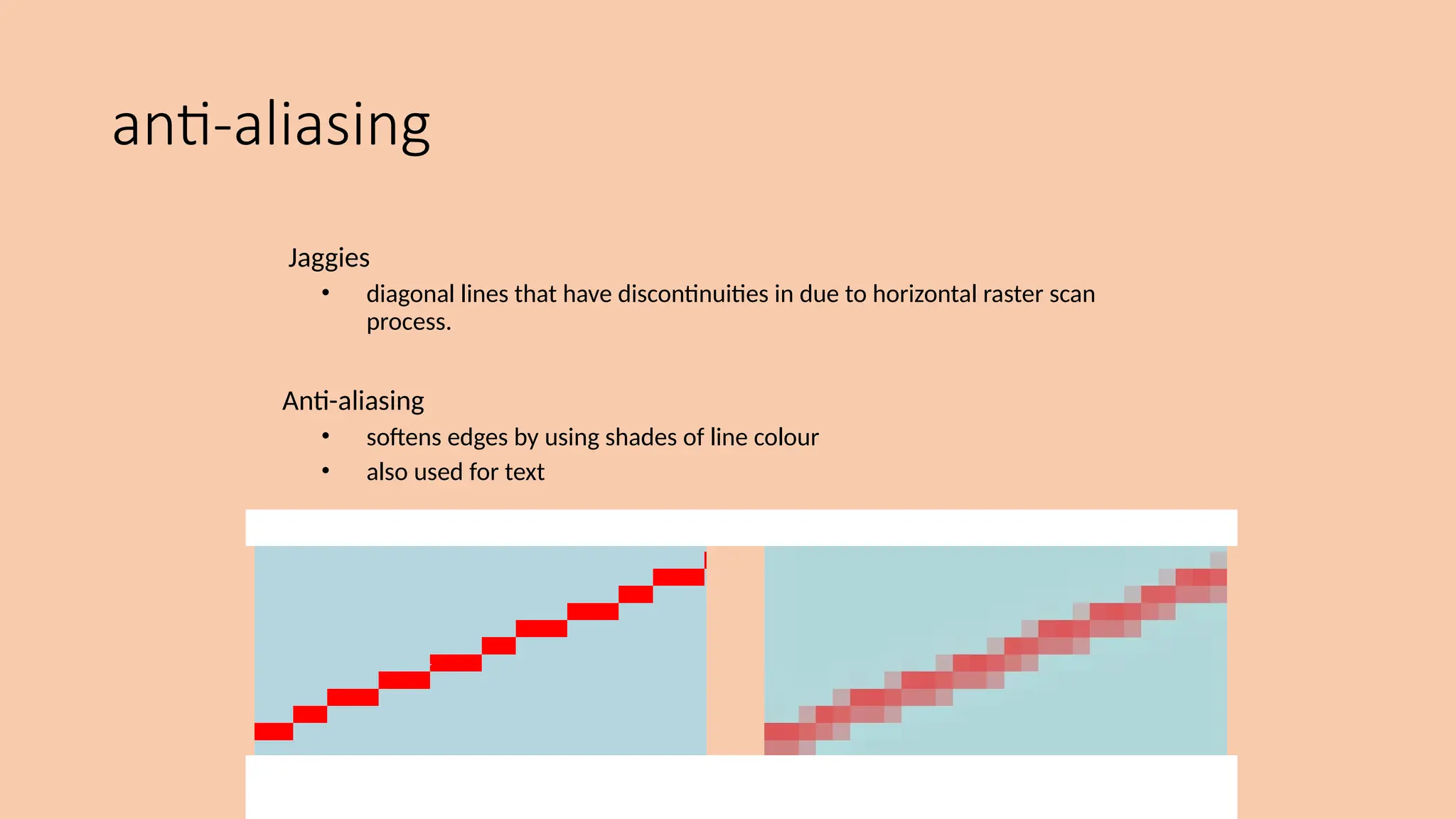
anti-aliasing
Jaggies
• diagonal lines that have discontinuities in due to horizontal raster scan
process.
Anti-aliasing
• softens edges by using shades of line colour
• also used for text
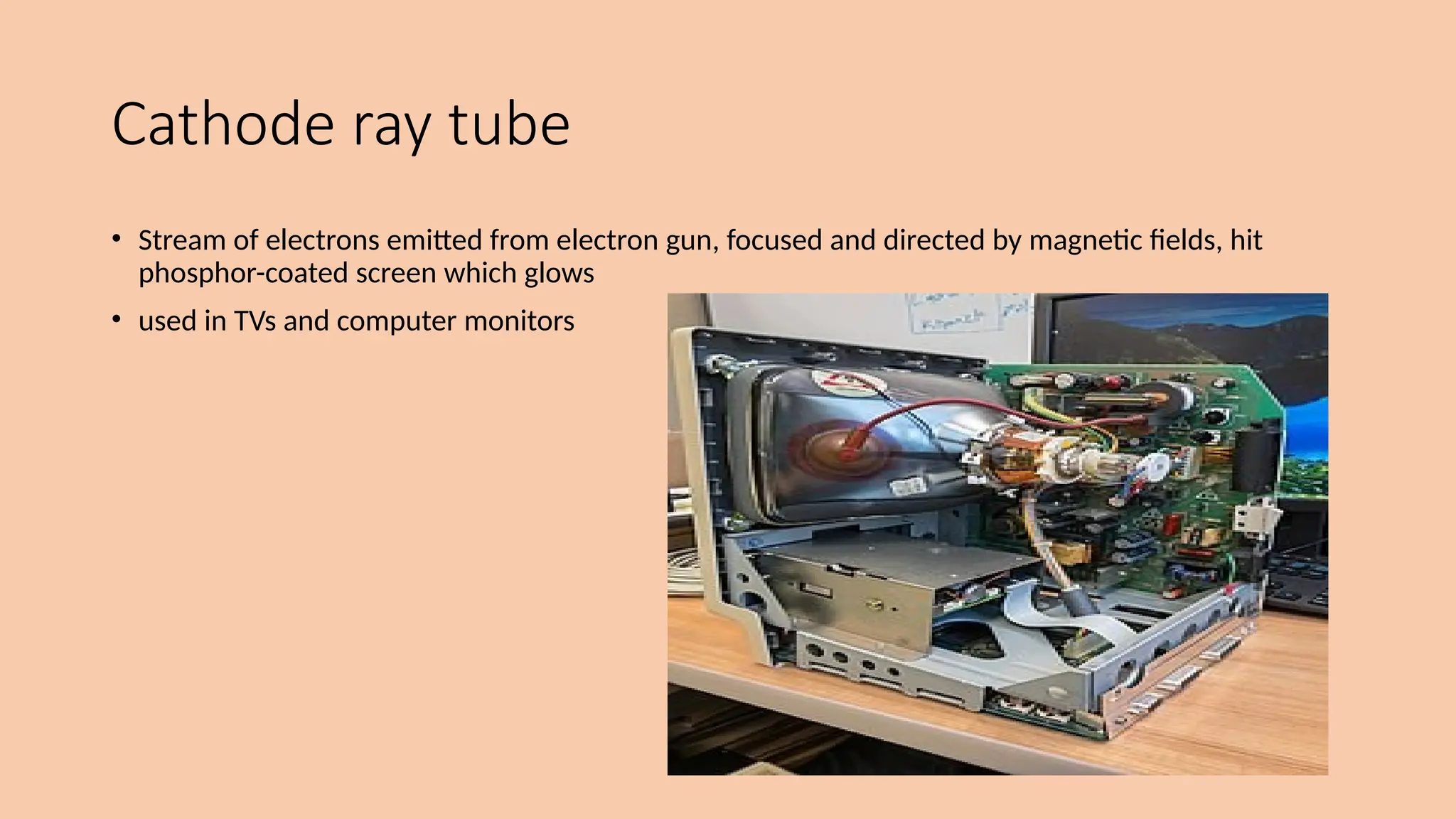
Cathode ray tube
• Stream of electrons emitted from electron gun, focused and directed by magnetic fields, hit
phosphor-coated screen which glows
• used in TVs and computer monitors
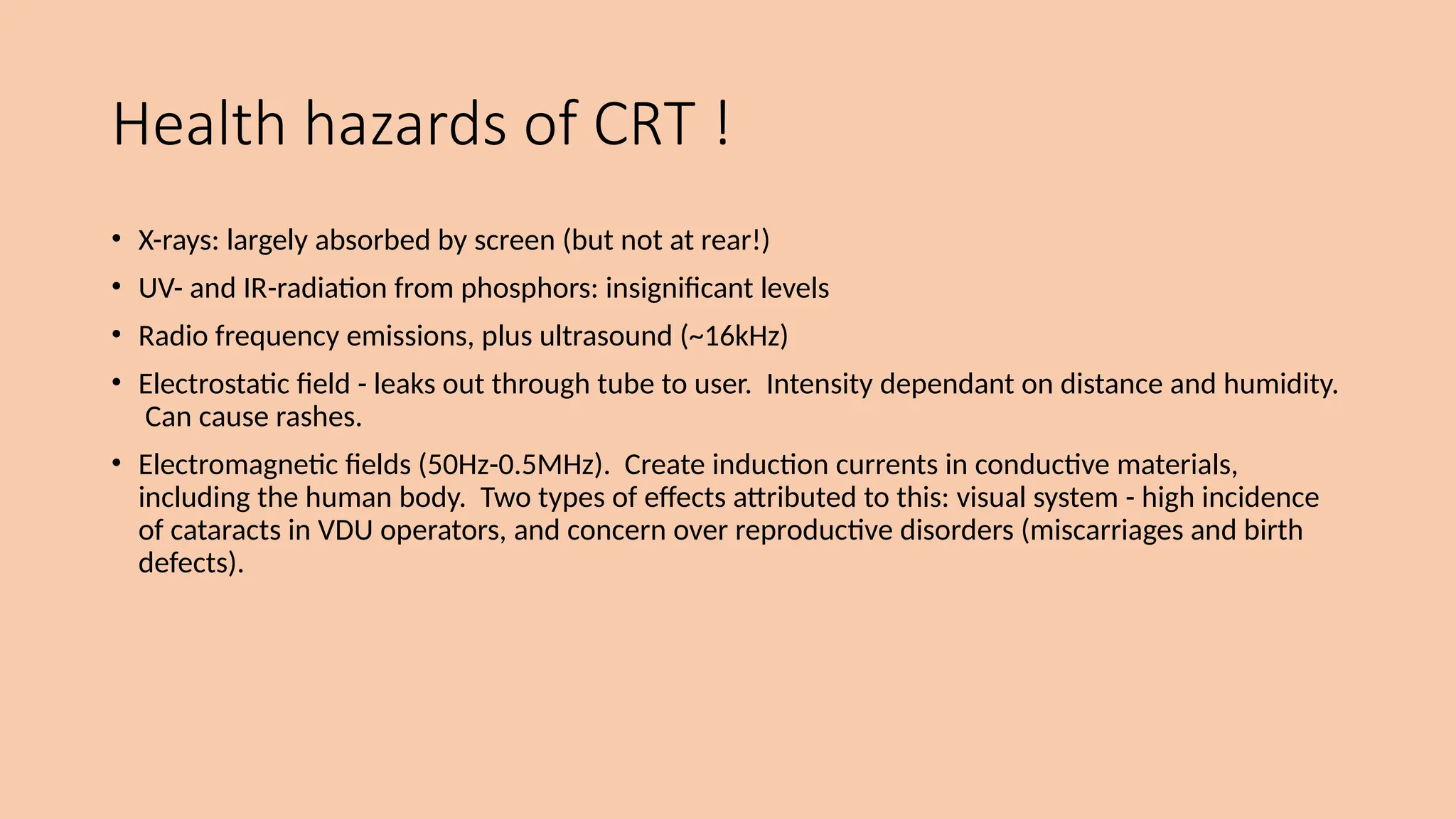
Health hazards of CRT !
• X-rays: largely absorbed by screen (but not at rear!)
• UV- and IR-radiation from phosphors: insignificant levels
• Radio frequency emissions, plus ultrasound (~16kHz)
• Electrostatic field - leaks out through tube to user. Intensity dependant on distance and humidity.
Can cause rashes.
• Electromagnetic fields (50Hz-0.5MHz). Create induction currents in conductive materials,
including the human body. Two types of effects attributed to this: visual system - high incidence
of cataracts in VDU operators, and concern over reproductive disorders (miscarriages and birth
defects).
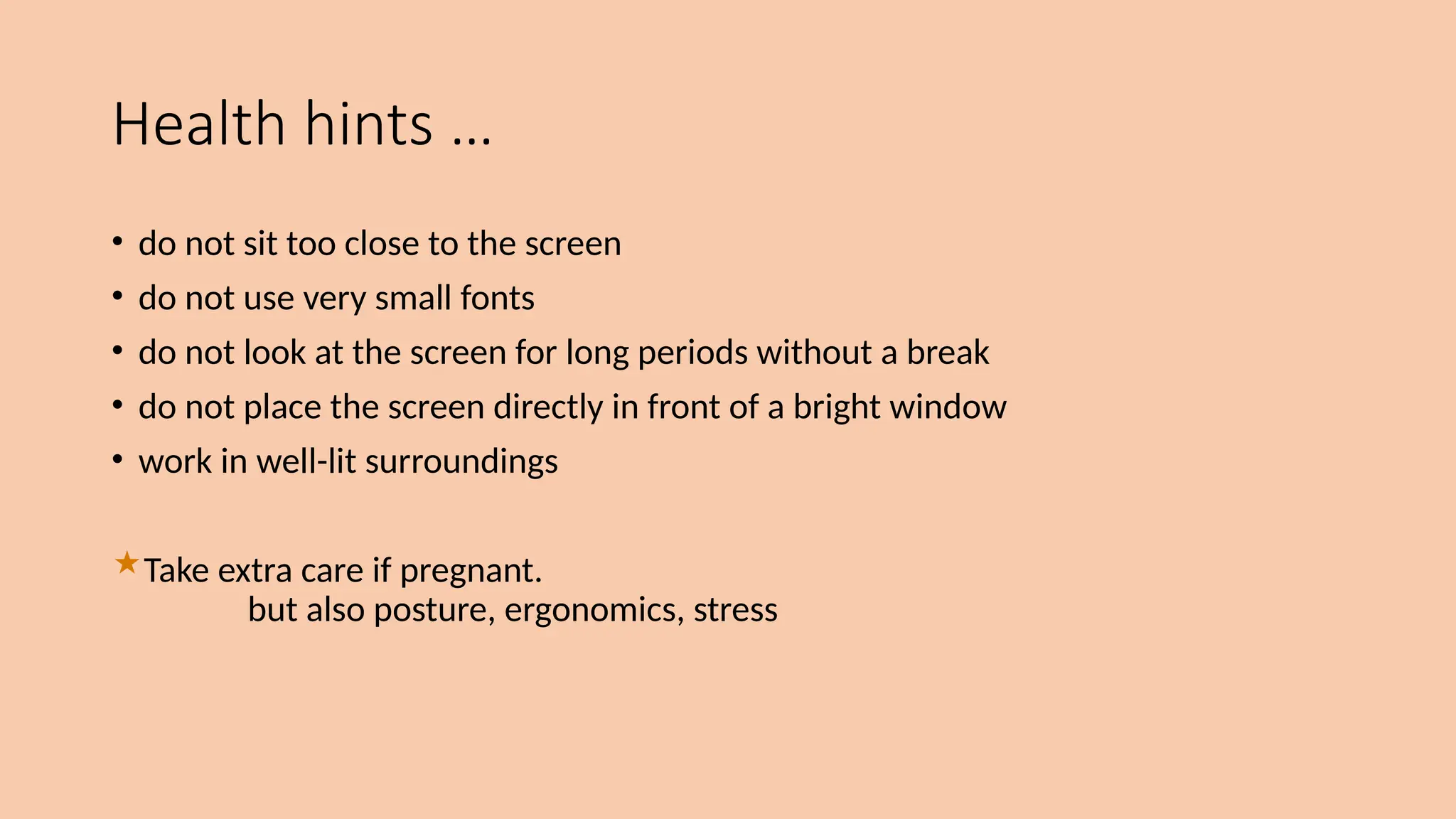
Health hints …
• do not sit too close to the screen
• do not use very small fonts
• do not look at the screen for long periods without a break
• do not place the screen directly in front of a bright window
• work in well-lit surroundings
Take extra care if pregnant.
but also posture, ergonomics, stress
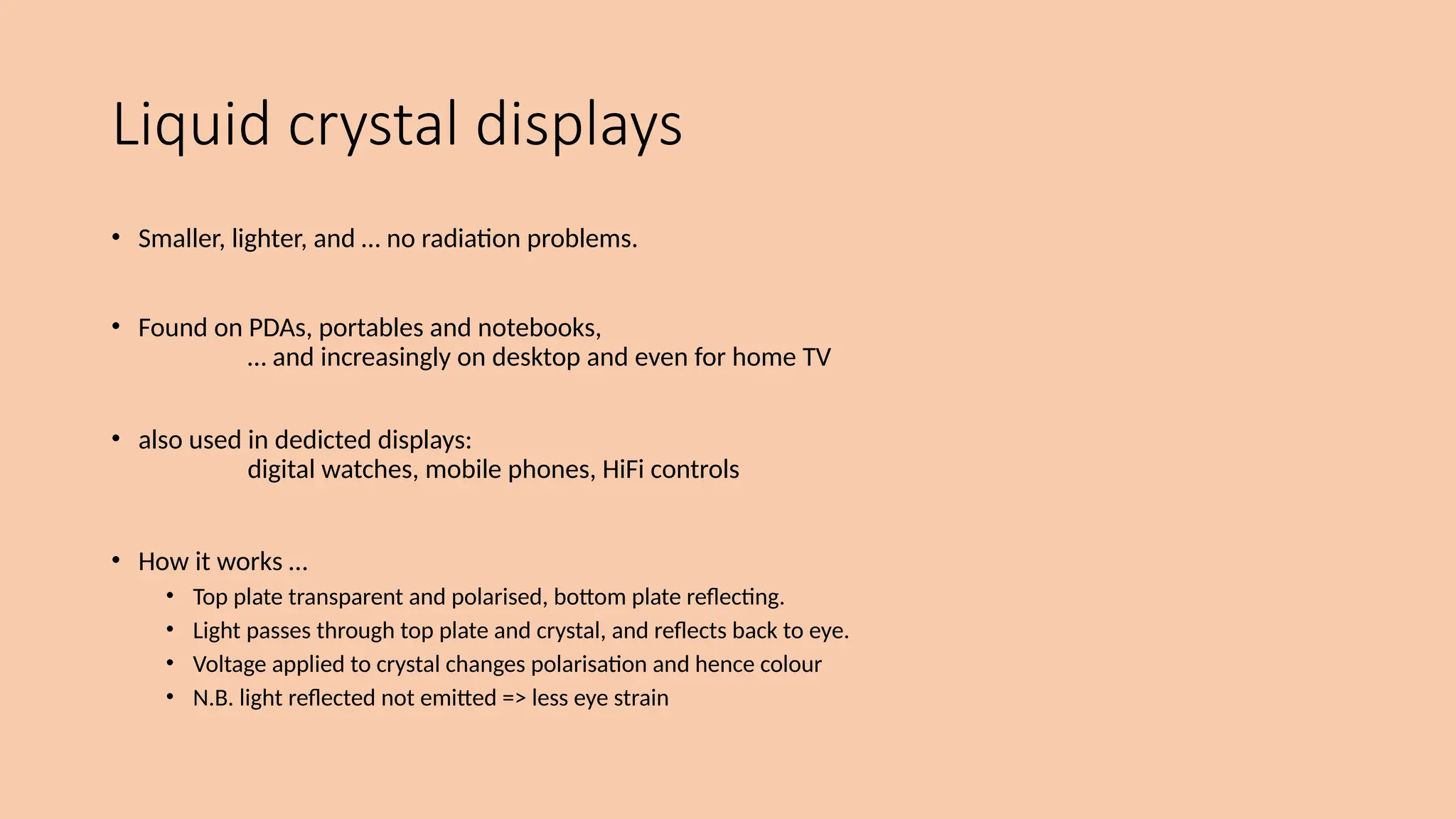
Liquid crystal displays
• Smaller, lighter, and … no radiation problems.
• Found on PDAs, portables and notebooks,
… and increasingly on desktop and even for home TV
• also used in dedicted displays:
digital watches, mobile phones, HiFi controls
• How it works …
• Top plate transparent and polarised, bottom plate reflecting.
• Light passes through top plate and crystal, and reflects back to eye.
• Voltage applied to crystal changes polarisation and hence colour
• N.B. light reflected not emitted => less eye strain
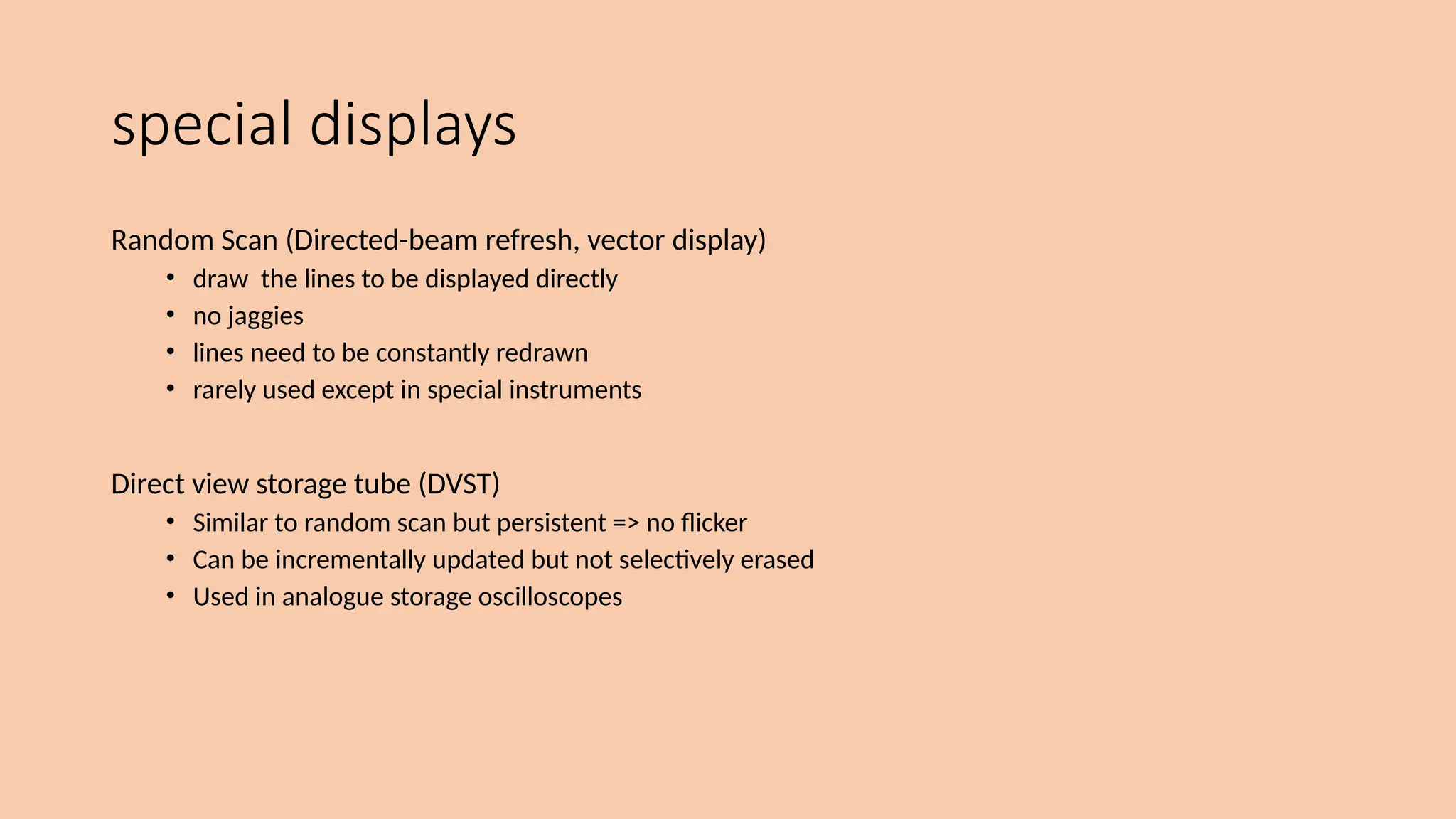
special displays
Random Scan (Directed-beam refresh, vector display)
• draw the lines to be displayed directly
• no jaggies
• lines need to be constantly redrawn
• rarely used except in special instruments
Direct view storage tube (DVST)
• Similar to random scan but persistent => no flicker
• Can be incrementally updated but not selectively erased
• Used in analogue storage oscilloscopes
large displays
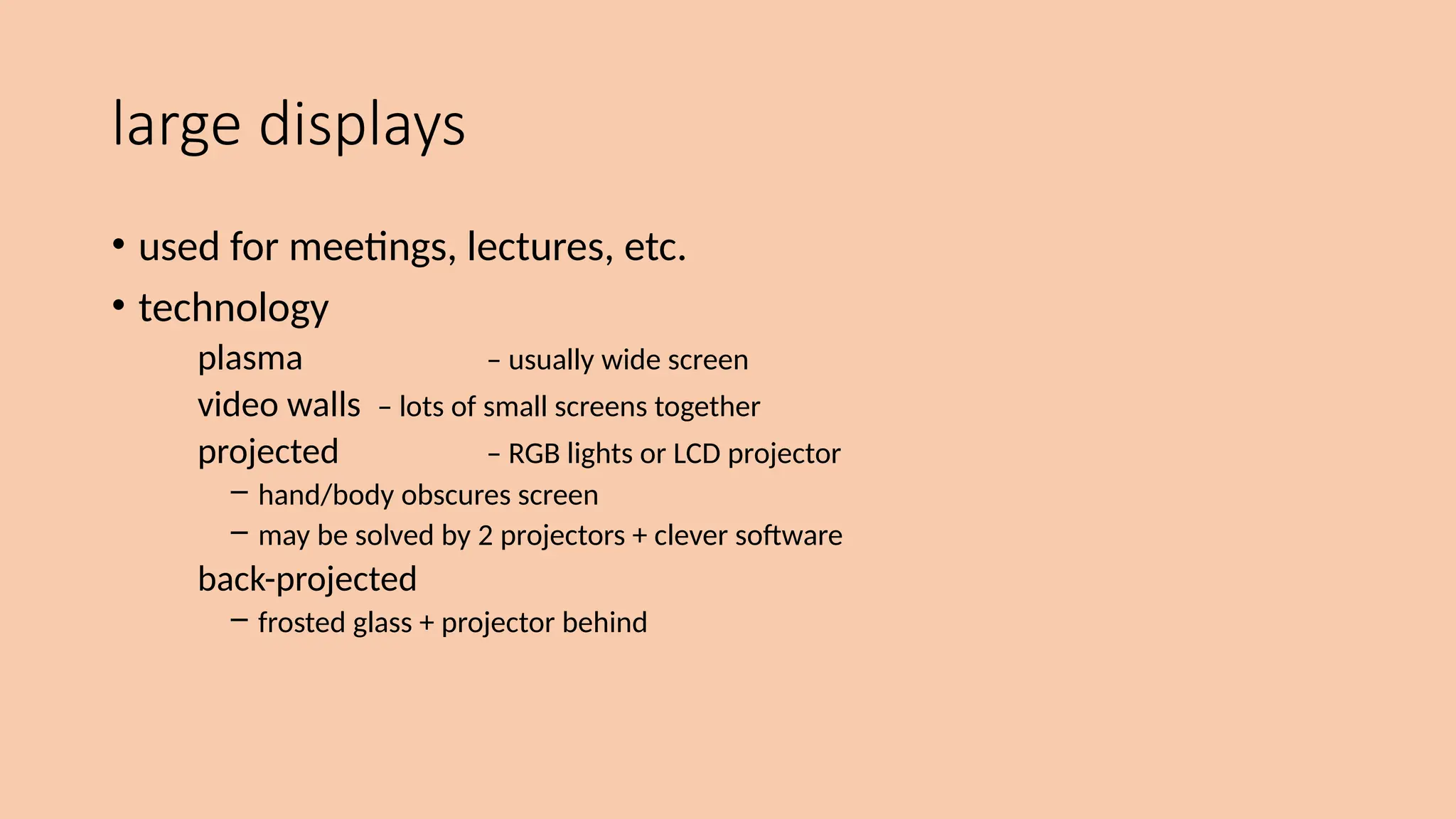
• used for meetings, lectures, etc.
• technology
plasma – usually wide screen
video walls – lots of small screens together
projected – RGB lights or LCD projector
– hand/body obscures screen
– may be solved by 2 projectors + clever software
back-projected
– frosted glass + projector behind
situated displays
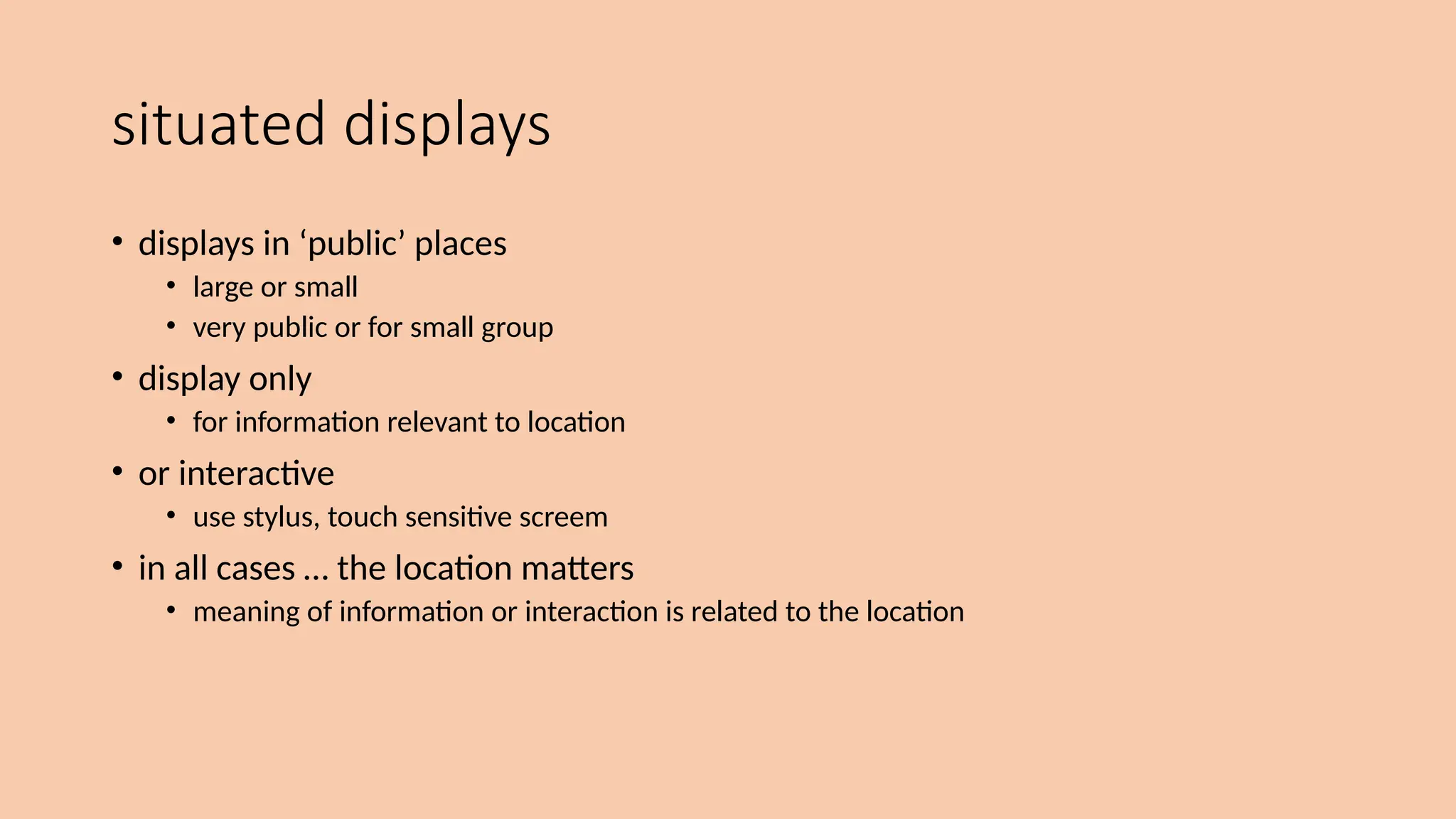
• displays in ‘public’ places
• large or small
• very public or for small group
• display only
• for information relevant to location
• or interactive
• use stylus, touch sensitive screem
• in all cases … the location matters
• meaning of information or interaction is related to the location
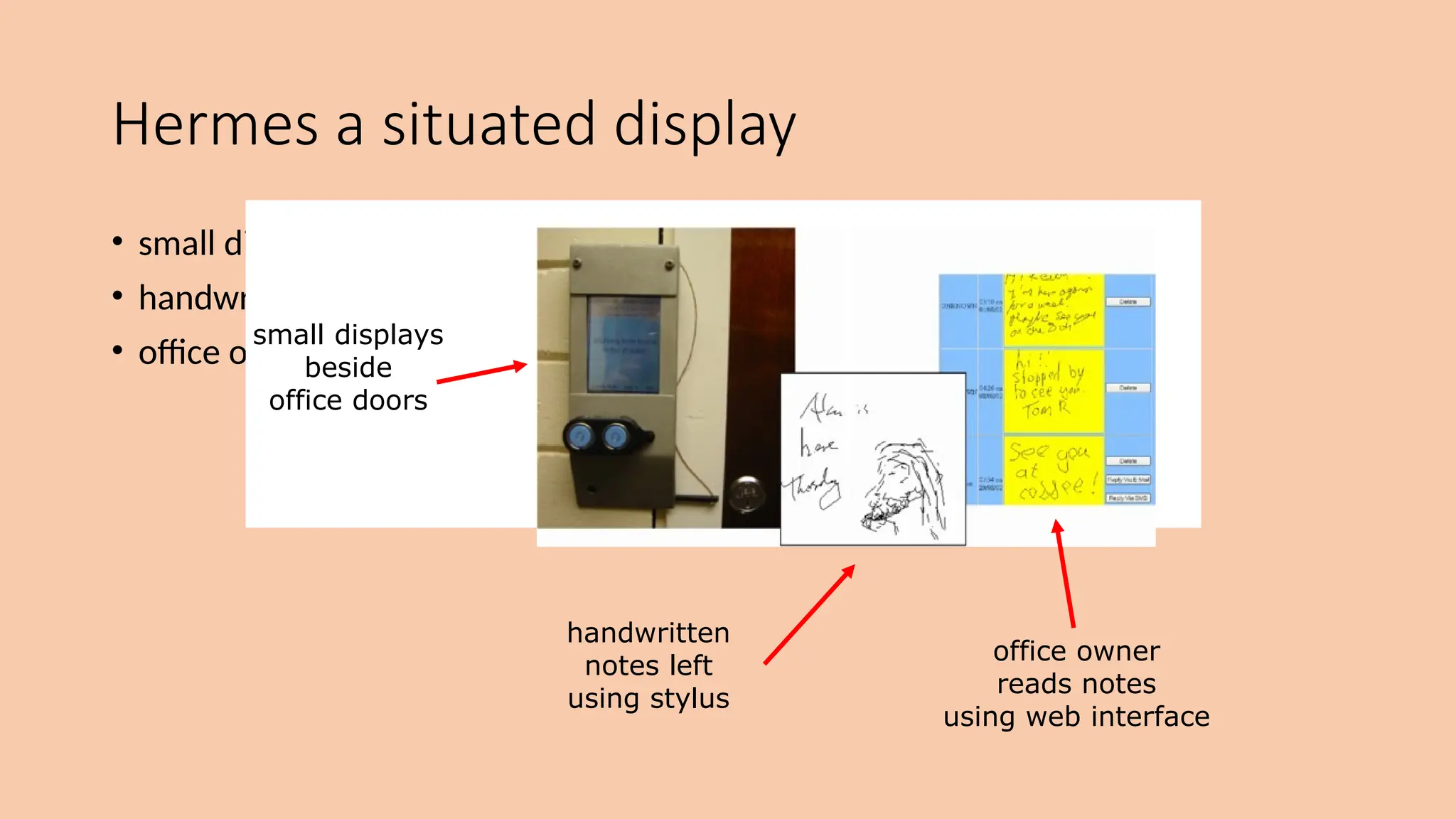
• small displays beside office doors
• handwritten notes left using stylus
• office owner reads notes using web interface
Hermes a situated display
small displays
beside
office doors
handwritten
notes left
using stylus
office owner
reads notes
using web interface
Digital paper
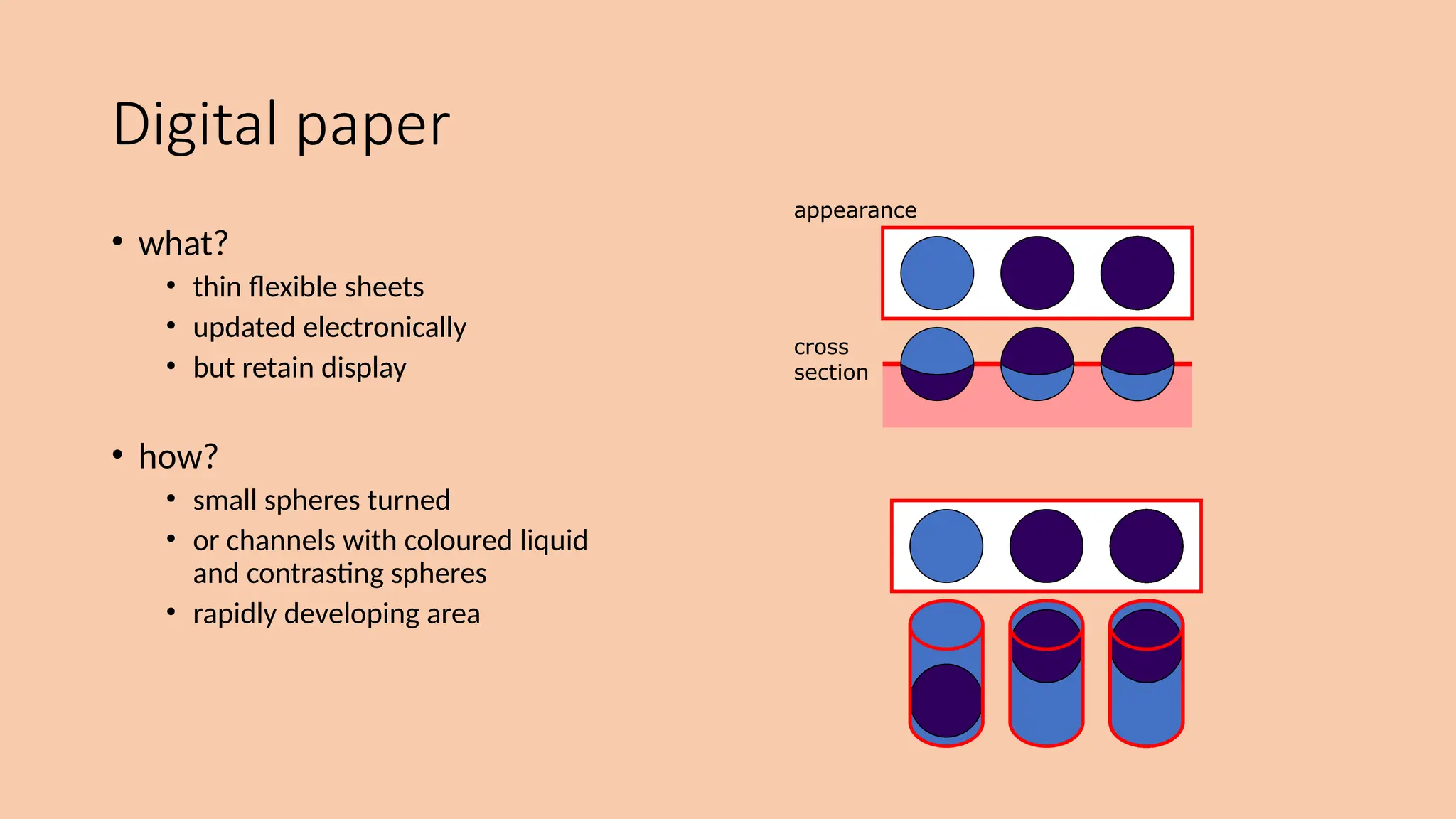
• what?
• thin flexible sheets
• updated electronically
• but retain display
• how?
• small spheres turned
• or channels with coloured liquid
and contrasting spheres
• rapidly developing area
appearance
cross
section
Devices for virtual reality and 3D
interaction
positioning in 3D space
moving and grasping
seeing 3D (helmets and caves)
positioning in 3D space
• cockpit and virtual controls
• steering wheels, knobs and dials … just like real!
• the 3D mouse
• six-degrees of movement: x, y, z + roll, pitch, yaw
• data glove
• fibre optics used to detect finger position
• VR helmets
• detect head motion and possibly eye gaze
• whole body tracking
• accelerometers strapped to limbs or reflective dots and video processing
pitch, yaw and roll
pitch
yaw
roll
Devices for virtual reality and 3d
interaction
• VR Headsets:
• Oculus Rift S: A PC-based VR headset
developed by Oculus (a subsidiary of
Meta, formerly Facebook).
• HTC Vive: A VR system developed by
HTC and Valve Corporation, known
for its room-scale tracking
capabilities.
• PlayStation VR: Designed for use
with the PlayStation 4 and
PlayStation 5 gaming consoles.
Devices for virtual reality and 3d
interaction
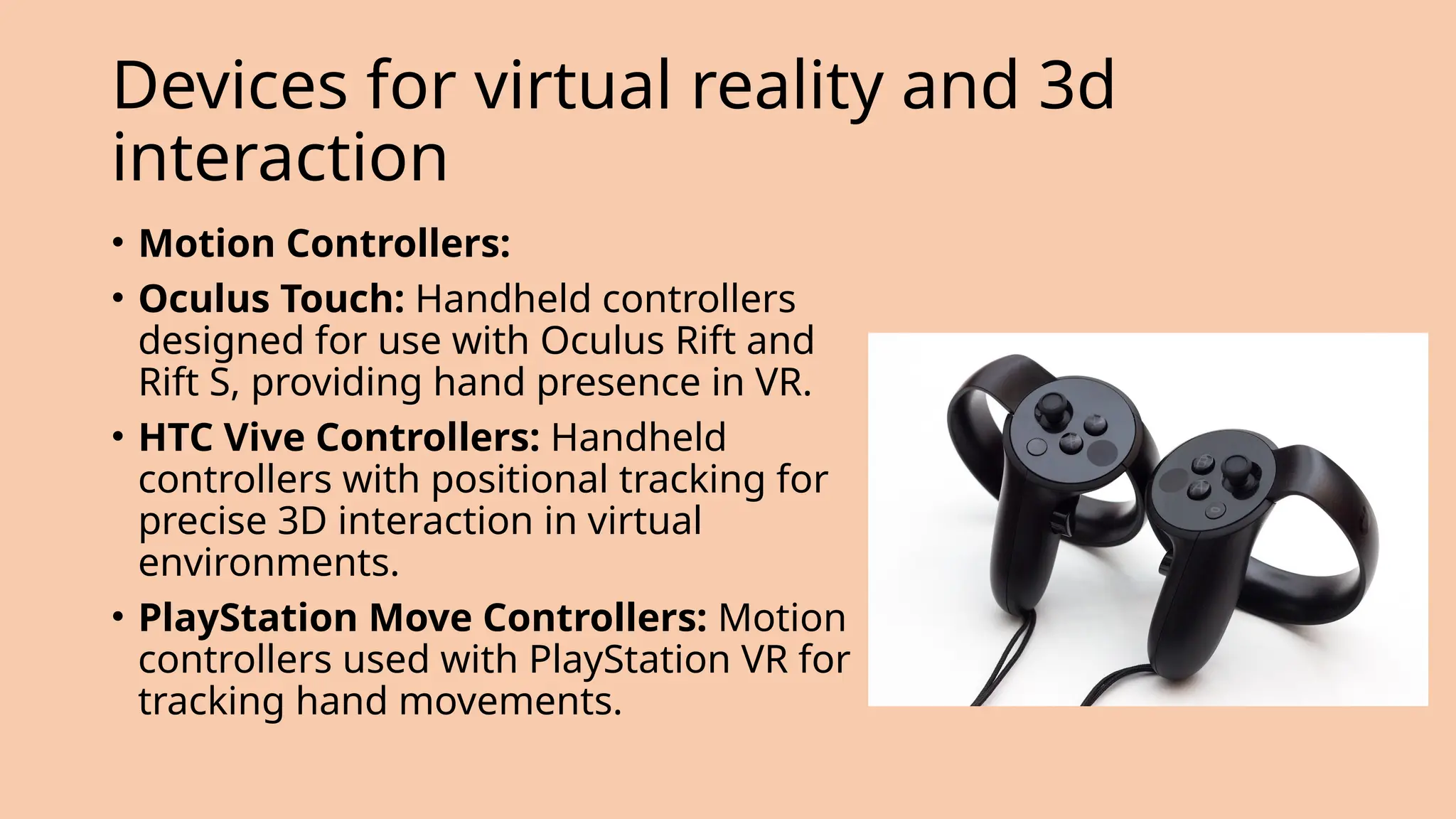
• Motion Controllers:
• Oculus Touch: Handheld controllers
designed for use with Oculus Rift and
Rift S, providing hand presence in VR.
• HTC Vive Controllers: Handheld
controllers with positional tracking for
precise 3D interaction in virtual
environments.
• PlayStation Move Controllers: Motion
controllers used with PlayStation VR for
tracking hand movements.
Devices for virtual reality and 3d
interaction
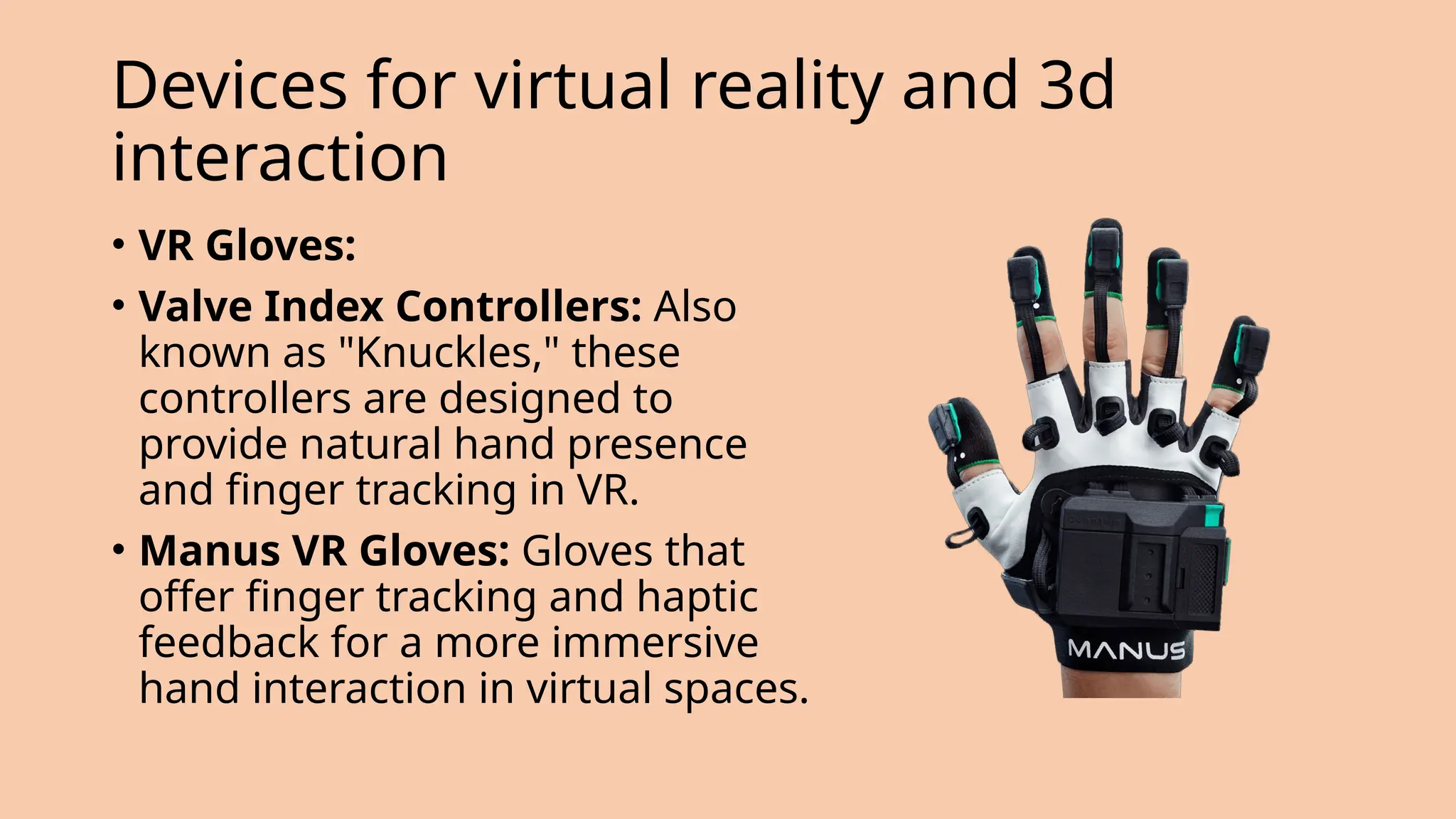
• VR Gloves:
• Valve Index Controllers: Also
known as "Knuckles," these
controllers are designed to
provide natural hand presence
and finger tracking in VR.
• Manus VR Gloves: Gloves that
offer finger tracking and haptic
feedback for a more immersive
hand interaction in virtual spaces.
Devices for virtual reality and 3d
interaction
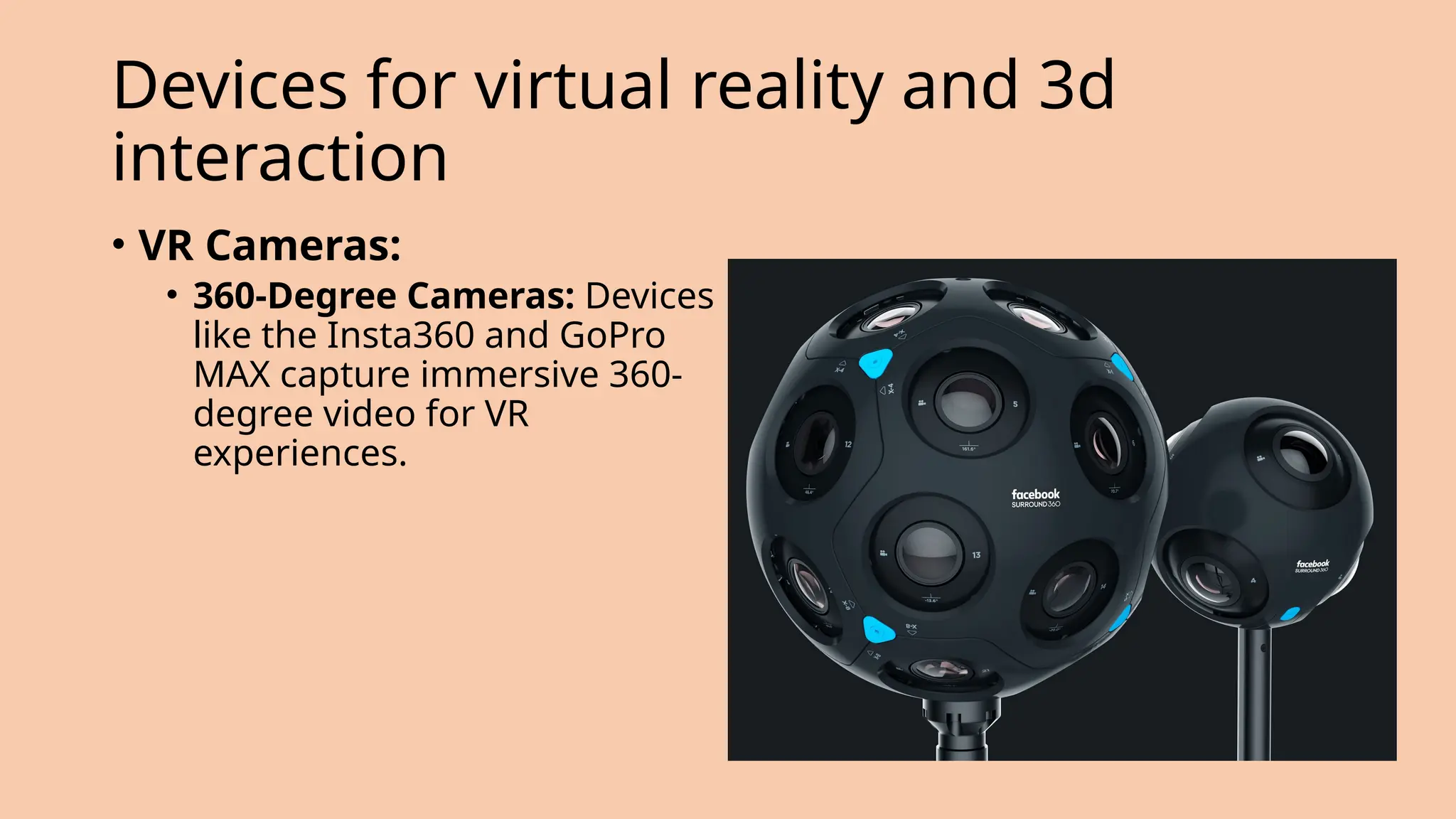
• VR Cameras:
• 360-Degree Cameras: Devices
like the Insta360 and GoPro
MAX capture immersive 360-
degree video for VR
experiences.
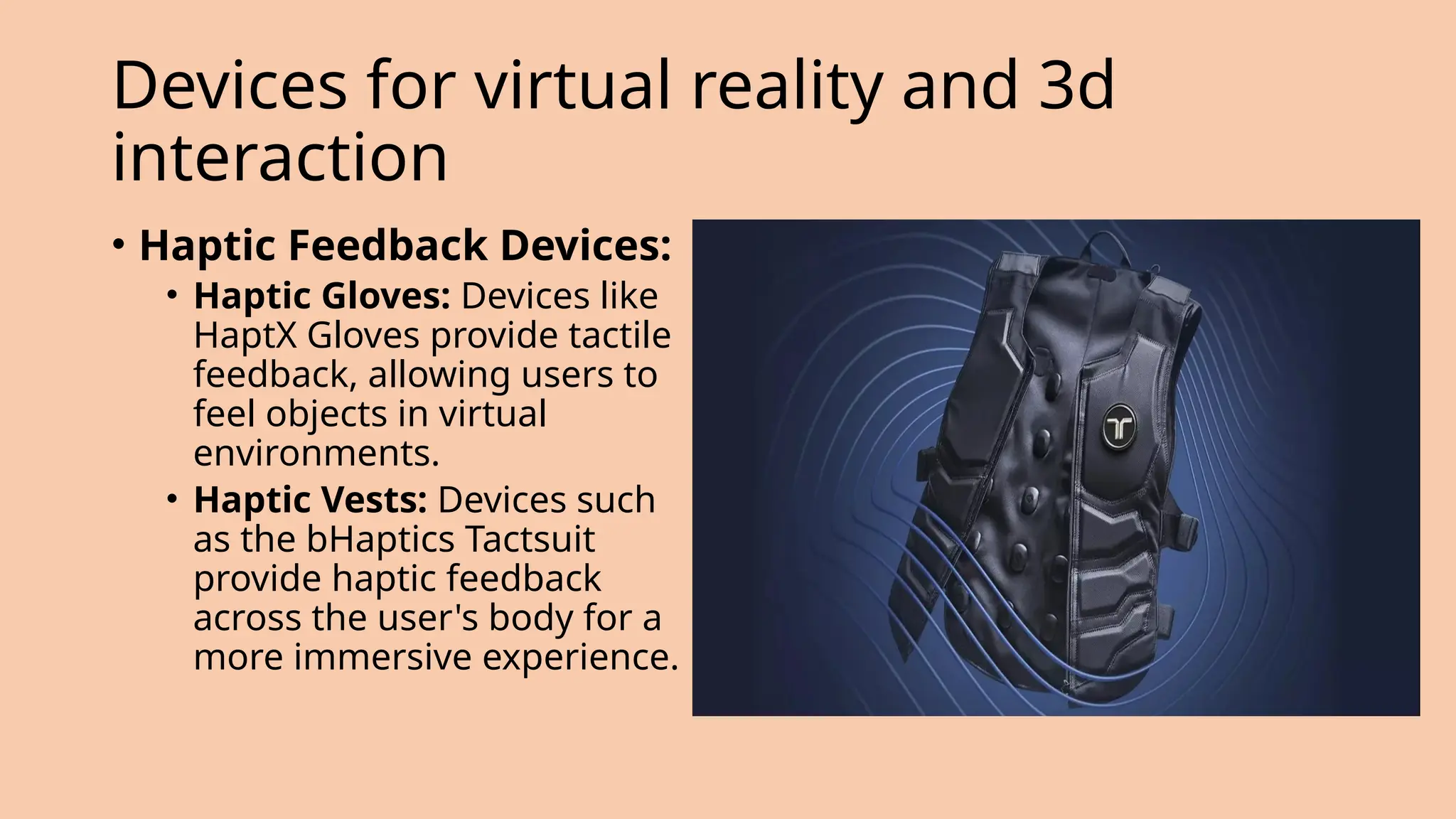
• Haptic Feedback Devices:
• Haptic Gloves: Devices like
HaptX Gloves provide tactile
feedback, allowing users to
feel objects in virtual
environments.
• Haptic Vests: Devices such
as the bHaptics Tactsuit
provide haptic feedback
across the user's body for a
more immersive experience.
Devices for virtual reality and 3d
interaction
Devices for virtual reality and 3d
interaction
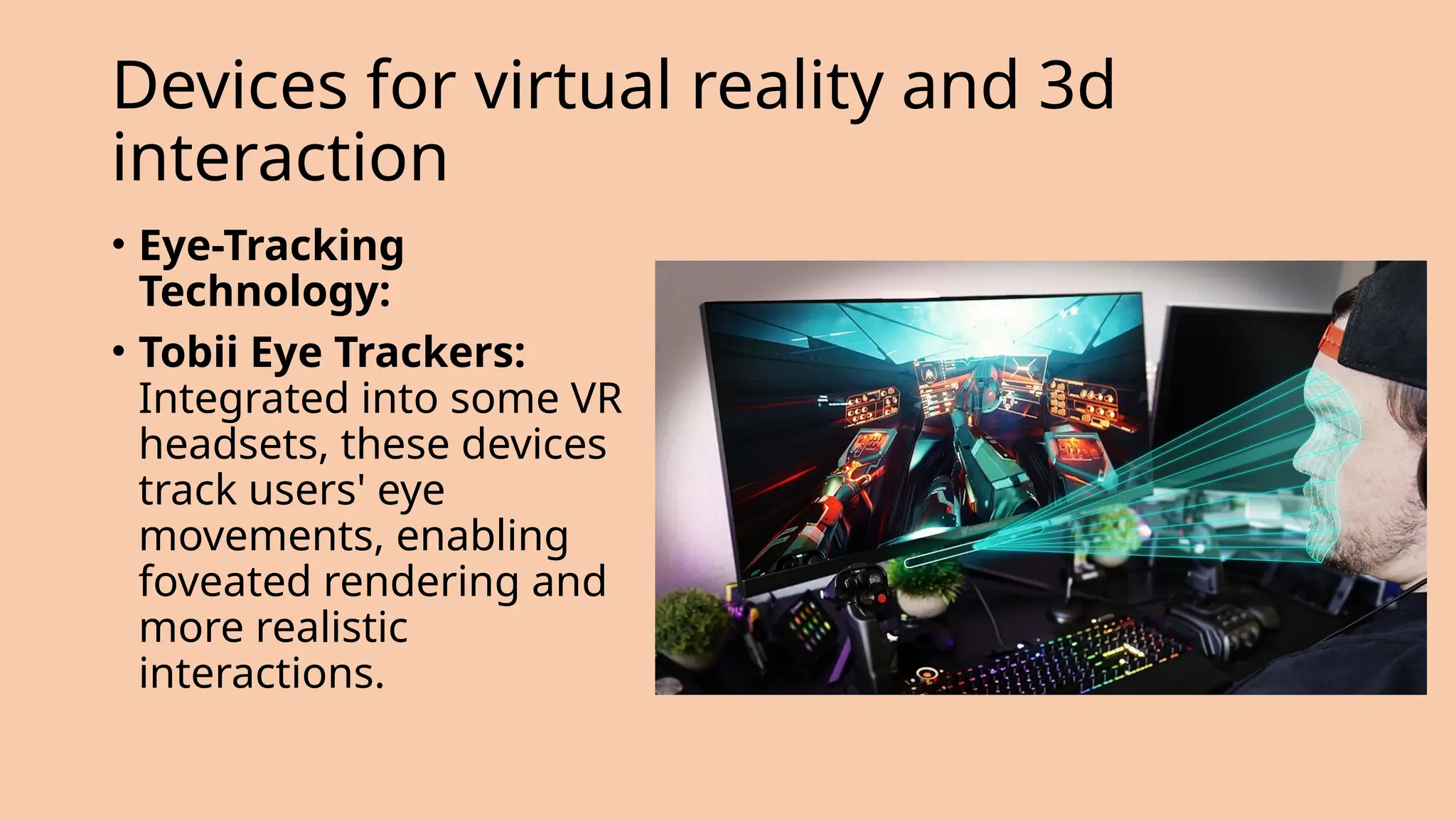
• Eye-Tracking
Technology:
• Tobii Eye Trackers:
Integrated into some VR
headsets, these devices
track users' eye
movements, enabling
foveated rendering and
more realistic
interactions.
Devices for virtual reality and 3d
interaction
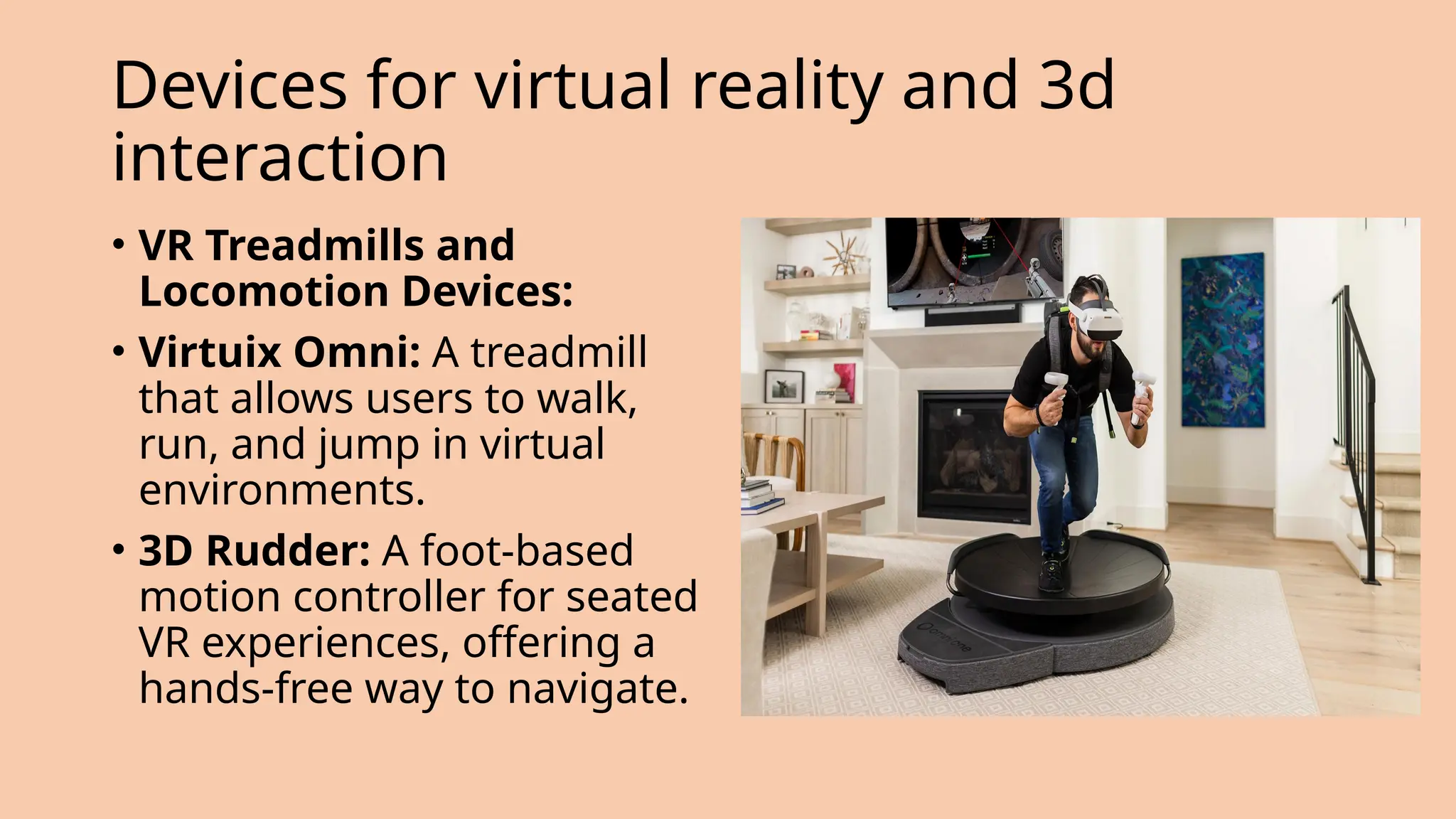
• VR Treadmills and
Locomotion Devices:
• Virtuix Omni: A treadmill
that allows users to walk,
run, and jump in virtual
environments.
• 3D Rudder: A foot-based
motion controller for seated
VR experiences, offering a
hands-free way to navigate.
Devices for virtual reality and 3d
interaction
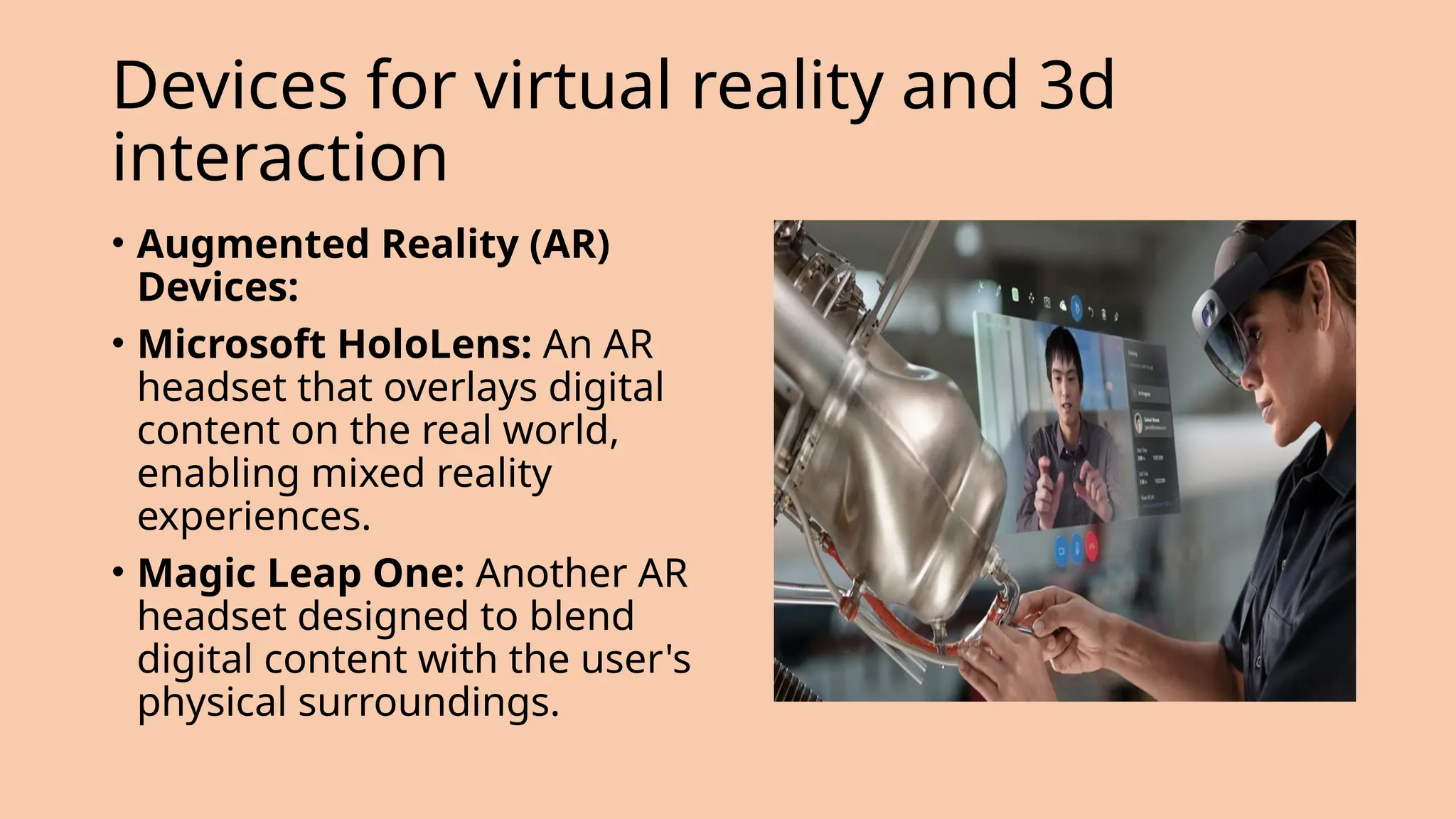
• Augmented Reality (AR)
Devices:
• Microsoft HoloLens: An AR
headset that overlays digital
content on the real world,
enabling mixed reality
experiences.
• Magic Leap One: Another AR
headset designed to blend
digital content with the user's
physical surroundings.
Devices for virtual reality and 3d
interaction
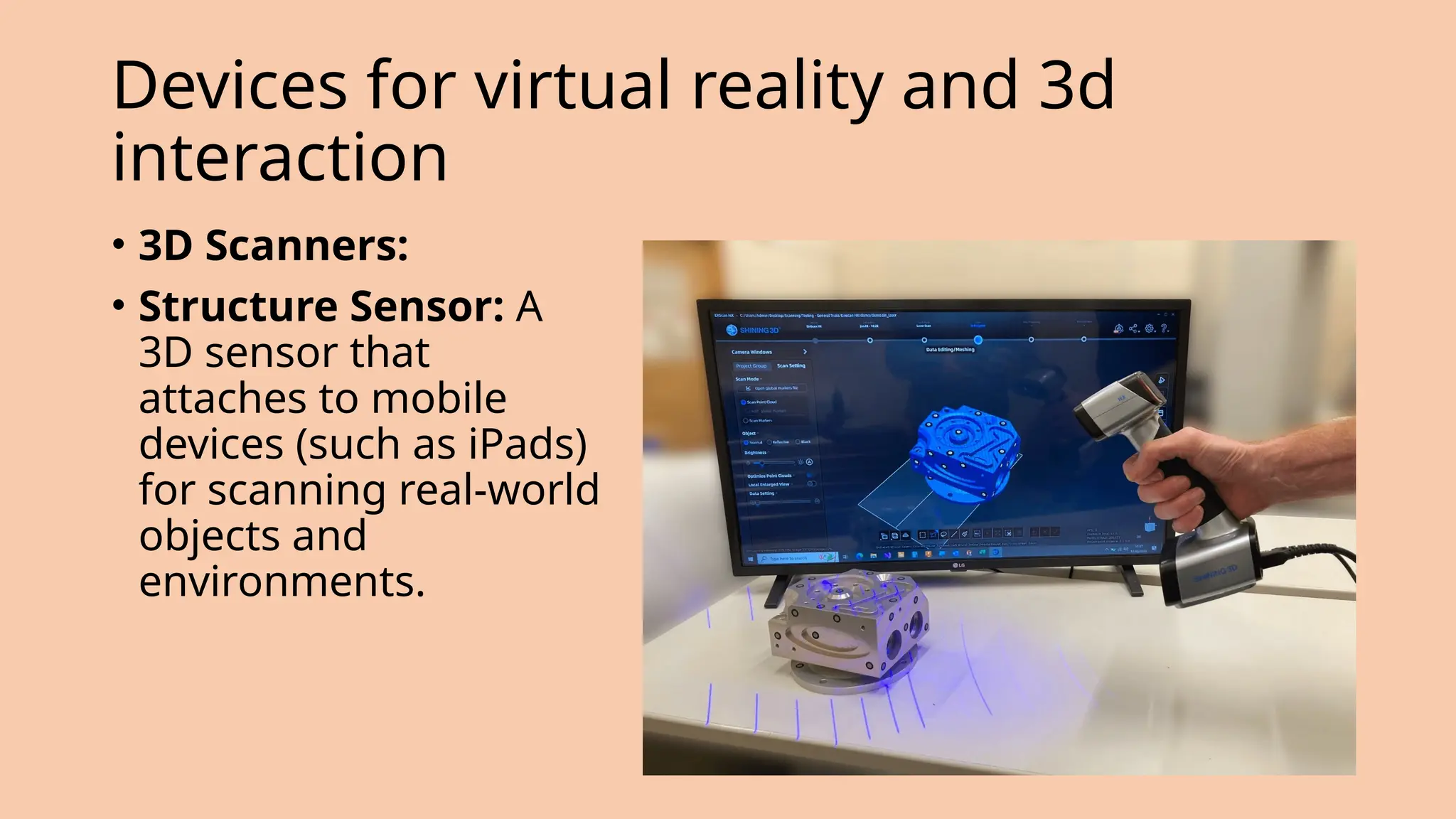
• 3D Scanners:
• Structure Sensor: A
3D sensor that
attaches to mobile
devices (such as iPads)
for scanning real-world
objects and
environments.
physical controls, sensors etc.
special displays and gauges
sound, touch, feel, smell
physical controls
environmental and bio-sensing
dedicated displays
• analogue representations:
• dials, gauges, lights, etc.
• digital displays:
• small LCD screens, LED lights, etc.
• head-up displays
• found in aircraft cockpits
• show most important controls
… depending on context
Sounds
• beeps, bongs, clonks, whistles and whirrs
• used for error indications
• confirmation of actions e.g. keyclick
also see chapter 10
Touch, feel, smell
• touch and feeling important
• in games … vibration, force feedback
• in simulation … feel of surgical instruments
• called haptic devices
• texture, smell, taste
• current technology very limited
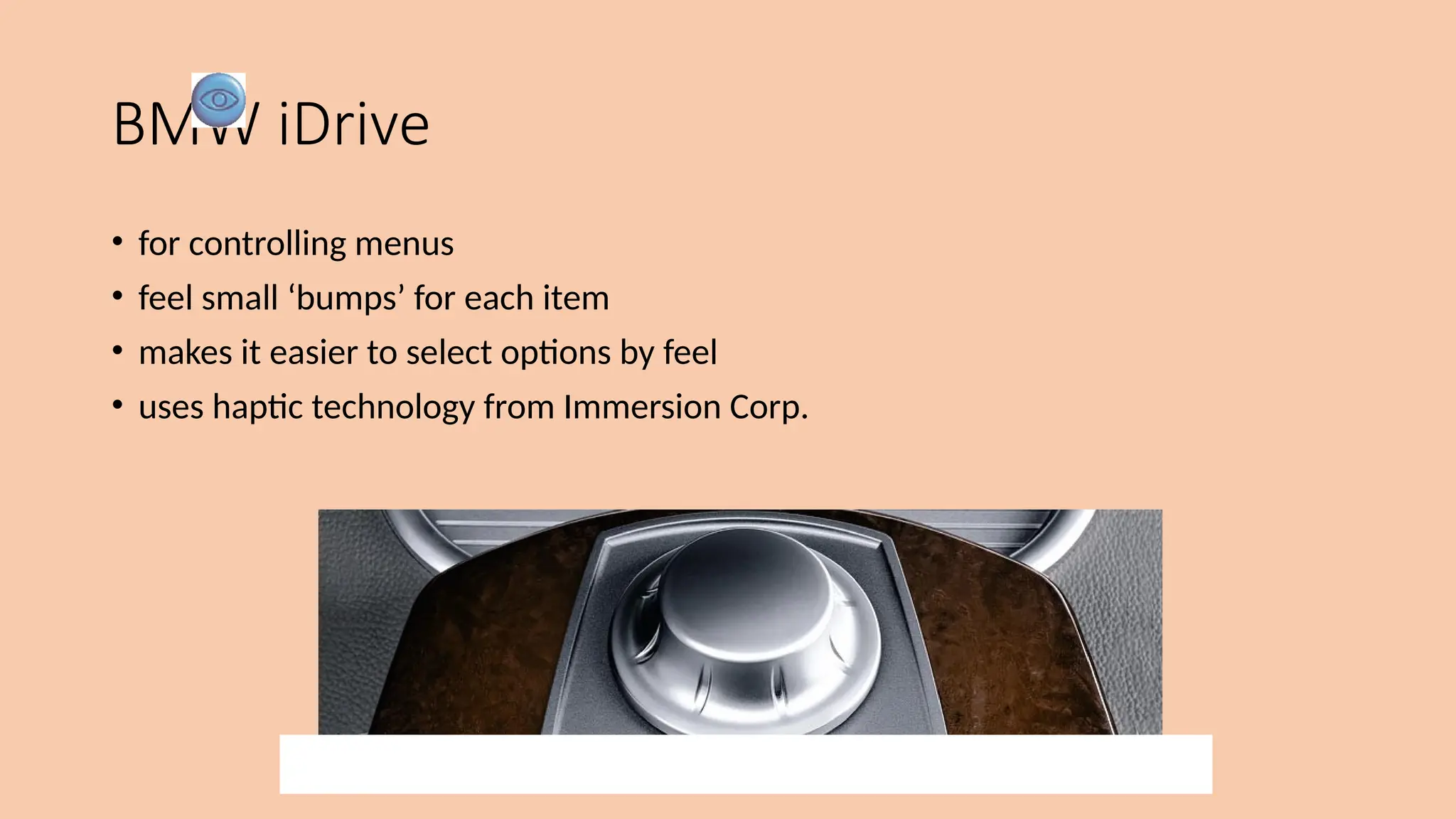
BMW iDrive
• for controlling menus
• feel small ‘bumps’ for each item
• makes it easier to select options by feel
• uses haptic technology from Immersion Corp.
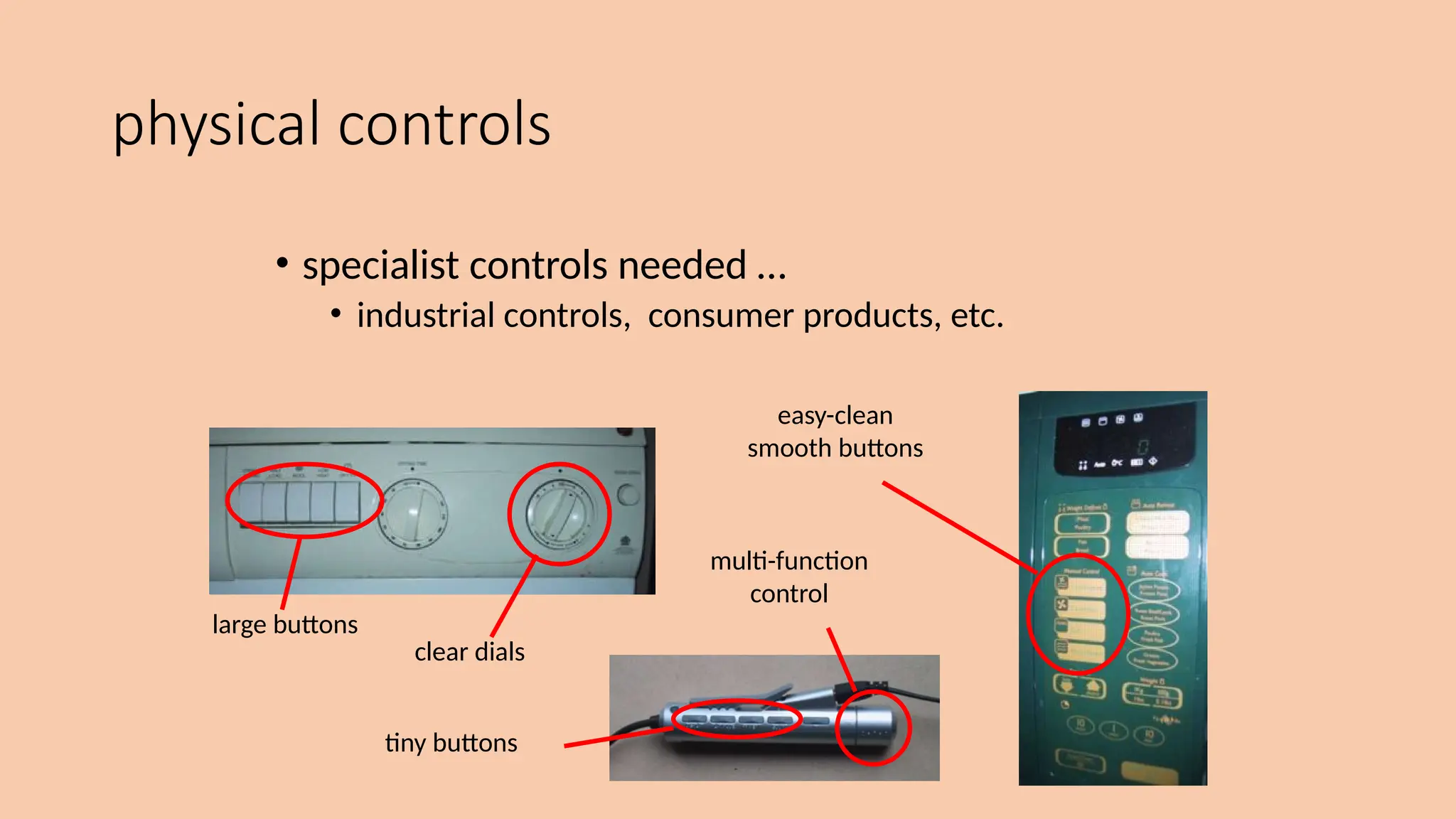
physical controls
• specialist controls needed …
• industrial controls, consumer products, etc.
large buttons
clear dials
tiny buttons
multi-function
control
easy-clean
smooth buttons
Environment and bio-sensing
• sensors all around us
• car courtesy light – small switch on door
• ultrasound detectors – security, washbasins
• RFID security tags in shops
• temperature, weight, location
• … and even our own bodies …
• iris scanners, body temperature, heart rate, galvanic skin response, blink rate
paper: printing and scanning
print technology
fonts, page description, WYSIWYG
scanning, OCR
Printing
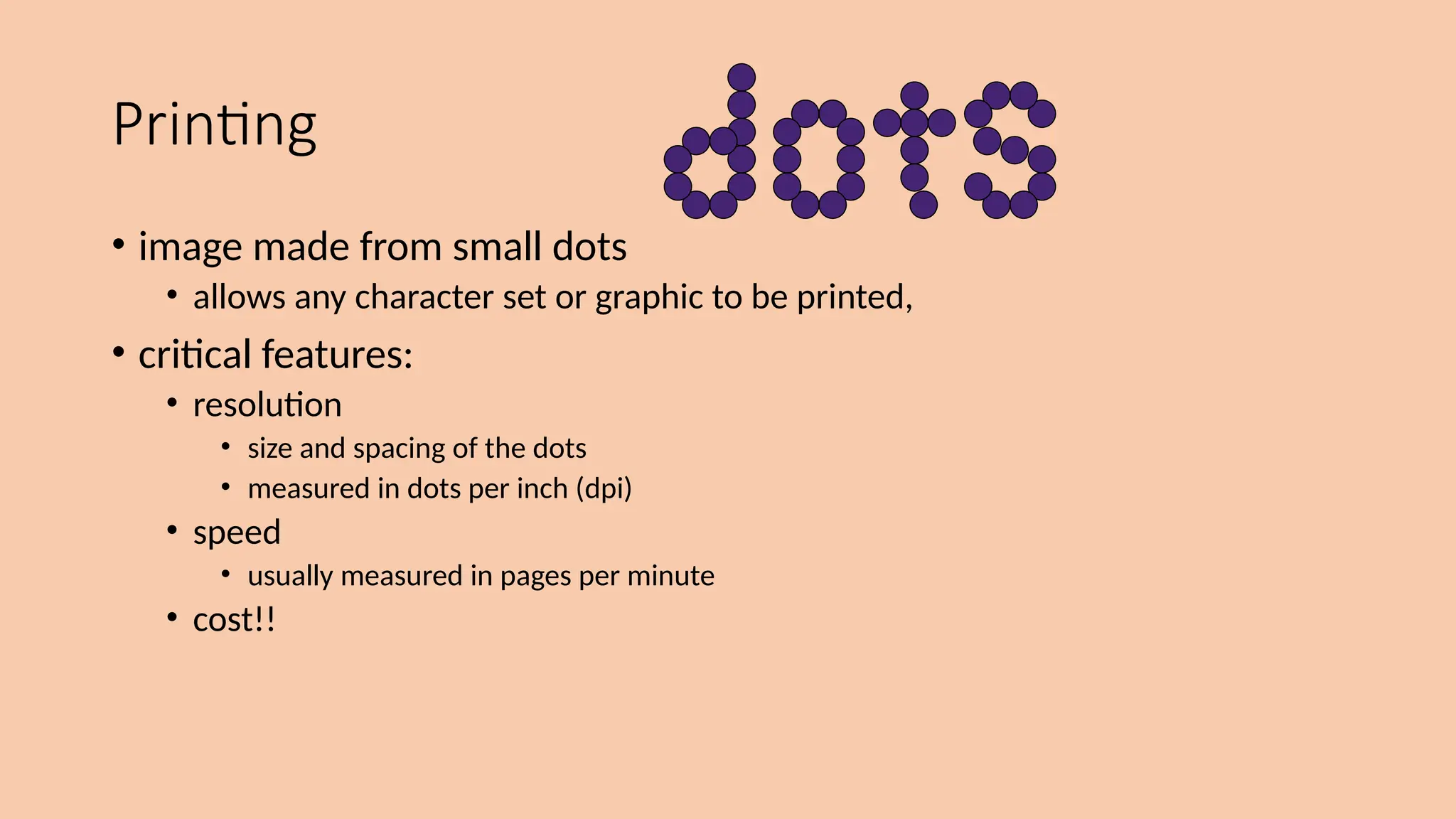
• image made from small dots
• allows any character set or graphic to be printed,
• critical features:
• resolution
• size and spacing of the dots
• measured in dots per inch (dpi)
• speed
• usually measured in pages per minute
• cost!!
Types of dot-based printers
• dot-matrix printers
• use inked ribbon (like a typewriter
• line of pins that can strike the ribbon, dotting the paper.
• typical resolution 80-120 dpi
• ink-jet and bubble-jet printers
• tiny blobs of ink sent from print head to paper
• typically 300 dpi or better .
• laser printer
• like photocopier: dots of electrostatic charge deposited on drum, which picks up toner (black powder
form of ink) rolled onto paper which is then fixed with heat
• typically 600 dpi or better.
Printing in the workplace
• shop tills
• dot matrix
• same print head used for several paper rolls
• may also print cheques
• thermal printers
• special heat-sensitive paper
• paper heated by pins makes a dot
• poor quality, but simple & low maintenance
• used in some fax machines
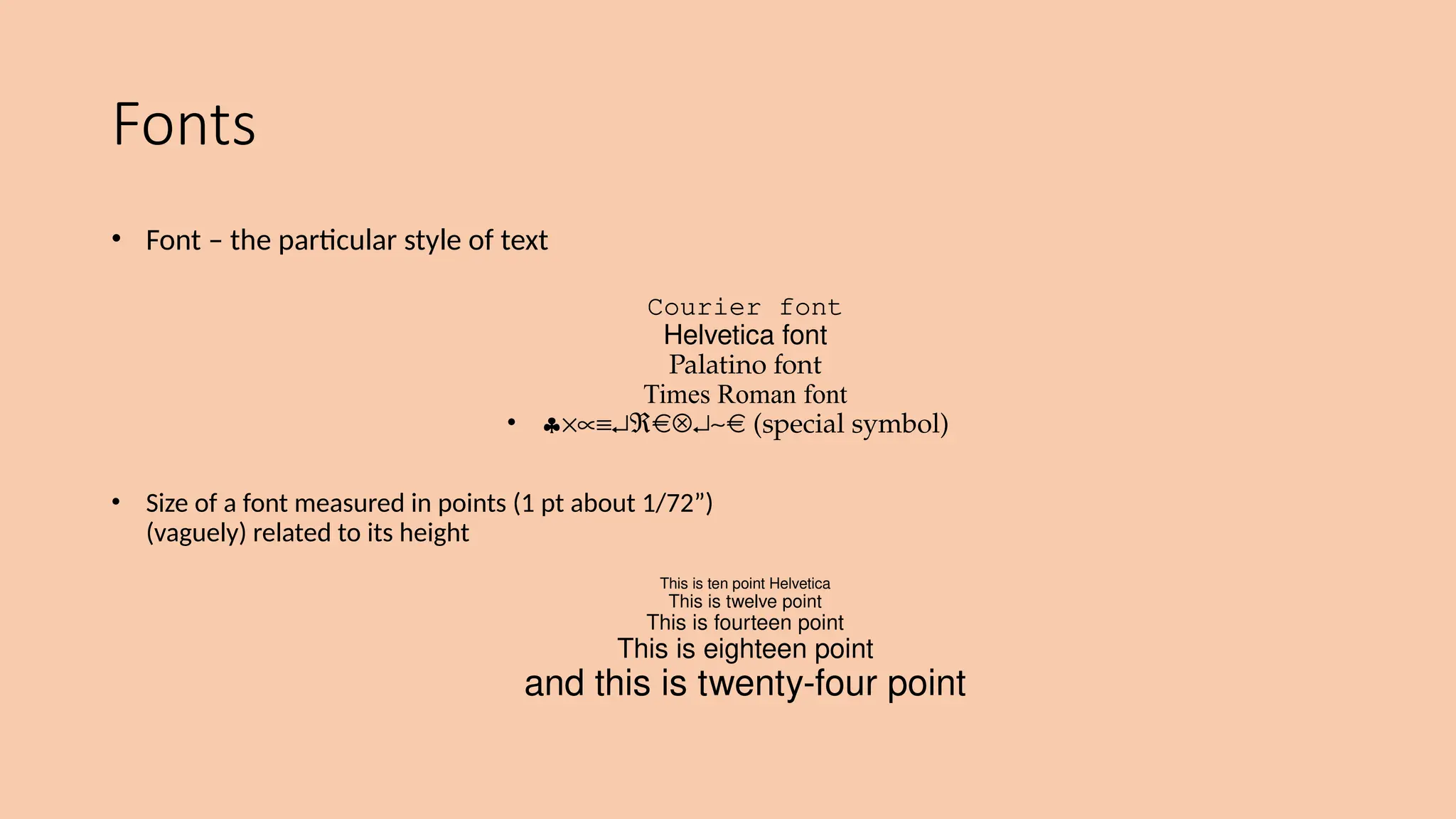
Fonts
• Font – the particular style of text
Courier font
Helvetica font
Palatino font
Times Roman font
• §´µº¿Â Ä¿~ (special symbol)
• Size of a font measured in points (1 pt about 1/72”)
(vaguely) related to its height
This is ten point Helvetica
This is twelve point
This is fourteen point
This is eighteen point
and this is twenty-four point
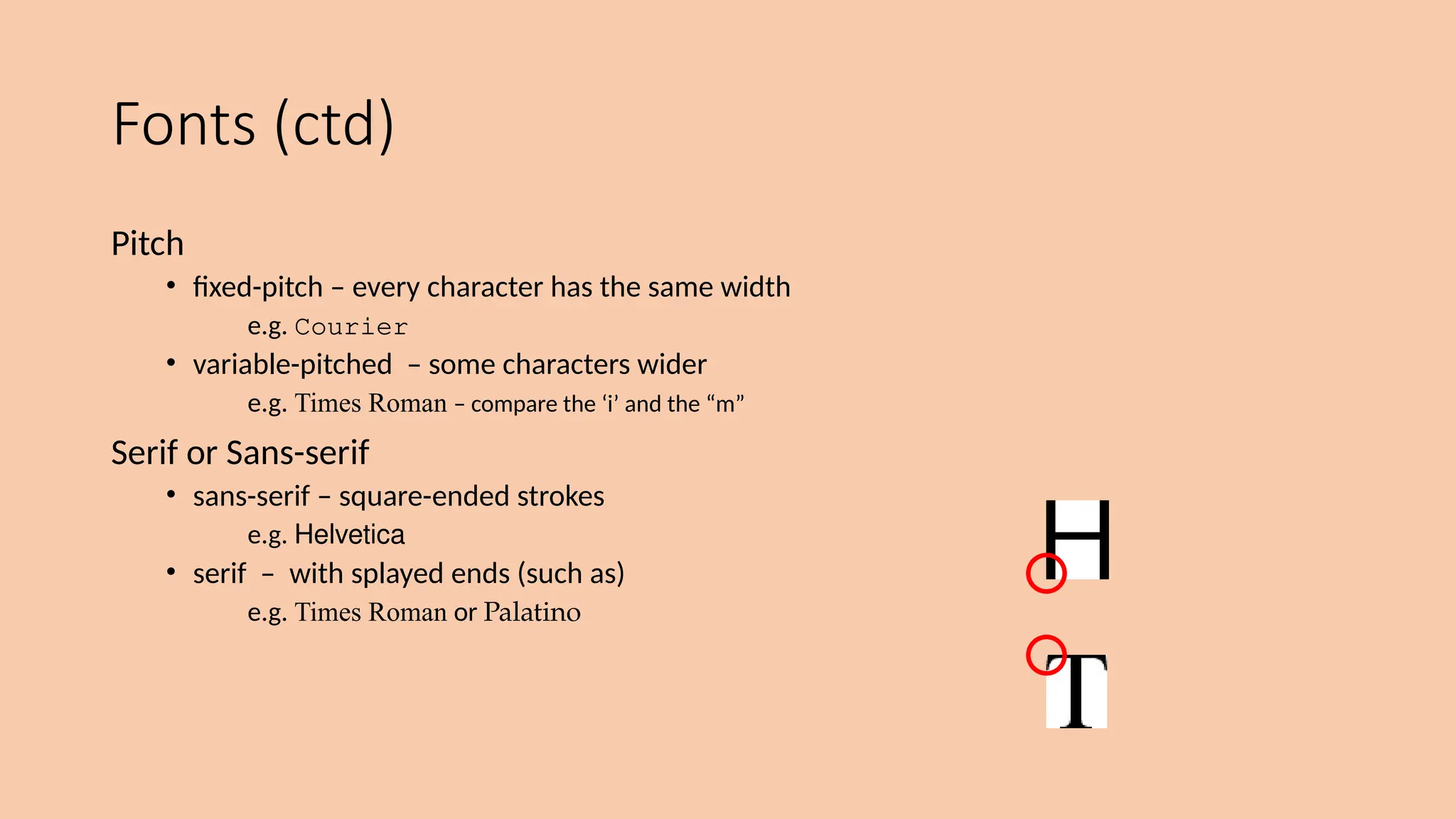
Fonts (ctd)
Pitch
• fixed-pitch – every character has the same width
e.g. Courier
• variable-pitched – some characters wider
e.g. Times Roman – compare the ‘i’ and the “m”
Serif or Sans-serif
• sans-serif – square-ended strokes
e.g. Helvetica
• serif – with splayed ends (such as)
e.g. Times Roman or Palatino
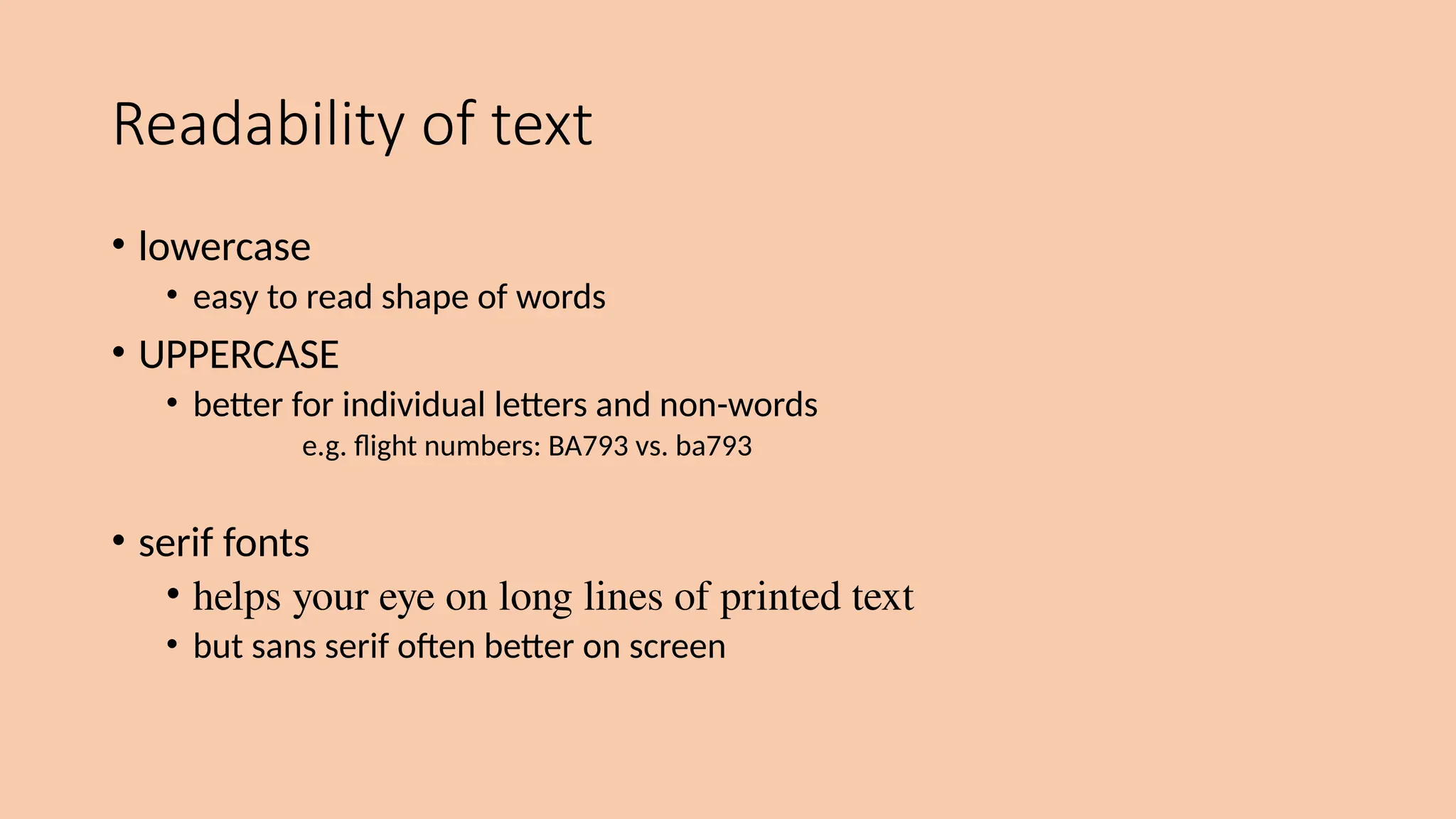
Readability of text
• lowercase
• easy to read shape of words
• UPPERCASE
• better for individual letters and non-words
e.g. flight numbers: BA793 vs. ba793
• serif fonts
• helps your eye on long lines of printed text
• but sans serif often better on screen
Page Description Languages
• Pages very complex
• different fonts, bitmaps, lines, digitised photos, etc.
• Can convert it all into a bitmap and send to the printer
… but often huge !
• Alternatively Use a page description language
• sends a description of the page can be sent,
• instructions for curves, lines, text in different styles, etc.
• like a programming language for printing!
• PostScript is the most common
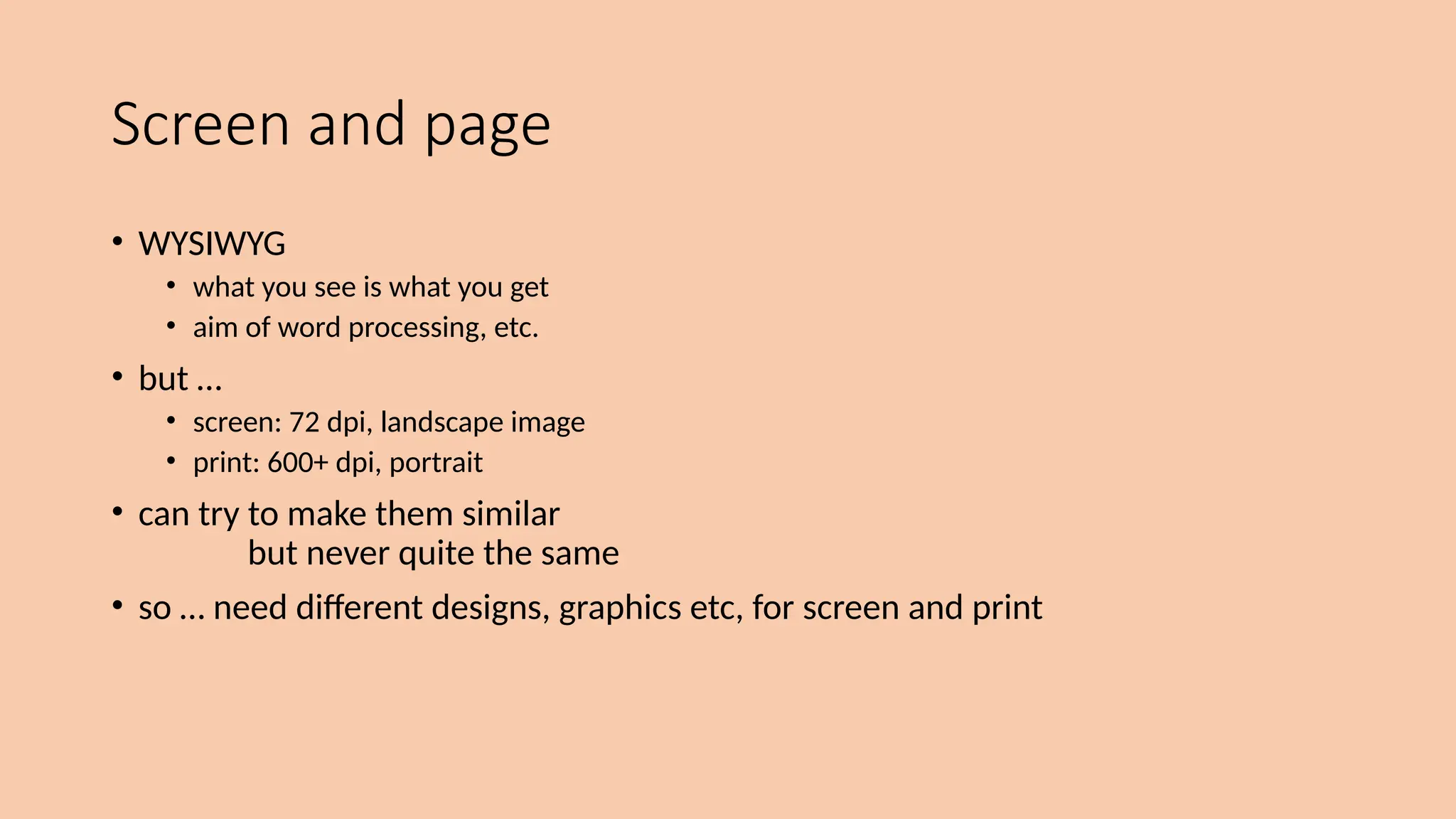
Screen and page
• WYSIWYG
• what you see is what you get
• aim of word processing, etc.
• but …
• screen: 72 dpi, landscape image
• print: 600+ dpi, portrait
• can try to make them similar
but never quite the same
• so … need different designs, graphics etc, for screen and print
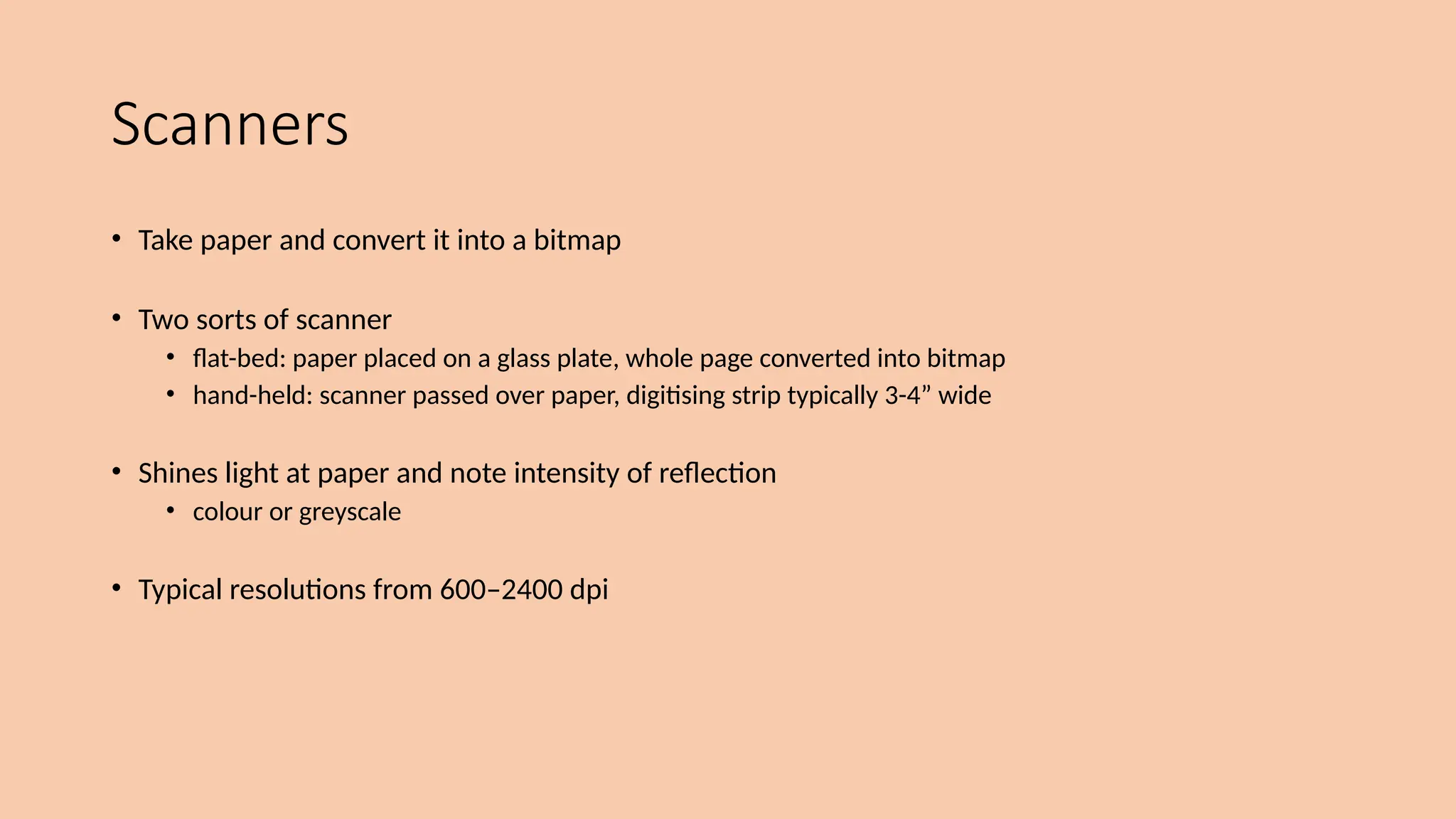
Scanners
• Take paper and convert it into a bitmap
• Two sorts of scanner
• flat-bed: paper placed on a glass plate, whole page converted into bitmap
• hand-held: scanner passed over paper, digitising strip typically 3-4” wide
• Shines light at paper and note intensity of reflection
• colour or greyscale
• Typical resolutions from 600–2400 dpi
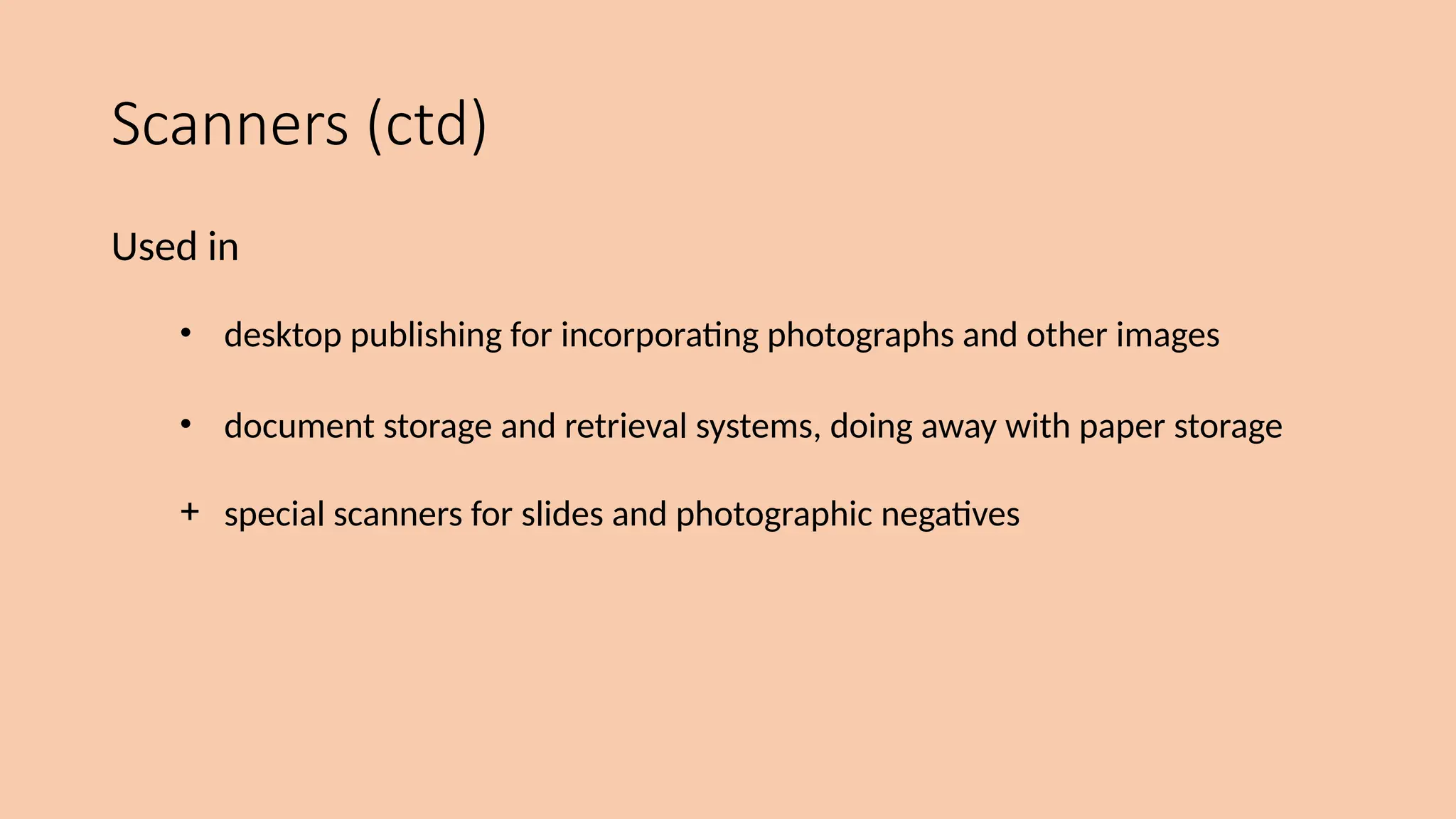
Scanners (ctd)
Used in
• desktop publishing for incorporating photographs and other images
• document storage and retrieval systems, doing away with paper storage
+ special scanners for slides and photographic negatives
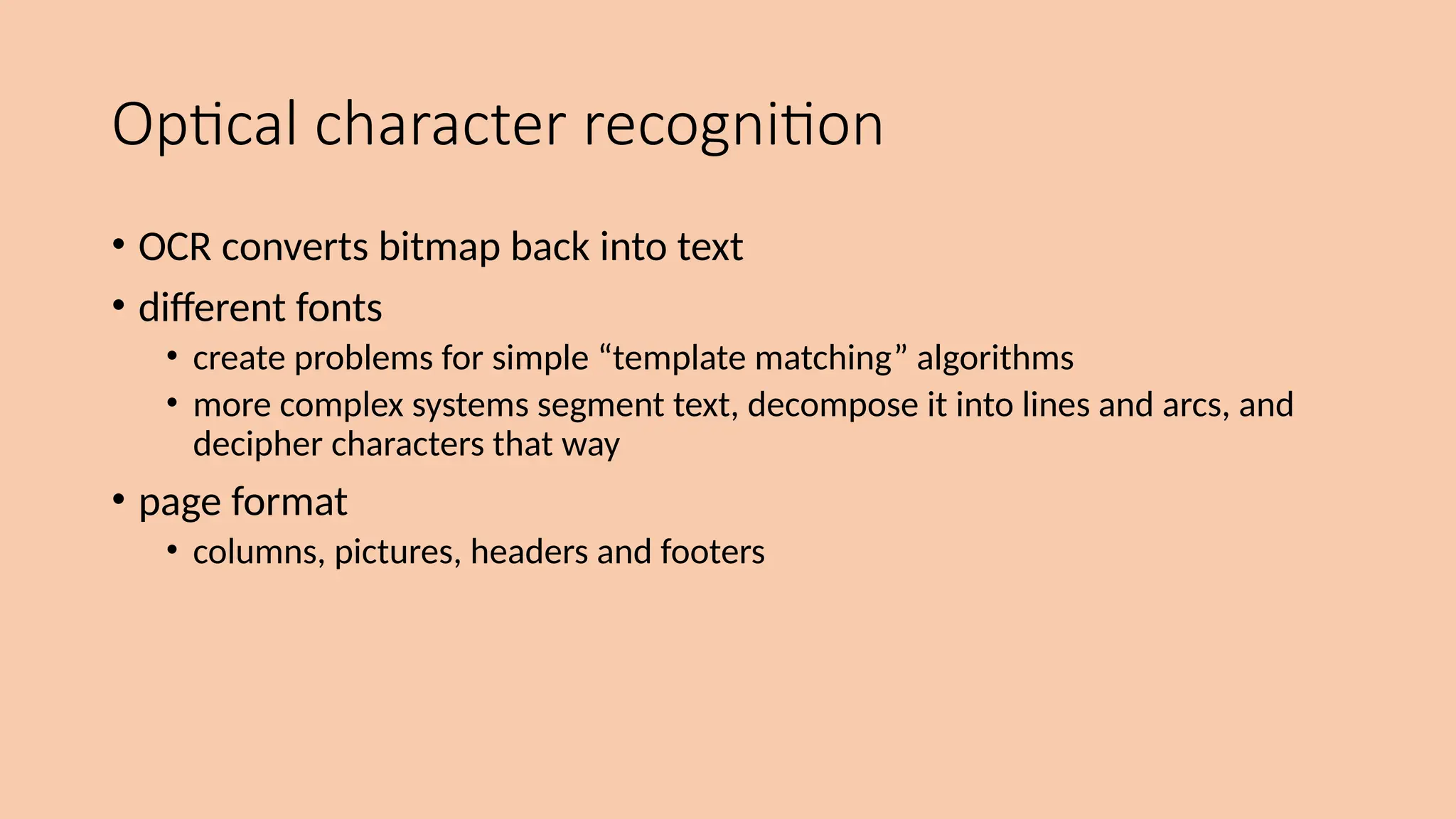
Optical character recognition
• OCR converts bitmap back into text
• different fonts
• create problems for simple “template matching” algorithms
• more complex systems segment text, decompose it into lines and arcs, and
decipher characters that way
• page format
• columns, pictures, headers and footers
Paper-based interaction
• paper usually regarded as output only
• can be input too – OCR, scanning, etc.
• Xerox PaperWorks
• glyphs – small patterns of ///
• used to identify forms etc.
• used with scanner and fax to control applications
• more recently
• papers micro printed - like wattermarks
• identify which sheet and where you are
• special ‘pen’ can read locations
• know where they are writing
Human computer interaction for BT CSEECH

  • 1.
    Human Computer Interaction UNIT– I: HCI Foundations
  • 2.
    Syllabus Introduction, Input–output channels,Human memory Thinking: reasoning and problem solving, Emotion, Individual differences, Psychology and the design of interactive systems, Text entry devices, Positioning, pointing and drawing, Display devices, Devices for virtual reality and 3D interaction, Physical controls, sensors and special devices, Paper: printing and scanning.
  • 3.
    Introduction • What isHuman-computer interaction ? • Human-computer interaction (HCI) is a multidisciplinary field of study focusing on the design of computer technology and, in particular, the interaction between humans (the users) and computers. • While initially concerned with computers, HCI has since expanded to cover almost all forms of information technology design.
  • 4.
  • 5.
    HCI • What happenswhen a human and a computer system interact to perform a task? • Task - write document, explore the web, solve mathematic problem, search for knowledge , drive home, book movie tickets, do banking, ... • Why is this important? 1. Computer systems affect every person 2. Safety, satisfaction, utility is critical 3. Product success depends on ease of use
  • 6.
    Interfaces in theReal World •Not just computers! • Media player • Wristwatch • Phone • Copier • Car • Plane cockpit • Airline reservation • Air traffic control
  • 7.
    Introduction • User • By"user", we may mean an individual user, a group of users working together. An appreciation of the way people's sensory systems (sight, hearing, touch) relay information is vital.
  • 8.
    Introduction • Computer • Whenwe talk about the computer, we're referring to any technology ranging from desktop computers, to large scale computer systems. • Interaction • By interaction we mean any communication between a user and computer, be it direct or indirect. • Direct interaction - involves a dialog with feedback and control throughout performance of the task. • Indirect interaction - involves batch processing or intelligent sensors controlling the environment
  • 9.
  • 10.
  • 11.
    the human • Informationi/o … • visual, auditory, haptic, movement • Information stored in memory • sensory, short-term, long-term • Information processed and applied • reasoning, problem solving, skill, error • Emotion influences human capabilities • Each person is different
  • 12.
    Vision Two stages invision • physical reception of stimulus • processing and interpretation of stimulus
  • 13.
    The Eye- physicalreception • mechanism for receiving light and transforming it into electrical energy • light reflects from objects • images are focused upside-down on retina • retina contains rods for low light vision and cones for colour vision • ganglion cells (brain!) detect pattern and movement
  • 14.
  • 15.
    Interpreting the signal •Sizeand depth • visual angle indicates how much of view object occupies (relates to size and distance from eye) • visual acuity is ability to perceive detail (limited) • familiar objects perceived as constant size (in spite of changes in visual angle when far away) • cues like overlapping help perception of size and depth
  • 16.
    Interpreting the signal(cont) • Brightness • subjective reaction to levels of light • affected by luminance of object • measured by just noticeable difference • visual acuity increases with luminance as does flicker • Colour • made up of hue, intensity, saturation • cones sensitive to colour wavelengths • blue acuity is lowest • 8% males and 1% females colour blind
  • 17.
    Interpreting the signal(cont) • The visual system compensates for: • movement • changes in luminance. • Context is used to resolve ambiguity • Optical illusions sometimes occur due to over compensation
  • 18.
  • 19.
    Optical Illusions the Ponzoillusion the Muller Lyer illusion
  • 20.
    Reading • Several stages: •visual pattern perceived • decoded using internal representation of language • interpreted using knowledge of syntax, semantics, pragmatics • Reading involves saccades and fixations • Perception occurs during fixations • Word shape is important to recognition • Negative contrast improves reading from computer screen
  • 21.
  • 22.
    Hearing • Provides informationabout environment: distances, directions, objects etc. • Physical apparatus: • outer ear – protects inner and amplifies sound • middle ear – transmits sound waves as vibrations to inner ear • inner ear – chemical transmitters are released and cause impulses in auditory nerve • Sound • pitch – sound frequency • loudness – amplitude • timbre– type or quality
  • 23.
    Hearing (cont) • Humanscan hear frequencies from 20Hz to 15kHz • less accurate distinguishing high frequencies than low. • Auditory system filters sounds • can attend to sounds over background noise. • for example, the cocktail party phenomenon.
  • 24.
    Touch • Provides importantfeedback about environment. • May be key sense for someone who is visually impaired. • Stimulus received via receptors in the skin: • thermoreceptors – heat and cold • nociceptors – pain • mechanoreceptors – pressure (some instant, some continuous) • Some areas more sensitive than others e.g. fingers. • Kinethesis - awareness of body position • affects comfort and performance.
  • 25.
    Movement • Time takento respond to stimulus: reaction time + movement time • Movement time dependent on age, fitness etc. • Reaction time - dependent on stimulus type: • visual ~ 200ms • auditory ~ 150 ms • pain ~ 700ms • Increasing reaction time decreases accuracy in the unskilled operator but not in the skilled operator.
  • 26.
    Movement (cont) • Fitts'Law describes the time taken to hit a screen target: Mt = a + b log2(D/S + 1) where:a and b are empirically determined constants Mt is movement time D is Distance S is Size of target Þtargets as large as possible Þdistances as small as possible
  • 27.
    Human Memory There arethree types of memory function: Sensory memories Short-term memory or working memory Long-term memory Selection of stimuli governed by level of arousal.
  • 28.
    sensory memory •Buffers forstimuli received through senses • iconic memory: visual stimuli • echoic memory: aural stimuli • haptic memory: tactile stimuli •Examples • “sparkler” trail • stereo sound •Continuously overwritten
  • 29.
    Short-term memory (STM) •Scratch-padfor temporary recall • rapid access ~ 70ms • rapid decay ~ 200ms • limited capacity - 7± 2 chunks
  • 30.
  • 31.
  • 32.
    Long-term memory (LTM) •Repository for all our knowledge • slow access ~ 1/10 second • slow decay, if any • huge or unlimited capacity • Two types • episodic – serial memory of events • semantic – structured memory of facts, concepts, skills semantic LTM derived from episodic LTM
  • 33.
    Long-term memory (cont.) •Semantic memory structure • provides access to information • represents relationships between bits of information • supports inference • Model: semantic network • inheritance – child nodes inherit properties of parent nodes • relationships between bits of information explicit • supports inference through inheritance
  • 34.
  • 35.
    Models of LTM-Frames • Information organized in data structures • Slots in structure instantiated with values for instance of data • Type–subtype relationships DOG Fixed legs: 4 Default diet: carniverous sound: bark Variable size: colour COLLIE Fixed breed of: DOG type: sheepdog Default size: 65 cm Variable colour
  • 36.
    Models of LTM-Scripts Model of stereotypical information required to interpret situation Script has elements that can be instantiated with values for context Script for a visit to the vet Entry conditions: dog ill vet open owner has money Result: dog better owner poorer vet richer Props: examination table medicine instruments Roles: vet examines diagnoses treats owner brings dog in pays takes dog out Scenes: arriving at reception waiting in room examination paying Tracks: dog needs medicine dog needs operation
  • 37.
    Models of LTM-Production rules Representation of procedural knowledge. Condition/action rules if condition is matched then use rule to determine action. IF dog is wagging tail THEN pat dog IF dog is growling THEN run away
  • 38.
    LTM- Storage ofinformation • rehearsal • information moves from STM to LTM • total time hypothesis • amount retained proportional to rehearsal time • distribution of practice effect • optimized by spreading learning over time • structure, meaning and familiarity • information easier to remember
  • 39.
    LTM- Forgetting decay • informationis lost gradually but very slowly interference • new information replaces old: retroactive interference • old may interfere with new: proactive inhibition so may not forget at all memory is selective … … affected by emotion – can subconsciously `choose' to forget
  • 40.
    LTM- retrieval recall • informationreproduced from memory can be assisted by cues, e.g. categories, imagery recognition • information gives knowledge that it has been seen before • less complex than recall - information is cue
  • 41.
  • 42.
    Deductive Reasoning • Deduction: •derive logically necessary conclusion from given premises. e.g. If it is Friday then she will go to work It is Friday Therefore she will go to work. • Logical conclusion not necessarily true: e.g. If it is raining then the ground is dry It is raining Therefore the ground is dry
  • 43.
    Deduction (cont.) • Whentruth and logical validity clash … e.g. Some people are babies Some babies cry Inference - Some people cry Correct? • People bring world knowledge to bear
  • 44.
    Inductive Reasoning • Induction: •generalize from cases seen to cases unseen e.g. all elephants we have seen have trunks therefore all elephants have trunks. • Unreliable: • can only prove false not true … but useful! • Humans not good at using negative evidence e.g. Wason's cards.
  • 45.
    Wason's cards Is thistrue? How many cards do you need to turn over to find out? …. and which cards? If a card has a vowel on one side it has an even number on the other 7 E 4 K
  • 46.
    Abductive reasoning • reasoningfrom event to cause e.g. Sam drives fast when drunk. If I see Sam driving fast, assume drunk. • Unreliable: • can lead to false explanations
  • 47.
    Problem solving • Processof finding solution to unfamiliar task using knowledge. • Several theories. • Gestalt • problem solving both productive and reproductive • productive draws on insight and restructuring of problem • attractive but not enough evidence to explain `insight' etc. • move away from behaviourism and led towards information processing theories
  • 48.
    Problem solving (cont.) Problemspace theory • problem space comprises problem states • problem solving involves generating states using legal operators • heuristics may be employed to select operators e.g. means-ends analysis • operates within human information processing system e.g. STM limits etc. • largely applied to problem solving in well-defined areas e.g. puzzles rather than knowledge intensive areas
  • 49.
    Problem solving (cont.) •Analogy • analogical mapping: • novel problems in new domain? • use knowledge of similar problem from similar domain • analogical mapping difficult if domains are semantically different • Skill acquisition • skilled activity characterized by chunking • lot of information is chunked to optimize STM • conceptual rather than superficial grouping of problems • information is structured more effectively
  • 50.
    Errors and mentalmodels Types of error • slips • right intention, but failed to do it right • causes: poor physical skill,inattention etc. • change to aspect of skilled behaviour can cause slip • mistakes • wrong intention • cause: incorrect understanding humans create mental models to explain behaviour. if wrong (different from actual system) errors can occur
  • 51.
    Emotions • The biologicalresponse to physical stimuli is called affect • Positive emotions - enable us to think more creatively, to solve complex problems • Negative emotions - pushes us into narrow, focussed thinking • Emotion clearly involves both cognitive and physical responses to stimuli
  • 52.
    Emotion- Theories • James–Langetheory: emotion was the interpretation of a physiological response • Cannon: emotion is a psychological response to a stimuli • Schacter-Singer: emotion is the result of our evaluation of our physiological responses, in the light of the whole situation we are in
  • 53.
    Emotion- Interface Design •Implications for interface design • stress will increase the difficulty of problem solving • relaxed users will be more forgiving of shortcomings in design • aesthetically pleasing and rewarding interfaces will increase positive affect
  • 54.
    Individual differences • longterm – gender, physical and intellectual abilities • short term – effect of stress or fatigue • changing – age Ask yourself: will design decision exclude section of user population?
  • 55.
    Psychology and theDesign of Interactive System • The intersection of psychology and the design of interactive systems is a crucial aspect of creating user- friendly and effective interfaces. • This interdisciplinary field, often referred to as human- computer interaction (HCI) or user experience (UX) design • focuses on understanding how users interact with technology • how to design systems that meet their needs, • preferences, and • cognitive abilities.
  • 63.
    Psychology and theDesign of Interactive System • Some direct applications e.g. blue acuity is poor  blue should not be used for important detail • However, correct application generally requires understanding of context in psychology, and an understanding of particular experimental conditions • A lot of knowledge has been distilled in • guidelines - general design principles and guidelines can be and have been derived from the theories • cognitive models - specific model of human problem solving, others of physical activity, and attempt a more comprehensive view of cognition. • experimental and analytic evaluation techniques
  • 64.
    Psychology and theDesign of Interactive System 1.User-Centered Design (UCD): UCD is a fundamental approach that involves designing products and systems with the end user in mind. It emphasizes involving users in the design process through activities such as user research, persona development, and usability testing. 2. Cognitive Psychology Principles: • Memory: Consider limitations in short-term and long-term memory. Use strategies like chunking, repetition, and clear information architecture to enhance memory retention. • Attention: Understand how attention works and design interfaces that guide users' attention effectively. Minimize distractions and prioritize important information.
  • 65.
    Psychology and theDesign of Interactive System 3. Perception and Sensation: • Visual Hierarchy: Utilize visual elements to guide users' focus on important information. Use color, contrast, and size to create a clear visual hierarchy. • Feedback: Provide immediate and informative feedback to users when they interact with the system. This helps users understand the consequences of their actions. 4. Human Error and Error Recovery: • Prevent Errors: Design systems that minimize the likelihood of errors through clear instructions, intuitive interfaces, and affordances. • Error Messages: If errors occur, provide user-friendly error messages that guide users on how to recover from mistakes.
  • 66.
    Psychology and theDesign of Interactive System 5. User Feedback and Usability Testing: • Usability Testing: Regularly test prototypes and final products with real users to identify usability issues and gather feedback for improvements. • Iterative Design: Use an iterative design process, incorporating user feedback to refine and enhance the user experience over time. 6. Emotional Design: • Aesthetics: Consider the emotional impact of the design. Visual appeal, aesthetics, and emotional engagement can significantly impact user satisfaction and overall experience.
  • 67.
    Psychology and theDesign of Interactive System 7. Accessibility and Inclusivity: • Universal Design: Design interfaces that are accessible to a diverse range of users, including those with disabilities. Consider factors such as color contrast, font size, and alternative navigation methods. 8. Social Psychology: • Collaboration and Communication: Understand how users interact socially and design systems that facilitate collaboration and effective communication. 9. Adaptability and Flexibility: • User Preferences: Allow users to customize and personalize their experience whenever possible. Consider different user preferences and adapt the interface accordingly.
  • 68.
    Text Entry Devices keyboards(QWERTY et al.) chord keyboards, phone pads handwriting, speech
  • 69.
    Keyboards • Most commontext input device • Allows rapid entry of text by experienced users • Keypress closes connection, causing a character code to be sent • Usually connected by cable, but can be wireless
  • 70.
    layout – QWERTY •Standardised layout but … • non-alphanumeric keys are placed differently • accented symbols needed for different scripts • minor differences between UK and USA keyboards • QWERTY arrangement not optimal for typing – layout to prevent typewriters jamming! • Alternative designs allow faster typing but large social base of QWERTY typists produces reluctance to change
  • 71.
    alternative keyboard layouts Alphabetic •keys arranged in alphabetic order • not faster for trained typists • not faster for beginners either! Dvorak • common letters under dominant fingers • biased towards right hand • common combinations of letters alternate between hands • 10-15% improvement in speed and reduction in fatigue • But - large social base of QWERTY typists produce market pressures not to change
  • 72.
    special keyboards • designsto reduce fatigue for RSI • for one handed use e.g. the Maltron left-handed keyboard
  • 73.
    Chord keyboards only afew keys - four or 5 letters typed as combination of keypresses compact size – ideal for portable applications short learning time – keypresses reflect letter shape fast – once you have trained BUT - social resistance, plus fatigue after extended use NEW – niche market for some wearables
  • 74.
    phone pad andT9 entry • use numeric keys with multiple presses 2 – a b c 6 - m n o 3 - d e f 7 - p q r s 4 - g h i 8 - t u v 5 - j k l 9 - w x y z hello = 4433555[pause]555666 surprisingly fast! • T9 predictive entry • type as if single key for each letter • use dictionary to ‘guess’ the right word • hello = 43556 … • but 26 -> menu ‘am’ or ‘an’
  • 75.
    Handwriting recognition • Textcan be input into the computer, using a pen and a digesting tablet • natural interaction • Technical problems: • capturing all useful information - stroke path, pressure, etc. in a natural manner • segmenting joined up writing into individual letters • interpreting individual letters • coping with different styles of handwriting • Used in PDAs, and tablet computers … … leave the keyboard on the desk!
  • 76.
    Speech recognition • Improvingrapidly • Most successful when: • single user – initial training and learns peculiarities • limited vocabulary systems • Problems with • external noise interfering • imprecision of pronunciation • large vocabularies • different speakers
  • 77.
    Numeric keypads • forentering numbers quickly: • calculator, PC keyboard • for telephones not the same!! ATM like phone 4 5 6 7 8 9 * 0 # 1 2 3 4 5 6 1 2 3 0 . = 7 8 9 telephone calculator
  • 78.
    Positioning, Pointing AndDrawing mouse, touchpad trackballs, joysticks etc. touch screens, tablets eyegaze, cursors
  • 79.
    the Mouse • Handheldpointing device • very common • easy to use • Two characteristics • planar movement • buttons (usually from 1 to 3 buttons on top, used for making a selection, indicating an option, or to initiate drawing etc.)
  • 80.
    the mouse (ctd) Mouselocated on desktop • requires physical space • no arm fatigue Relative movement only is detectable. Movement of mouse moves screen cursor Screen cursor oriented in (x, y) plane, mouse movement in (x, z) plane … … an indirect manipulation device. • device itself doesn’t obscure screen, is accurate and fast. • hand-eye coordination problems for novice users
  • 81.
    How does itwork? Two methods for detecting motion • Mechanical • Ball on underside of mouse turns as mouse is moved • Rotates orthogonal potentiometers • Can be used on almost any flat surface • Optical • light emitting diode on underside of mouse • may use special grid-like pad or just on desk • less susceptible to dust and dirt • detects fluctuating alterations in reflected light intensity to calculate relative motion in (x, z) plane
  • 82.
    Even by foot… • some experiments with the footmouse • controlling mouse movement with feet … • not very common :-) • but foot controls are common elsewhere: • car pedals • sewing machine speed control • organ and piano pedals
  • 83.
    Touchpad • small touchsensitive tablets • ‘stroke’ to move mouse pointer • used mainly in laptop computers • good ‘acceleration’ settings important • fast stroke • lots of pixels per inch moved • initial movement to the target • slow stroke • less pixels per inch • for accurate positioning
  • 84.
    Trackball and thumbwheels Trackball •ball is rotated inside static housing • like an upsdie down mouse! • relative motion moves cursor • indirect device, fairly accurate • separate buttons for picking • very fast for gaming • used in some portable and notebook computers. Thumbwheels … • for accurate CAD – two dials for X-Y cursor position • for fast scrolling – single dial on mouse
  • 85.
    Joystick and keyboardnipple Joystick • indirect pressure of stick = velocity of movement • buttons for selection on top or on front like a trigger • often used for computer games aircraft controls and 3D navigation Keyboard nipple • for laptop computers • miniature joystick in the middle of the keyboard
  • 86.
    Touch-sensitive screen • Detectthe presence of finger or stylus on the screen. • works by interrupting matrix of light beams, capacitance changes or ultrasonic reflections • direct pointing device • Advantages: • fast, and requires no specialised pointer • good for menu selection • suitable for use in hostile environment: clean and safe from damage. • Disadvantages: • finger can mark screen • imprecise (finger is a fairly blunt instrument!) • difficult to select small regions or perform accurate drawing • lifting arm can be tiring
  • 87.
    Stylus and lightpen Stylus • small pen-like pointer to draw directly on screen • may use touch sensitive surface or magnetic detection • used in PDA, tablets PCs and drawing tables Light Pen • now rarely used • uses light from screen to detect location BOTH … • very direct and obvious to use • but can obscure screen
  • 88.
    Digitizing tablet • Mouselike-device with cross hairs • used on special surface - rather like stylus • very accurate - used for digitizing maps
  • 89.
    Eyegaze • control interfaceby eye gaze direction • e.g. look at a menu item to select it • uses laser beam reflected off retina • … a very low power laser! • mainly used for evaluation (ch x) • potential for hands-free control • high accuracy requires headset • cheaper and lower accuracy devices available sit under the screen like a small webcam
  • 90.
    Cursor keys • Fourkeys (up, down, left, right) on keyboard. • Very, very cheap, but slow. • Useful for not much more than basic motion for text-editing tasks. • No standardised layout, but inverted “T”, most common
  • 91.
    Discrete positioning controls •in phones, TV controls etc. • cursor pads or mini-joysticks • discrete left-right, up-down • mainly for menu selection
  • 92.
    Display devices bitmap screens(CRT & LCD) large & situated displays digital paper
  • 93.
    bitmap displays • screenis vast number of coloured dots
  • 94.
    resolution and colourdepth • Resolution … used (inconsistently) for • number of pixels on screen (width x height) • e.g. SVGA 1024 x 768, PDA perhaps 240x400 • density of pixels (in pixels or dots per inch - dpi) • typically between 72 and 96 dpi • Aspect ratio • ration between width and height • 4:3 for most screens, 16:9 for wide-screen TV • Colour depth: • how many different colours for each pixel? • black/white or greys only • 256 from a pallete • 8 bits each for red/green/blue = millions of colours
  • 95.
    anti-aliasing Jaggies • diagonal linesthat have discontinuities in due to horizontal raster scan process. Anti-aliasing • softens edges by using shades of line colour • also used for text
  • 96.
    Cathode ray tube •Stream of electrons emitted from electron gun, focused and directed by magnetic fields, hit phosphor-coated screen which glows • used in TVs and computer monitors
  • 97.
    Health hazards ofCRT ! • X-rays: largely absorbed by screen (but not at rear!) • UV- and IR-radiation from phosphors: insignificant levels • Radio frequency emissions, plus ultrasound (~16kHz) • Electrostatic field - leaks out through tube to user. Intensity dependant on distance and humidity. Can cause rashes. • Electromagnetic fields (50Hz-0.5MHz). Create induction currents in conductive materials, including the human body. Two types of effects attributed to this: visual system - high incidence of cataracts in VDU operators, and concern over reproductive disorders (miscarriages and birth defects).
  • 98.
    Health hints … •do not sit too close to the screen • do not use very small fonts • do not look at the screen for long periods without a break • do not place the screen directly in front of a bright window • work in well-lit surroundings Take extra care if pregnant. but also posture, ergonomics, stress
  • 99.
    Liquid crystal displays •Smaller, lighter, and … no radiation problems. • Found on PDAs, portables and notebooks, … and increasingly on desktop and even for home TV • also used in dedicted displays: digital watches, mobile phones, HiFi controls • How it works … • Top plate transparent and polarised, bottom plate reflecting. • Light passes through top plate and crystal, and reflects back to eye. • Voltage applied to crystal changes polarisation and hence colour • N.B. light reflected not emitted => less eye strain
  • 100.
    special displays Random Scan(Directed-beam refresh, vector display) • draw the lines to be displayed directly • no jaggies • lines need to be constantly redrawn • rarely used except in special instruments Direct view storage tube (DVST) • Similar to random scan but persistent => no flicker • Can be incrementally updated but not selectively erased • Used in analogue storage oscilloscopes
  • 101.
    large displays • usedfor meetings, lectures, etc. • technology plasma – usually wide screen video walls – lots of small screens together projected – RGB lights or LCD projector – hand/body obscures screen – may be solved by 2 projectors + clever software back-projected – frosted glass + projector behind
  • 102.
    situated displays • displaysin ‘public’ places • large or small • very public or for small group • display only • for information relevant to location • or interactive • use stylus, touch sensitive screem • in all cases … the location matters • meaning of information or interaction is related to the location
  • 103.
    • small displaysbeside office doors • handwritten notes left using stylus • office owner reads notes using web interface Hermes a situated display small displays beside office doors handwritten notes left using stylus office owner reads notes using web interface
  • 104.
    Digital paper • what? •thin flexible sheets • updated electronically • but retain display • how? • small spheres turned • or channels with coloured liquid and contrasting spheres • rapidly developing area appearance cross section
  • 105.
    Devices for virtualreality and 3D interaction positioning in 3D space moving and grasping seeing 3D (helmets and caves)
  • 106.
    positioning in 3Dspace • cockpit and virtual controls • steering wheels, knobs and dials … just like real! • the 3D mouse • six-degrees of movement: x, y, z + roll, pitch, yaw • data glove • fibre optics used to detect finger position • VR helmets • detect head motion and possibly eye gaze • whole body tracking • accelerometers strapped to limbs or reflective dots and video processing
  • 107.
    pitch, yaw androll pitch yaw roll
  • 108.
    Devices for virtualreality and 3d interaction • VR Headsets: • Oculus Rift S: A PC-based VR headset developed by Oculus (a subsidiary of Meta, formerly Facebook). • HTC Vive: A VR system developed by HTC and Valve Corporation, known for its room-scale tracking capabilities. • PlayStation VR: Designed for use with the PlayStation 4 and PlayStation 5 gaming consoles.
  • 109.
    Devices for virtualreality and 3d interaction • Motion Controllers: • Oculus Touch: Handheld controllers designed for use with Oculus Rift and Rift S, providing hand presence in VR. • HTC Vive Controllers: Handheld controllers with positional tracking for precise 3D interaction in virtual environments. • PlayStation Move Controllers: Motion controllers used with PlayStation VR for tracking hand movements.
  • 110.
    Devices for virtualreality and 3d interaction • VR Gloves: • Valve Index Controllers: Also known as "Knuckles," these controllers are designed to provide natural hand presence and finger tracking in VR. • Manus VR Gloves: Gloves that offer finger tracking and haptic feedback for a more immersive hand interaction in virtual spaces.
  • 111.
    Devices for virtualreality and 3d interaction • VR Cameras: • 360-Degree Cameras: Devices like the Insta360 and GoPro MAX capture immersive 360- degree video for VR experiences.
  • 112.
    • Haptic FeedbackDevices: • Haptic Gloves: Devices like HaptX Gloves provide tactile feedback, allowing users to feel objects in virtual environments. • Haptic Vests: Devices such as the bHaptics Tactsuit provide haptic feedback across the user's body for a more immersive experience. Devices for virtual reality and 3d interaction
  • 113.
    Devices for virtualreality and 3d interaction • Eye-Tracking Technology: • Tobii Eye Trackers: Integrated into some VR headsets, these devices track users' eye movements, enabling foveated rendering and more realistic interactions.
  • 114.
    Devices for virtualreality and 3d interaction • VR Treadmills and Locomotion Devices: • Virtuix Omni: A treadmill that allows users to walk, run, and jump in virtual environments. • 3D Rudder: A foot-based motion controller for seated VR experiences, offering a hands-free way to navigate.
  • 115.
    Devices for virtualreality and 3d interaction • Augmented Reality (AR) Devices: • Microsoft HoloLens: An AR headset that overlays digital content on the real world, enabling mixed reality experiences. • Magic Leap One: Another AR headset designed to blend digital content with the user's physical surroundings.
  • 116.
    Devices for virtualreality and 3d interaction • 3D Scanners: • Structure Sensor: A 3D sensor that attaches to mobile devices (such as iPads) for scanning real-world objects and environments.
  • 117.
    physical controls, sensorsetc. special displays and gauges sound, touch, feel, smell physical controls environmental and bio-sensing
  • 118.
    dedicated displays • analoguerepresentations: • dials, gauges, lights, etc. • digital displays: • small LCD screens, LED lights, etc. • head-up displays • found in aircraft cockpits • show most important controls … depending on context
  • 119.
    Sounds • beeps, bongs,clonks, whistles and whirrs • used for error indications • confirmation of actions e.g. keyclick also see chapter 10
  • 120.
    Touch, feel, smell •touch and feeling important • in games … vibration, force feedback • in simulation … feel of surgical instruments • called haptic devices • texture, smell, taste • current technology very limited
  • 121.
    BMW iDrive • forcontrolling menus • feel small ‘bumps’ for each item • makes it easier to select options by feel • uses haptic technology from Immersion Corp.
  • 122.
    physical controls • specialistcontrols needed … • industrial controls, consumer products, etc. large buttons clear dials tiny buttons multi-function control easy-clean smooth buttons
  • 123.
    Environment and bio-sensing •sensors all around us • car courtesy light – small switch on door • ultrasound detectors – security, washbasins • RFID security tags in shops • temperature, weight, location • … and even our own bodies … • iris scanners, body temperature, heart rate, galvanic skin response, blink rate
  • 124.
    paper: printing andscanning print technology fonts, page description, WYSIWYG scanning, OCR
  • 125.
    Printing • image madefrom small dots • allows any character set or graphic to be printed, • critical features: • resolution • size and spacing of the dots • measured in dots per inch (dpi) • speed • usually measured in pages per minute • cost!!
  • 126.
    Types of dot-basedprinters • dot-matrix printers • use inked ribbon (like a typewriter • line of pins that can strike the ribbon, dotting the paper. • typical resolution 80-120 dpi • ink-jet and bubble-jet printers • tiny blobs of ink sent from print head to paper • typically 300 dpi or better . • laser printer • like photocopier: dots of electrostatic charge deposited on drum, which picks up toner (black powder form of ink) rolled onto paper which is then fixed with heat • typically 600 dpi or better.
  • 127.
    Printing in theworkplace • shop tills • dot matrix • same print head used for several paper rolls • may also print cheques • thermal printers • special heat-sensitive paper • paper heated by pins makes a dot • poor quality, but simple & low maintenance • used in some fax machines
  • 128.
    Fonts • Font –the particular style of text Courier font Helvetica font Palatino font Times Roman font • §´µº¿Â Ä¿~ (special symbol) • Size of a font measured in points (1 pt about 1/72”) (vaguely) related to its height This is ten point Helvetica This is twelve point This is fourteen point This is eighteen point and this is twenty-four point
  • 129.
    Fonts (ctd) Pitch • fixed-pitch– every character has the same width e.g. Courier • variable-pitched – some characters wider e.g. Times Roman – compare the ‘i’ and the “m” Serif or Sans-serif • sans-serif – square-ended strokes e.g. Helvetica • serif – with splayed ends (such as) e.g. Times Roman or Palatino
  • 130.
    Readability of text •lowercase • easy to read shape of words • UPPERCASE • better for individual letters and non-words e.g. flight numbers: BA793 vs. ba793 • serif fonts • helps your eye on long lines of printed text • but sans serif often better on screen
  • 131.
    Page Description Languages •Pages very complex • different fonts, bitmaps, lines, digitised photos, etc. • Can convert it all into a bitmap and send to the printer … but often huge ! • Alternatively Use a page description language • sends a description of the page can be sent, • instructions for curves, lines, text in different styles, etc. • like a programming language for printing! • PostScript is the most common
  • 132.
    Screen and page •WYSIWYG • what you see is what you get • aim of word processing, etc. • but … • screen: 72 dpi, landscape image • print: 600+ dpi, portrait • can try to make them similar but never quite the same • so … need different designs, graphics etc, for screen and print
  • 133.
    Scanners • Take paperand convert it into a bitmap • Two sorts of scanner • flat-bed: paper placed on a glass plate, whole page converted into bitmap • hand-held: scanner passed over paper, digitising strip typically 3-4” wide • Shines light at paper and note intensity of reflection • colour or greyscale • Typical resolutions from 600–2400 dpi
  • 134.
    Scanners (ctd) Used in •desktop publishing for incorporating photographs and other images • document storage and retrieval systems, doing away with paper storage + special scanners for slides and photographic negatives
  • 135.
    Optical character recognition •OCR converts bitmap back into text • different fonts • create problems for simple “template matching” algorithms • more complex systems segment text, decompose it into lines and arcs, and decipher characters that way • page format • columns, pictures, headers and footers
  • 136.
    Paper-based interaction • paperusually regarded as output only • can be input too – OCR, scanning, etc. • Xerox PaperWorks • glyphs – small patterns of /// • used to identify forms etc. • used with scanner and fax to control applications • more recently • papers micro printed - like wattermarks • identify which sheet and where you are • special ‘pen’ can read locations • know where they are writing