#wpewebinar
August 9, 2017
#wpewebinar
#wpewebinar
CROP IMAGE
TO GRAY BOX
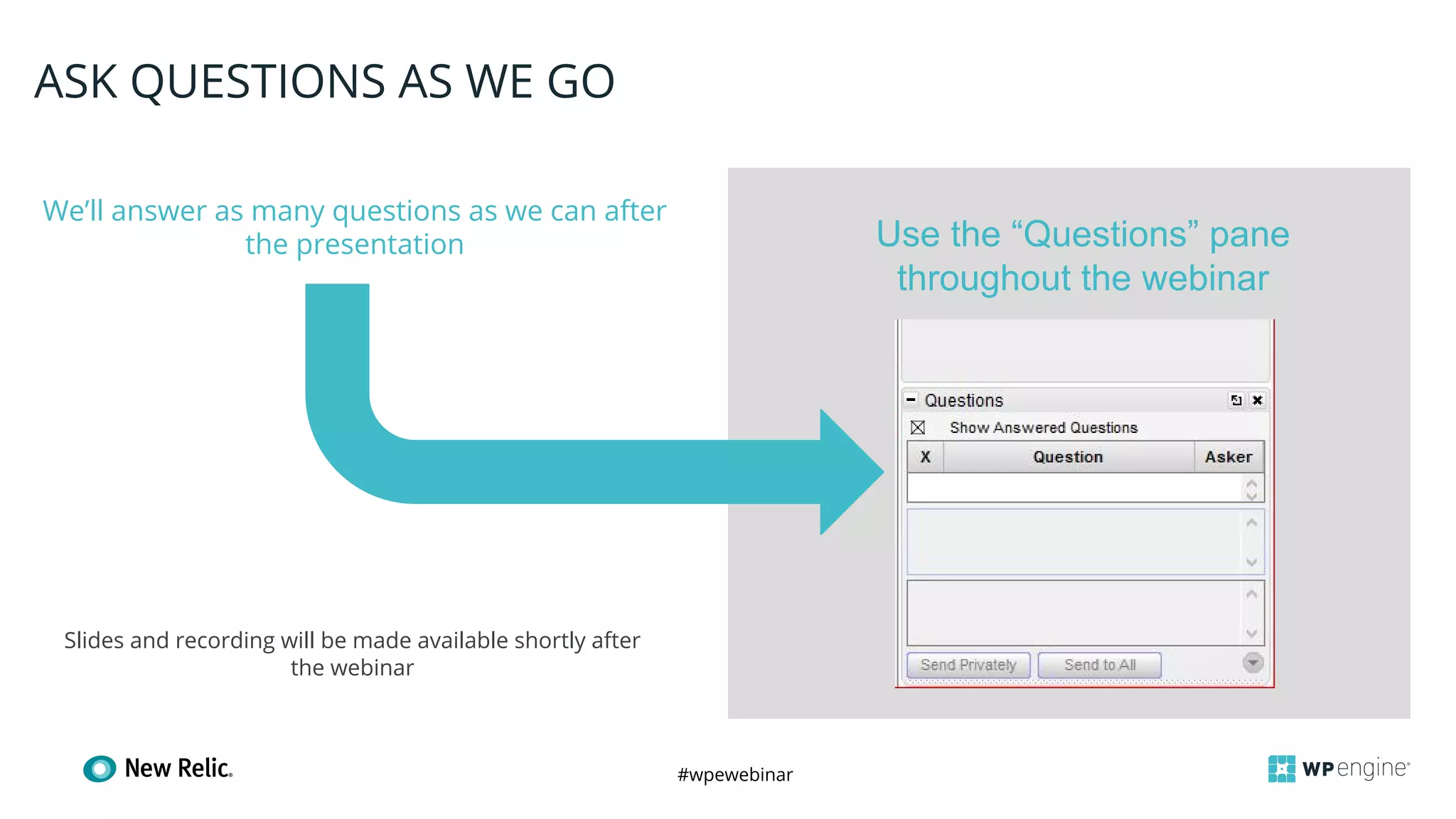
We’ll answer as many questions as we can after
the presentation
ASK QUESTIONS AS WE GO
Slides and recording will be made available shortly after
the webinar
Use the “Questions” pane
throughout the webinar
#wpewebinar
WHAT YOU’LL LEARN:
● What is Application Performance Monitoring and why does it
matter?
● How to use New Relic APM to troubleshoot site issues and
improve site performance
● WordPress specific tips and tricks to improve site speed and
stability through APM
● Q&A
#wpewebinar
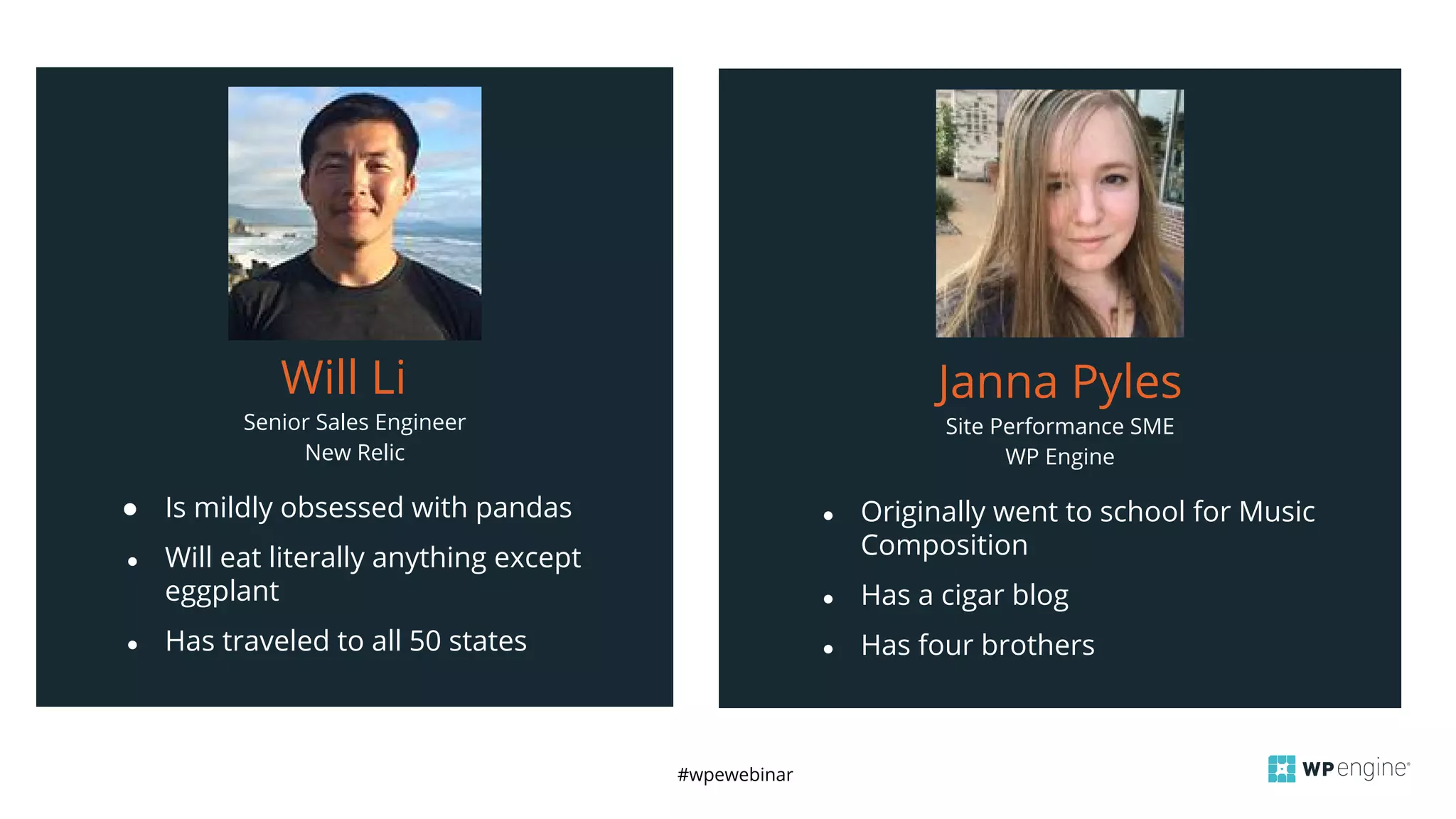
Senior Sales Engineer
New Relic
Will Li
● Is mildly obsessed with pandas
● Will eat literally anything except
eggplant
● Has traveled to all 50 states
Site Performance SME
WP Engine
Janna Pyles
● Originally went to school for Music
Composition
● Has a cigar blog
● Has four brothers
#wpewebinar
What is APM and Why Does it Matter?
#wpewebinar
#wpewebinar
> Identify consistent slow
performing pages, queries, and
templates
> Use transaction traces to identify
slow hooks and plugins
> Use WordPress tab to see which
plugin and theme functions are
called most often
> Quickly and easily spot the cause
of spikes in load time
APM + WordPress
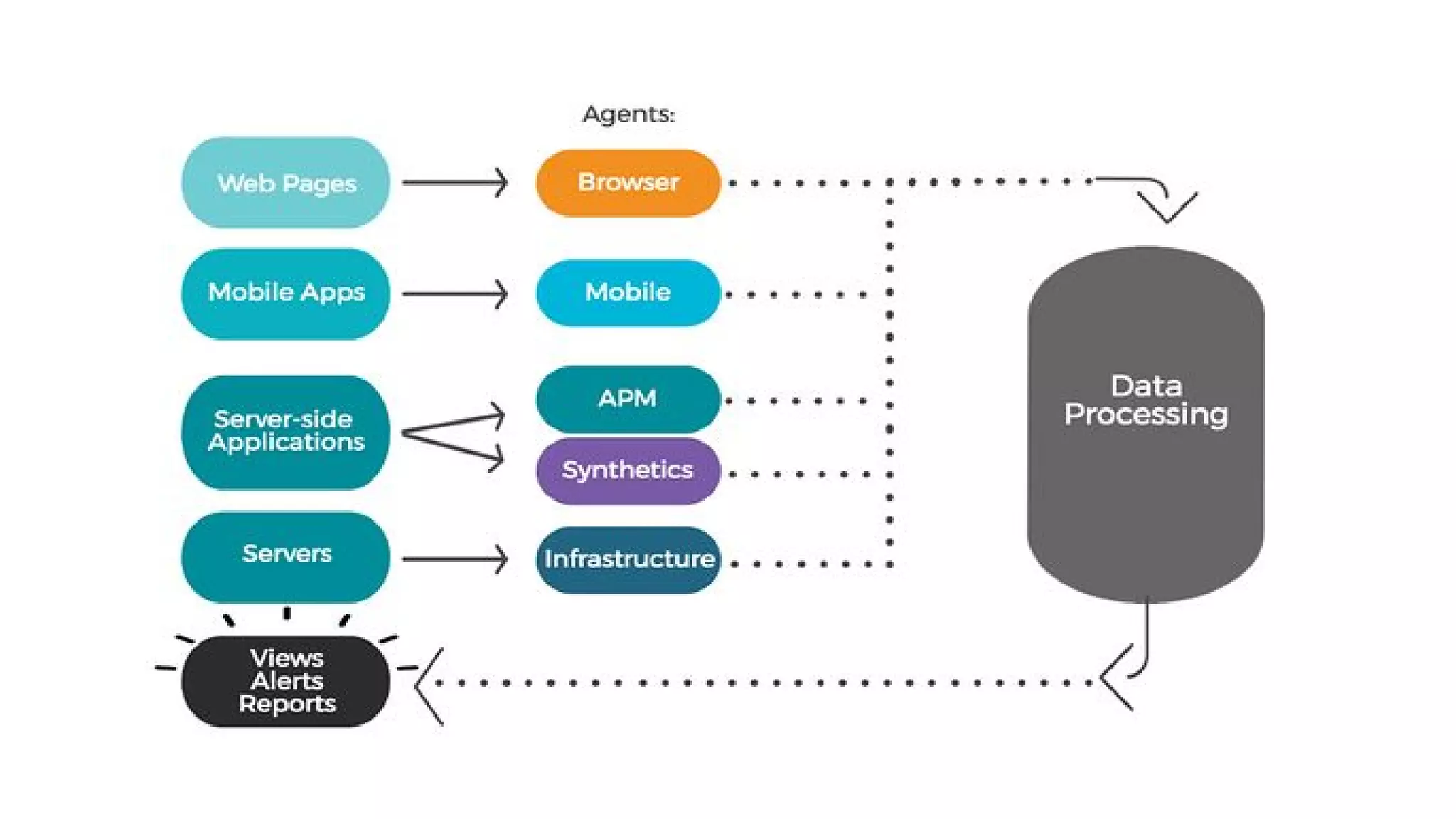
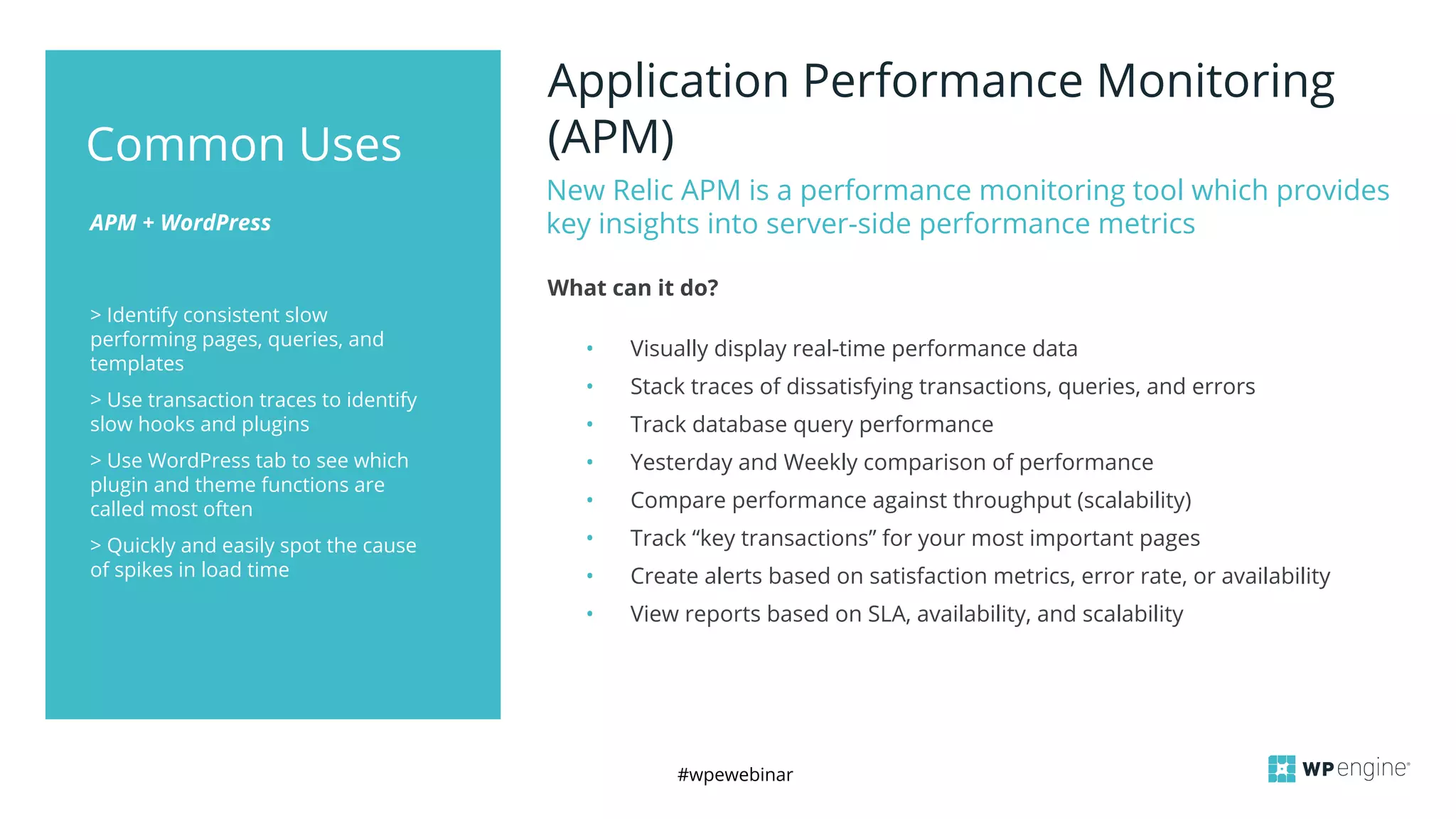
New Relic APM is a performance monitoring tool which provides
key insights into server-side performance metrics
What can it do?
Common Uses
Application Performance Monitoring
(APM)
• Visually display real-time performance data
• Stack traces of dissatisfying transactions, queries, and errors
• Track database query performance
• Yesterday and Weekly comparison of performance
• Compare performance against throughput (scalability)
• Track “key transactions” for your most important pages
• Create alerts based on satisfaction metrics, error rate, or availability
• View reports based on SLA, availability, and scalability
#wpewebinar
How to Use New Relic APM to
Troubleshoot Issues and Improve
Performance
#wpewebinar
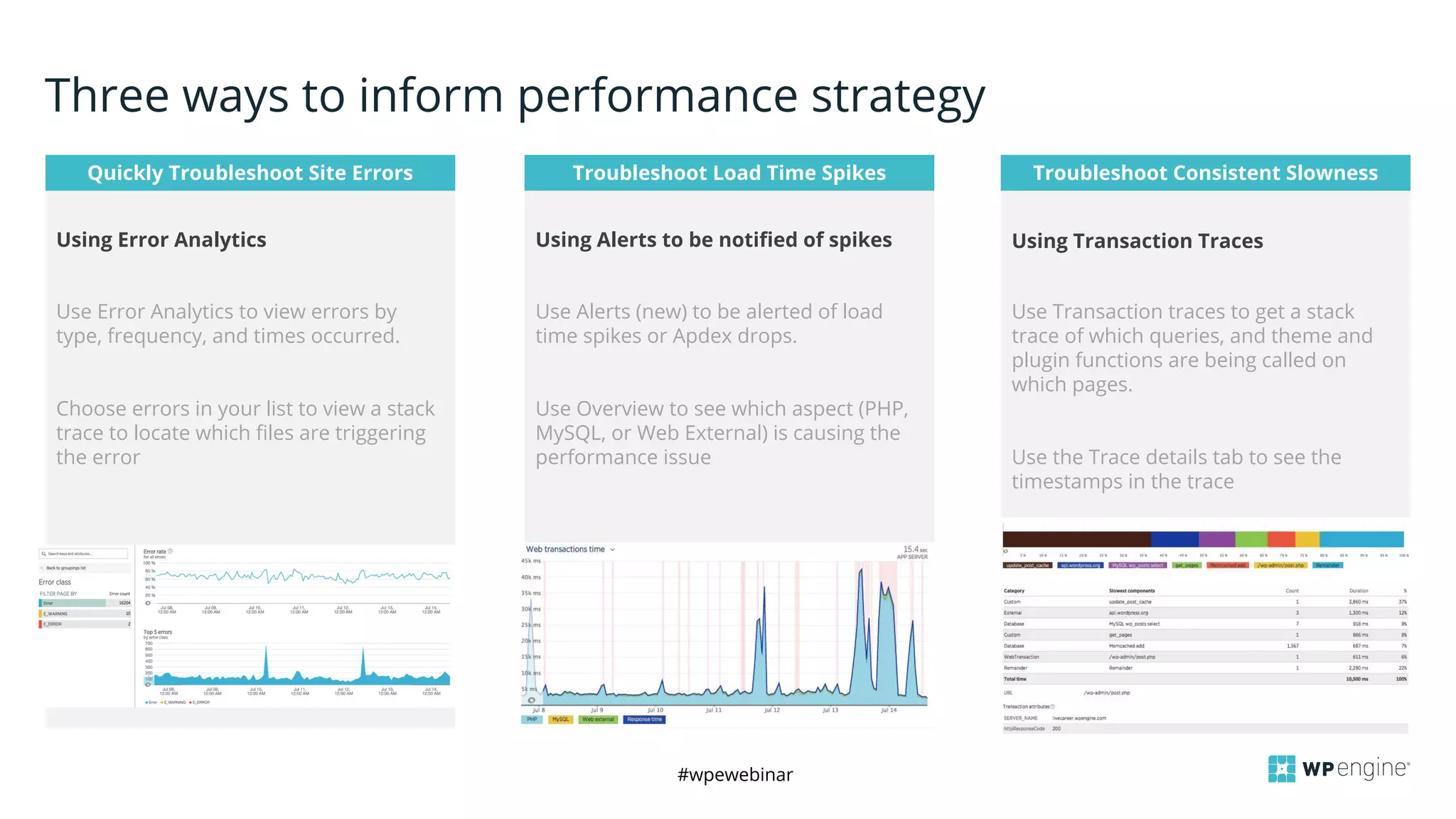
Quickly Troubleshoot Site Errors
Use Error Analytics to view errors by
type, frequency, and times occurred.
Choose errors in your list to view a stack
trace to locate which files are triggering
the error
Troubleshoot Load Time Spikes
Using Alerts to be notified of spikes
Three ways to inform performance strategy
Using Error Analytics
Use Alerts (new) to be alerted of load
time spikes or Apdex drops.
Use Overview to see which aspect (PHP,
MySQL, or Web External) is causing the
performance issue
Troubleshoot Consistent Slowness
Using Transaction Traces
Use Transaction traces to get a stack
trace of which queries, and theme and
plugin functions are being called on
which pages.
Use the Trace details tab to see the
timestamps in the trace
#wpewebinar
Demo
#wpewebinar
WordPress-specific tips & tricks
#wpewebinar
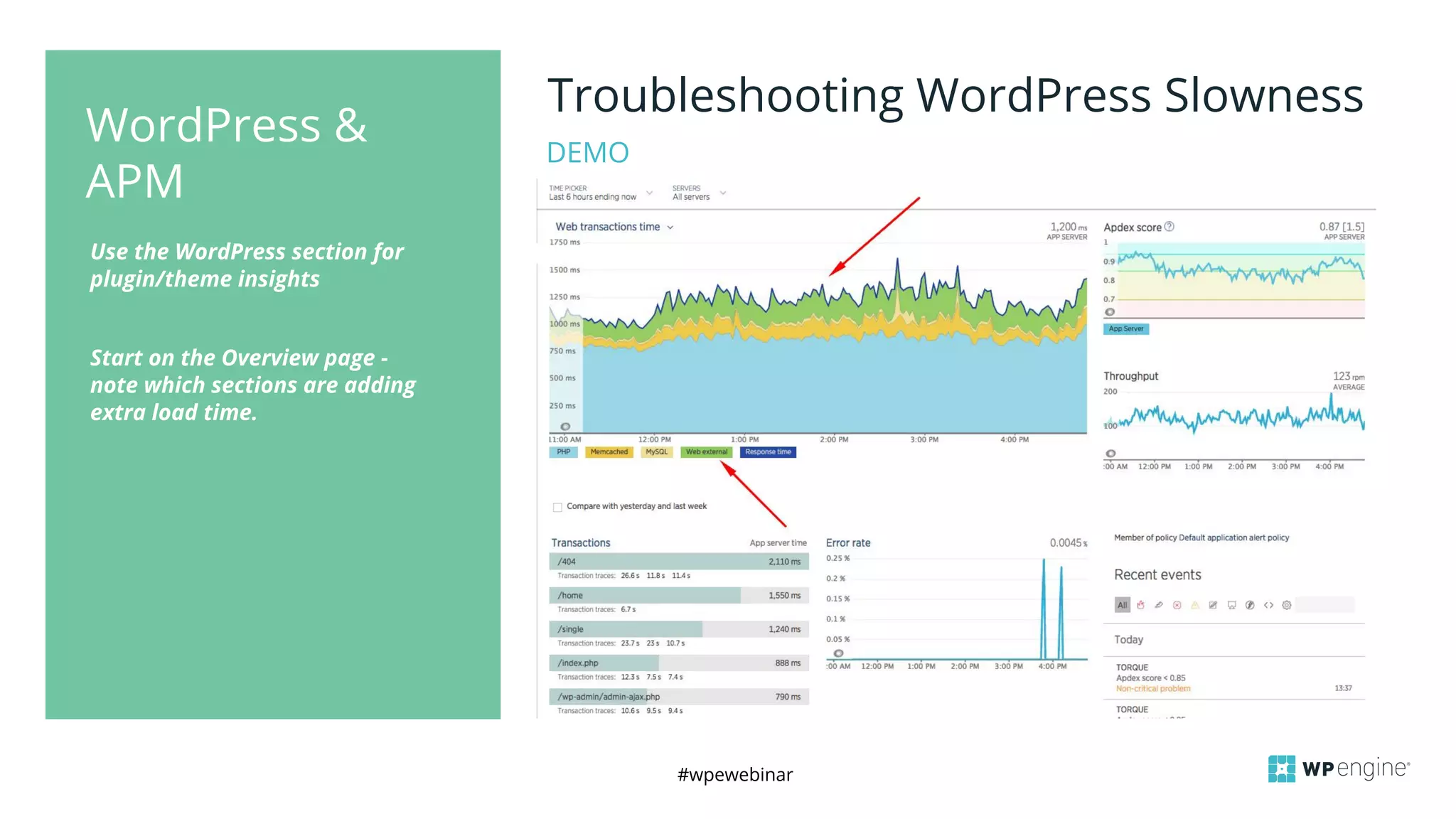
Use the WordPress section for
plugin/theme insights
Start on the Overview page -
note which sections are adding
extra load time.
WordPress &
APM
Troubleshooting WordPress Slowness
DEMO
#wpewebinar
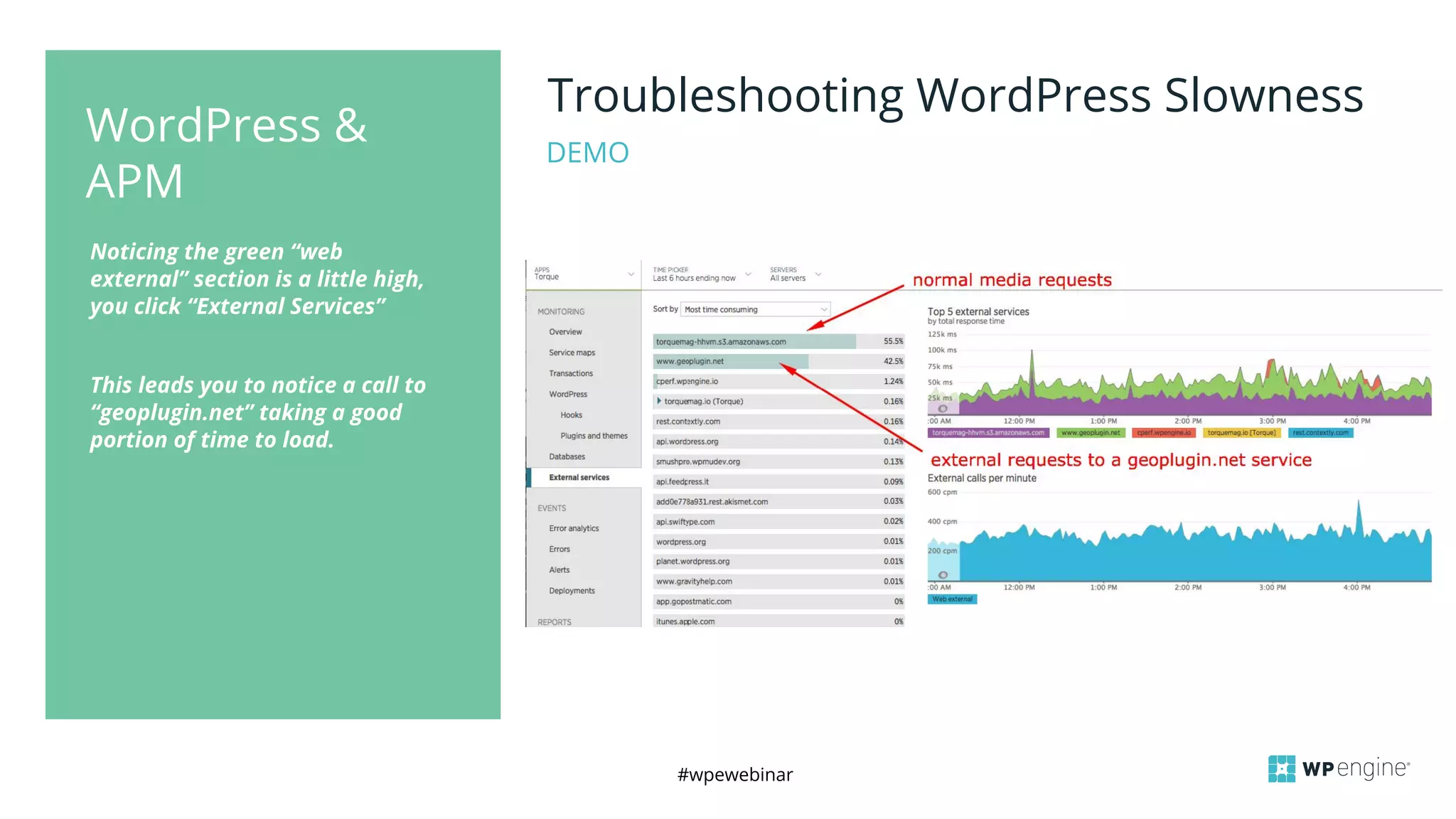
Noticing the green “web
external” section is a little high,
you click “External Services”
This leads you to notice a call to
“geoplugin.net” taking a good
portion of time to load.
WordPress &
APM
Troubleshooting WordPress Slowness
DEMO
#wpewebinar
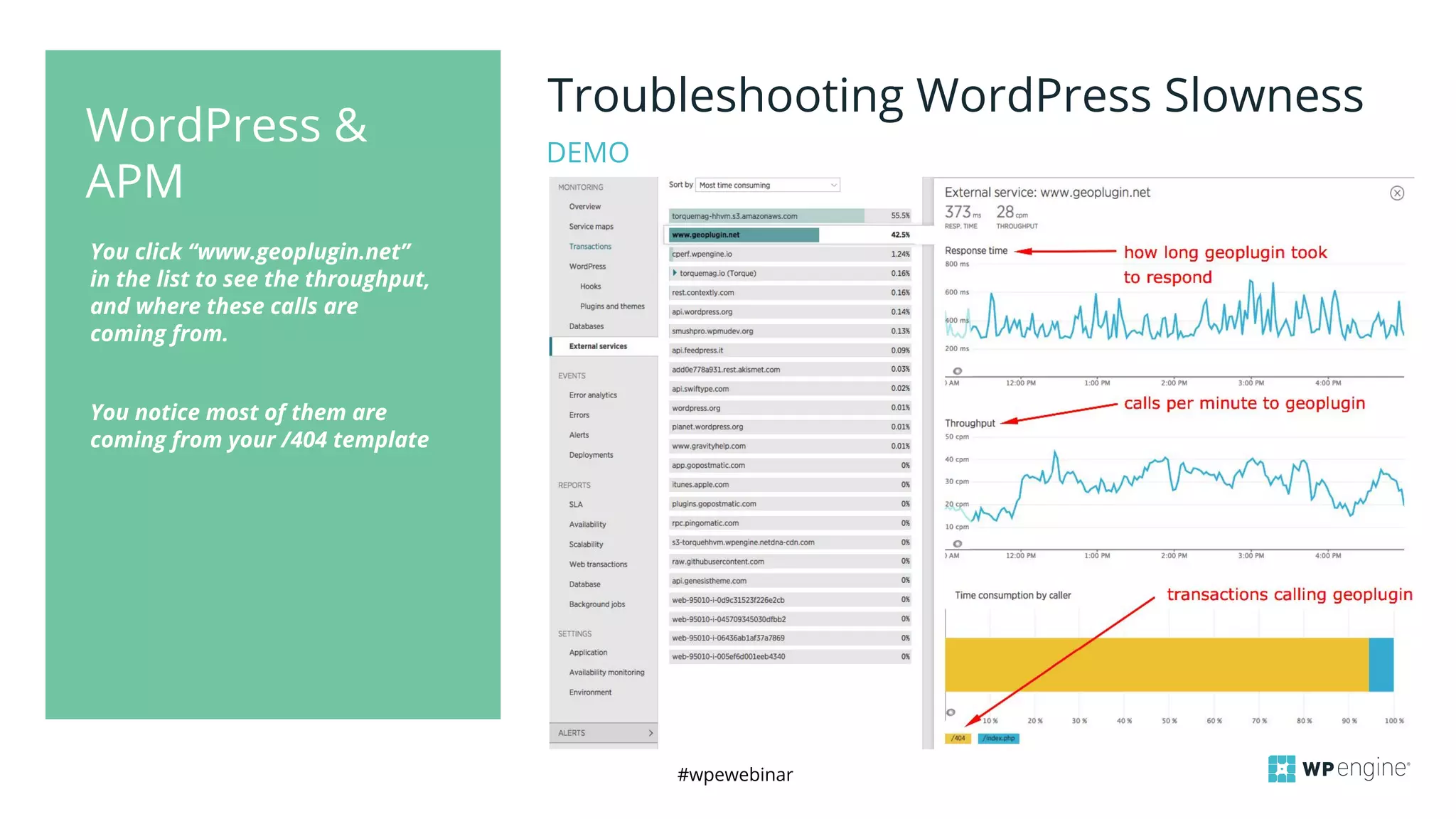
You click “www.geoplugin.net”
in the list to see the throughput,
and where these calls are
coming from.
You notice most of them are
coming from your /404 template
WordPress &
APM
Troubleshooting WordPress Slowness
DEMO
#wpewebinar
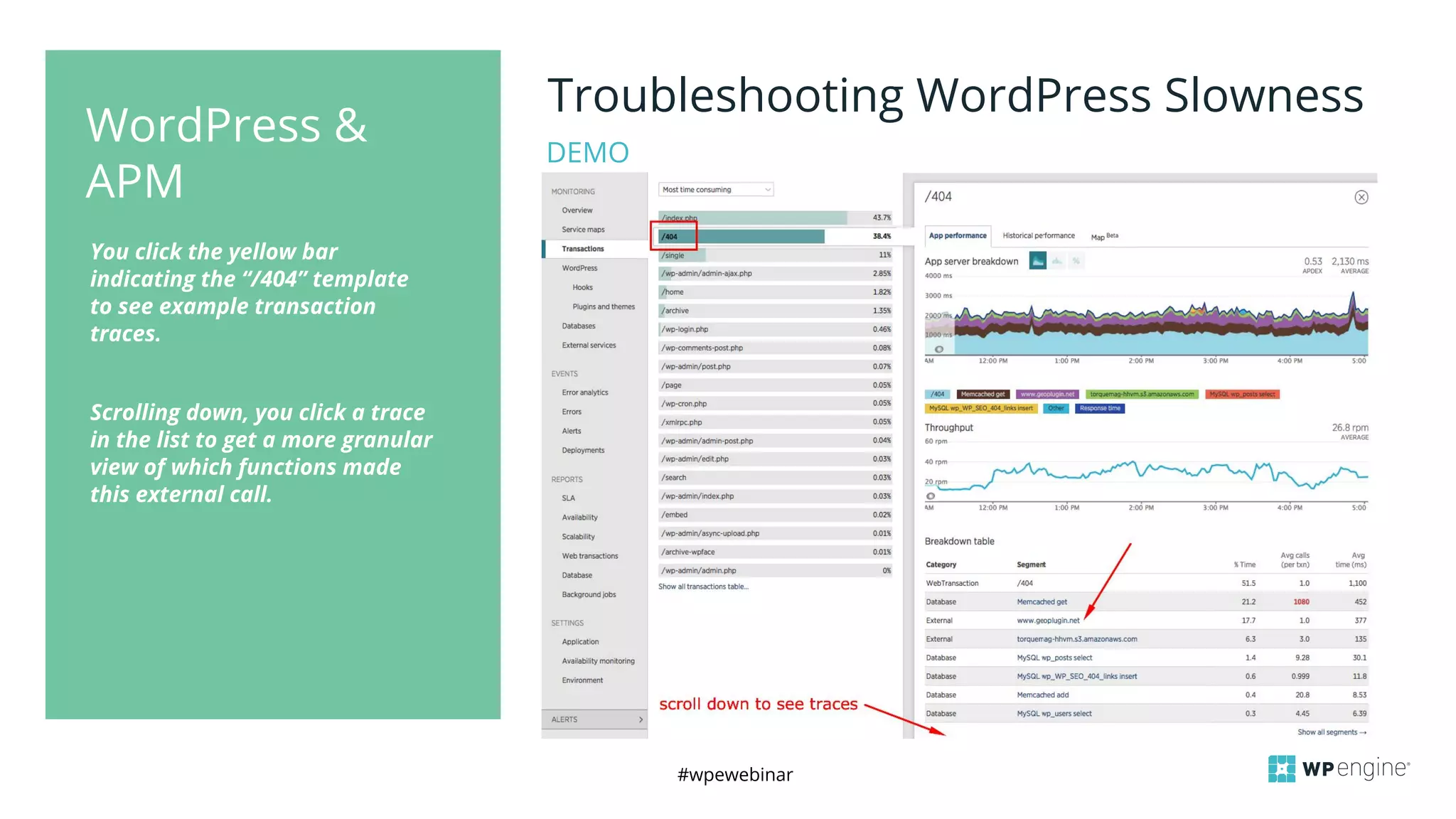
You click the yellow bar
indicating the “/404” template
to see example transaction
traces.
Scrolling down, you click a trace
in the list to get a more granular
view of which functions made
this external call.
WordPress &
APM
Troubleshooting WordPress Slowness
DEMO
#wpewebinar
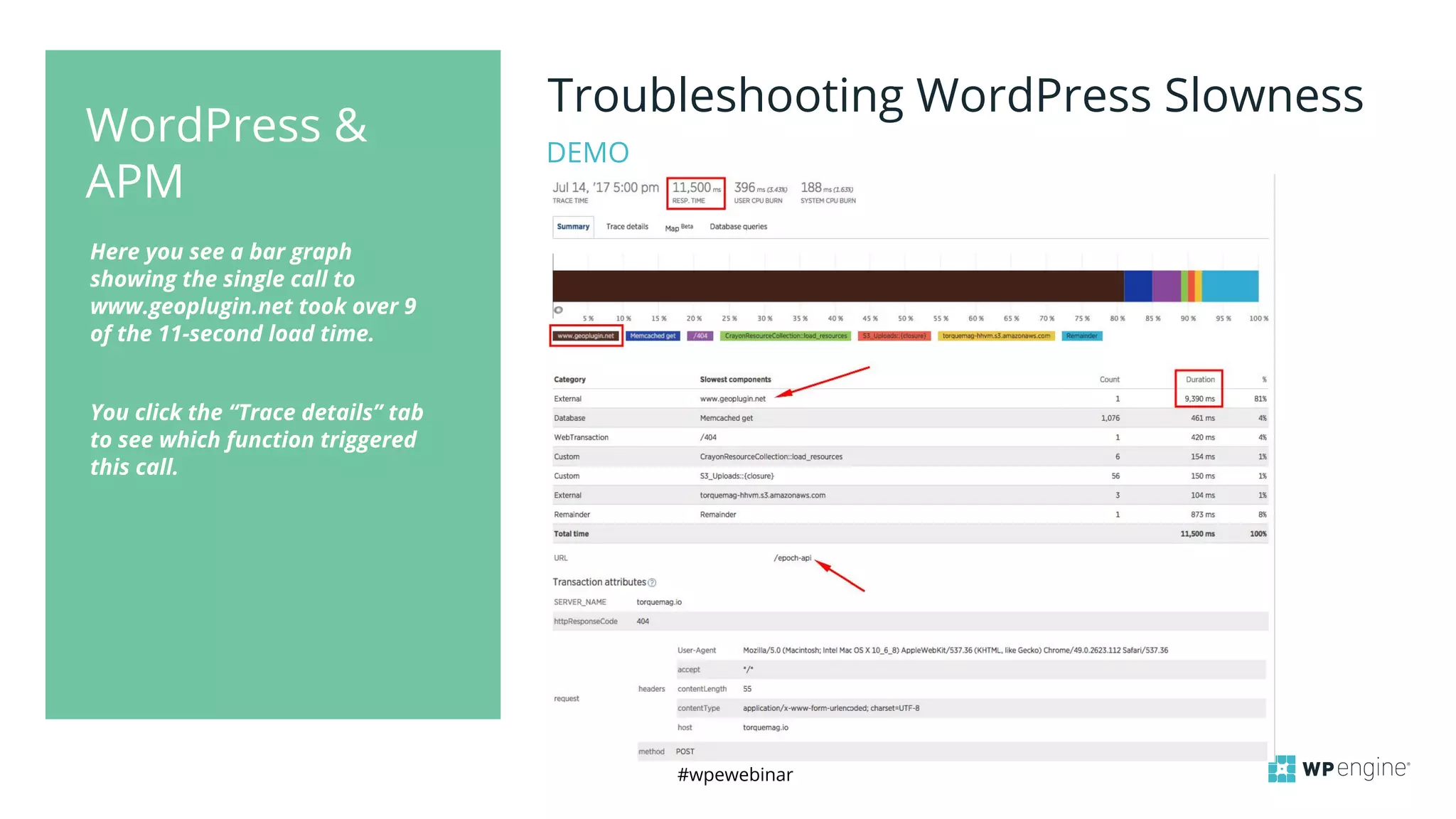
Here you see a bar graph
showing the single call to
www.geoplugin.net took over 9
of the 11-second load time.
You click the “Trace details” tab
to see which function triggered
this call.
WordPress &
APM
Troubleshooting WordPress Slowness
DEMO
#wpewebinar
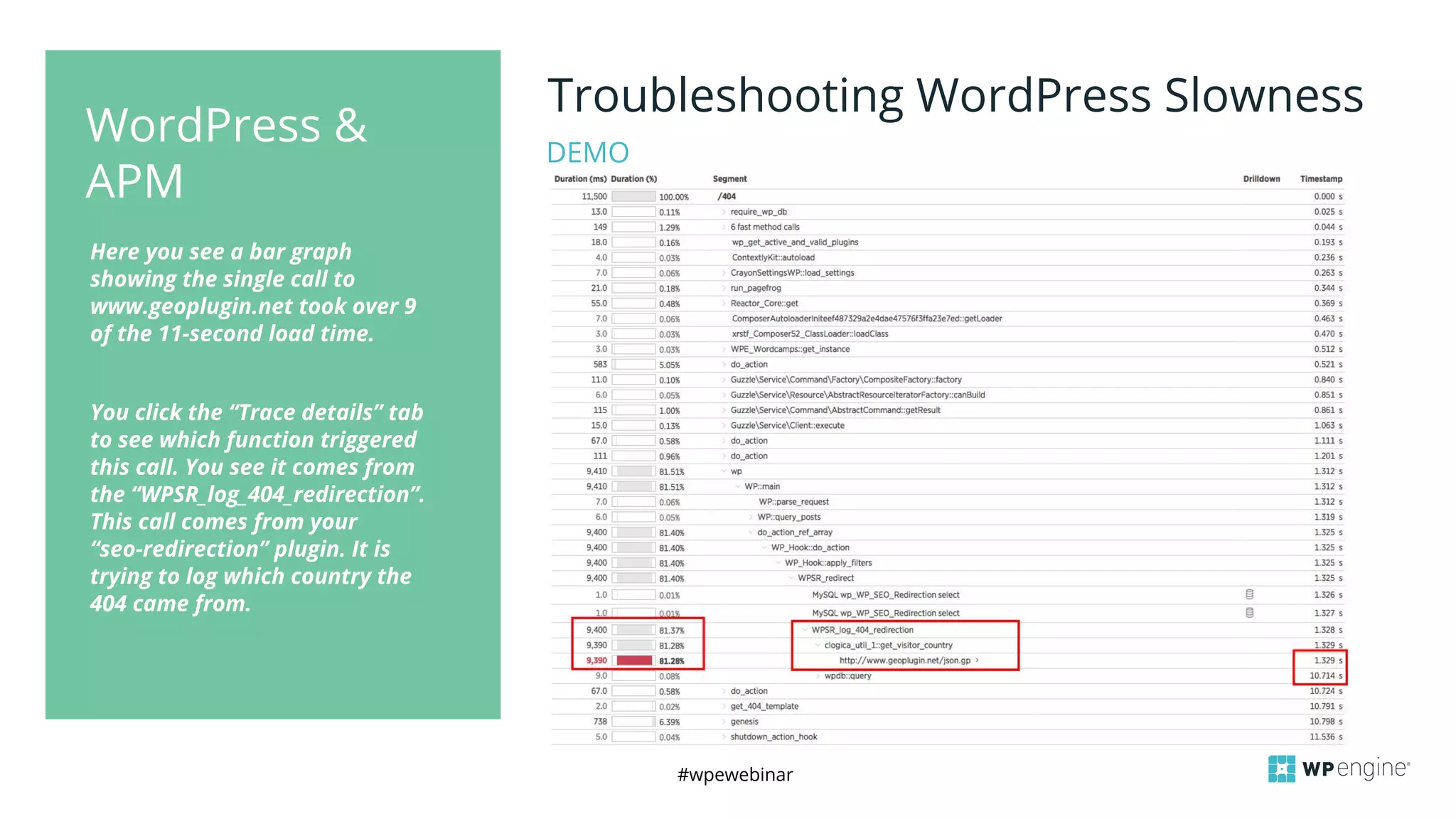
Here you see a bar graph
showing the single call to
www.geoplugin.net took over 9
of the 11-second load time.
You click the “Trace details” tab
to see which function triggered
this call. You see it comes from
the “WPSR_log_404_redirection”.
This call comes from your
“seo-redirection” plugin. It is
trying to log which country the
404 came from.
DEMO
WordPress &
APM
Troubleshooting WordPress Slowness
#wpewebinar
Common Uses
#wpewebinar
> Identify consistent slow
performing plugins/themes
> Use graphs to track
throughput/frequency of calls from
plugins, themes, or Wordpress itself
> Get a count of calls per hour to
track spikes/trends
> Spot areas for optimization or
plugin replacements
APM + WordPress
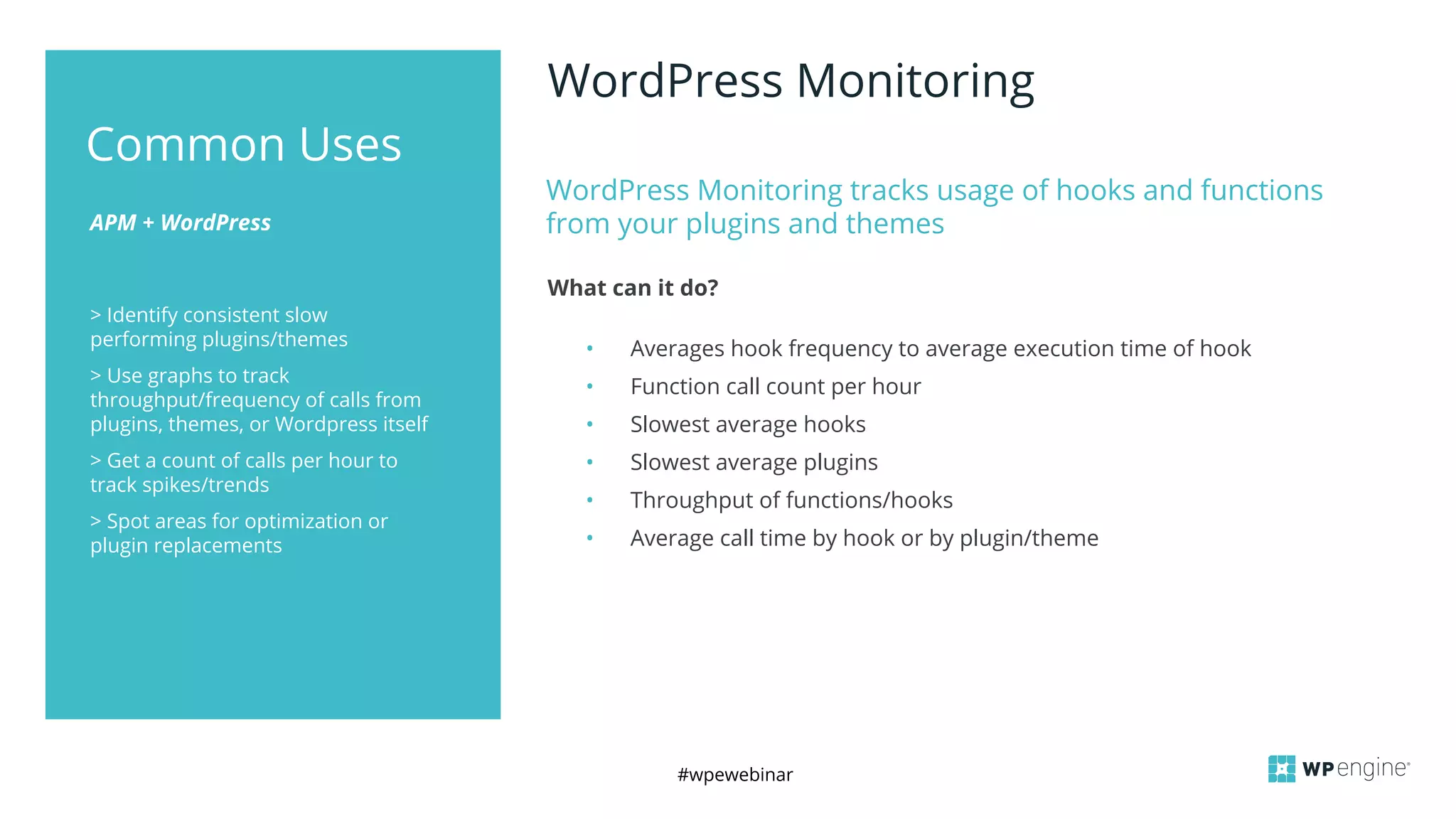
WordPress Monitoring tracks usage of hooks and functions
from your plugins and themes
What can it do?
Common Uses
WordPress Monitoring
• Averages hook frequency to average execution time of hook
• Function call count per hour
• Slowest average hooks
• Slowest average plugins
• Throughput of functions/hooks
• Average call time by hook or by plugin/theme
#wpewebinar
Tour and Demo
#wpewebinar
Slides and recording will be made available shortly after the webinar
QUESTIONS AND ANSWERS
#wpewebinar
RESOURCES
APPLICATION PERFORMANCE MONITORING WHITE PAPER
WP ENGINE APPLICATION PERFORMANCE
TORQUE
NEW RELIC CUSTOMER ON-BOARDING VIDEOS
#wpewebinar
CROP IMAGE
TO GRAY BOX
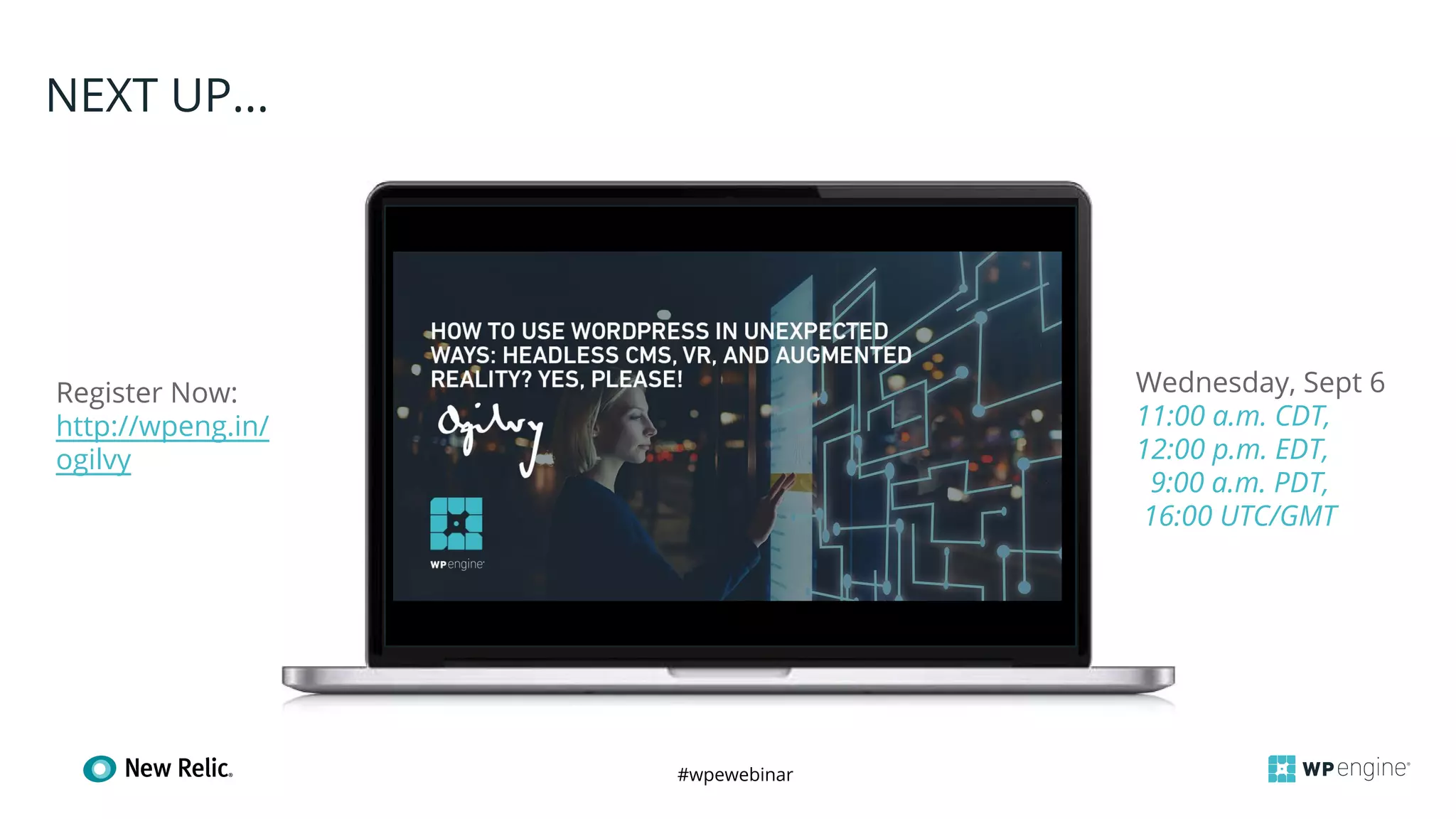
NEXT UP...
Register Now:
http://wpeng.in/
ogilvy
Wednesday, Sept 6
11:00 a.m. CDT,
12:00 p.m. EDT,
9:00 a.m. PDT,
16:00 UTC/GMT
#wpewebinar
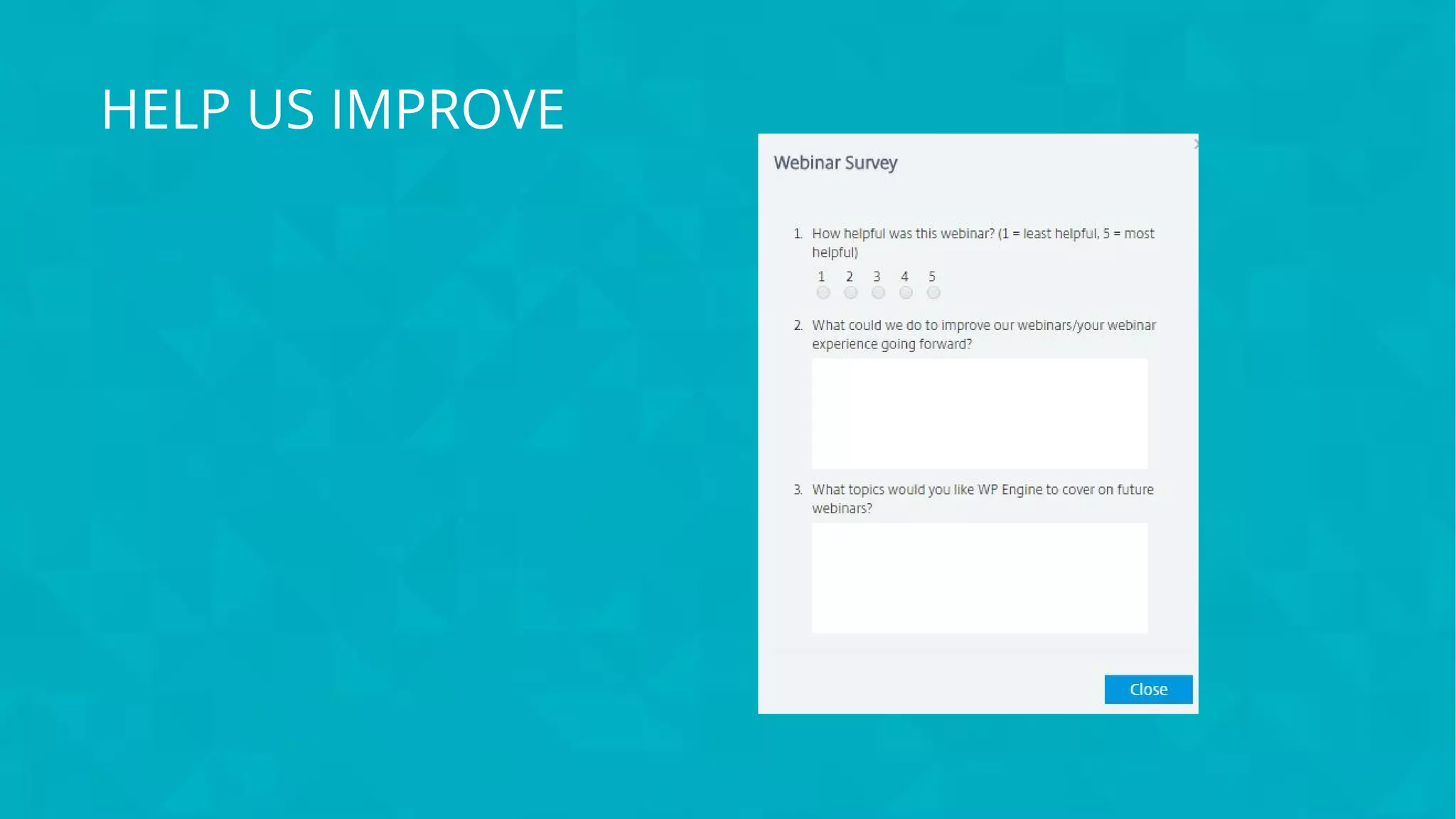
HELP US IMPROVE
#wpewebinar
THANK YOU
#wpewebinar
@wpengine

Application Performance Monitoring for WordPress

  • 1.
  • 2.
    #wpewebinar CROP IMAGE TO GRAYBOX We’ll answer as many questions as we can after the presentation ASK QUESTIONS AS WE GO Slides and recording will be made available shortly after the webinar Use the “Questions” pane throughout the webinar
  • 3.
    #wpewebinar WHAT YOU’LL LEARN: ●What is Application Performance Monitoring and why does it matter? ● How to use New Relic APM to troubleshoot site issues and improve site performance ● WordPress specific tips and tricks to improve site speed and stability through APM ● Q&A
  • 4.
    #wpewebinar Senior Sales Engineer NewRelic Will Li ● Is mildly obsessed with pandas ● Will eat literally anything except eggplant ● Has traveled to all 50 states Site Performance SME WP Engine Janna Pyles ● Originally went to school for Music Composition ● Has a cigar blog ● Has four brothers
  • 5.
    #wpewebinar What is APMand Why Does it Matter?
  • 6.
  • 7.
    #wpewebinar > Identify consistentslow performing pages, queries, and templates > Use transaction traces to identify slow hooks and plugins > Use WordPress tab to see which plugin and theme functions are called most often > Quickly and easily spot the cause of spikes in load time APM + WordPress New Relic APM is a performance monitoring tool which provides key insights into server-side performance metrics What can it do? Common Uses Application Performance Monitoring (APM) • Visually display real-time performance data • Stack traces of dissatisfying transactions, queries, and errors • Track database query performance • Yesterday and Weekly comparison of performance • Compare performance against throughput (scalability) • Track “key transactions” for your most important pages • Create alerts based on satisfaction metrics, error rate, or availability • View reports based on SLA, availability, and scalability
  • 8.
    #wpewebinar How to UseNew Relic APM to Troubleshoot Issues and Improve Performance
  • 9.
    #wpewebinar Quickly Troubleshoot SiteErrors Use Error Analytics to view errors by type, frequency, and times occurred. Choose errors in your list to view a stack trace to locate which files are triggering the error Troubleshoot Load Time Spikes Using Alerts to be notified of spikes Three ways to inform performance strategy Using Error Analytics Use Alerts (new) to be alerted of load time spikes or Apdex drops. Use Overview to see which aspect (PHP, MySQL, or Web External) is causing the performance issue Troubleshoot Consistent Slowness Using Transaction Traces Use Transaction traces to get a stack trace of which queries, and theme and plugin functions are being called on which pages. Use the Trace details tab to see the timestamps in the trace
  • 10.
  • 11.
  • 12.
    #wpewebinar Use the WordPresssection for plugin/theme insights Start on the Overview page - note which sections are adding extra load time. WordPress & APM Troubleshooting WordPress Slowness DEMO
  • 13.
    #wpewebinar Noticing the green“web external” section is a little high, you click “External Services” This leads you to notice a call to “geoplugin.net” taking a good portion of time to load. WordPress & APM Troubleshooting WordPress Slowness DEMO
  • 14.
    #wpewebinar You click “www.geoplugin.net” inthe list to see the throughput, and where these calls are coming from. You notice most of them are coming from your /404 template WordPress & APM Troubleshooting WordPress Slowness DEMO
  • 15.
    #wpewebinar You click theyellow bar indicating the “/404” template to see example transaction traces. Scrolling down, you click a trace in the list to get a more granular view of which functions made this external call. WordPress & APM Troubleshooting WordPress Slowness DEMO
  • 16.
    #wpewebinar Here you seea bar graph showing the single call to www.geoplugin.net took over 9 of the 11-second load time. You click the “Trace details” tab to see which function triggered this call. WordPress & APM Troubleshooting WordPress Slowness DEMO
  • 17.
    #wpewebinar Here you seea bar graph showing the single call to www.geoplugin.net took over 9 of the 11-second load time. You click the “Trace details” tab to see which function triggered this call. You see it comes from the “WPSR_log_404_redirection”. This call comes from your “seo-redirection” plugin. It is trying to log which country the 404 came from. DEMO WordPress & APM Troubleshooting WordPress Slowness
  • 18.
  • 19.
    #wpewebinar > Identify consistentslow performing plugins/themes > Use graphs to track throughput/frequency of calls from plugins, themes, or Wordpress itself > Get a count of calls per hour to track spikes/trends > Spot areas for optimization or plugin replacements APM + WordPress WordPress Monitoring tracks usage of hooks and functions from your plugins and themes What can it do? Common Uses WordPress Monitoring • Averages hook frequency to average execution time of hook • Function call count per hour • Slowest average hooks • Slowest average plugins • Throughput of functions/hooks • Average call time by hook or by plugin/theme
  • 20.
  • 21.
    #wpewebinar Slides and recordingwill be made available shortly after the webinar QUESTIONS AND ANSWERS
  • 22.
    #wpewebinar RESOURCES APPLICATION PERFORMANCE MONITORINGWHITE PAPER WP ENGINE APPLICATION PERFORMANCE TORQUE NEW RELIC CUSTOMER ON-BOARDING VIDEOS
  • 23.
    #wpewebinar CROP IMAGE TO GRAYBOX NEXT UP... Register Now: http://wpeng.in/ ogilvy Wednesday, Sept 6 11:00 a.m. CDT, 12:00 p.m. EDT, 9:00 a.m. PDT, 16:00 UTC/GMT
  • 24.
  • 25.