


Exporting and importing all your WooCommerce products individually can be dawdling. With the free version of the WooCommerce Product Import Export plugin, you can export and import all your simple, external/affiliate and grouped products from one store to another efficiently and quickly.
WooCommerce Mapping
Before proceeding with the import and export of products, you need to know how WooCommerce mapping works.
For example, the post_title field gets mapped to the product name, and the regular_price field gets mapped to the regular price of your product. You have to map all the fields in the correct format if you want the plugin to work correctly. If there is any mistake in your import file, your product import may not work as expected.
The following table gives information on each column/tag header in WoCommerce, its explanation, and its accepted value or format.
| Column/Tag Header | Explanation | Accepted value or format |
| post_title | Indicates the name of the product. | Text (ex. High Heel Shoe) |
| post_name | Indicates slug name of the product. | Text (ex. high-heel-shoe) |
| post_status | Indicates whether the product is in a draft or published mode. | draft/publish |
| post_excerpt | Indicates a short description of the product. | Text/HTML |
| post_content | Indicates description of the product. | Text/HTML |
| post_parent | Indicates parent of grouped and variable products. | Parent ID |
| post_password | For including a password for a private post. | Text |
| sku | SKU(stock keeping unit) is an identification, usually alphanumeric, of a particular product that allows it to be tracked for inventory purposes. | Alpha-numeric characters |
| menu_order | It decides the order of displaying the products in the shop. Items with menu order = 0 are displayed 1, 2, 3, etc. Products with the same menu order number are then listed alphabetically. When you create a new product it defaults to menu_order = 0. | Numeric characters |
| downloadable | After purchasing the product, whether the product can be downloaded or not. | yes/no |
| virtual | It is not physically existing as such but made by software to appear to do so. | yes/no |
| visibility | Indicates whether a product is available for purchase or not. | visible/hidden |
| stock | Total number of products available in stock. You can use (+) or (-) signs with parenthesis to add or subtract the number of products to the stock. | Numeric characters |
| stock_status | It indicates whether the product is in stock or not. | instock/outofstock/onbackorder |
| backorders | Indicate orders for out-of-stock products that cannot be currently fulfilled or shipped, but is requested nonetheless for when the product becomes available again. | yes/no |
| manage_stock | It indicates whether the stock is managed by a store or not. | yes/no |
| regular_price | Indicates the original price of the product. | Numeric characters |
| sale_price | It is the price of the product that is being offered at a discounted rate. | Numeric characters |
| weight | Indicates the weight of the product. | Numeric characters |
| length | Indicates the length of the product. | Numeric characters |
| width | Indicates the width of the product. | Numeric characters |
| height | Indicates the height of the product. | Numeric characters |
| images | Indicate image URL or image name. Supports multiple image URLs separated by ‘|’. | URL Eg: http://url/filename1.png |
| tax_status | It indicates whether the product is taxable or not. | taxable/none |
| tax_class | It indicates the tax option for the product. | Standard rate/Reduced rate/Zero rate |
| tax:product_type | Indicates the type of product, such as simple, variable etc. | Simple, Variable |
| tax:product_cat | It is used during importing the product which indicates the category of product. Use the pipe symbol to import multiple categories and the greater than symbol (>) to import category hierarchy. | Text |
| tax:product_tag | It is used during importing the product which indicates tag(s) used for the product. Use the pipe symbol to add multiple tags | Text |
| tax:product_brand | It indicates the brand of the product. | Text |
| attribute:Color | It indicates the available color of the product. Ex: red|blue|orange etc | Text |
| meta:attribute_color | Ex: red or blue or orange | Text |
| attribute_data:Color | It indicates the metadata about the attribute color of the product. | position|visible|variation (ex. 0|1|1) |
| attribute:Size | It indicates the available size of the product. | Ex. US7|US8|US9 |
| meta:attribute_size | It specifies the attribute value of each variation. | Ex. US7 or US8 or US9 |
| attribute_data:Size | It indicates the metadata about the attribute size of the product. | position|visible|variation (ex. 1|1|1) |
| attribute:pa_unit | This lists out the unit options. | Ex. 10 kg | 20 kg | 30 kg |
| meta:attribute_pa_unit | It indicates the metadata about the product unit. | Ex. 10 kg |
| attribute_data:pa_unit | It defines the position, visibility and whether used for variation or not. | position|visible|variation (ex. 4|1|1) |
| attribute_default:pa_unit | This is the default value of a unit attribute. | Ex. 10 kg |
Exporting Products
To export WooCommerce products:
- Click on WebToffee Import/Export(Basic) > Export.
Step 1: Select a post type
As a first step, you need to choose the post type as Product.

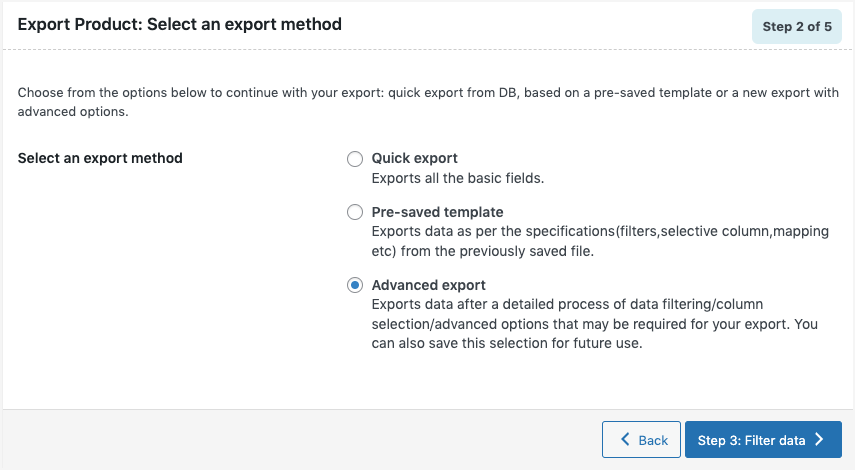
Step 2: Select an export method
Choose from the below options to continue with your export:
- Quick export : exports the basic/standard fields.
- Based on a pre-saved template : exports data as per the specifications(filters, selective column, mapping etc) from the previously saved file.
Note: The template will be listed in the drop down only if you have saved it in previous exports, if you go through the Advanced export, at Step 5 you will get an option to save the template. Once you save that, next time when you want to export a pre-saved template, it will be populated within the drop down.
- Advanced export: Takes you through a detailed process of filtering/column selection/advanced options that may be required for your export.
Note: You can also save this file as a template for future use.
Step 3: Filter data
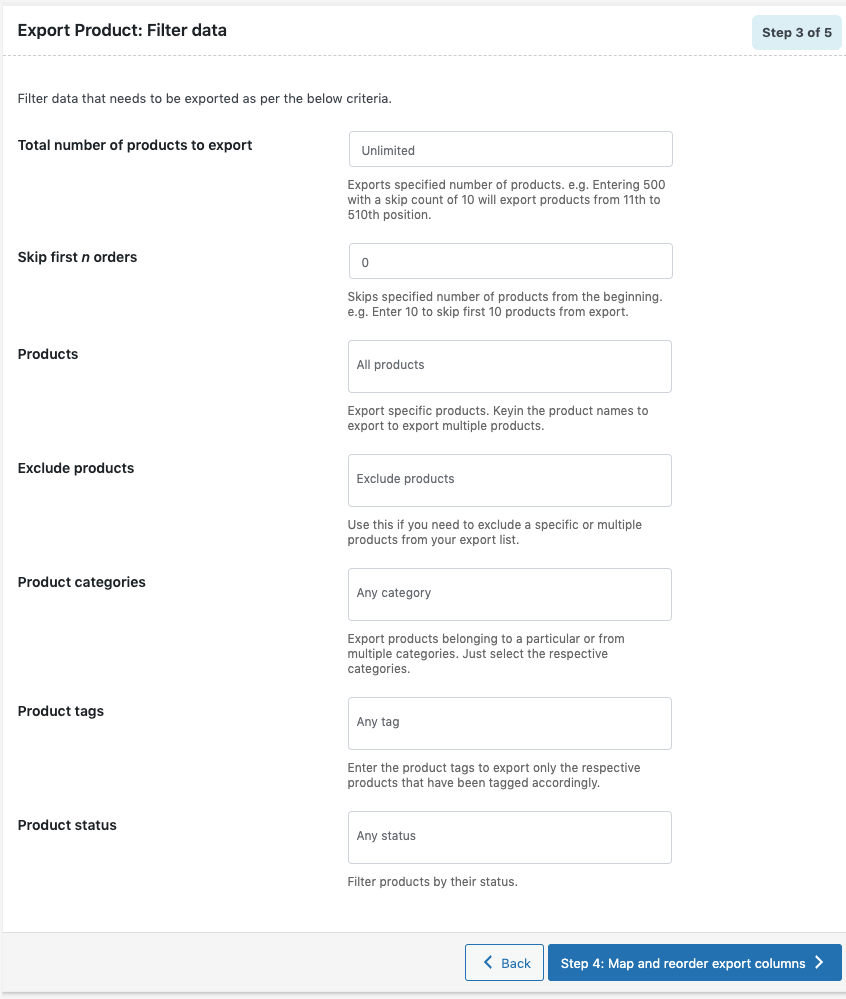
Filter data that needs to be exported as per the below criteria.
- Total number of products to export: The actual number of products you want to export. e.g. Entering 500 with a skip count of 10 will export products from 11th to 510th position.
- Skip first n products: Specify the number of products to be skipped from the beginning. e.g. Enter 10 to skip the first 10 products from export.
- Products: Export specific products. Key in the product names to export multiple products.
- Exclude Products: Use this if you need to exclude a specific or multiple products from your export list.
- Product categories: Export products belonging to a particular or from multiple categories. Just select the respective categories.
- Product tags: Enter the product tags to export only the respective products that have been tagged accordingly.
- Product Status: Filter products by their status private/draft/pending/future.
- Click on Step 4 to proceed further.
Step 4: Map and reorder export columns
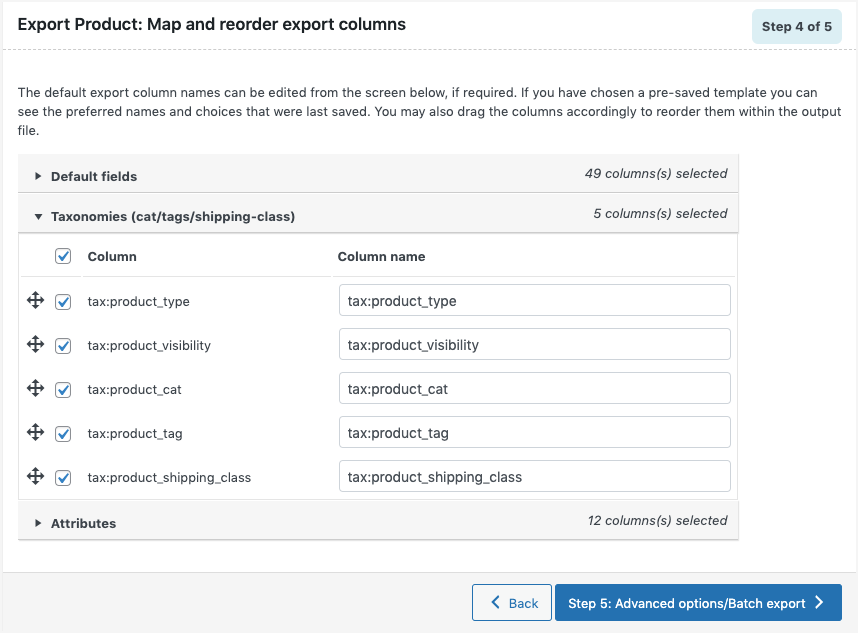
The column names appearing in this section can be edited if required. The preferred names and choices that were last saved can be viewed on choosing a pre-saved template. One can also move the columns to reorder the arrangement. The mapping can be done under:
- Default fields
- Taxonomies(cat/tags/shipping-class)
- Attributes
Step 5: Advanced Options/Batch Export
On reaching Step 5, the following window will appear, from where one can export in batches.
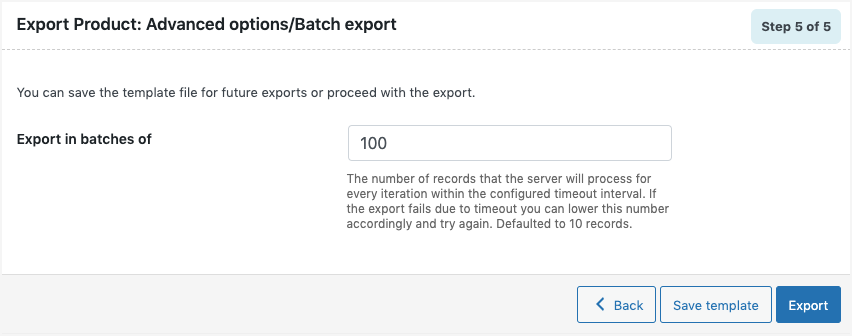
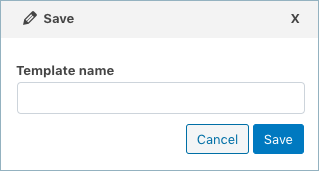
- Save the template file for future export as shown below(if needed).

- Click on Export to export or schedule the export to finish.
Importing Products
Download Sample Product CSV.
To import WooCommerce products:
- Click on WebToffee Import/Export(Basic) > Import.
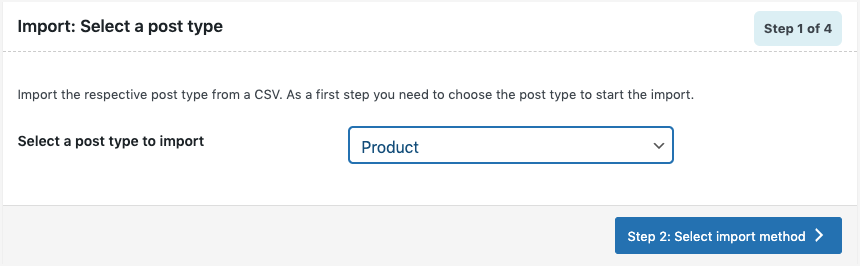
Step 1: Select a post type
As a first step, you need to choose the post type as Product.
Step 2: Select import method
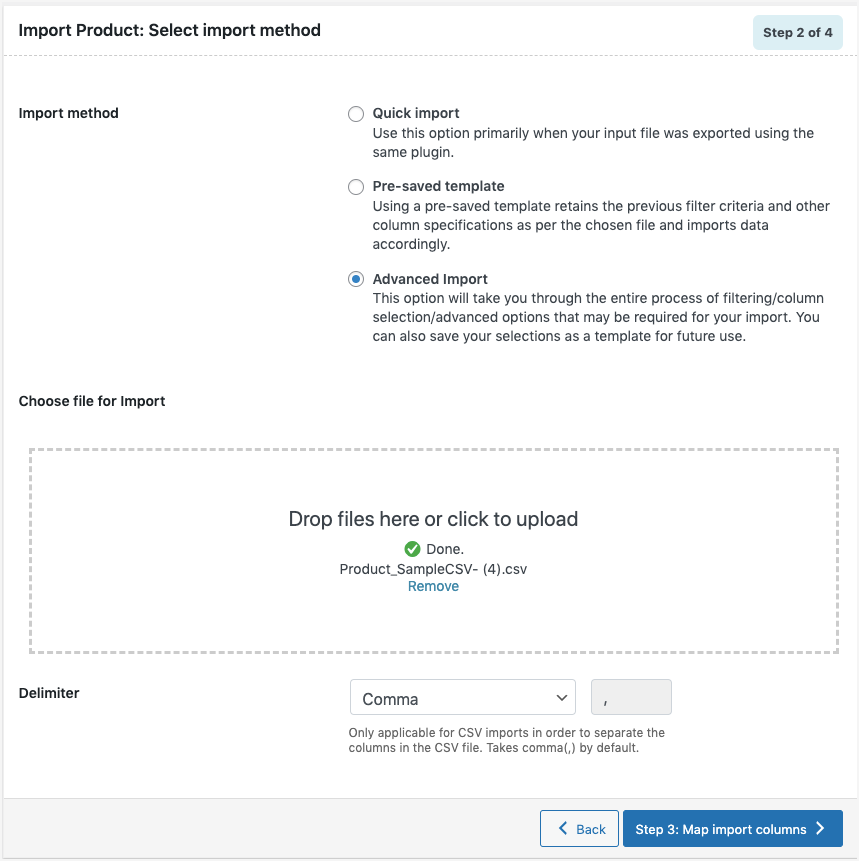
Choose from the below options to continue with your import:
- Quick import : Preferred if your input file was exported using the same plugin.
- Pre-saved template : Retains the previous filter parameters and other column specifications as per the chosen file and imports data accordingly.
Note: The template will be listed in the drop down only if you have saved it in previous imports, if you go through the Advanced import, at Step 4 you will get an option to save the template. Once you save that, next time when you want to import a pre-saved template, it will be populated within the drop down.
- Advanced import:Imports data after a detailed process of filtering/column selection/advanced options. This file can be saved for future use.Note: You can also save this file as a template for future use.
Step 3: Map import columns
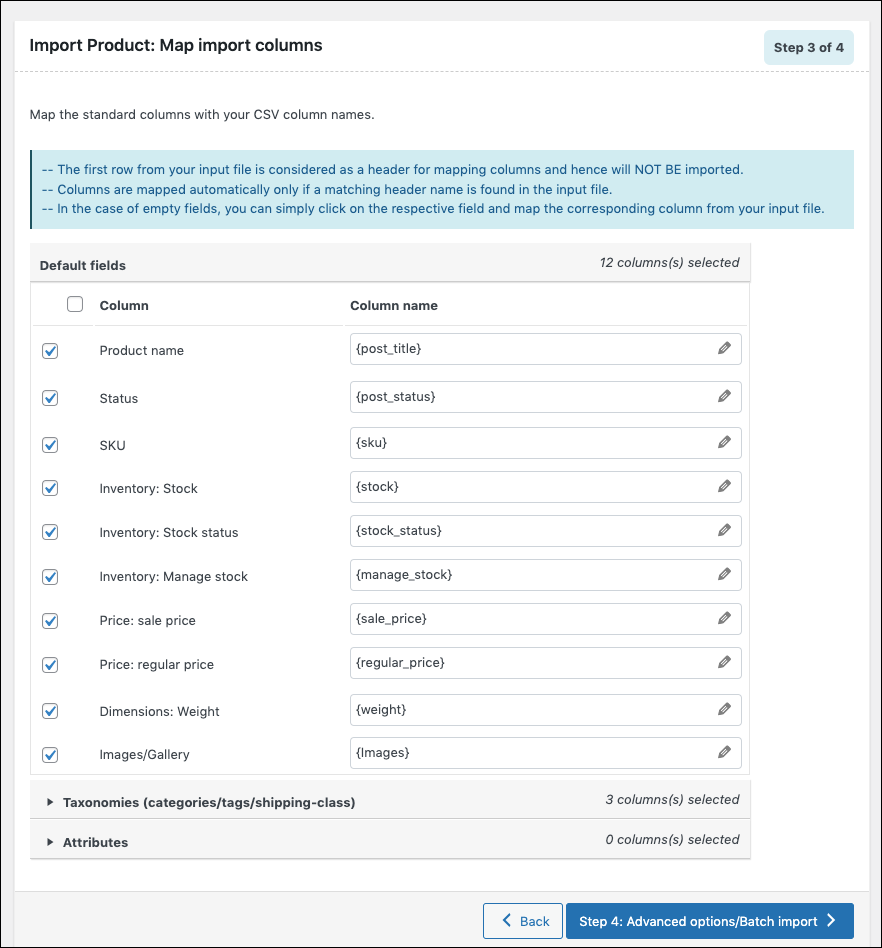
The column names appearing in this section can be edited if required. The preferred names and choices that were last saved can be viewed on choosing a pre-saved template. The mapping can be done under:
- Default fields
- Taxonomies(cat/tags/shipping-class) To add multiple tags, use the pipe symbol ” |”. Example: attribute:pa_color could have values Black|blue|green and tax:product_cat could have values Clothes|T-Shirt.
- Attributes
Evaluate field
Evaluate field can be used to append a value/expression to an existing item while importing. It basically selects/maps any column from the input file and computes the values with expressions and creates output.
- Expression: Any of the operators +*/-()&@ or string constants can be used along with the attributes to manipulate the respective value.
- Input: Select the column from the dropdown which has to be modified.
- Output: Sample value will be created based on the first record from the input file.
Note: Columns that have no values in the input file may cause syntax errors if used in an expression.
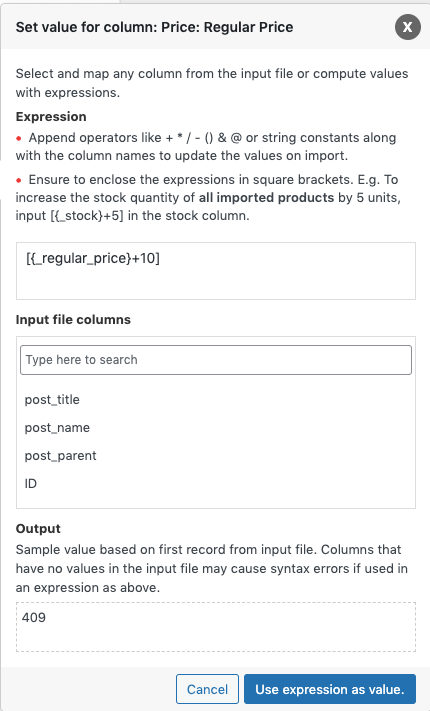
- Click on Step 4 to proceed.
Step 4: Advanced Options/Batch Import
On reaching Step 4, the following window will appear, from where one can import in batches. You can either Skip or Update the entry, If the product exists in the store. Other advanced options include, matching products by their ID or SKU. To skip the import of new products, choose “Yes” for the feature: Skip import of new products.
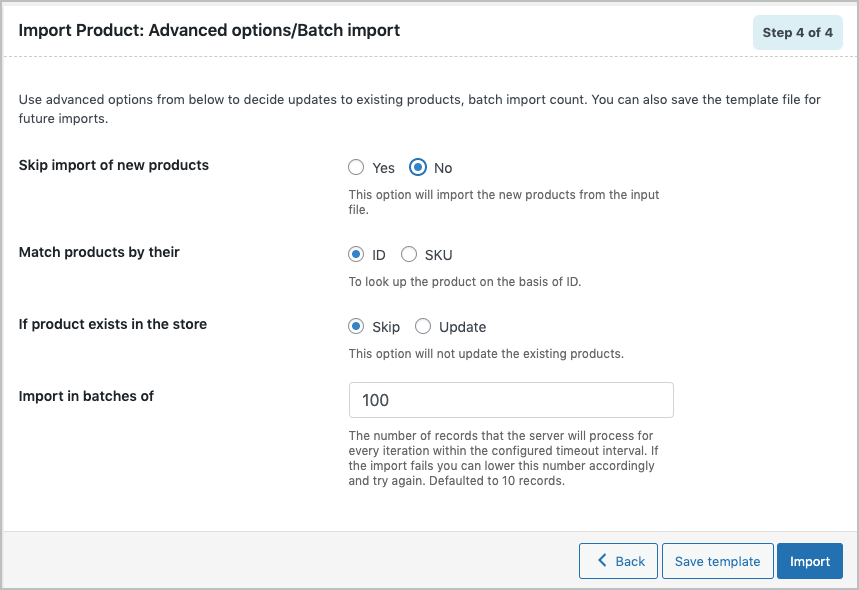
- Save the template file for future imports as shown below(if needed).
- Click on Import to finish.
For more insight, watch :

Lokith
April 5, 2024
Hi
How can I import all my products at once, its only allowing me to import 70 products or so on. If I import 1000 products at once it takes more time and it gets time out also not updated properly.
I’m using WooCommerce Product Import Export for import products
Hema
May 15, 2024
Hello Lokith,
Thanks for reaching out. Kindly go through this article to modify the Import/Export batch count.
Sonaj
January 9, 2024
Hi
How can i export all my products at once , it is only allowing me to export 70 products and i have over 1000 products i want to export at once.
Vineetha
January 11, 2024
Hi Sonaj,
The free plugin version supports only simple, external/affiliate and grouped products. Can you please check if all 1000 products you are trying to export are simple products?
Exporting and importing variable products is one of our premium features. Please make sure that you are having the pro version plugin for variable product support.
Andreea
August 26, 2023
Hi!
When importing products using a CSV file, how can I automatically delete the products that were previously imported on the website but are no longer present in the latest CSV file?
Thank you!
Vineetha
September 1, 2023
Hi Andreea,
Thanks for reaching out! To update the website as per the latest CSV file, reach the advanced options of product during import and Enable the option Delete non-matching products from store. Click on Import. This action will remove products from your store which are not present in the input file.
kumar
May 22, 2023
how do i import my products as those as(draft and published) as in my live site products list
Vineetha
May 25, 2023
Hi Kumar,
Thanks for reaching out! Simply add the desired status(draft, published) in the post_status column and import. You can also use the WooCommerce Product Import Export plugin to export products from live site and use it to directly import.
A Abdallah
October 20, 2022
Hi
I need to upload many Grouped Products into our website, can we do so with this plugin? If yes how to create the CSV file? Thanks
Alan
November 1, 2022
Hi,
Yes, you can import grouped products using the plugin. Please export a sample grouped product from your site using the plugin and then you can use the exported CSV as a template to import data back.
Roman
October 1, 2022
I need to add external (affiliate) products. What should the import look like? What must it contain? Where should I put the link to the target website? Is this possible in the free version?
Can you add a sample import? Thank you very much
Alan
October 7, 2022
Hi,
Yes, you can import external/affiliate products using both the free and pro version plugins. Here is an article on how to import external products:
https://www.webtoffee.com/docs/product-imp-exp/import-external-affiliate-products-woocommerce/Claudia
September 20, 2022
I have a strange behavior: after i’ve imported parent product i import its childs but attributes now is setted with “use for variation” active.
Alan
September 22, 2022
Hi,
In order for the variations to be loaded the “use for variation” option has to be enabled in the attribute. Only then the variation values will be loaded from the attribute values.
Mercy Kabiria
May 12, 2022
How do you import products with multiple photos
Alan
May 12, 2022
Hi Mercy,
To import products with multiple images, add the image names/URLs in the Images column of your CSV file as shown. Use pipe symbol ‘|’ to separate the values.
During import, the first image will be added as Product image(also known as Featured image) and rest of the images will get added to the Product gallery.
Евгений Федь
July 14, 2021
How to export variational goods, why did they disappear in the new version?
Mark
July 16, 2021
Hi,
Exporting and importing variable products is one of our premium features. Please make sure that you are having the pro version plugin for variable product support.