


Export and import all your product categories as a separate post using the WooCommerce Product Import Export plugin. This article explains the import and export procedure of WooCommerce product categories in a detailed manner.
Exporting Product Categories
To export WooCommerce product categories:
- Click on WebToffee Import/Export(Basic) > Export.
Step 1: Select a post type
As a first step, you need to choose the post type as Product Categories.

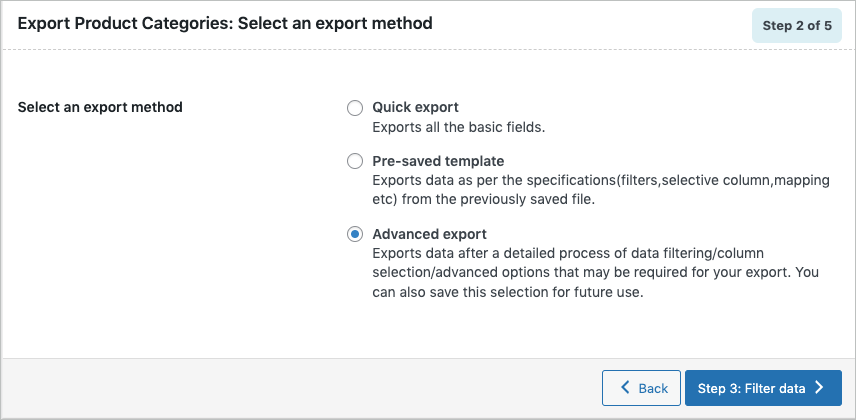
Step 2: Select an export method
Choose from the below options to continue with your export:
- Quick export : exports the basic/standard fields.
- Based on a pre-saved template : exports data as per the specifications(filters, selective column, mapping etc) from the previously saved file.Note: The template will be listed in the drop down only if you have saved it in previous exports, if you go through the Advanced export, at Step 5 you will get an option to save the template. Once you save that, next time when you want to export a pre-saved template, it will be populated within the drop down.
- Advanced export: Takes you through a detailed process of filtering/column selection/advanced options that may be required for your export.Note: You can also save this file as a template for future use.
Step 3: Filter data
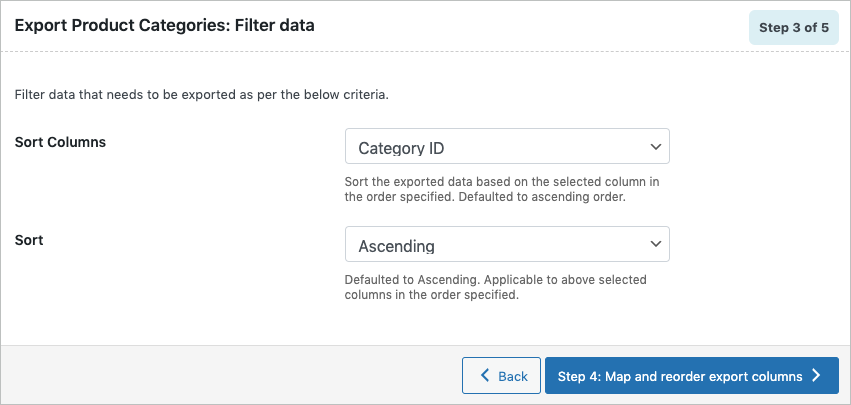
Filter data that needs to be exported as per the below criteria.
- Sort Columns: Select the column on the basis of which you want to sort the export data.
- Sort: Sorts the selected sort column in ascending or descending order as specified.
- Click on Step 4 to proceed further.
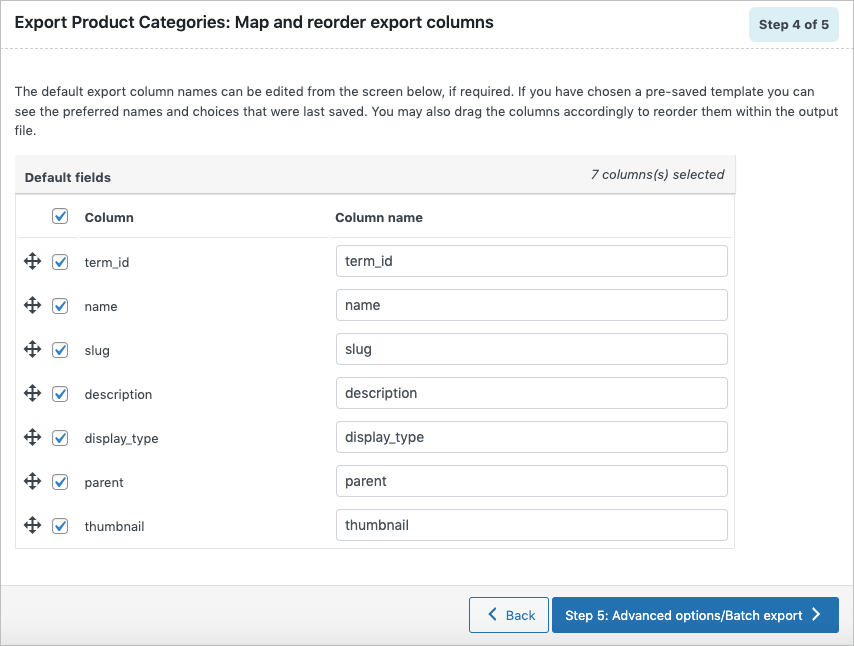
Step 4: Map and reorder export columns
The column names appearing in this section can be edited if required. The preferred names and choices that were last saved can be viewed by choosing a pre-saved template. You can also move the columns to reorder the arrangement.
Step 5: Advanced Options/Batch Export
On reaching Step 5, the following window will appear, from where one can export in batches.
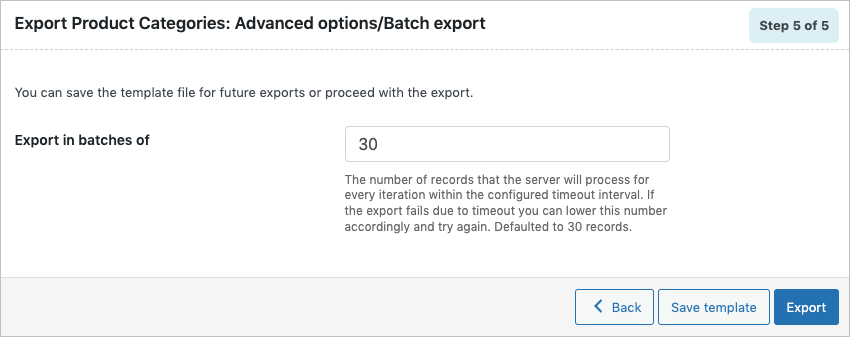
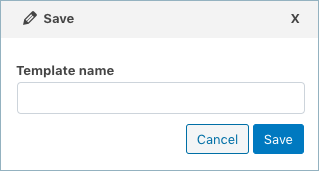
- Save the template file for future export as shown below(if needed).

- Click on Export to finish.
Importing Products Categories
To import WooCommerce products categories:
- Click on WebToffee Import/Export(Basic) > Import.
Step 1: Select a post type
As a first step, you need to choose the post type as Product Categories.
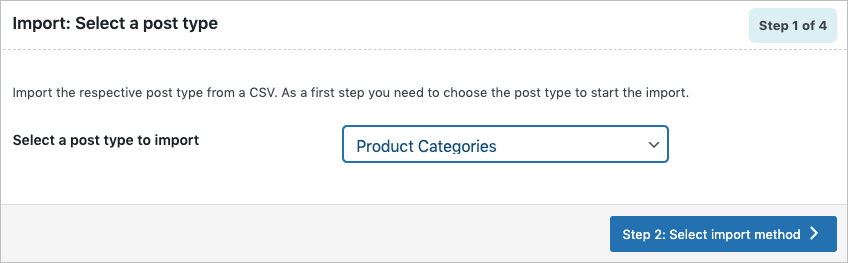
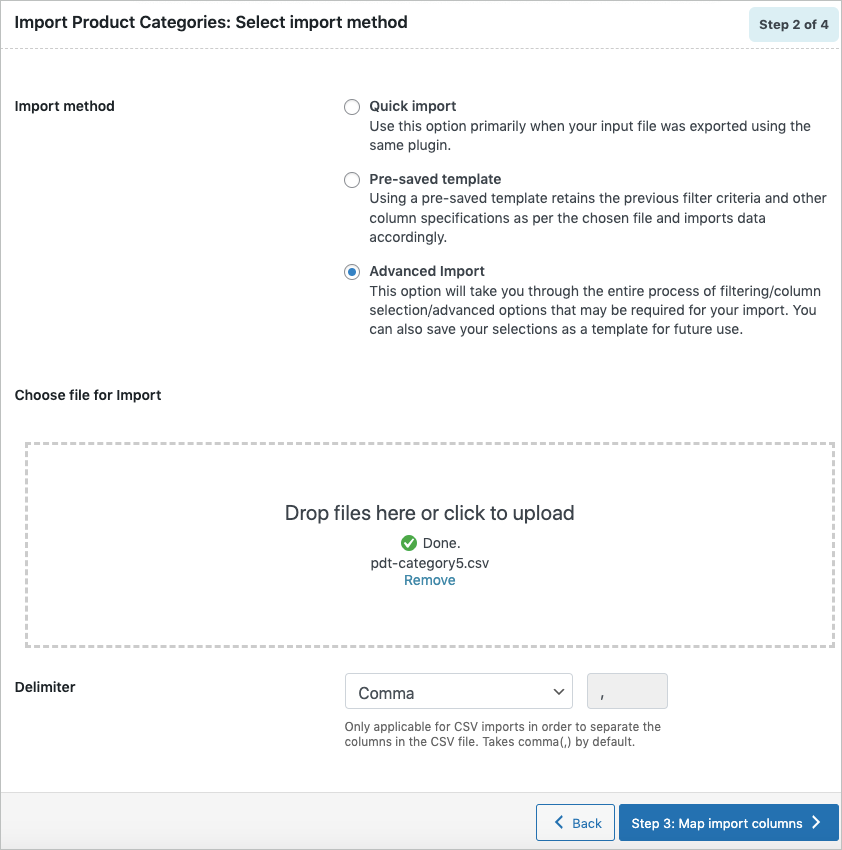
Step 2: Select import method
Choose from the below options to continue with your import:
- Quick import : Preferred if your input file was exported using the same plugin.
- Pre-saved template : Retains the previous filter parameters and other column specifications as per the chosen file and imports data accordingly.Note: The template will be listed in the drop down only if you have saved it in previous imports, if you go through the Advanced import, at Step 4 you will get an option to save the template. Once you save that, next time when you want to import a pre-saved template, it will be populated within the drop down.
- Advanced import: Imports data after a detailed process of filtering/column selection/advanced options. This file can be saved for future use.Note: You can also save this file as a template for future use.
Step 3: Map import columns
The column names appearing in this section can be edited if required. The preferred names and choices that were last saved can be viewed by choosing a pre-saved template.
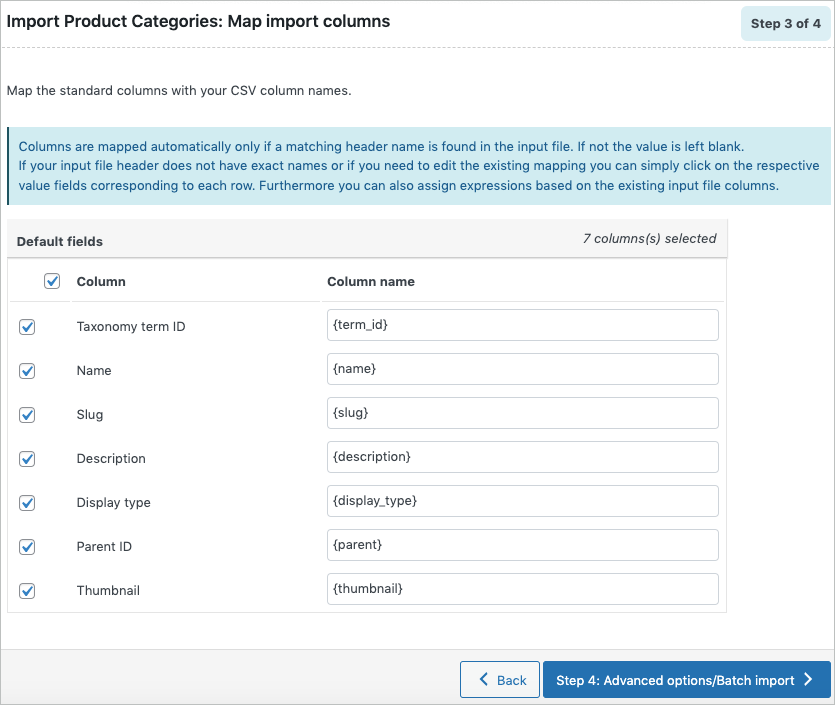
- Click on Step 4 to proceed.
Step 4: Advanced Options/Batch Import
On reaching Step 4, the following window will appear, from where one can import in batches. You can either Skip or Update the entry, if the category exists in the store.
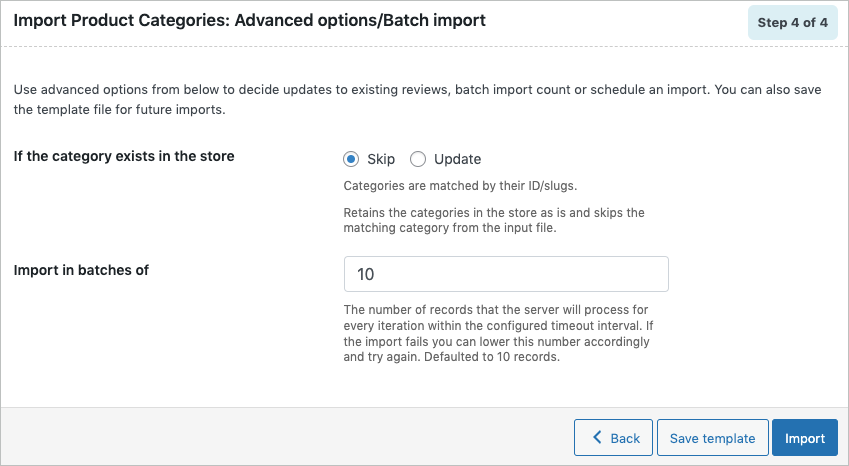
- Save the template file for future imports as shown below(if needed).
- Click on Import to finish.
Following the above mentioned steps, you can export and import all the WooCommerce product categories with ease. Do share your queries in the comment section.

Nuno
May 31, 2023
My products has the categories in this format:
BRICOLAGE E OUTDOOR > CANALIZAÇÃO > CHUVEIROS E ACESSÓRIOS
They are separated by a “>” symbol. Main Cat > Subcat > Subcat
It is possible this kind of format and create each category separately with the correct parend/child?
Regards,
Nuno
Vineetha
June 4, 2023
Hi Nuno,
Thanks for reaching out! Yes, you can surely import product categories in this format.
Don
June 12, 2023
Exactly how is this done? I tried to import categories that are delimited by > but it doesn’t recognize the fields. It’s expecting it to be imported with each category in a row, with a parent id assigned to subcategories.
How exactly does one import categories when they’re delimited by > as Nuno identified?
Vineetha
June 12, 2023
Hi Don,
Thanks for reaching out. Kindly reach via customer support.
flits
September 3, 2022
I have used the plugin to export my products and the categories. No I have imported the products first, but they didnt have categories assigned to them when I imported it, but I was sure they had when I exported it. Then I imported the categories but nothing changed. Should I first import the categories and then the products?
Alan
September 19, 2022
Hi,
You can import categories along with the products themselves. You may please add the category in the tax:product_category column of the product import CSV file and it will be imported. Have you already tried this? If yes, then please reach us via support.